Showing posts with label AutoCAD 2017. Show all posts

Tuesday, August 13, 2019

AutoCAD 2017-2019 Combo Security Hotfix and Autodesk Licensing 2020 update

Here are a couple of recent updates from Autodesk:

AutoCAD 2017-2019 Combo Security Hotfix

As part of Autodesk’s ongoing efforts to provide the best security possible to our customers, we are releasing these updates to remediate multiple vulnerabilities discovered through testing and research by software security experts. These critical updates should be applied by all customers.

Autodesk Licensing Service Update for 2020 product versions

This update for Autodesk Licensing Service is available for all the platforms - Windows, Mac and Linux. The update includes defect fixes related to install, launch, security and resiliency of Autodesk Licensing Service and its installer. For more details, please refer to the Improvements and Defects section below. This is a cumulative update and contains all the changes from the updates previously released. Autodesk strongly recommends installing the latest available version of the Autodesk Licensing Service for better reliability and performance

Monday, July 31, 2017

AutoCAD 2017 Model Documentation Hotfix

An AutoCAD 2017 Model Documentation Hotfix has been released. Get it and ready about it here. The download is 143 MB. Not available via Autodesk Desktop App and Autodesk Account.

This Hotfix resolves multiple issues when using views in conjunction with the model documentation feature.

AutoCAD Model Documentation

This Hotfix applies to the following: All publicly released 64-bit versions of Autodesk AutoCAD 2017 and Autodesk AutoCAD 2017-based vertical products.

When installed it shows up with version 21.0.451.0 among installed updates in Windows.

Tuesday, June 20, 2017

Autodesk AutoCAD 2015-2018 Geolocation Online Map Hotfix

Autodesk AutoCAD 2015-2018 Geolocation Online Map Hotfix is now available.

Microsoft is ending support for version 7 of Bing Maps on June 30th, 2017. This Hotfix will upgrade your version of Bing Maps to version 8 so that you can continue to use the Geolocation Online Map Data feature.

This Hotfix applies to all 32-bit and 64-bit publicly released versions of the following products (including Service Packs and Updates):

  • Autodesk AutoCAD 2015, Autodesk AutoCAD LT 2015, and Autodesk AutoCAD 2015-based vertical products
  • Autodesk AutoCAD 2016, Autodesk AutoCAD LT 2016, and Autodesk AutoCAD 2016-based vertical products
  • Autodesk AutoCAD 2017, Autodesk AutoCAD LT 2017, and Autodesk AutoCAD 2017-based vertical products
  • Autodesk AutoCAD 2018, Autodesk AutoCAD LT 2018, and Autodesk AutoCAD 2018-based vertical products

Using AutoCAD or AutoCAD LT 2014? See More About End of Feature Support for Bing Maps Version 7

Please check the Readme for detailed instructions and download the hotfix.

Extract Autodesk_AutoCAD_2015_to_2018_Geolocation_Online_Maps_Hotfix_32bit_64bit.zip and run Autodesk_AutoCAD_2015_to_2018_Geolocation_Online_Maps_Hotfix.sfx.exe

The hotfix can’t be uninstalled and even a repair or reinstall of AutoCAD will not restore this specific file. In this case it’s not too bad as it will not work anyway soon but for other hotfixes it can be a problem. The hotfix installer does not even create a backup copy of the old version. Also the hotfix will probably not show up in Autodesk Desktop App which is too bad. Delivering hotfixes like this is not a good practice.

The Autodesk product version showing in the About dialog box and the _VERNUM are not updated by this hotfix so only way to tell if it’s installed is by checking the version of the AcGeoLocationUI.arx located in the AutoCAD main installation folder.

File version for AcGeoLocationUI.arx:

AutoCAD 2015: 20.0.210.31

AutoCAD 2016: 20.1.107.33

AutoCAD 2017: 21.0.402.3

AutoCAD 2018: 22.0.102.0

If you’re curious what the hotfix installer does and learn some VBScript take a look at the vbs files in C:\Autodesk\Autodesk_AutoCAD_2015_to_2018_Geolocation_Online_Maps_Hotfix
This can be used to modify so you can install it in an environment with many AutoCAD installations.

Update. After June 30th, 2017 when you run for example GEOGRAPHICLOCATION command you can see a dialog like this:
Geolocation - Online Map Data
You do not have permission to access Online Map Data.
Go to Account Settings and check your entitlement to use online maps.
You can continue using Geolocation without access to maps.

Geolocation

Followed by:
Geolocation - Online Map Data Update
You must update your software before 2017-06-30 to continue using Online Map Data.
Get update information – You will be redirected to the Autodesk update website for more information.
Update later – If you choose not to update, then you can continue to use Geolocation without maps after 2017-06-30.

Geolocation

Wednesday, May 24, 2017

AutoCAD 2017.1.2 Update

AutoCAD 2017 has got an update. Readme for AutoCAD 2017.1.2 Update here.

This AutoCAD 2017.1.2 Update contains all of the updates previously released for AutoCAD 2017. After applying this patch, AutoCAD 2017.1.2 Update, the Product Version number in the About box will be listed as N.402.0.0 AutoCAD 2017.1.2. If you use one of the vertical products, the Built On version will be listed as N.402.0.0 AutoCAD 2017.1.2.

What has been fixed?

  • Occasional crashes when zooming in while HQGEOM is disabled on specific drawings.
  • Occasional crashes running common commands after loading specific ARX files.
  • Compiling PFB fonts can produce a non-usable .SHX file.
  • After executing certain commands, the local language cannot be switched.
  • Copying and pasting might lead to AutoCAD freezing.
  • When changing the view of a drawing, the objects in that view might disappear.

Monday, January 30, 2017

AutoCAD Lisp signing command line tool

You maybe knew about AcSignApply.exe but did you know that command line tool is available too? It’s not so obvious because AcSignApply.exe is found in the installation folder of AutoCAD but AcSignTool.exe is not. AcSignTool.exe can be downloaded here and described here. It’s for AutoCAD 2016 but should work for AutoCAD 2017 too.

AcSignTool.exe

In AutoCAD 2016 it was added the ability to digitally sign lisp files (.lsp, .fas and .vlx). There is the GUI version, AcSignApply.exe (which gets installed in the AutoCAD install folder) to sign the lisp files.

AcSignTool.exe is the commandline version of AcSignApply.exe. It is meant for signing lisp files in a batch process. AutoCAD doesn't need to be installed.

You can find the usage instructions by entering AcSigntool.exe /?

Usage: AcSignTool -sign /file:[inputfile] /cert:[certificate] /time:[timestamp] /comment:[description]
Usage: AcSignTool -verify /file:[inputfile]

Usage: AcSignTool -remove -force /file:[inputfile]

AcSignTool -sign /file:"c:\files\foo.lsp" /cert:12345678901234567890 /time:1
AcSignTool -verify /file:"c:\files\foo.lsp"
AcSignTool -remove -force /file:"c:\files\foo.lsp"
AcSignTool -issigned /file:"c:\files\foo.lsp"

/file:[inputfile] Full path of the file that needs to signed.

/file:[certs] Certificate to be used for signing, please enter the serial number.
The following certificates are available for signing on this machine.
----------------------------------------------------------------
/Serial Number                  Subject                 Issuer
----------------------------------------------------------------
123456789                       JTB World Inc.        DigiCert SHA2 Assured ID Code Signing CA

/time:[timestamp] Timestamp that should be used for signing please enter the index.
The following time sources are available.
----------------------------------------------------------------
Index                   Time Source
----------------------------------------------------------------
0               (No time stamp)
1               Time from this computer
2               National Institute of Standards and Technology (time-a.nist.gov)
3               Symmetricom (nist1.symmetricom.com)
4               CTS (tick.ucla.edu)


/comment:[description] Description to be included in the signature.


-force Clears the Read-only file attribute.

IMPORTANT: Please ensure that AcSignCore16.dll is available with the tool, copy timesrvr.txt to AcSignTool exe folder.

If you need help with any Lisp customization feel free to contact us.

Friday, December 23, 2016

AutoCAD 2017.1.1 Update

I just launched Autodesk Desktop App and noticed that last month (Nov 17, 2016) there was an update for subscription (maintenance and students) users only.

image

It’s not available on AutoCAD 2017 Downloads but on the other hand on the Autodesk Account.

image

According to the readme:

This AutoCAD 2017.1.1 and AutoCAD LT 2017.1.1 Update contains all of the updates previously released for AutoCAD 2017 and AutoCAD LT 2017.

Problems Reported with the Customer Error Reporting Utility:

Graphics

  • Occasional crashes when creating a 3D polyline after an Undo.
  • Occasional crashes when switching to the Top View in some AutoCAD Architecture drawings.
  • Occasional crashes when selecting some objects after using Wblock on certain drawings.

General

  • Occasional crashes when closing some xrefs after you edit the referenced drawings in place.

General Update Content:

Display

  • All lines were displayed as continuous in Excel when they were pasted from AutoCAD 2017 with hardware acceleration enabled.
  • The linetype might be missed on the Ribbon when switching to the light theme.

General

  • Pressing a Function key during an active command would freeze AutoCAD after updating to the Windows 10 anniversary edition.
  • Publishing might degrade performance when opening some projects in the Sheet Set Manager.
  • Importing certain DGN files might fail.
  • The bubble notification needed to be closed twice when switching to a 3D Visual Style.
  • Customized Edit menu settings might be removed after installing 2017.1 Update.

AutoCAD 2017.1 Update

Monday, October 10, 2016

AutoCAD 2017.1 Update

AutoCAD 2017.1 Update is a subscription-only update for AutoCAD 2017 and AutoCAD LT 2017 and available either from your Autodesk Account or by using the Autodesk Desktop App.

Note that even security enhancements and bug fixes are only available for subscription customers. (UPDATE: the update is available for download for non-renters as well, see Steve Johnson’s post When is a subscription-only update not a subscription-only update?) (UPDATE: the update will be available for students. See Shaan Hurley’s post AutoCAD 2017.1 Feature Update for Students)

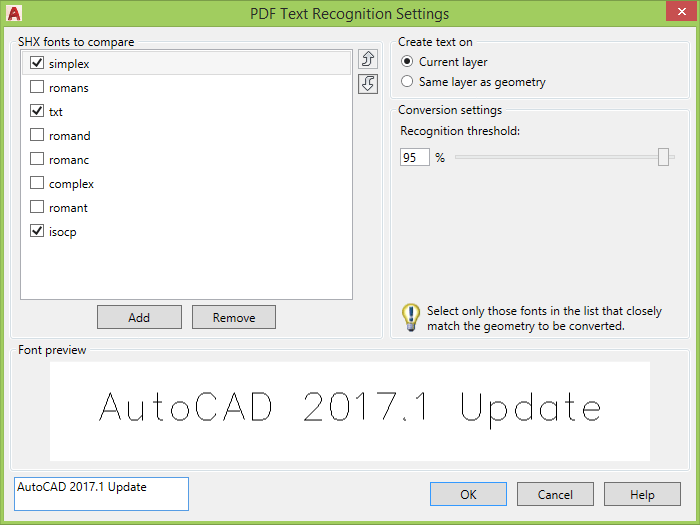
Import PDF Feature Enhancement - PDFSHXTEXT is a command that you can use after you import a PDF file that contains SHX geometry. It converts any selected PDF geometry into multiline text objects that use a matching SHX font. Several popular SHX fonts are supported. However, Asian Big Font SHX geometry is currently not supported. Commands: PDFSHXTEXT , -PDFSHXTEXT , TXT2MTXT

PDF Text Recognition Settings windows:

High Resolution Monitor Support(High Pixels per Inch) is a New Feature - In the AutoCAD 2017.1 Update, common user interface elements, such as the Layer Manager, Command Line window, Property Palette, File Navigation dialog box, pick box cursor, grips, View Cube, and UCS icon, are correctly adjusted to the Windows setting for the display scale.
For the best results, use Windows 10 due to operation system limitations.
Use a compatible video card for the best results.
Some dialog boxes in vertical products are not optimized.

Object Selection Feature Enhancement - Objects that are moved off screen during selection remain in the selection set. All linetype gaps can be selected and available for object snapping when High Quality Geometry is turned on. System variables: SELECTIONOFFSCREEN, LTGAPSELECTION

Linetype gap behavior is enhanced to support complex and DGN linetypes. In addition, this feature works with all objects, such as polylines with width and splines. Now you can select complex and DGN linetypes or snap to them by picking on the gaps between the geometry.

Security Feature Enhancement - Internal software security continues to be enhanced, closing potential exploits.

3D Graphics Performance Feature Enhancement - The performance and reliability of 3DORBIT is improved for rendered visual styles, especially for models with a large number of small blocks containing edges and facets. Command: VISUALSTYLES

Highlight New Features

And here is a couple examples of what it can look like.

As a result of the detailed information that Autodesk received from customers who used the Customer Error Reporting Utility, they were able to identify and fix the problems listed below:

Blocks

  • Fixed occasional crashes when inserting some blocks a second time.

Graphics

  • Fixed occasional crashes when zooming out of a drawing following the 3D Orbit command.

Purge

  • Fixed occasional crashes when purging DXF drawing files.

Web and Cloud

  • Fixed occasional crashes when modifying the Online Options settings and signing in to Autodesk A360 from InfoCenter.

General

  • Fixed occasional crashes when launching AutoCAD in Windows 10.
  • Fixed occasional crashes when inputting the system time in long string format, and then using the DIM command.
  • Fixed occasional crashes when switching layouts.
  • Fixed occasional crashes when performing a 3D rotate in drawings containing a point cloud.
  • Fixed occasional crashes when plotting to PDF using AccoreConsole.exe.
  • Fixed occasional crashes when performing an Undo after detaching a reference using the External References palette.
  • Fixed occasional crashes when PNG images were specified in a CUI resource file.

The following defects have been fixed:

Display

  • Fixed. Xrefs on a frozen viewport layer would still be plotted.
  • Fixed. AutoCAD in Citrix might not default to the primary display adapter.

Open and Save

  • Fixed. Opening a drawing file using an Excel hyperlink was repositioning the AutoCAD application window.

PDF Import

  • Fixed. Importing a PDF Underlay that was attached with relative path could fail.

Xref

  • Fixed. The Xref status incorrectly displays the "Needs reloading" message when the dataset is opened from a UNC path to a shared folder.

General

  • Fixed. When opening drawings created with AutoCAD Architecture, AutoCAD might crash if the drawing was saved again.
  • Fixed. Plotting with certain visual styles might produce incorrect results.
  • Fixed. Migrating custom settings might fail.

The following are known feature limitations in the AutoCAD 2017.1 Update:

​Vertical Products

  • Some AutoCAD vertical product dialog boxes may not be optimized for viewing at scales greater than 100% on high resolution monitors.

TXT2MTXT enhancements are quite many:

  • You can select Mtext objects in addition to text objects.
  • A Settings option on the Command line displays the Text to MText Settings dialog.
  • Character codes translate correctly between Text and Mtext (for example the degree symbol appeared as %%d when converted to Mtext).
  • The “Select objects” prompt adheres to standard error checking and messaging. For example, objects on locked layers are filtered from the selection set, and so on.
  • Justification (Top left, Top center, Top right) is inferred for the Mtext object being created based on the positioning of the text objects in the drawing instead of always using Top left justification. When no justification can be logically inferred, it defaults to top-left.
  • Numbered and lettered list formatting is inferred when the word-wrap text box is checked. If a line starts with one or two characters followed by a period and up to 10 spaces, list formatting will be applied automatically.
  • An option was added to the Settings dialog box to not combine selection into a single mtext objects (converts text object to mtext without combining).
  • The top-down sorting order is relative to the current UCS and sorting is left-to-right when text objects are collinear. When multiple text objects are collinear, they are treated as if on the same line with a space between them.
  • A new Settings option enables you to force uniform line spacing or maintain existing line spacing.

AcAutoLoader.crx is updated with this update meaning that AutoCAD 2017 App Autoloader Hotfix is included.

See also Autodesk’s blog post AutoCAD 2017 Fall Update and the AutoCAD 2017.1 Update/Enhancement Preview Guide.

Wednesday, August 31, 2016

HVACPAC app now with AutoCAD 2017 support

HVACPAC AutoCAD app for HVAC and Piping work is now available with AutoCAD 2017 support.

HVACPAC includes all In-line duct fittings and equipment, air terminals and HVAC associated pipe work.

Free trial is available for HVACPAC.

Tuesday, August 30, 2016

SmartPurger 3.8 AutoCAD batch processing and cleanup

SmartPurger 3.8 is now released.

SmartPurger is a batch and script utility for processing multiple AutoCAD drawings with full control. Execute LSP or SCR files on multiple drawings. SmartPurger handles crashes so the AutoCAD batch processing continues to the end and leaves bad drawings to be corrected manually. Many purge and cleanup settings available.

SmartPurger can make use of AutoCAD Core Console that was introduced in AutoCAD 2013 making the scripting process faster then ever as the Core Console takes less than a second to open per drawing.

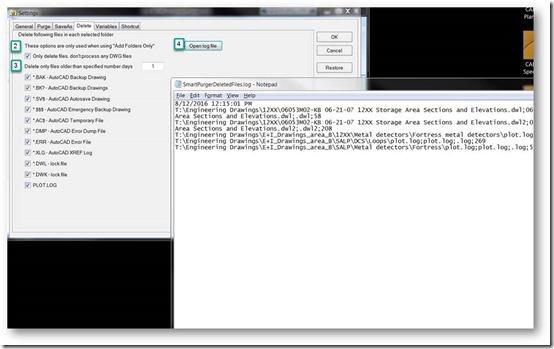
-With this version it’s possible to only delete certain “garbage” files without having to also run AutoCAD to purge and process custom scripts. See the “Only delete files, don’t process any DWG files” checkbox on Delete tab in Settings.
-Quick access to deleted files log file through new button on Delete tab.
-Minor bug fixes related to usage with AutoCAD 2017

I received below screenshots and statement from Clinton Hill at Innophos. This functionality was added based on his wishes.

“You provided an excellent product in “SmartPurger”. This application suits us perfectly.”

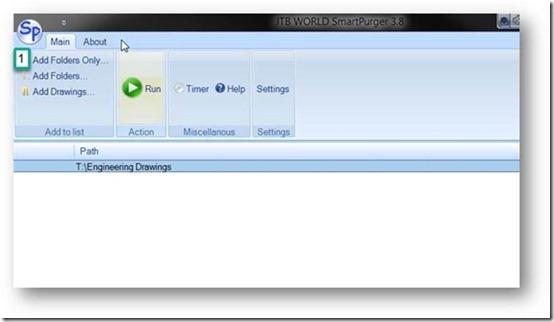
These are the steps to take to only delete specified files with extensions like .BAK, .BK?, .SV$, .$$$, .AC$, .DMP, .ERR, .XLG, .DWL, .DWK or PLOT.LOG.

First click on Add Folders Only and select one or many folders. Sub folders will also be processed.

clip_image001_thumb2

Next click on Settings and on the Delete tab check the “Only delete files, don’t process any DWG files” checkbox as well as what type of files you want to delete.

Now go back and click on the Run button.

When ready go back to Settings and click on Open log file to see what files were deleted.

clip_image002_thumb1

Download the updated version or a free trial here. The upgrade is free if you already have purchased a license.

Tuesday, August 9, 2016

JTB Batch Change 1.4 for AutoCAD released

JTB Batch Change 1.4 is now released.

Updates in version 1.4:

  • Add ObjectDBX Disabled Mode to process drawings with proxy objects if Save Error happens in Normal Mode.
  • Fix bug in Import sheet - Find Value formula.
  • Add Xref Layer object.

In version 1.3 this was fixed and added:

  • Fix bug in Owner Name (the owner block's name) of Attribute Reference.
  • Add Width Factor and ObliqueAngle properties to Text, Attribute and Attribute Reference objects.

JTB Batch Change allows you to automate and batch process AutoCAD through Excel. Some examples of usage are:

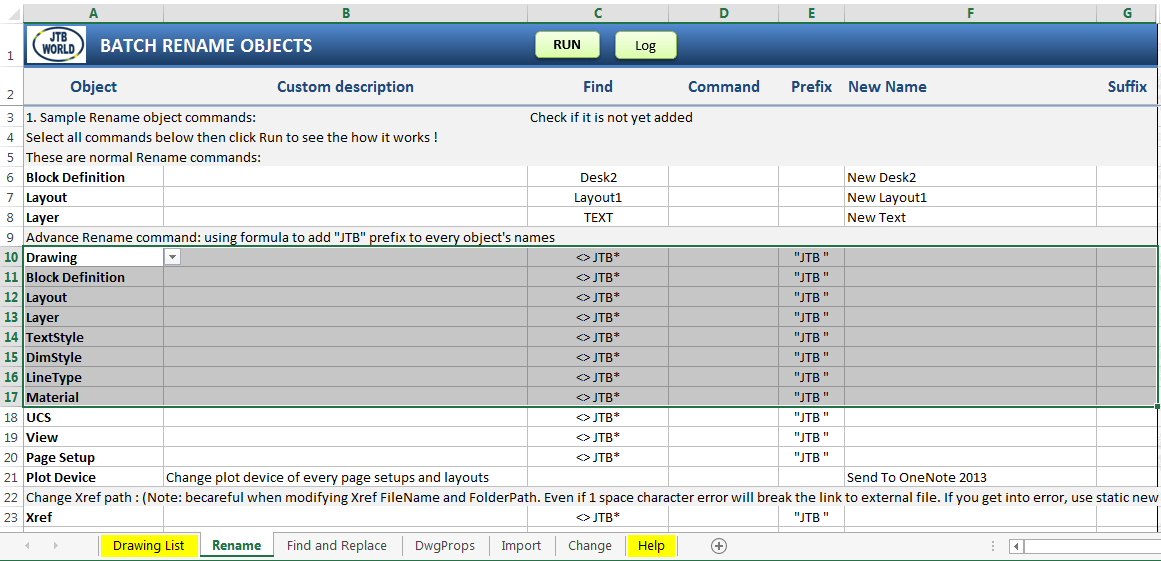
With Batch Rename Objects you can rename layers in hundreds of drawing by substituting text "Concrete" with "CONC", or add a prefix of "AC " to each layer's name

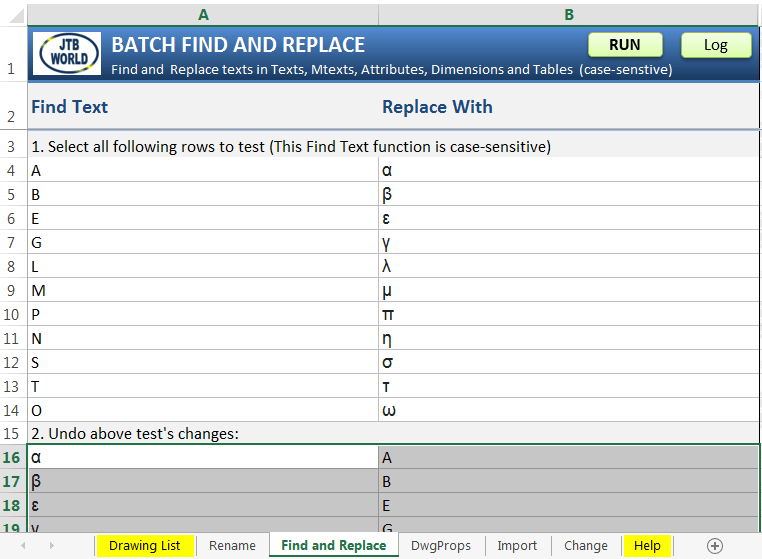
With Batch Find and Replace you can find and replace text on multiple drawings.

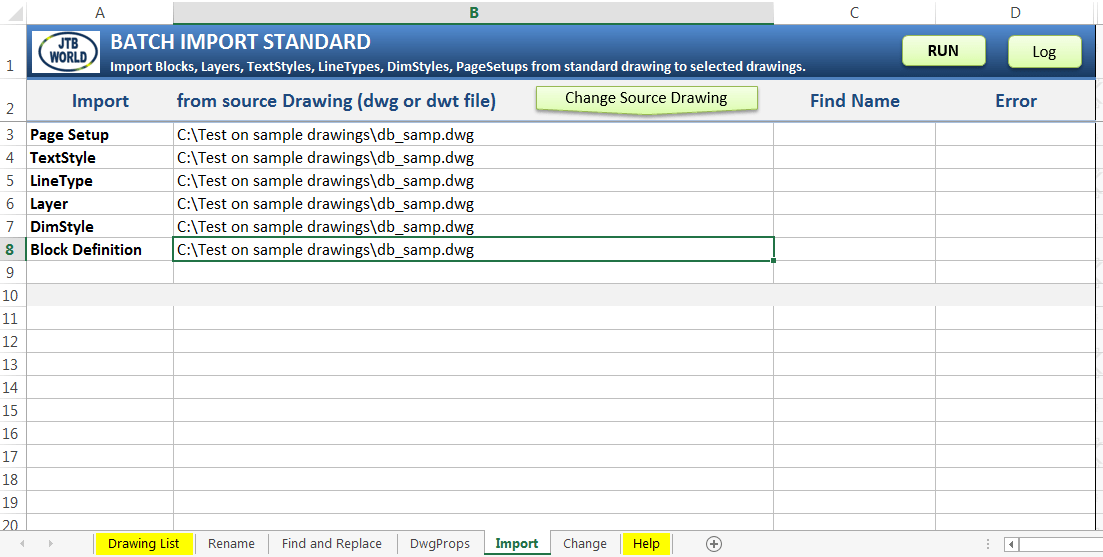
You can import and update all blocks from a standard drawing to hundreds of other drawings.

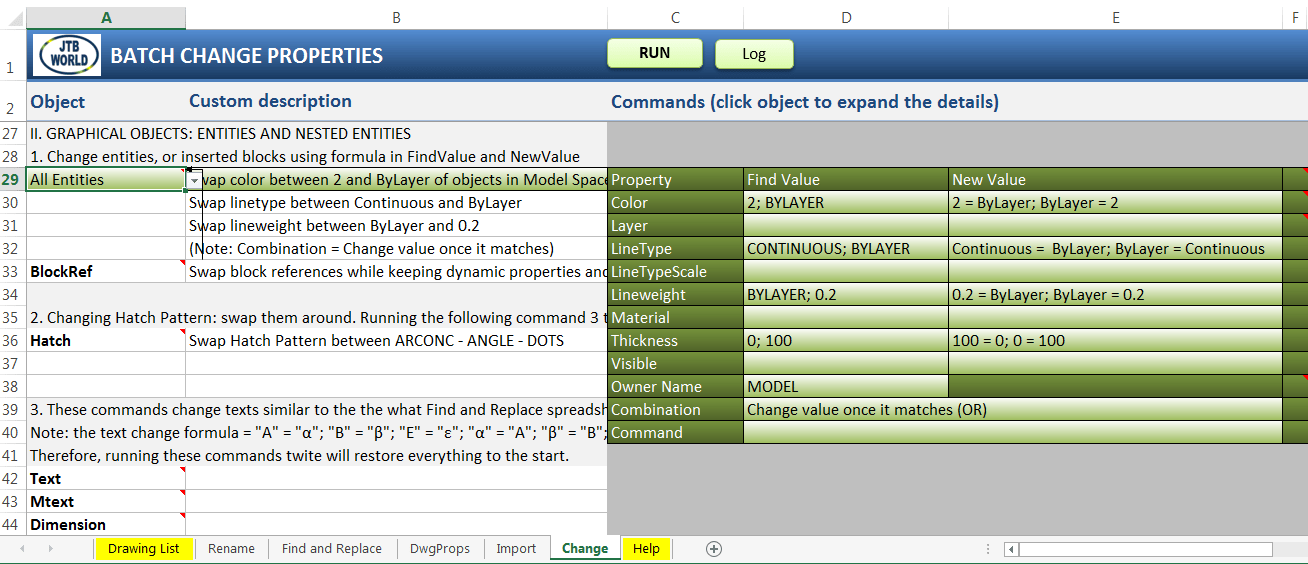
You can replace all inserted blocks "DOOR-BD3" in layer "Archs" with block "DOOR-AC1", and move them to layer "ARCH-FURN"

You can change all texts whose styles are not prefixed with "ELEC" to "ELEC Standard" style, then change all block's attributes whose tag is "DATE" to current date.

You can convert all your inserted blocks from dynamic to static, or to anonymous blocks.

You can flatten all your drawing objects by setting all Z coordinates to 0.

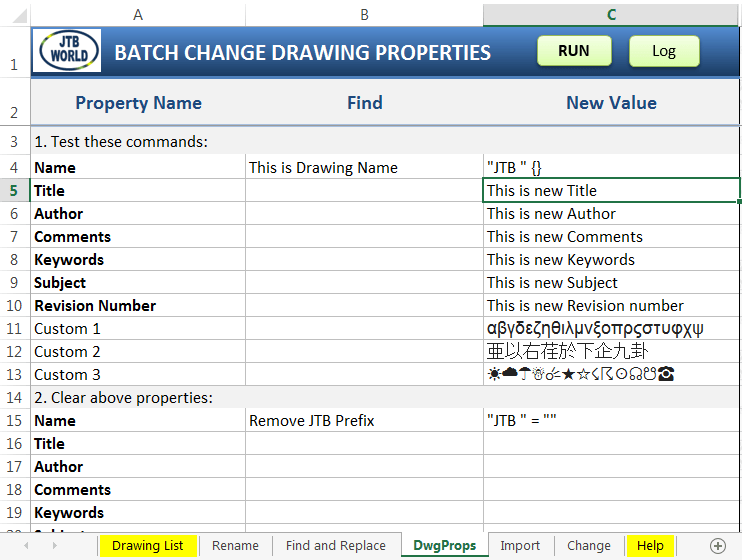
Batch change drawing properties

Additionally, you can perform Batch Audit and Purge as well as much more.

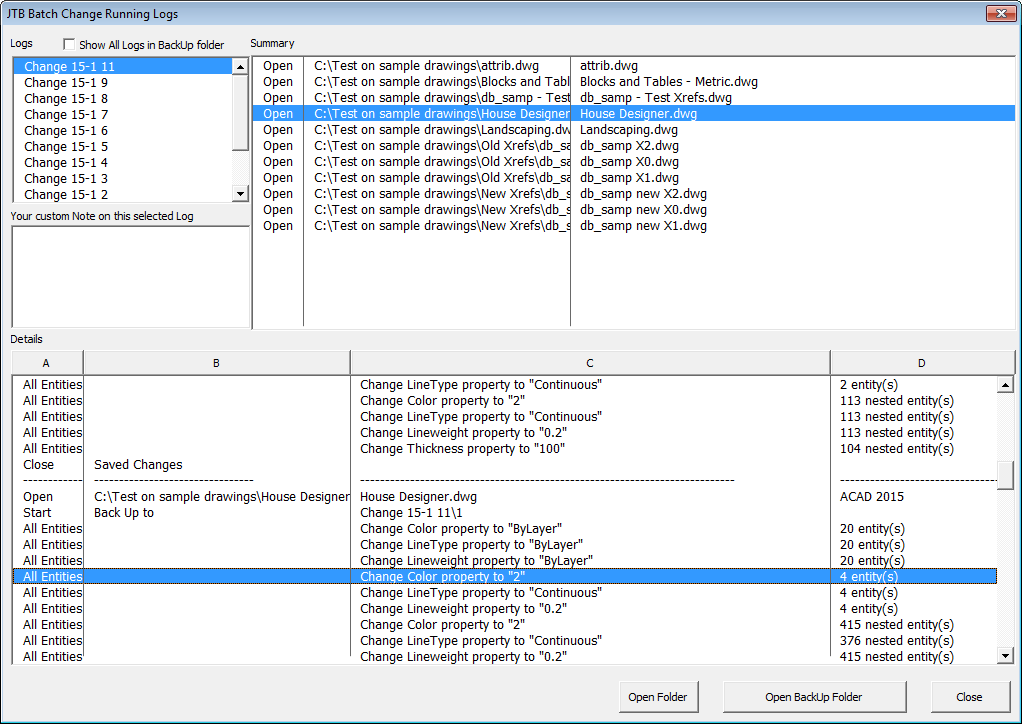
When done with a batch processing you can see what has been processed in the log.

This is a great tool in the hands of AutoCAD users or CAD managers that want to save time doing manual work doing updates on many drawings.

JTB Batch Change is available as a trial.

Thursday, July 28, 2016

AutoCAD Architecture 2017 SP1

You might have noticed that verticals like AutoCAD Architecture 2017 are getting service packs. Either download via Autodesk Desktop App or from here: AutoCAD Architecture 2017 Service Pack 1.

Unlike the previous service packs, this service pack DOES NOT include AutoCAD 2017 Service Pack 1. Autodesk recommends that you install AutoCAD 2017 Service Pack 1 before installing AutoCAD Architecture 2017 Service Pack 1. Refer to the AutoCAD 2017 Service Pack 1 readme for more information. Installing AutoCAD Architecture 2017 Service Pack 1 without installing AutoCAD 2017 Service Pack 1 can cause unexpected issues. Some Architecture defect fixes require AutoCAD Service pack 1 to be installed.

Here’s from the readme:

Problems Reported with the Customer Error Reporting Utility

As a result of the detailed information that we received from customers who used the Customer Error Reporting Utility, we were able to identify and fix a number of problems. Updates were made to the following commands and features:

Project Navigator

  • There were occasional crashes when opening a drawing which has camera view from Sheets tab in Project Navigator.

General Service Pack Updates

The following defects have been fixed:

AutoCAD Integration

  • Application hangs when switching between Model Space and Layout in some drawings.

Section

  • Application hangs when a drawing is saved in Front view after creating a Section line.
  • Section line is seen as continuous linetype in Front view.

Project Navigator

  • New sheets created in Project Navigator do not appear until project is refreshed.

Display Representation

  • In some drawings the display is corrected.
  • In the "Display Properties" dialog box, transparency settings are not saved.

Migration

  • "Migrate from previous Release" option will suppress "Manage content Library" dialog in the Styles Browser.

Mass Element

  • Trimming or Splitting of mass elements does not work in non-default UCS.

Schedule Tables

  • Schedule table has incorrect results when converted or exported to an excel table.

See also

Wednesday, July 27, 2016

AutoCAD 2017 App Autoloader Hotfix

AutoCAD 2017 SP1 introduced an issue that caused many AutoCAD apps to not work, among them many of JTB World’s apps both on Autodesk App Store and on our website. As it will take a while for Autodesk to publish this hotfix I was allowed to make it available.

Download: AutoCAD 2017 Exchange App Autoloader Hotfix.zip from JTB World.

UPDATE: Autodesk has made the download available at their Autodesk Knowledge Network. Autodesk® AutoCAD® 2017 Exchange App Autoloader Hotfix

You can verify that this is a valid file from Autodesk by right-clicking on it and select properties and look at the Digital Signatures tab.

From the Autodesk® AutoCAD® 2017 Exchange App Autoloader Hotfix readme:

This Hotfix addresses a problem with Exchange Apps that target the AutoCAD 2017-based products.

Description of Problem

Exchange Apps may not display on the Add In tab after installing the AutoCAD 2017 Service Pack 1 if settings are reset. Commands for Exchange Apps may no longer work. Newly installed Exchange Apps might not load.

Affected Products

The following products are affected after installing the Service Pack 1 for AutoCAD-based products:

  • AutoCAD 2017
  • AutoCAD Map 3D 2017
  • AutoCAD Civil 3D 2017
  • AutoCAD Mechanical 2017
  • AutoCAD Electrical 2017
  • AutoCAD Architecture 2017
  • AutoCAD MEP 2017
  • AutoCAD P&ID 2017
  • AutoCAD Plant 3D 2017
  • AutoCAD Utility Design 2017

Installation Instructions

To install this Hotfix

You must have administrative privileges on your Microsoft® Windows® operating system to complete the installation process. For your security, it is strongly recommended that after you install this Hotfix, you restore your previous security setting rather than running under Administrative privileges.

This installation process requires you to modify an installed product, which may cause Windows security warnings to appear. For all Windows security warnings that appear during installation, click Continue.

We recommend that you update your Autodesk applications with the latest service packs or updates.

  1. Close all software applications.
  2. Navigate to the folder where your Autodesk product is installed.

C:\Program Files\Autodesk\AutoCAD 2017

  1. Right-click AcAutoLoader.crx and go to properties. On the Details tab check the file version. If the version is 21.0.52.0 this hotfix should be applied. If the version is 21.0.104.1 this hotfix has been applied.
  2. Right-click AcAutoLoader.crx and rename it as AcAutoLoader.bak. (Please note there is also an AcAutoLoader.arx file that you should not edit.)
  3. Download the Hotfix to a location on your local computer.
  4. Copy the downloaded file (AcAutoLoader.crx) from step 5 (from the 32-bit or 64-bit sub-folder depending on whether you have 32-bit or 64-bit software) to your product installation folder i.e. to the folder specified in step 2.
  5. Repeat step 3 to ensure the hotfix has been applied.

To remove this Hotfix

  1. Close all software applications.
  2. Navigate to the folder where your Autodesk product is installed,

C:\Program Files\Autodesk\AutoCAD 2017

  1. Delete AcAutoLoader.crx (the file you downloaded and installed).
  2. Rename AcAutoLoader.bak to AcAutoLoader.crx

Monday, July 25, 2016

AutoCAD 2017 Service Pack 1 and a word of warning

Warning! This service pack breaks the loading of certain AutoCAD apps that are using the plug-in auto loader mechanism (among others used by apps in the Autodesk App Store). If you notice that some commands are not available, typically from the Add-ins Ribbon tab you can uninstall SP1 if already installed to restore functionality and then wait for a fix from Autodesk.

UPDATE 1: The problem with apps not loaded is only happening in vanilla AutoCAD and not in verticals like AutoCAD Architecture. A workaround is to remove the SeriesMax entry from the PackageContents.xml. For example: xmlSeriesMax="R21.0". Or to change it to xmlSeriesMax="R21.1".

UPDATE 2: See AutoCAD 2017 App Autoloader Hotfix

This Service Pack 1 can be applied to Autodesk AutoCAD 2017 installed as a standalone application, AutoCAD-based Vertical products, and the Autodesk Design Suites listed in the readme.

Download it at this point available via Autodesk Desktop App and soon on the download page. Update: Direct link to SP1.

According to the readme:

AutoCAD service packs are now separate and independent of the service packs for AutoCAD-based vertical products. From now on, you will need to install the AutoCAD service pack in addition to any applicable service pack for your vertical products.
This change enables Autodesk to release service packs in a more timely fashion.

Problems Reported with the Customer Error Reporting Utility

As a result of the detailed information that we received from customers who used the Customer Error Reporting Utility, we were able to identify and fix the problems listed below:

Blocks

  • There were occasional crashes when inserting some blocks a second time.

Graphics

  • There were occasional crashes when zooming out of a drawing following the 3D orbit command.

Purge

  • There were occasional crashes when purging DXF drawing files.

Web and Cloud

  • There were occasional crashes when modifying the Online Options settings and signing in to Autodesk A360 from InfoCenter.

General

  • There were occasional crashes when launching AutoCAD in Windows 10.
  • There were occasional crashes when inputting the system time in long string format, and then using the DIM command.
  • There were occasional crashes when switching layouts.
  • There were occasional crashes when performing a 3D rotate in drawings containing a point cloud.
  • There were occasional crashes when plotting to PDF using AccoreConsole.exe.
  • There were occasional crashes when performing an Undo after detaching a reference using the External References palette.
  • There were occasional crashes when PNG images were specified in a CUI resource file.

General Service Pack Updates

The following defects have been fixed:

Display

  • Xrefs on a frozen viewport layer would still be plotted.
  • AutoCAD in Citrix might not default to the primary display adapter.

Open and Save

  • Opening a drawing file using an Excel hyperlink was repositioning the AutoCAD application window.

PDF Import

  • Importing a PDF Underlay that was attached with relative path could fail.

Xref

  • The Xref status incorrectly displays the "Needs reloading" message when the dataset is opened from a UNC path to a shared folder.

General

  • When opening drawings created with AutoCAD Architecture, AutoCAD might crash if the drawing was saved again.
  • Plotting with certain visual styles might produce incorrect results.
  • Migrating custom settings might fail.

One of the important issues addressed in AutoCAD 2017 SP1 is debugging the .NET in using Visual studio 2015. Till now, developers were asked to use workaround as explained in blog http://adndevblog.typepad.com/autocad/2016/05/debugging-autocad-2017-using-visual-studio-2015.html . But with AutoCAD 2017 SP1, there is no need to use the workarounds to debug the .NET project. Also, now you can edit and continue debugging your .NET project.

Thursday, July 21, 2016

OsnapzBG Plus introduced

OsnapzBG Plus is based on our freeware OsnapzBG but adds ability to set any of the drawing window colors like those in the 3D parallel projection, 3D perspective projection or the command line context and interface elements and have these changed depending on the value of the AutoCAD system variable Osnapz.

Drawing Window Colors

When the AutoCAD variable OSNAPZ is changed many have found it useful to have a more visual change to indicate its state. In verticals like AutoCAD Architecture you have a small button that indicates the state of the “Z lock” but some might want to even have different drawing window colors change just like the Block Editor changes the background color. With OsnapzBG Plus loaded any change of OSNAPZ will also change drawing window colors depending on if OSNAPZ is set to 0 or 1.

Usage of OsnapzBG Plus where drawing windows colors are changed when OSNAPZ is changed.

OsnapzBG Plus usage

Both OsnapzBG Plus and OsnapzBG now supports AutoCAD 2017.

Thursday, July 14, 2016

JTB Steel 1.3 released

JTB Steel is an AutoCAD app that helps with drafting of steel frames, shapes and steel detailing.

Version 1.3 is now available with these changes:

  • Add hatched property to steel sections
  • Fix issue in AutoCAD 2015, 2016, Windows 64 bit: error when changing steel frame section.
  • Added support for AutoCAD® 2017
  • Minor fixes


A free trial of JTB Steel is also available.

Wednesday, July 13, 2016

JTB World’s Text Bubble 2.6 released

JTB World's Text Bubble for AutoCAD has been updated.

This app inserts Text Bubbles at end of lines, arcs, polylines, splines and leaders or at any other location of your choice. Renumber the text bubbles quickly as needed.

Here are the news:

  • AutoCAD 2017 is supported.
  • Other minor fixes.

Free trial download is here.

The upgrade is free for customers. If purchase was done via Autodesk App Store the download is available on My Downloads page. Sign in with the same account used when purchasing.

See also our more advanced app, JTB Text Bubble Plus here. For more of JTB World’s software that you might find useful visit our software list. We also offer custom programming services and can help you with both small and large projects where we specialize on the AutoCAD and Revit platforms.

JTB Align Plus 3.7 released

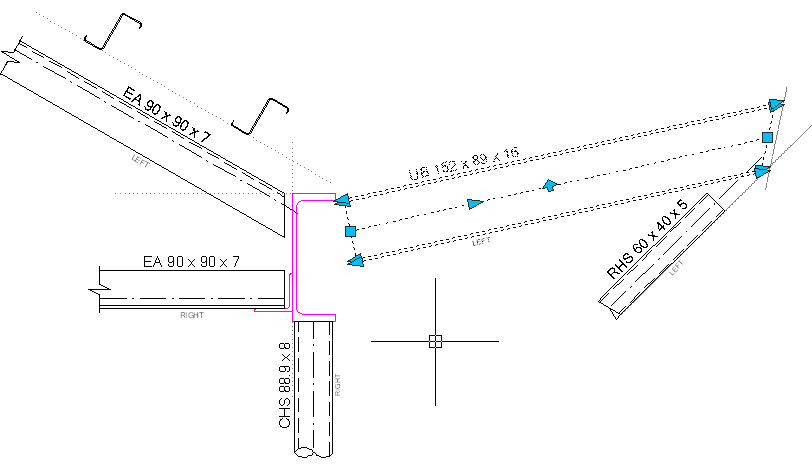
JTB Align Plus for AutoCAD makes it easy to copy and align your text, block or selection of objects at picked point of selected line or curve. Curve can be Arc, Circle, Polyline, Leader or 3D Polyline, in current space as well as nested inside Blocks or Xrefs.

Version 3.7 has these news: 
Fixed bug that did not release highlight entities as well as a minor change.

Version 3.6 had these news: Fixed bug in AutoCAD 2016 when geometry center osnap is ticked. Added support for AutoCAD 2017

Trial download is here.

The upgrade is free for customers. If purchase was done via Autodesk App Store the download is available on My Downloads page. Sign in with the same account used when purchasing.

More about JTB Align Plus here. For more of JTB World’s software that you might find useful visit our software list. We also offer custom programming services and can help you with both small and large projects where we specialize on the AutoCAD and Revit platforms.

Tuesday, July 12, 2016

JTB Text Bubble Plus 2.3 released

JTB Text Bubble Plus for AutoCAD has been updated.

With JTB Text Bubble Plus you can insert text bubbles to lines, curves, or draw leaders with it, or quickly make a schedule from text bubbles and/or other blocks. Incrementing of numbers or letters is done automatically.

Here are the news:

  • Fix leader angle error if drawing unit setting is inches - architecture.
  • Add toggling insertion position by press TAB or + key. Position available are end point, middle point and center point. 
  • Fix 3D issues in some cases.
  • AutoCAD 2017 is supported.

Free trial download is here.

The upgrade is free for customers. If purchase was done via Autodesk App Store the download is available on My Downloads page. Sign in with the same account used when purchasing.

More about JTB Text Bubble Plus here. For more of JTB World’s software that you might find useful visit our software list. We also offer custom programming services and can help you with both small and large projects where we specialize on the AutoCAD and Revit platforms.

Friday, July 8, 2016

JTB Sheet Set Creator 1.4 for AutoCAD released

JTB Sheet Set Creator 1.4 includes support for AutoCAD 2017 as well as some minor adjustments. Free trial is available.

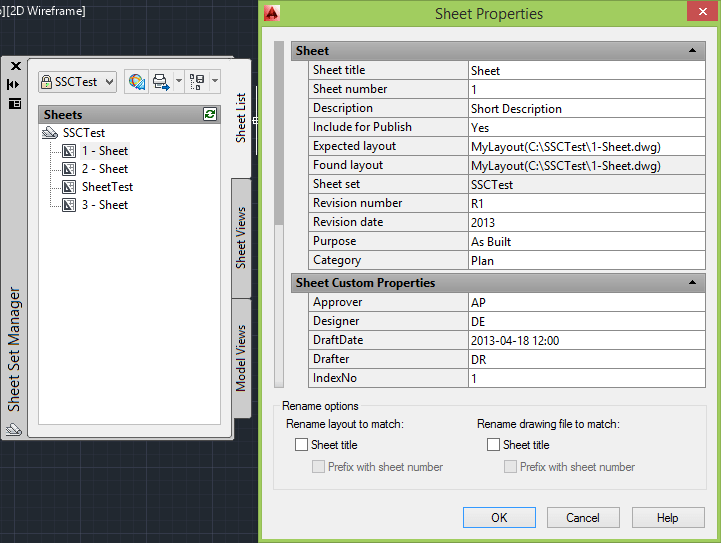
JTB Sheet Set Creator is an app for AutoCAD (and verticals) that creates new Sheet Sets and Sheets based on an Excel template.

A complementing app from JTB World is SSMPropEditor that makes editing of existing Sheet Sets a breeze.

Here are some more apps from JTB World. If you don’t find what you need we also create custom solution for AutoCAD and Revit.

Tuesday, June 28, 2016

Palette Auto-hide Speed freeware with support for AutoCAD 2017

JTB World’s freeware Palette Auto-hide Speed has been updated to work with AutoCAD 2017 and is available on Autodesk App Store site.


With this app you will be able to change the time it takes to show/hide or roll-up/roll-out the palette windows in AutoCAD.

You can see the effect with palettes like Properties, Quickcalc, External References, Sheet Set Manager, Markup Set Manager, and Visual Styles Manager set to auto-hide.

Some of the latest blog posts

Subscribe to RSS headline updates from:
Powered by FeedBurner

Contact Us | About JTB World | Website General Terms of Use | Privacy Policy
^ Top of page

© 2004- JTB World. All rights reserved.