Showing posts with label Tips and Tricks. Show all posts

Monday, April 7, 2025

How to change Camera and Target on the current view

Using the VIEW command in AutoCAD opens up the View Manager and there are properties like Camera X, Camera Y, Camera Z, Target X, Target Y, Target Z that are greyed out so you can't edit them.

view manager

In BricsCAD these can easily be edited though.

BricsCAD Drawing Explorer Current View

Here is a tips on how to change these coordinates using the DVIEW command I AutoCAD.

Command:
DVIEW
Select objects or <use DVIEWBLOCK>:     <- press Enter here
Enter option
[CAmera/TArget/Distance/POints/PAn/Zoom/TWist/CLip/Hide/Off/Undo]: PO
Specify target point <30000.76, -16728.59, 2587.63>: 0,0,0
Specify camera point <30000.76, -16728.59, 2588.63>: 0,0,1
Enter option
[CAmera/TArget/Distance/POints/PAn/Zoom/TWist/CLip/Hide/Off/Undo]:     <- press Enter here
Regenerating model.

Or using AutoLISP (command "._DVIEW" "" "_PO" "0,0,0" "0,0,1" "")

In some older AutoCAD versions the above does not work due to an AutoCAD bug, as seen here:

Command: _DVIEW
Select objects or <use DVIEWBLOCK>:
Enter option
[CAmera/TArget/Distance/POints/PAn/Zoom/TWist/CLip/Hide/Off/Undo]: _PO
Specify target point <114577.93, 19107.27, 4087.49>: 0,0,0
Specify camera point <114576.93, 19106.27, 4088.49>: 0,0,1
Camera and Target may not be coincident

I found that this variant did work as it should.

(command "._DVIEW" "" "_PO" (list 0 0 0) (list 0 0 1) "")

Wednesday, November 20, 2024

Solution to error: no function definition: ACET-LOAD-EXPRESSTOOLS

If you are using an AutoLISP function like (acet-tjust (ssget "_L") "TC") it needs Express Tools to be installed but in AutoCAD 2025 it still doesn't work.

Command: (acet-tjust (ssget "_L") "TC")
; error: no function definition: ACET-TJUST

The reason is that the Express Tools Utility functions are no initialized automatically.

For this reason you need to use the new function (acet-load-expresstools). If the Express Tools Utility functions are already loaded, acet-load-expresstools does nothing. Use it just like (vl-load-com).

But if you share code between AutoCAD 2025 and older versions the older versions can show errors like

; error: no function definition: ACET-LOAD-EXPRESSTOOLS

or in the case of BricsCAD

----- Error around expression -----
; (ACET-LOAD-EXPRESSTOOLS)
;
; error : no function definition <ACET-LOAD-EXPRESSTOOLS> ; expected FUNCTION at [eval]

What I use is this solution.

(if (findfile "acetutil.arx") (load "acetutil"))
(if (boundp 'acet-load-expresstools) (acet-load-expresstools))

If you try to find acet-tjust in AutoCAD's dev doc you will be out of luck as it is undocumented, but BricsCAD has you covered as seen here.

These "ExpressTools" API functions are currently provided by BricsCAD and are identical to AutoCAD's:

Blocks (acet-block-xxx)

Calculations (acet-calc)

Diskfile-Init functions

Dictionary (acet-dict-xxx)

Entity (acet-ent-xxx)

Entity-Groups (acet-group-xxx)

Error (acet-error-xxx)

Files (acet-file-xxx)

Filenames (acet-filename-xxx)

Geometry (acet-geom-xxx)

GeneralProperties (acet-general)

Layer (acet-layer-xxx)

Lists (acet-list-xxx)

Polyline (acet-pline-xxx)

Registry (acet-reg-xxx)

SelectionSets (acet-ss-xxx)

Strings (acet-str-xxx)

System (acet-sys-xxx)

SystemVariables (acet-sysvar-xxx)

Ucs (acet-ucs-xxx)

UserInterface (acet-ui-xxx)

Viewport (aced-viewport-xxx)

XData (aced-xdata-xxx)

Common Utilities (acet-xxx)

Insert+Atrributes Functions

SymbolTable Functions

Additionally, a number of general and special purpose (acet::xxx) utility functions are provided.

Tuesday, April 4, 2023

Solution for modified Excel .xlam not saved after saving

I tried to digitally sign a .xlam (Excel Macro-Enabled Add-In) but no matter what modifications I did to the file the changes were not saved. Even if I put a copy of it in a different folder it did not help. I tried to disable all Add-ins, restarted Excel and tried to modify and save to no avail.

Have you seen this behavior? If so, I was able to solve it by starting Excel in safe mode (holding Ctrl down while starting Excel) and then open the .xlam file, modify and sign it.

Friday, December 23, 2022

JTB Sheet Set Creator 3.1.0 released

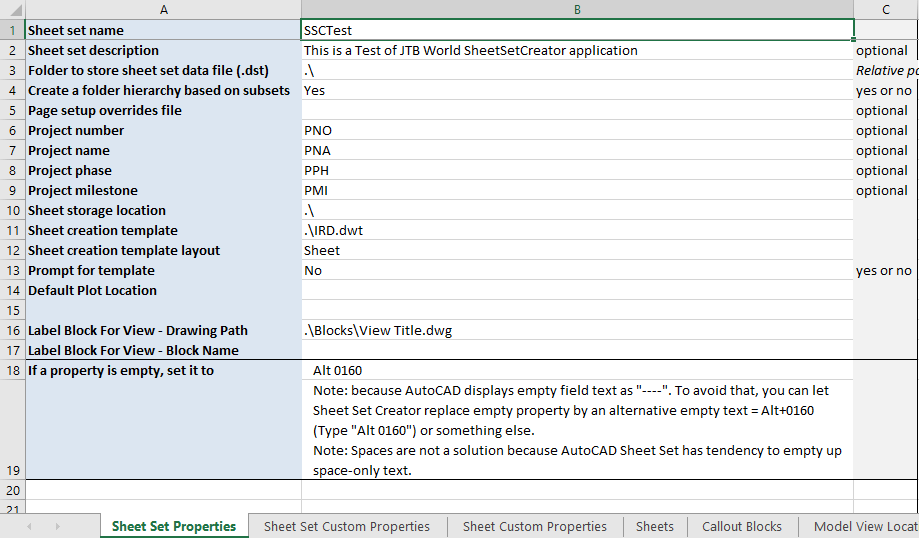
JTB Sheet Set Creator 3.1.0 is released and lately we added support for adding sheet and custom properties to existing Sheet Sets with a merging functionality. It is also a command line interface available.

JTB Sheet Set Creator is an app for AutoCAD that creates new Sheet Sets and Sheets with all properties based on an Excel template.

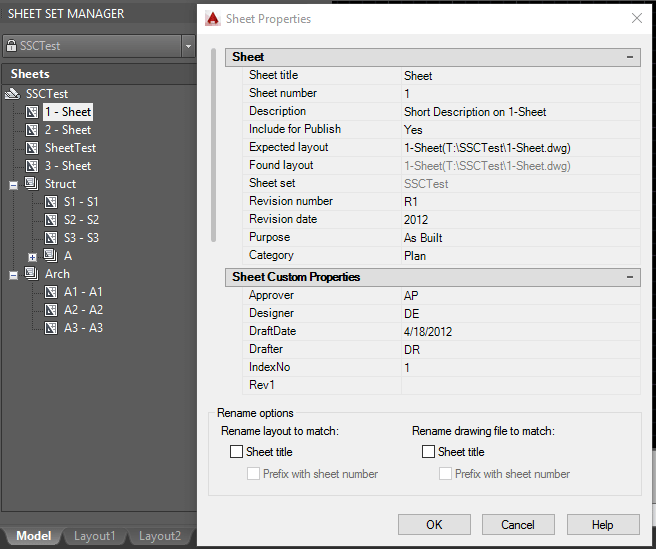
Don't know what the Sheet Set Manager is? The Sheet Set Manager in AutoCAD is a great tool for organizing and managing large sets of drawings, particularly in the architecture, engineering, and construction (AEC) industry. It allows users to create a logical and structured organization of their drawings, making it easier to find and access specific drawings when needed.

One of the key benefits of the Sheet Set Manager is its ability to create a sheet index, which serves as a table of contents for the entire set of drawings. This index can be customized to include information such as the drawing title, sheet number, and revision status, making it easy to quickly identify and access the desired drawing.

In addition to the sheet index, the Sheet Set Manager also allows users to create drawing lists, which are essentially sub-sets of drawings that are organized based on specific criteria, such as discipline or phase. This can be particularly useful for project managers who need to quickly access a specific group of drawings for a particular task or for team members who need to focus on a specific aspect of the project.

Overall, the Sheet Set Manager is a valuable tool for anyone working with large sets of drawings in AutoCAD, as it helps to streamline the organization and management of these drawings, saving time and reducing the risk of errors.

Download the upgrade or try it. JTB Sheet Set Creator

If you are using the Sheet Set Manager you can make batch edits of properties with JTB SSMPropEditor or make merge, purge and convert with JTB DST Tool or publish with JTB Batch Publish.

Tuesday, December 13, 2022

JTB ACA Tools for AutoCAD Architecture based toolsets

JTB ACA Tools comes with editing Tools for Property Sets, Classifications and List Definitions for AutoCAD Architecture (ACA) based products including MEP, Map 3D and Civil 3D.

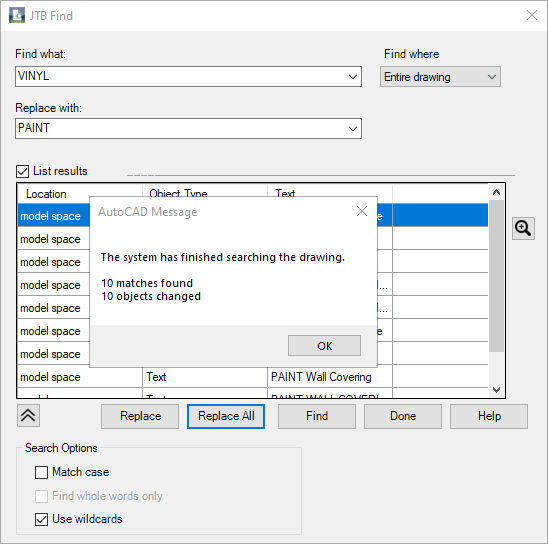
With JTB Find, you are able to find and replace text in Extended Data tab in Properties, specifically for Property Sets and their Property Definition values.

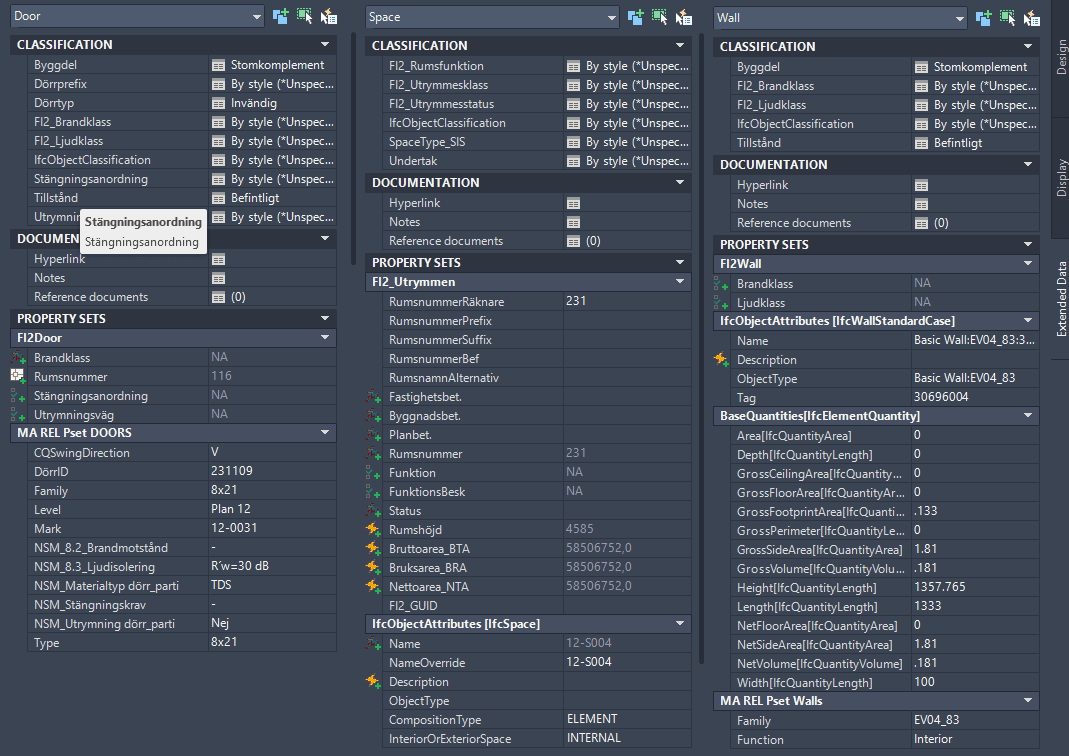
With JTB PropsClassMapping, you are able to change Property Set values, Classification values of SPACE, WALL and DOOR according to the values of their other Property Set.

With ClassificationDefinition tools, you can import export AutoCAD Architecture Classification Definitions, avoid the need to type everything manually.

With ADTListDefinition tools, you can import, create and export ListDefinitions quick and easy.

JTB ACA Tools provides some useful lisp functions for AutoLISP programmers to modify property set and/or classification properties.

Free trial of JTB ACA Tools is available.

Monday, December 12, 2022

JTB FixRefs for BricsCAD

JTB FixRefs is now working on BricsCAD as well as previously supported AutoCAD.

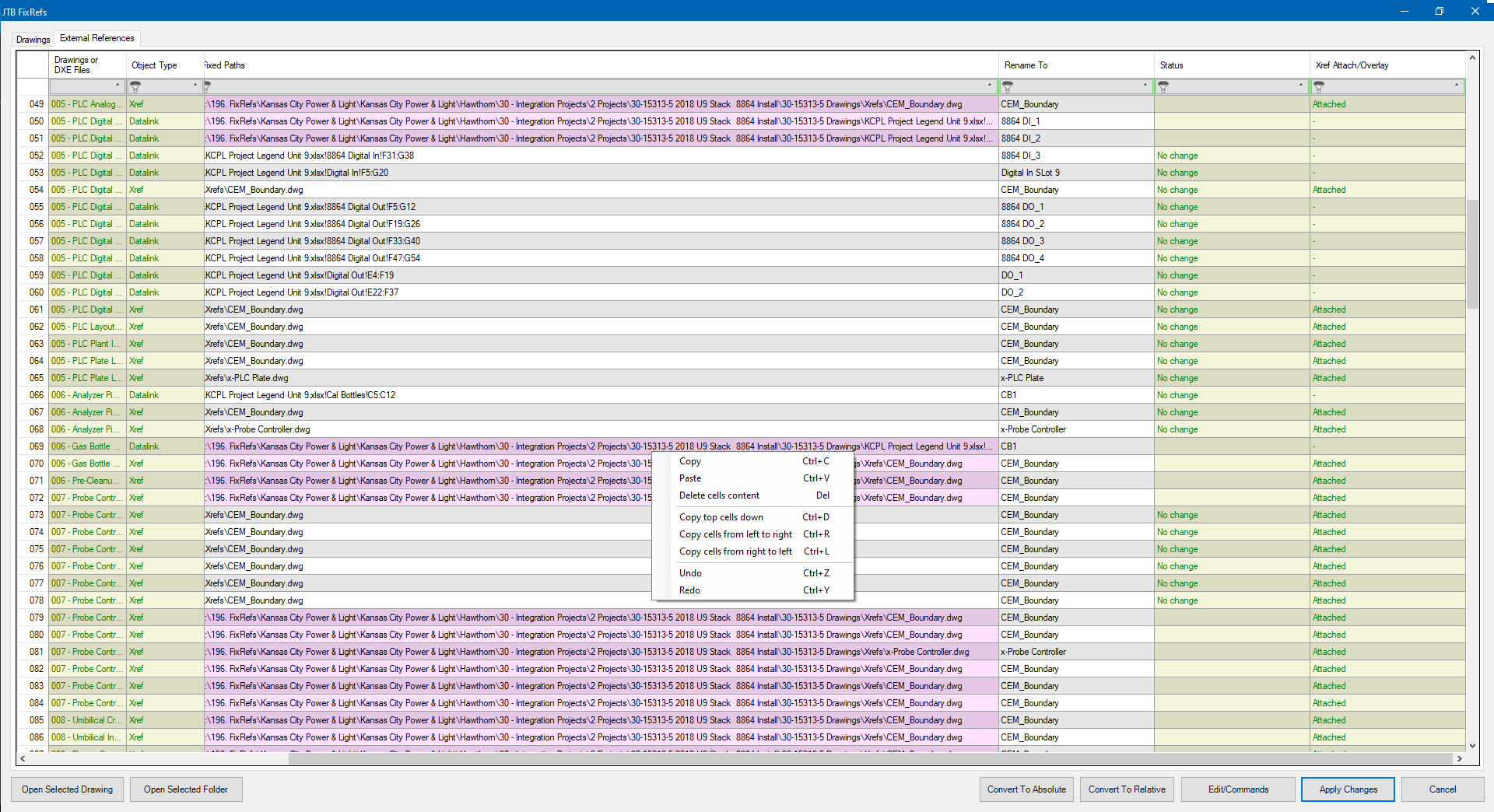
Select drawings, or all drawings in a folder and/or subfolders. A spreadsheet will bring up and list all your reference files in all your drawings, including Xrefs, Datalinks, Raster Images, PDFs, DWFs, and DGNs.

Click for larger image 

  • Convert file paths from absolute paths to relative paths and vice versa.
  • Rename the reference objects.
  • Detach, Unload, Reload. 
  • Bind xrefs. 
  • Option to retain date modified after saving.

Give JTB FixRefs a try.

Thursday, October 28, 2021

Autodesk Network License Manager update needed for Autodesk 2020 and 2021

Autodesk Customers with Multi-user subscription or Token-flex implementation using Autodesk Network License Manager (NLM) are required to upgrade the Network License Manager to the latest version v11.18.x to support Autodesk 2020 and newer version products on and after April 1st, 2022. ref

To report on Autodesk Network License Manager, Named User or Autodesk Flex usage try our JTB FlexReport.

Wednesday, October 6, 2021

Change attribute order of block in many CAD drawings

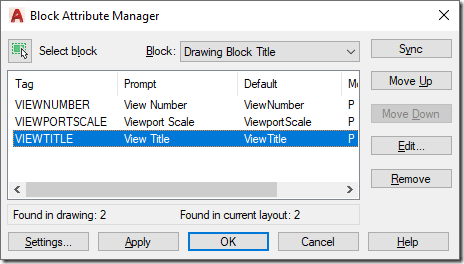
To change attribute tag order in one drawing use BATTORDER (AutoCAD) or BATTMAN (AutoCAD and BricsCAD). With it you can update the block definition of the block.

battman


Then wblock out the block to a separate DWG file. In the example below it us C:\temp\TITLEBLOCK.dwg

In below example the block is named TITLEBLOCK so you will need to modify the name and path (separate folders with double backslashes). Save the AutoLISP code to an LSP file.

; redefine block with or without attributes from an external DWG block

(setq blockname " TITLEBLOCK")

(setq fullpath "C:\\temp\\TITLEBLOCK.dwg")

(if (tblsearch "block" blockname)

  (progn

    (command "_.-insert" (strcat blockname "=" fullpath) "_Y")

    (command)

    (command "_.attsync" "_N" blockname)

  )

)

Then you can use JTB SmartBatch to update all drawings with this LSP. Specify the use of the LSP in JTB SmartBatch Settings > Script/lisp file. Now add all drawings to be updated and you’ll have all title blocks or other blocks of your choice updated.

Monday, October 4, 2021

JTB FlexReport can monitor Autodesk Flex

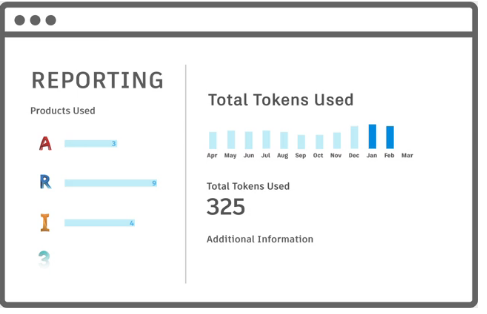
Autodesk Flex is a new option to pay as you go for occasional product use. While you can get some usage reports from Autodesk they are limited.

Tokens

When a user opens and signs into an Autodesk product included with Flex, they will be charged a daily rate per product once every 24 hours.

For example, a user opens and signs into AutoCAD from 8am-9am will be charged 7 tokens, same as a user using it the whole day. Even just starting and closing AutoCAD will cause a charge if 7 tokens (around $21). Revit will take 10 tokens.

With JTB FlexReport and JTB Process Monitor you can get additional valuable reports to identify users that just use a product a short time per day. You can get the total time the product has been running as well as the active time the user used the product. With this users using the products just a short time can be identified.

Contact us for a free trial or if you have any questions.

Monday, September 13, 2021

JTB BatchAttEdit 4.5.0 - Batch edit block attributes in BricsCAD or AutoCAD

JTB BatchAttEdit 4.5.0 has been released.

In this version we added a "Clone selected blocks" command and other improvements.

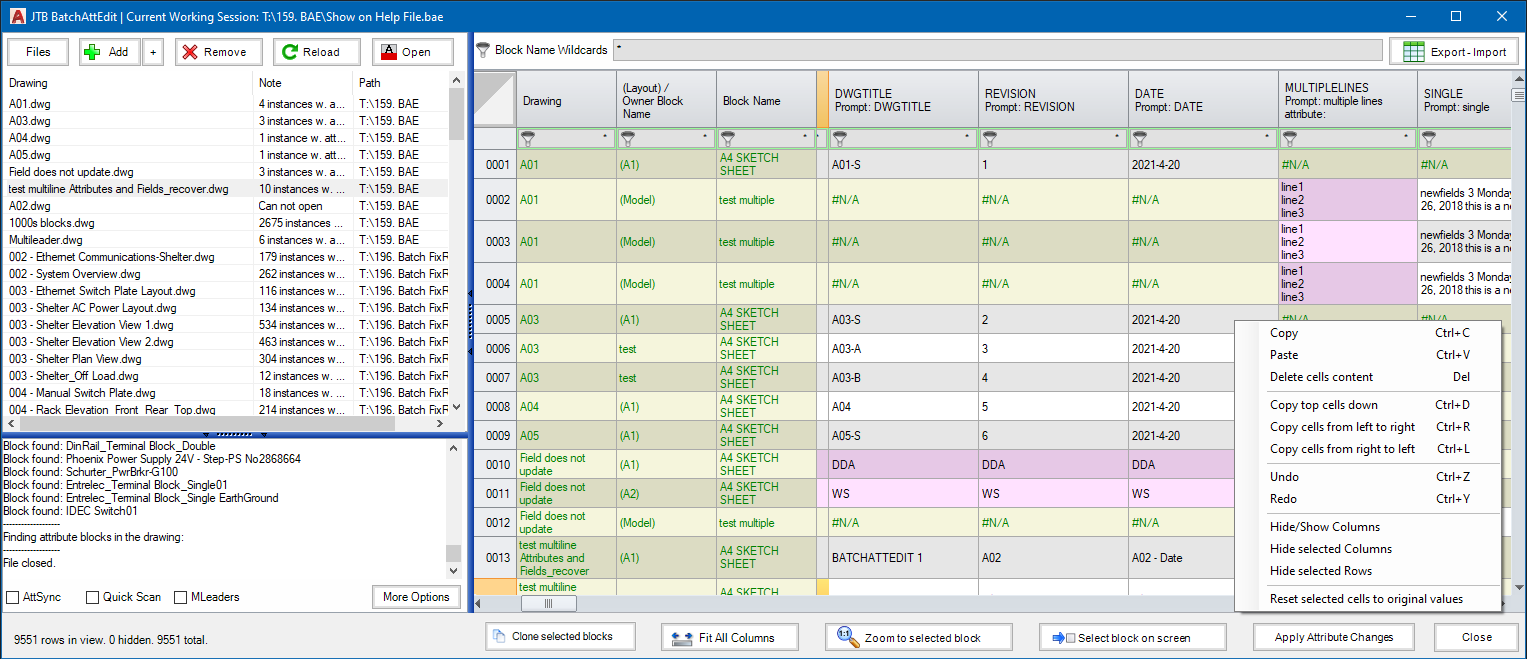
This batch attribute editor app for BricsCAD and AutoCAD gathers attributes in all blocks of specified name patterns in multiple drawings and display in a spreadsheet. You can edit attribute texts just like in Excel. When ready, click "Apply Attribute Changes" to update values to drawings.

JTB BatchAttEdit

This is a great app to edit title block attributes across many drawings instead of having to do it one drawing at a time. How do you edit all title block data?

Dynamic block properties can be edited too.

If you want to export the attributes to Excel use the "Export - Import" button. Optionally you can make modifications in Excel for example with help of functions and formulas and then import back.

Try it for free by downloading from JTB BatchAttEdit.

For more of JTB World’s software that you might find useful visit our software list and our apps available on Autodesk App Store. We also offer custom programming services and can help you with both small and large projects where we specialize on the AutoCAD, AutoCAD Architecture, Revit, BricsCAD, ZWCAD and other CAD platforms.

Thursday, September 9, 2021

Redefine blocks across many drawings with JTB Batch Change

JTB Batch Change can simplify AutoCAD work like redefining blocks across many drawings.

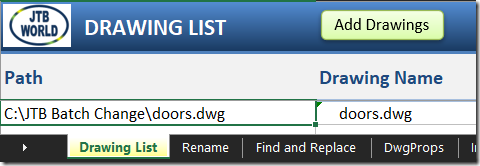
On the Drawing List tab in the Excel file that comes with JTB Batch Change add all drawings you want to have updated.

1


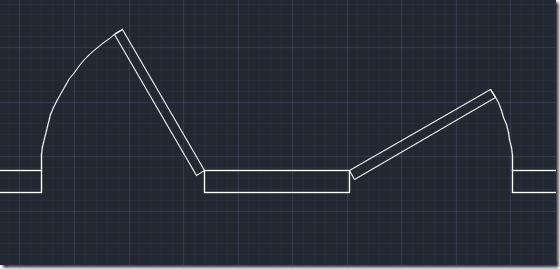
This is the drawing I want to update.

2


On the Import tab select Block Definition as a command to use and select source drawing where the new block definition exists.

3


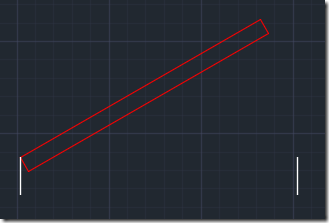
This is the updated block I want to apply to my drawings.

4


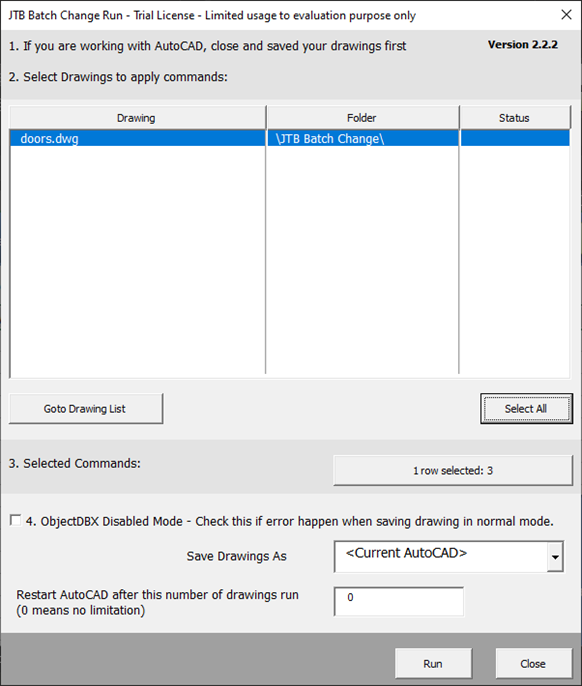
Select the row with the Import command and click on Run and select the drawings to update.

    5


Here is the result.

6


There is much more JTB Batch Change can do. Take a look at the webpage and try it yourself.

Tuesday, August 10, 2021

Example of usage of JTB FlexReport and JTB Process Monitor

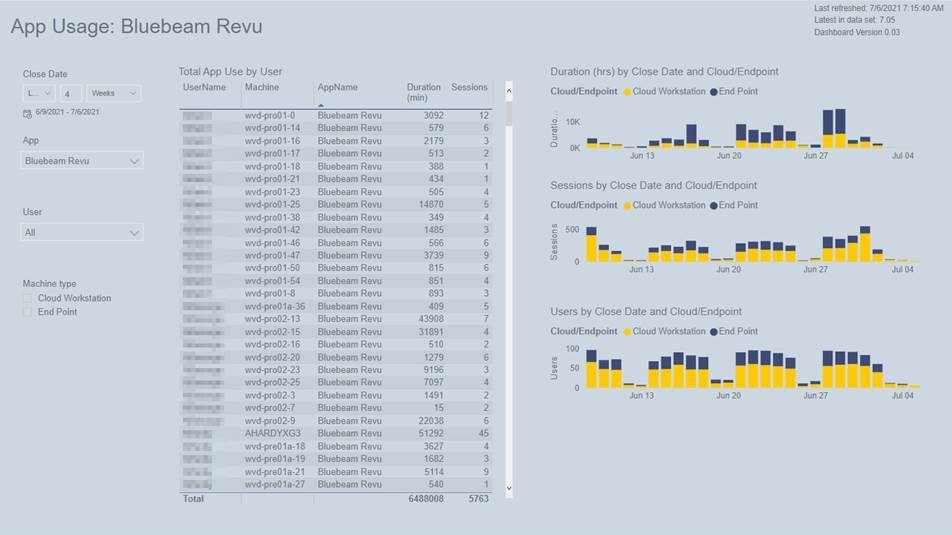
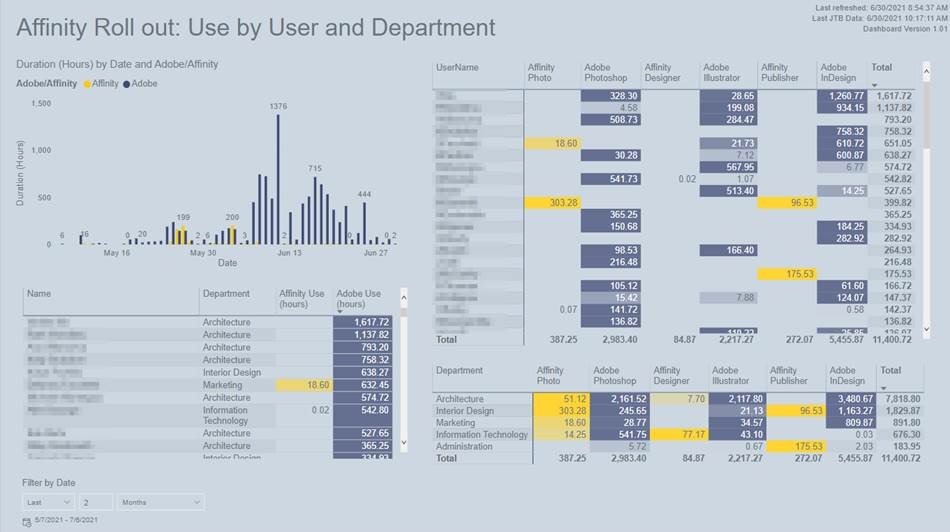
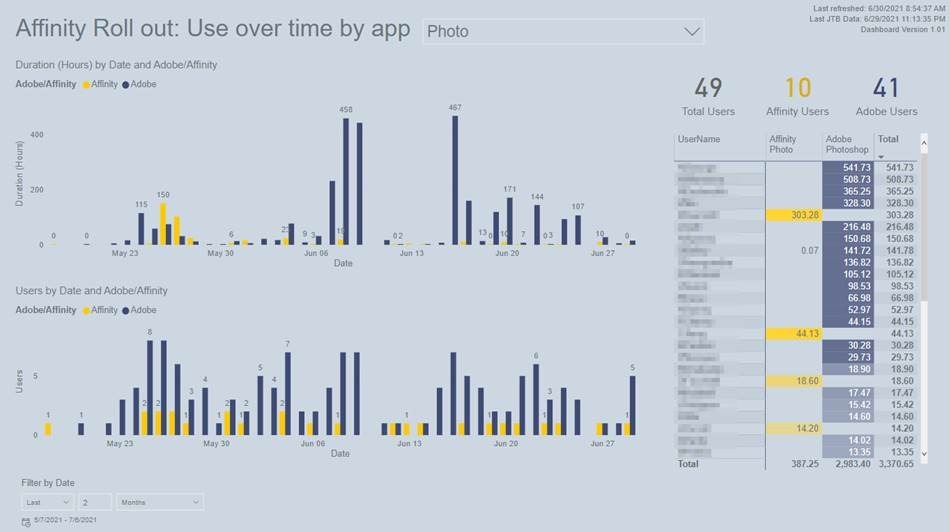
JTB FlexReport and JTB Process Monitor have an open database making it possible for customers to create their own reports of app usage.

Jess Purcell at Shepley Bulfinch kindly shared her custom reports based on usage data tracked with JTB FlexReport and JTB Process Monitor:

“We’ve done a couple significant things. For one, we’re using it to track app usage on people local laptops versus on our virtual desktops to understand who is using things locally instead of virtually, and what apps are getting more use in each location.”

JTB FlexReport 1

“And I’m going to start using it for our Affinity Suite rollout to track adoption and usage of Affinity over Adobe CS6. I’m able to see specific app usage times, and identify people who haven’t tried it, or are using it a lot and could share their experiences. I’m also able to compare directly between the relating Apps (Photo and Photoshop, Designer and Illustrator, etc)”

JTB FlexReport 2

“I built those dashboards in PowerBI, and I’m pulled some Deltek info in as well for department and if they are an active employee.”

JTB FlexReport 3

Free trial of JTB FlexReport and JTB Process Monitor is available.

Thursday, July 29, 2021

JTB Sheet Set Renumber for AutoCAD

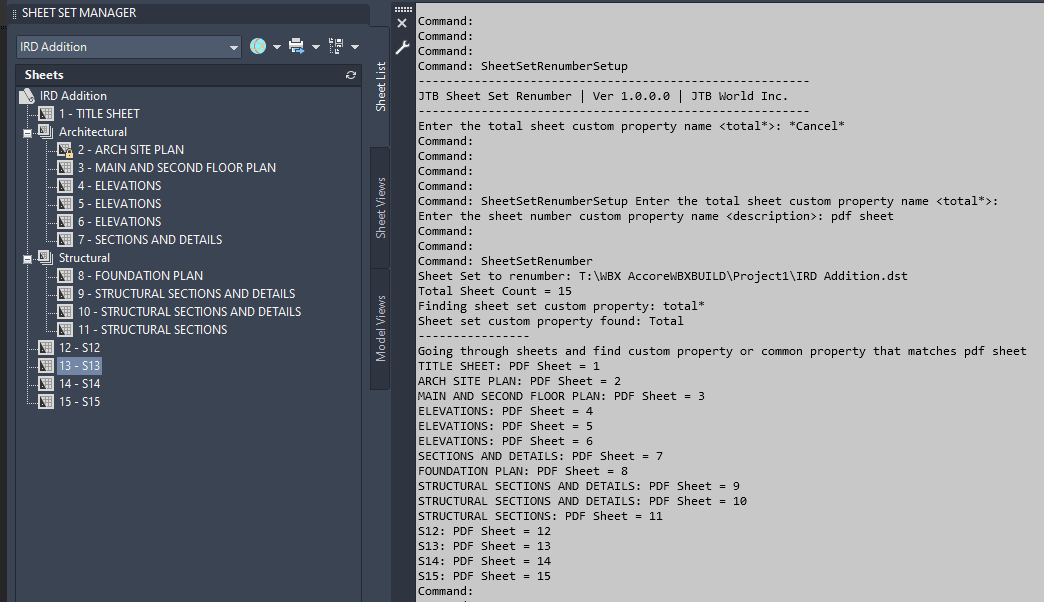
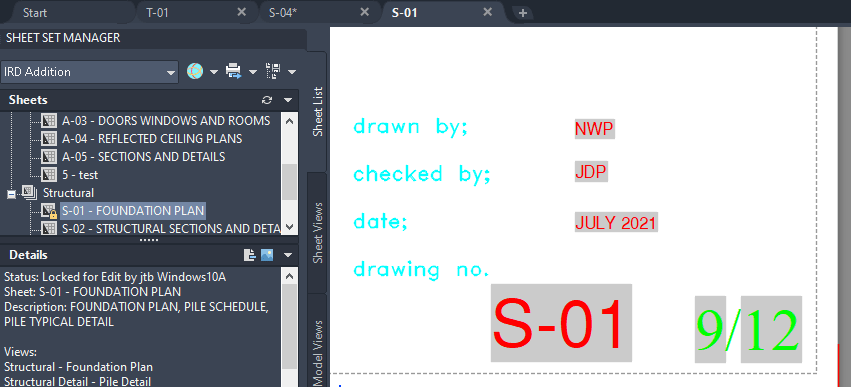
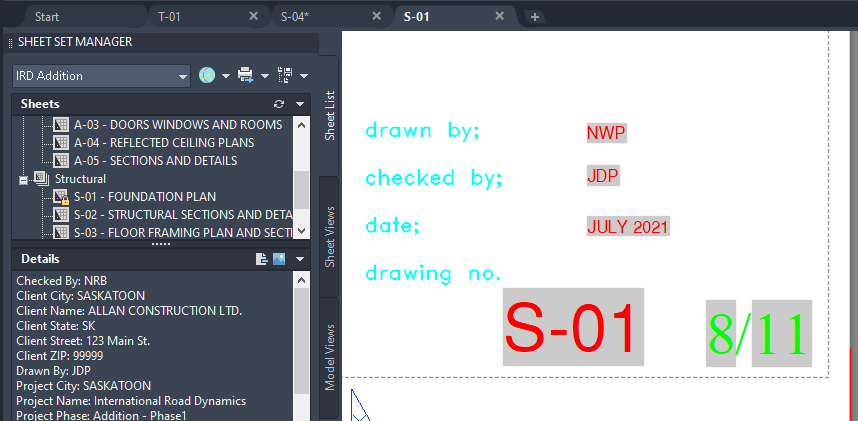
JTB Sheet Set Renumber is a new app from JTB World to make life easier using AutoCAD’s Sheet Set Manager. Quickly renumber and insert total number to sheet set to show them up in fields [Sheet number]/[Total Number]

In many cases, we want to show up in our title block two fields Sheet Number / Total Number.

There is Sheet Number property in each sheet, but we have to manually edit it.

There is no Total Number property in the sheet set. We can create it as custom property, but again, we have to manually edit it.

So, this app is made to help. It assumes that sheet numbering is based on the same order of the sheets listed in your sheet set, and no sheet is excluded from the total number. Then, every time you reorder the sheets in sheet set, insert or delete sheets, run the app command "SheetSetRenumber" and all the Sheet Number, Total Number fields will be updated.

See video of usage here.

Example of before

and after deleting 1 sheet.

Free trial available at JTB Sheet Set Renumber.

Tuesday, July 27, 2021

JTB XClipClean 4.0.0 released

JTB XClipClean 4.0.0 has been released.

  • Upgrade from VBA to .NET improving performance and stability.
  • Remove messages about uninstallation in very-silent installation mode.

If you are using clipped xrefs or blocks you may find this app useful.

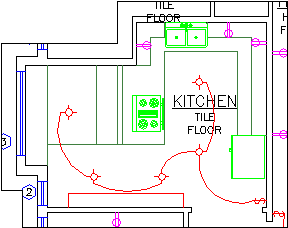
Kitchen with the xclip boundary visible

JTB XClipClean is an Xclip-cutter app for AutoCAD to clean up xrefs or blocks that been clipped so that the information that is outside the clip is removed. This is useful when you need to remove hidden geometry and minimize DWG file size.

AutoCAD allows blocks and xrefs to be clipped using the XCLIP command. Sometimes for different reasons you have to clean up the blocks or xrefs that have been clipped. JTB XClipClean can help you with that by deleting and trimming geometry that is outside the xclip boundary.

Revit does not handle xclipped blocks and xrefs so XClipClean can be useful to run on drawings before taking them into Revit.

Sunday, May 9, 2021

Solution for ; error: bad argument type: VLA-OBJECT nil

I run into a problem in AutoCAD trying to get a VLA-OBJECT property like this with AutoLISP/ActiveX:

(vla-get-linetypes (vla-get-activedocument (vlax-get-acad-object)))

The error:

; error: bad argument type: VLA-OBJECT nil

Accessing other properties also failed.

Reinstall of AutoCAD was needed to solve the problem. Repair did not help.

Thursday, January 14, 2021

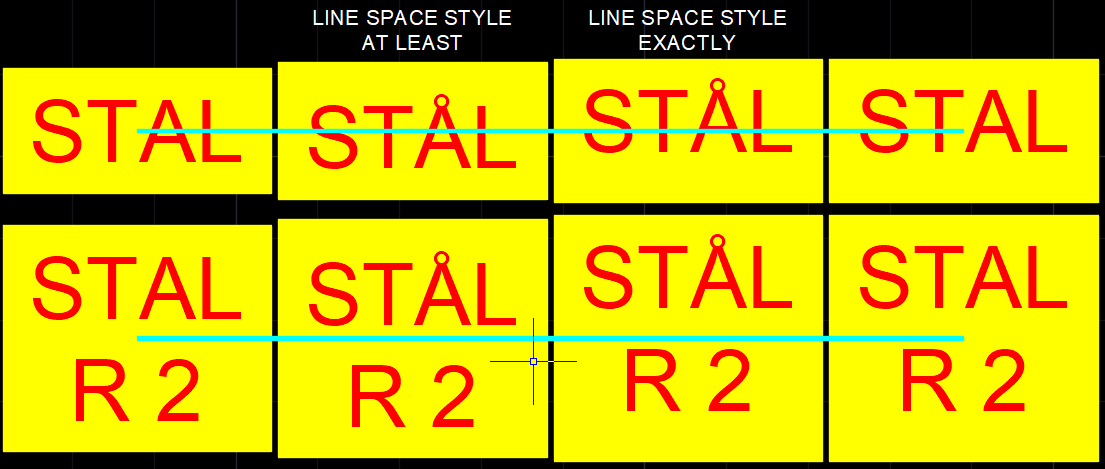
What is Line Space Style in mtext in CAD?

Some users have run into some odd behavior with multiline text (mtext) in DWG editors like AutoCAD, BricsCAD, GstarCAD and ZWCAD. What helped in these cases was to change the Line Space Style.

What is mtext Line Space Style?

There are two styles:

  • At Least. Adjusts lines of text automatically based on the height of the largest character in the line. More space is added between lines of text with taller characters. This is the default setting.
  • Exactly. Forces the line spacing to be the same size for all lines of text regardless of format differences such as font or text height Useful to line up text in tables.

To ensure that line spacing is identical in multiple multiline text objects, use Exactly and set the Line Space Factor to the same value in each multiline text object.

Note: Using Exactly can cause text in lines located above or below lines with large font characters (commonly used in Asian languages) to overlap the larger characters.

I run into this several times being Swedish and having accented letters like Å, Ä and Ö that are higher than most characters.

If you use Justify like Middle center you can see how the insertion point is at different heights related to the text and also affects the Background mask and Text frame. The cyan line shows the insertion point.

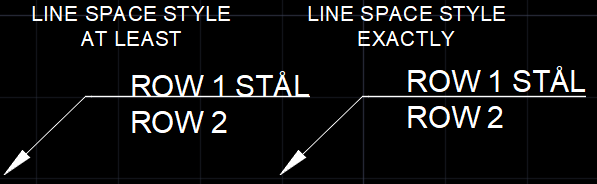
Multiline text placement on a leader can also be affected as seen below.

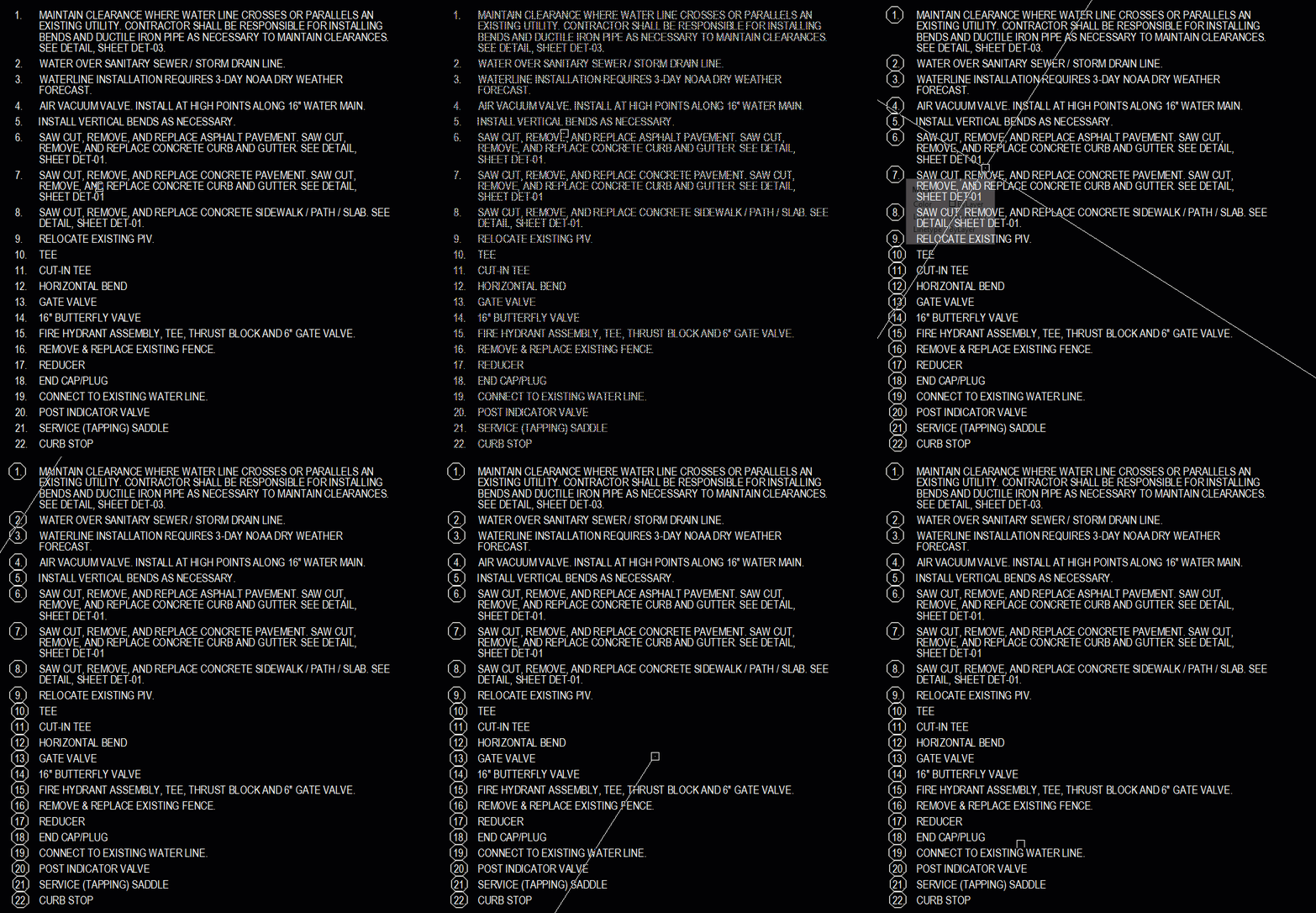
Multiline text with 4 columns below.

Sample DWG to download.

Monday, November 30, 2020

Keynote list with symbol around the number with JTB Text Bubble Plus

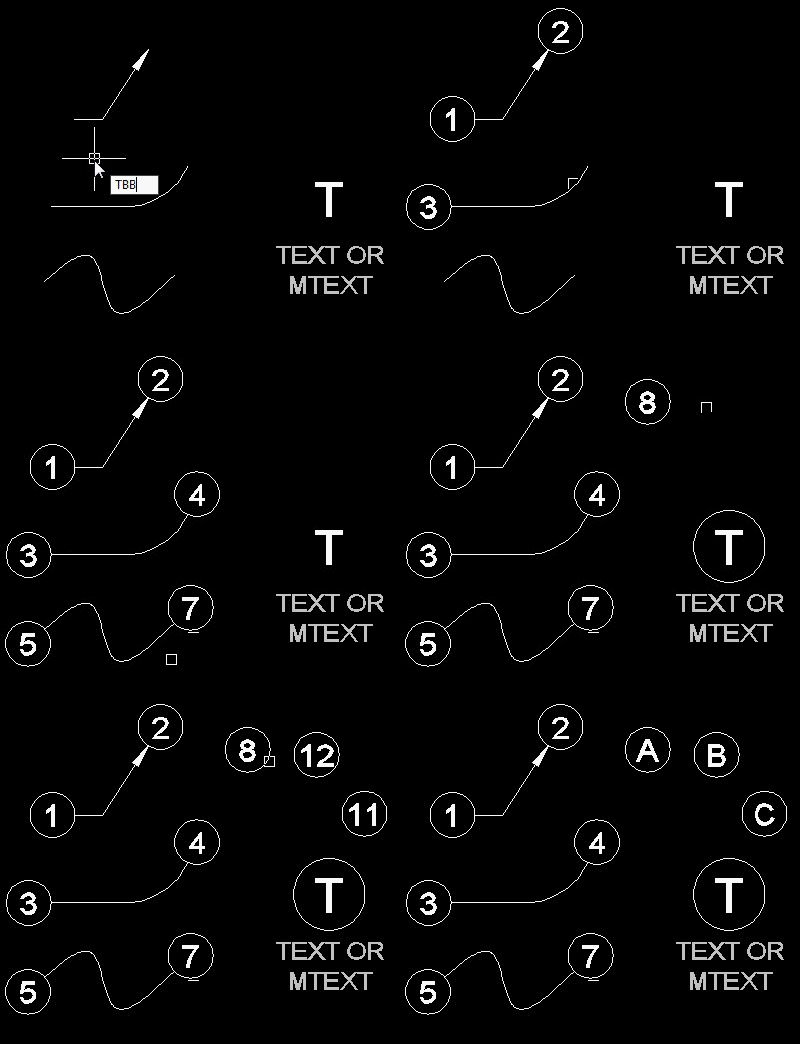
JTB Text Bubble Plus 3.4 has this feature added. Use TBBCV command to convert numbers in a MTEXT list by adding a circle, triangle, square, hexagon or other block around the numbers. It is common drafting standard that the keynote list matches the symbol used for the leader.

With the Text Bubble Plus you can insert text bubbles to lines, curves, or draw leaders with it, or quickly make a schedule from text bubbles and/or other blocks. Incrementing of numbers or letters is done automatically. Works with AutoCAD, BricsCAD and GstarCAD. Do you want this for ZWCAD or any other CAD software let us know.

Free trial of JTB Text Bubble Plus is available.

Monday, November 23, 2020

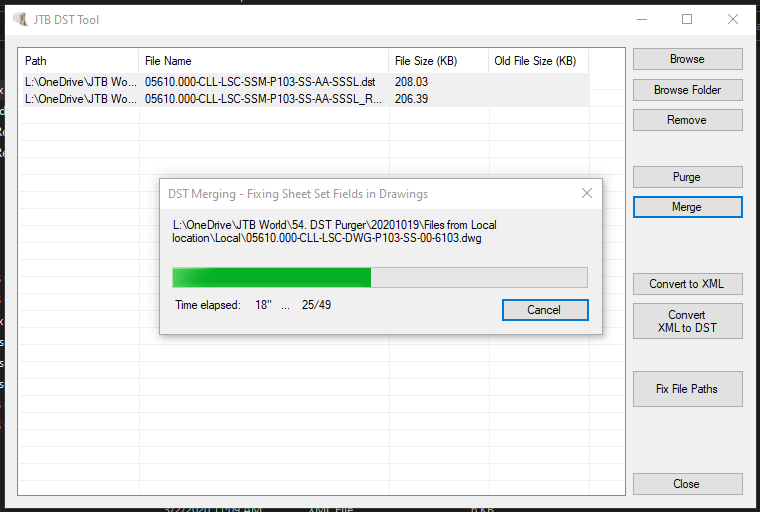
Merge Sheet Sets with JTB DST Tool 2.0.0

JTB DST Tool can now fully merge Sheet Sets containing Sheet Views and their fields in the drawings. For this specific functionality full AutoCAD is needed. Otherwise the app works without the need of any CAD installed.

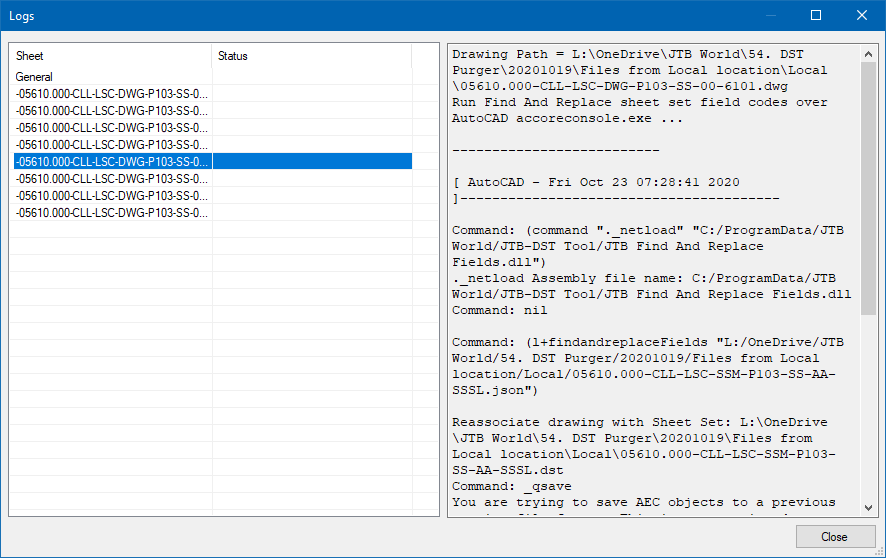
When ready a detailed status log is showed for all processed sheets.

Fields get updated so they point to the merged Sheet Set DST file.

You can also purge, convert and fix paths for Sheet Set DST files for AutoCAD, BricsCAD, GstarCAD, NanoCAD Plus/Pro and any other CAD software using Sheet Set DST files. More about the app at JTB DST Tool.

Monday, October 5, 2020

Better offset for BricsCAD and AutoCAD with JTB OffsetInXref 2.3

JTB OffsetInXref can be used with BricsCAD and AutoCAD to enable the OFFSET command to work with externally referenced drawings, blocks, and lines within associated arrays, dimensions and tables.

  • Once loaded, the standard OFFSET command will work with blocks and externally referenced content: instead of responding "Cannot offset that object.", the app will automatically copy the selected object into the current drawing, allowing it to participate with the OFFSET command.
  • The lowest-level object will be selected, if part of a nested Xref or block, but some objects - such as Hatches - will still cause the "Cannot offset that object" prompt to be displayed.
  • The app can either have the OFFSET command create geometry on the current layer (the default) or the source layer. The XOFFSETLAYER command allows configuration of this option.

Free trial available at JTB OffsetInXref.

Wednesday, September 9, 2020

Autodesk Named User usage reporting

Are you considering what Autodesk plan for Named Users you will go ahead with, now that there will be no more network licenses?

Product usage reporting with user details comes with the Premium plan and Enterprise plan for Autodesk Named Users at an extra cost compared to the Standard plan. With it you can see which individuals are using each product and version, and their frequency of use.

If the usage reporting sounds compelling you might find that the price is much higher for the Premium or Enterprise plans than if you stay with the Standard plans and add JTB FlexReport that together with JTB Process Monitor will give you great usage reporting of your named user licenses.

You can even monitor both the total usage time and the active usage time. You don’t want to lock up a license for a user using the license for a few hours per week or month.

JTB FlexReport with JTB Process Monitor works fine with any of Autodesk’s plans; Standard, Premium, Enterprise and Education. You can also monitor other software of your choice.

If you’re interested, try JTB FlexReport and JTB Process Monitor for free.

Other blog posts:

Some of the latest blog posts

Subscribe to RSS headline updates from:
Powered by FeedBurner

Contact Us | About JTB World | Website General Terms of Use | Privacy Policy
^ Top of page

© 2004- JTB World. All rights reserved.