Thursday, July 9, 2009

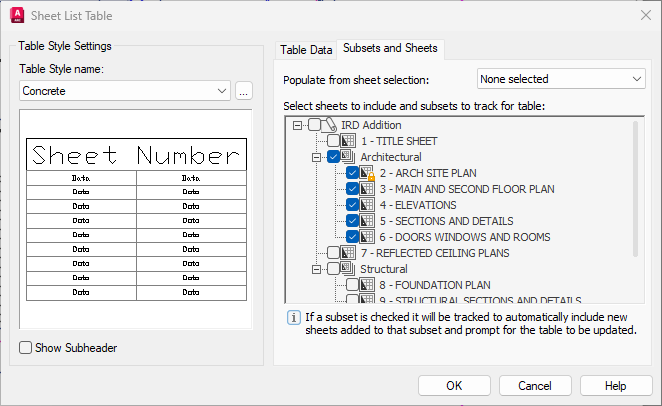
AutoCAD 2010 cannot attach multiple xrefs at a time

It’s sad to see that this functionality had to be changed in AutoCAD 2010 as this was a wish that came true in AutoCAD 2004.

Issue

In previous versions of AutoCAD you were able to select and insert more than one drawing as XREF at a time with the XATTACH command. However, in AutoCAD 2010 you are only allowed to insert one drawing at a time.

Solution

This change was required in order to support other file formats than the DWG format.

If you want to insert more than one drawing as an XREF at a time, use the CLASSICXREF command.

Knowledge Base document: Inserting multiple XREFs in AutoCAD 2010

Wednesday, July 8, 2009

AutoCAD Adware Trojan

This is a very special kind of trojan “pigrig”. It is an ARX (ObjectARX) application that makes use of AutoCAD as a host to pass through normal protection. It is not that dangerous one (only adware client) and you probably will never get it unless you are in or have been in China (I see Lynn Allen have been in China in this post).

I fund out about this new trojan on Without A Net blog. For more technical details see the source at webroot.

On the topic: AutoCAD virus

Tuesday, July 7, 2009

Revit 2010 Update 1 for Architecture, Structure and MEP

Here you can get the Update 1 for Revit. Seems like there are several enhancements and bug fixes included. Even the Revit API have been enhanced and improved.

Autodesk Revit Architecture 2010 Update 1

Autodesk Revit Structure 2010 Update 1

Autodesk Revit MEP 2010 Update 1

And here are documents describing what’s new:

Update Enhancements for Revit Architecture 2010 Update Release 1

Update Enhancements for Revit Structure 2010 Update Release 1

Update Enhancements for Revit MEP 2010 Update Release 1

Thursday, July 2, 2009

.dwg .dwt .dws .bak .sv$ can all be DWG files

Typically these are AutoCAD based files but there are other applications that support these file types as well. Any of the following files can be renamed using the .dwg extension or the other way around.

.bak - AutoCAD Backup files

A backup of the .dwg file is created with the extension .bak when a drawing is saved within AutoCAD and ISAVEBAK is set to 1. The backup file is located in the same folder as the drawing file. You can revert to your backup version by renaming the .bak file in Windows Explorer to a file with a .dwg extension.

.sv$ - AutoCAD Automatic save file

If you turn the automatic save option on, your drawing is saved at specified time intervals. By default, files saved automatically are temporarily assigned the name filename_a_b_nnnn.sv$.

Filename is the current drawing name.
a is the number of open instances of the same drawing file in the same work session.
b is the number of open instances of the same drawing in different work sessions.
nnnn is a random number.
These temporary files are automatically deleted when a drawing closes normally. In the event of a program failure or a power failure, these files are not deleted.

To recover a previous version of your drawing from the automatically saved file, rename the file using a .dwg extension in place of the .sv$ extension before you close the program.

You can specify the location of all Autosave files by using the SAVEFILEPATH system variable. SAVEFILE (read-only) stores the name of the Autosave file.

Note that Automatic save is disabled when the Block Editor is open.

You might find that .sv$ files are not created if you frequently save the drawing manually or have the automatic save option off (SAVETIME=0).

.dwt - AutoCAD Drawing Template files

New drawings can be created based on template drawings. A template drawing can be empty but with many settings specified to use as a starter like units, layers, annotation styles and linetypes. A template drawing can also include drawing geometry like a title block, borders and logos.

.dws – AutoCAD Standards files

To set standards, you create a file that defines properties for layers, dimension styles, linetypes, and text styles, and you save it as a standards file with the .dws file name extension. You can decide to create and associate more than one project-specific standards file with an individual drawing.

Update with more details from my friend Chris:

SAV###.tmp and ATMP#### (no extension) could also potentially be drawing files from a failed save.   I wouldn’t trust SAV* files as much because if it is still around it could be a partially created file.

Here is the AutoCAD save procedure I discovered that AutoCAD uses…

1)    Saves a small TEST.DWL text file - a Lock file with the current users information and when the drawing was opened:

User
HOST 
Friday, May 05, 2009  9:57:39 AM

2)    Saves current open file to SAV341.TMP  (random number each time, but begins with SAV and ends with .TMP always)

3)    (Failing here) Rename existing TEST.DWG to ATMP6334  (no file extension, always begins with ATMP)

4)    Delete TEST.BAK if it exists

5)    Rename ATMP6334 to TEST.BAK

6)    Rename SAV341.TMP to TEST.DWG

7)    ReLoad TEST.DWG into memory.

So, if you only have SAV*.TMP files left over, but no ATMP* files it means it only gets to step #2.

AutoCAD IS finishing step 2 (saving the dwg to a TMP file) but for some reason is failing when trying to rename the original DWG file to ATMP, then .BAK.

This can also happen if the .BAK file is Read Only or cannot be written to.

Wednesday, July 1, 2009

Sticky Notes are saved in StickyNotes.snt

Where are the Sticky Notes in Windows 7 saved? You might wonder as to be able to make back up of it.

You need to be able to view hidden files and folders, then navigate to
%AppData%\Microsoft\Sticky Notes

The file StickyNotes.snt holds all sticky notes.


If you press F1 within a Sticky Note you will find the Help that tells Ctrl+Shift+L is used to create a Bulleted list. (Press this keyboard shortcut again to switch to a numbered list.) Some formatting tips: CTRL+B for Bold, Ctrl+I for Italic text, Ctrl+U for Underlined text, Ctrl+T for Strikethrough.

If you write a web address it can be CTRL+clicked on too.

You can even copy from applications like Word and Excel and fonts and tables for example will be retained in the note. I looked inside the SNT file and it looks like the information is saved internally in Rich Text Format (RTF).

Monday, June 29, 2009

Sheet Set Manager editing of Sheet Properties on many Sheets

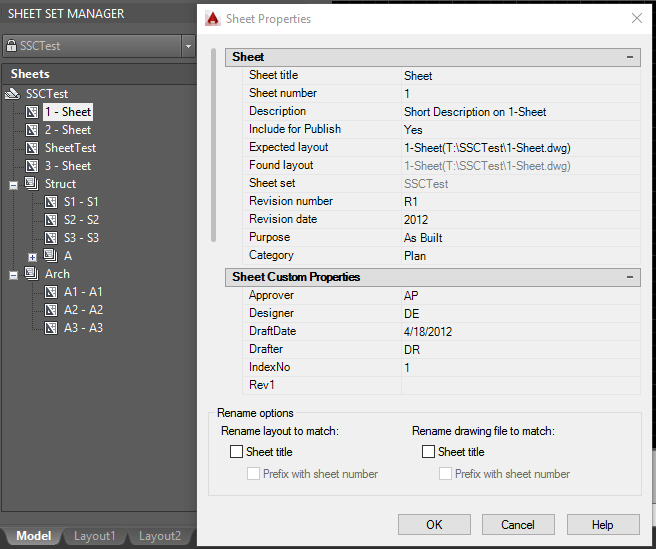
I did a test using AutoCAD’s Sheet Set Manager and clocked the time updating 3 Sheet Properties on 10 different Sheets. I right click on a Sheet and select Properties… and add a Revision, Revision By and Revision Date where they are the same for all the sheets. I paste the date from the clipboard to speed things up. Still it takes around 10 seconds per Sheet to do this and I can imagine users that might need 20 seconds for this. Here are three of the Sheet Custom Properties seen.

Sheet Properties

Imagine an engineer costs 35 EUR per hour updating 300 sheets would costs around 30 EUR.

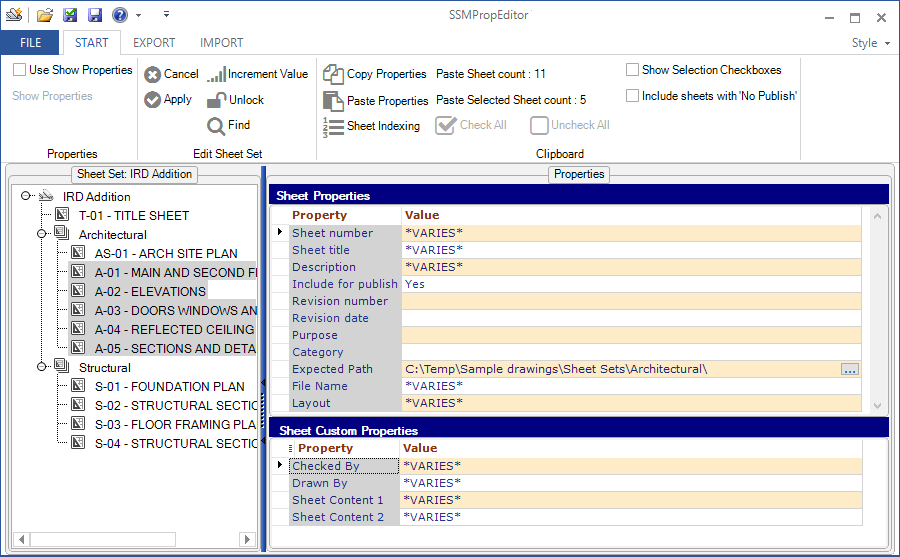
Now there is a time and money saver available. With SSMPropEditor you can do the same thing on 10 or even 1000 sheets in the same time it takes to update only a couple of sheets with SSM.

SSMPropEditor is sold at 25 EUR or less per license so if you use Sheet Set Manager and need to edit properties across multiple sheets you can easily see how great a deal it is.

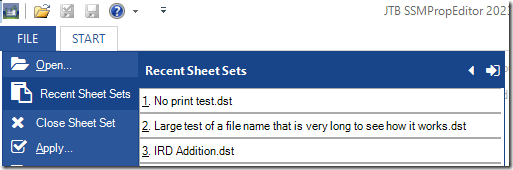
It is also so much more fun to use SSMPropEditor instead of manually having repeat the same step over and over. You don’t even have to start AutoCAD. You don’t even need AutoCAD to be installed, just access to the Sheet Set DST file. This means anyone can review the drawings with AutoCAD LT or a DWG viewer and then approve or edit the properties right away.

When the property values are varying among the sheets you can see *VARIES* as value and it can quickly be edited on all selected sheets with SSMPropEditor.

image     image

Contact us for a free trial.

Friday, June 26, 2009

Yankee Stadium within Navisworks

Autodesk, together with Turner Construction Company completed one of the most high-profile building projects of the year – the new Yankee Stadium. Turner used the latest BIM processes and Autodesk Revit-based products and Autodesk’s Navisworks Manage software to streamline workflow and collaboration while allowing their building professionals to effectively gather design data for visualization, simulate scheduling and identify interferences. 

Turner Construction leveraged BIM and Autodesk’s Navisworks Manage software to create 3D models of every major building component – from architectural and structural elements to electrical, plumbing and fire protection systems. Navisworks combined this separate data into a single “virtual” model of the stadium that helped the Turner team and multiple subcontractors coordinate efforts and identify potential costly inconsistencies before breaking ground. 

The Indiana limestone exterior, shown at Gate 4, mirrors the exterior of the original Yankee Stadium in 1923.

"in progress" photo of the entrance to the stadium:

"in progress" photo of the entrance to the stadium

Mechanical room within the stadium, model versus actual:

Mechanical room within the stadium

Corridor within the stadium, model versus actual:

Corridor within the stadium

MEP fabrication/layout coordination

MEP fabrication/layout coordination

Press release from Autodesk below:

Autodesk Helps Turner Construction Score Big with New Yankee Stadium

Turner Construction Reaps Collaboration Benefits of Building Information Modeling

SAN RAFAEL, Calif., June 24, 2009Autodesk, Inc. (NASDAQ: ADSK), a world leader in 2D and 3D design and engineering software, has announced that Turner Construction Company utilized Autodesk Navisworks Manage software as an element in the Building Information Modeling (BIM) process used to complete the new Yankee Stadium project.  As part of its construction management process, known as Virtual Trade Coordination (VTC), Turner used the latest BIM processes and Autodesk Revit-based products and Navisworks Manage software to help streamline workflow and collaboration among subcontractors.   

“Turner is experiencing  tremendous growth in the use of BIM during both preconstruction and construction phases as a tool to help us dramatically improve the building process while reducing field initiated RFI’s and changes,” said Jim Barrett, manager of virtual construction technologies for Turner Construction.  “The Yankee Stadium project typifies our commitment to BIM and the tangible and measurable benefits we - and more importantly, our clients - are experiencing in schedule, quality, cost and safety improvements on all our BIM projects across the United States.”

Turner’s Virtual Trade Coordination Process Applied to Yankee Stadium Project

Turner Construction Company effectively applied its experience to foster a results-driven, multi-disciplinary collaboration on the Yankee Stadium project.   The company has already managed more than 100 BIM-based projects at an estimated value of $20 billion as well as purchasing and using 400 licenses of Navisworks Manage throughout the firm.

BIM design software was used to create 3D models of every major building component – from architectural and structural elements to HVAC, electrical, plumbing and fire protection systems.   With Navisworks Manage software as an essential component of the company’s VTC process, digital data from multiple design and engineering software sources were combined in a single “virtual” model of the stadium that assisted the Turner team and all of the project’s subcontractors in more quickly identifying systems spatial clashes and conflicts to be fixed before the construction phase. This early, coordinated, real-time, whole-project review and analysis helped to minimize costly changes and unexpected scheduling delays in the field.

“We have a long-standing relationship with Turner Construction Company, and together we’ve seen the benefits of BIM and a collaborative project delivery process that includes the entire team, from owners to trade subcontractors,” said Jim Lynch, vice president of AEC industry marketing at Autodesk. “We are pleased that Autodesk Navisworks Manage was a component in the success of one of the most high-profile building projects of the year—the new Yankee Stadium.”

Navisworks Manage software enhances the review process by enabling design and construction management professionals to aggregate existing design data for visualization, simulate scheduling, and identify interferences to improve productivity and project quality. Design data created in BIM applications such as Autodesk Revit-based products can be combined with geometry and information from other design tools and reviewed in real-time as an entire 3D project. The combination of Navisworks Manage software’s precise fault-finding analysis, interference management, dynamic project schedule simulation, and more photorealistic visualization enables advanced project analysis. In addition, entire project models, of various file sizes and formats, can be published and viewed in NWD and 3D DWF file formats for better team collaboration.

BIM is an integrated process that allows architects, engineers and builders to explore a project digitally before it’s built. Coordinated, reliable information is used throughout the process to design innovative projects, accurately visualize appearance for better communication, and simulate real-world performance for better understanding of important characteristics such as cost, scheduling and environmental impact.

About Turner Construction Company

Turner Construction Company provides construction management services to leading institutions and companies who recognize the value of a partner who works diligently and creatively to find the best possible solutions for each particular project. In 2008, Turner completed in excess of $10 billion of construction on more than 2,000 projects throughout the world. Turner’s use of building information modeling (BIM) helps visualize, quantify, and simulate the construction process to produce higher-quality buildings and exceed their clients’ expectations.

About Autodesk
Autodesk, Inc., is a world leader in 2D and 3D design and engineering software for the manufacturing, building and construction, and media and entertainment markets. Since its introduction of AutoCAD software in 1982, Autodesk has developed the broadest portfolio of state-of-the-art Digital Prototyping solutions to help customers experience their ideas before they are real. Fortune 1000 companies rely on Autodesk for the tools to visualize, simulate and analyze real-world performance early in the design process to save time and money, enhance quality and foster innovation. For additional information about Autodesk, visit www.autodesk.com.

# # #

Autodesk, AutoCAD, DWF, Navisworks and Revit are registered trademarks or trademarks of Autodesk, Inc., and/or its subsidiaries and/or affiliates in the USA and/or other countries. All other brand names, product names, or trademarks belong to their respective holders. Autodesk reserves the right to alter product offerings and specifications at any time without notice, and is not responsible for typographical or graphical errors that may appear in this document.

© 2009 Autodesk, Inc. All rights reserved.

Yankee Stadium

Yankee Stadium is a stadium located in the The Bronx, a borough of New York City. It serves as the home ballpark for the New York Yankees, replacing the previous Yankee Stadium, built in 1923. Much of the stadium incorporates design elements from the previous Yankee Stadium, paying homage to the Yankees' history. The projected total cost of the stadium is $1.5 billion, making it the most expensive stadium in the world.

The exterior was made from 11,000 pieces of Indiana limestone, along with granite and pre-cast concrete.

Approximately 51,000 fans can be seated, with a standing room capacity of 52,325.

Yankee Stadium II

Purge unreferenced images in AutoCAD with AutoLISP

Here is some AutoLISP code that can be used to purge unreferenced images from a drawing and delete and detach all images that are not found.

It is prepared to be used together with SmartPurger so multiple drawings can be processed.

An unreferenced image is attached to the drawing but have been erased. A Not Found image is no longer existing in the valid search paths. An Unresolved image cannot be read by AutoCAD.

(defun purge-unreferenced-images (/ ss1 ctr id symlst enamelst delent vl_delent ipath iname tmp)
 (defun remlst (/ tmp1)
  (setq
    tmp (length (member (cdr (assoc 340 (entget delent))) enamelst))
  )
  (repeat (- (length symlst) tmp)
    (setq tmp1 (cons (car symlst) tmp1))
    (setq symlst (cdr symlst))
  )
  (setq tmp (list (car symlst)))
  (setq symlst (append (reverse tmp1) (cdr symlst)))
 )
 (defun massoc (key alist / x nlist)
  (foreach x alist
    (if (eq key (car x))
      (setq nlist (cons (cdr x) nlist))
    )
  )
  (reverse nlist)
 )

  (vl-load-com) 
  (setq ss1 (ssget "x" '((0 . "IMAGE"))))
  (setq ctr 0)
  (setq id (dictsearch (namedobjdict) "acad_image_dict"))
  (setq symlst (massoc 3 id))
  (setq enamelst (massoc 350 id))
  (if ss1
    (progn
      (while (< ctr (sslength ss1))
 (setq delent (ssname ss1 ctr))
 (setq vl_delent (vlax-ename->vla-object delent))
 (setq ipath (vla-get-ImageFile vl_delent))
 (remlst)

 (setq iname (strcat (vl-filename-base ipath) (vl-filename-extension ipath)))

 (if (and (not (findfile ipath))
   (not (findfile iname))
     )
   (progn
     (dictremove (cdr (car id)) (car tmp))
     (append tmp symlst)
     (ssdel delent ss1)
     (vla-delete vl_delent)
   )
   (progn
     (setq ctr (1+ ctr))
   )
 )
      )
    )
  )
  (while symlst
    (dictremove (cdr (car id)) (car symlst))
    (setq symlst (cdr symlst))
  )
)
(purge-unreferenced-images)
(command "QSAVE")
(command "_QUIT")

Tuesday, June 23, 2009

Navisworks 2010 new release for Plant and Process

NavisWorks 2010 is preparing for AutoCAD Plant 3D by a new update. I guess that Plant 3D might be released soon then. Not sure yet how to tell the difference between the initial NavisWorks 2010 and this new release when it comes to version number or so.

Autodesk, Inc. (NASDAQ: ADSK), a world leader in 2D and 3D design and engineering software, announced that it is shipping new releases of Autodesk Navisworks 2010 software for managing, simulating, and reviewing design and engineering projects in 3D. Autodesk Navisworks 2010 provides new capabilities that manage multi-disciplinary plant design and engineering workflows and enhance coordination across distributed teams. New plant-relevant features include:

Clash grouping and detection - Autodesk Navisworks combines precise faultfinding with hard, soft, clearance, and time-based clash management. Engineers can more quickly review and cross-check geometry created by most 3D authoring software; maintain a complete record of all clashes found throughout a project; check time and space coordination; and resolve site and workflow issues at the planning stage.

Multi-format support - Compatible with most major 3D design and laser scan formats, Autodesk Navisworks can combine 3D data from multiple formats, regardless of file size, into a comprehensive, dynamic information model, which can be shared with all stakeholders. Autodesk is committed to providing multi-format support and will work to provide compatibility with new file formats as they emerge.

Collaboration - Autodesk Navisworks enables design teams across engineering disciplines to view, annotate, expand, revise, and analyze one comprehensive information model for informed, timely decision-making. All project review files saved in Navisworks format are compressed, more secure, and streamable, and can be easily viewed with the free* Navisworks viewer.

More details in this press release from Autodesk.

Raster Design 2010 licensing problem solved

Issues Addressed by this Hotfix:

  • Raster Design Network Deployment:
    This hotfix updates licensing files which allow AutoCAD Raster Design 2010 network deployments to be installed with supported standalone AutoCAD applications.

    This hotfix will not allow a standalone Raster Design 2010 installation to install with network deployments of host applications.

  • Raster Design Features with AutoCAD Civil 3D and AutoCAD Civil 2010:
    This hotfix also addresses instability issues with Raster Design features (i.e. Imanage) when installed with AutoCAD Civil 3D 2010.

Knowledge Base document: Raster Design 2010 Hotfix for Licensing and Civil 3D Feature Update

Saturday, June 20, 2009

Lookeen review – better search for Outlook

I have many times found it frustrating the the instant search in Outlook is slow and buggy and does not always show what it should. Too bad but Microsoft is not good on search either on the PC or on the web.

I eventually heard about Lookeen in one of the comments on this blog and decided to take a look.

I added my 15 PST files to the index with a total of 4 GB and started the indexing. I did not measure the time for the process but it was much quicker than the Outlook indexing.

Below you can see the toolbar that is added to Outlook after installing Lookeen.

Lookeen toolbar

Features 

  • Lookeen is indeed much quicker to search with than Outlook.
  • I have found that the search result is also much better. I found most of what I search for.
  • I can even search closed PST files and local folders. And Lookeen is able to open the elements you will find in a closed store WITHOUT being forced to open the complete store in Outlook.
  • The search works across mails, attachments, appointments, tasks, notes and contacts.
  • For companies central indexing is supported.

Here are the buttons on the toolbar:

Conversation Button - If you want get an overview of a complete conversation between you and another person (the sender) please mark an e-mail from this person and afterwards click on the  button in the Lookeen toolbar.

Find more Button - If you want to find more e-mails concerning the same subject please mark the e-mail concerned and afterwards click on the button.

Day Button - If you want to find all e-mails from this day, click one the button.

Week Button - If you want to find all e-mails from the last seven days, please click on the button.

Bugs

A complex software without problem does not exist so I found a few with Lookeen too.

I have found some cases where what I search for does not show up even though it should. But it works much better than the Outlook search functionality.

Lookeen isn’t able to search for domains if you use “domain.com” as search string. They’re working on this. You just have to search for “domain” – without .com or anything else. Update. This has been fixed in a coming version I got the chance to try.

I typically want to directly be able to have emails indexed as soon as they are received, created, moved or changed. Unfortunately there’s no on-the-fly indexing possibility with Lookeen. But you’re able to set the automatic indexing e.g. to “every 5 minutes”! You will find this feature in the Lookeen options. It has worked good enough for me even though I would need to have it indexing more quicker.

I have also run into a minor bug when adding local folders to index.

I got this error: “Chosen folder or a parent folder is already included!” and found that if the folder started in a similar way it happened. Like c:\FOLDER1 and c:\FOLDER2. The workaround would for now be to select the top level like C:\ and then unselect those folders you don’t want to index.

Missing

Some things I was missing in the product and wish are added in the future.

I would like to see the Flag Status or Follow Up as a column in the result list. I use flags quite a lot to be able to follow up on emails.

When I open an email in the search list I would like to easily move to the previous or next email but I need to close the email and return to the search result for this. At least it is possible to get a tooltip showing the beginning of an email.

It would also be useful to be able to drag emails from the search result list directly to a folder in Outlook.

I found some nagging message boxes when using “Move to folder” that I hope will be optimized in the future. If I select 10 emails and five of them already are in the correct folder I will get 5 messages about those that cannot be moved. Update. This has been fixed in a coming version I got the chance to try.

Here you can find the query syntax for searching giving you pretty good flexibility to narrow your searches to find what you want.

During my tests I have used Outlook 2007 SP1 and Outlook 2007 SP2 both on Windows Vista and Windows 7 (32-bit and 64-bit). The version of Lookeen I have used is 2.0.1.924.

All in all I have been a happy user of Lookeen and also found the support to be quick to respond to my questions.

Trial of Lookeen is available for free for 14 days.

Disclosure. I received a license for Lookeen and have been using it for a few months now.

Friday, June 19, 2009

AutoCAD Automation Tools 2.2 released

AutoCAD Automation Tools has been updated to version 2.2 to further make the automation of AutoCAD drawings quicker and easier. No need to do all that boring manual work on a multitude of DWG files one by one.

This is what happened in this release:

  • Makes it possible to insert objects to all layouts at once with the AutoIns command.
  • Remember the folder browsed for.
  • Minor bug fixes.

Upgrade is available at no cost for existing customers.

Trial is available.

AutoCAD 2000 all the way up to AutoCAD 2010 is supported as well as all AutoCAD based verticals.

Thursday, June 18, 2009

Where are the sample dwg files for AutoCAD 2010?

The sample files are now available online and are no longer included on the AutoCAD DVD. You can access the sample files at the following URL:
http://www.autodesk.com/autocad-samples

AutoCAD 2010 Sample Files:

Tuesday, June 16, 2009

AutoCAD start problems and crashes with solutions

I had this problem with AutoCAD Architecture 2008 that I installed after installing ACA 2009 and ACA 2010 on the same machine.

I got this crash message: AutoCAD Error Aborting FATAL ERROR: Unhandled e06d7363h Exception at 75d0b4f4h. I was advised by the automatic CER email to install the service pack but that didn’t help.

AdLMInfoPath was empty on the following location and was obviously the reason for the crash. After I deleted AdLMInfoPath I was able to proceed with the activation.

HKEY_LOCAL_MACHINE\SOFTWARE\Autodesk\AutoCAD\R18.0\ACAD-8004:409

Even though the document only talks about 2009 products it seems to affect also 2008 products.

Knowledge Base document: AutoCAD 2009 Crashes During Activation of a Stand-alone License

On the topic there is also a problem with AutoCAD 2010. Knowledge Base document: AutoCAD 2010 does not start. When you try to start AutoCAD, you briefly see the splash screen and the program does not start.

Knowledge Base document also describes how to: Starting AutoCAD® 2010 in Windows® diagnostic mode by enable “FLEXnet Licensing Service” instead of as in earlier versions the “Autodesk Licensing Service”.

Some of the latest blog posts

Subscribe to RSS headline updates from:
Powered by FeedBurner

Contact Us | About JTB World | Subscribe to this blog | JTB World's website
^ Top of page

© 2004-2009 JTB World. All rights reserved.