Showing posts with label AutoCAD 2019. Show all posts

Tuesday, August 13, 2019

AutoCAD 2017-2019 Combo Security Hotfix and Autodesk Licensing 2020 update

Here are a couple of recent updates from Autodesk:

AutoCAD 2017-2019 Combo Security Hotfix

As part of Autodesk’s ongoing efforts to provide the best security possible to our customers, we are releasing these updates to remediate multiple vulnerabilities discovered through testing and research by software security experts. These critical updates should be applied by all customers.

Autodesk Licensing Service Update for 2020 product versions

This update for Autodesk Licensing Service is available for all the platforms - Windows, Mac and Linux. The update includes defect fixes related to install, launch, security and resiliency of Autodesk Licensing Service and its installer. For more details, please refer to the Improvements and Defects section below. This is a cumulative update and contains all the changes from the updates previously released. Autodesk strongly recommends installing the latest available version of the Autodesk Licensing Service for better reliability and performance

Tuesday, September 18, 2018

Autodesk AutoCAD 2019.1.2 Update

AutoCAD 2019 has been updated. AutoCAD 2019.1.2 Update is available through Autodesk Account or Autodesk Desktop App. But the update is not available for customers with maintenance. The Autodesk® AutoCAD® 2019 Internet Security Hotfix is available for all though.

Here’s what the readme says:

Important: The AutoCAD 2019.1.2 Update includes all the updates previously released for AutoCAD 2019.

Security Update: As part of Autodesk’s ongoing efforts to provide the best security possible to our customers, we are proactively applying security updates to our products. The 2019.1.2 Update must be installed by October 17th, 2018, in order to maintain access to the following features:

  • Plant Collaboration Project for the Autodesk AutoCAD Plant 3D toolset;
  • Autodesk Rendering;
  • Shared View

AutoCAD Updates can be applied to AutoCAD including specialized toolsets installed standalone as well as Autodesk Civil 3D and Autodesk Advance Steel. You can install the AutoCAD update in addition to any applicable updates for your toolsets, products and services listed below.

AutoCAD products and services:

  • AutoCAD 2019
  • AutoCAD Architecture 2019 specialized toolset
  • AutoCAD Electrical 2019 specialized toolset
  • AutoCAD Map 3D 2019 specialized toolset
  • AutoCAD Mechanical 2019 specialized toolset
  • AutoCAD MEP 2019 specialized toolset
  • AutoCAD Plant 3D 2019 specialized toolset
  • Autodesk Advance Steel 2019
  • Autodesk Civil 3D 2019

After applying this update, the Product Version in the About box will be listed as P.161.0.0 AutoCAD 2019.1.2. If you use one of the other products above, the Built On version will be listed as P.161.0.0 AutoCAD 2019.1.2

Fixed bugs:

General

  • Crashes when repeatedly loading and unloading the Standards ARX files.
  • Crashes when pasting from the clipboard as an OLE object.
  • Object selection completes when the mouse is still moving.

Display

  • Arcs and circles within dynamic blocks display correctly at large coordinates.
  • The Unisolate operation on layers is faster.

Xref

  • Xref highlight works when using the arrow keys to select the Xref from within the External References palette.

Wednesday, September 5, 2018

Autodesk AutoCAD 2019.1.1 Update

AutoCAD 2019 has been updated. AutoCAD 2019.1.1 Update is available through Autodesk Account or Autodesk Desktop App. But the update is not available for customers with maintenance.

Here’s what the readme says:

Important: The AutoCAD 2019.1.1 Update includes all the updates previously released for AutoCAD 2019.

Security Update: As part of Autodesk’s ongoing efforts to provide the best security possible to our customers, we are proactively applying security updates to our products. The 2019.1.1 Update must be installed by October 17th, 2018, in order to maintain access to the following features:

  • Plant Collaboration Project for the Autodesk AutoCAD Plant 3D toolset;
  • Autodesk Rendering;
  • Shared Views

AutoCAD Updates can be applied to AutoCAD including specialized toolsets installed standalone as well as Autodesk Civil 3D and Autodesk Advance Steel. You can install the AutoCAD update in addition to any applicable updates for your toolsets, products and services listed below.

AutoCAD products and services:

  • AutoCAD 2019
  • AutoCAD Architecture 2019 specialized toolset
  • AutoCAD Electrical 2019 specialized toolset
  • AutoCAD Map 3D 2019 specialized toolset
  • AutoCAD Mechanical 2019 specialized toolset
  • AutoCAD MEP 2019 specialized toolset
  • AutoCAD Plant 3D 2019 specialized toolset
  • Autodesk Advance Steel 2019
  • Autodesk Civil 3D 2019

After applying this update, the Product Version in the About box will be listed as P.152.0.0 AutoCAD 2019.1.1. If you use one of the other products above, the Built On version will be listed as P.152.0.0 AutoCAD 2019.1.1

Enhancements

Drawing Compare has been improved to support objects that were created with the AutoCAD Architecture specialized toolset, such as wall objects

Icon refresh: The new and remaining icons on the Ribbon and the Quick Access toolbar have been updated to the new icon style. The Command window now supports the light and dark themes

Fixes:

As a result of the detailed information that we received from customers who used the Customer Error Reporting Utility, we were able to identify and fix several defects with the following results

Display

  • Occasional crashes stemming from a computer’s graphics processing unit (GPU) under some conditions no longer occur.

Import and Export

  • Occasional crashes when importing DGN files with certain types of objects no longer occur.
  • Occasional crashes when importing the layer state with FILEDIA set to 0 no longer occur.

General

  • Occasional crashes when panning while multiple drawings are opening no longer occur

Several additional defects have been fixed with the following results

Display

  • A raster image with non-zero transparency displays correctly within a polygonal or a clipped viewport.
  • The REGEN and REGENALL commands display linetypes correctly in all drawings.
  • The drawing order displays correctly when inserting a block into a drawing template (DWT) file.

Dimension

  • The DIMORDINATE command displays the correct coordinates in model space when the cursor is moved to a new location.

Performance

  • The performance is improved when panning or zooming drawings containing transparent hatches.
  • The performance is improved when using the Multileader Style Manager within specific drawings.

Xref

  • The properties for external references display correctly in the Details panel of the External References palette.

General

  • A drawing file can be saved to a folder path that contains some special characters such as a percent sign (%).
  • Line and polyline objects maintain the correct lineweight after running certain commands.
  • An external reference filename path can be stored without converting characters to lowercase.
  • The FILLET command works as expected in special cases that involve splines.
  • Unicode text in a multiline text object is handled correctly in AutoLISP.


Previous update AutoCAD 2019.1.

Friday, July 27, 2018

AutoCAD 2019.1 Update

AutoCAD 2019.1 Update is available through Autodesk Account or Autodesk Desktop App. But the update is not available for customers with maintenance.

image

Readme found here. Main things are:

The AutoCAD 2019.1 Update contains all of the updates previously released for AutoCAD 2019. AutoCAD 2019.0.1 Update, AutoCAD 2019.0.1 Update Draw Order Hotfix and AutoCAD 2019 User Data Hotfix - GDPR

AutoCAD Updates can be applied to AutoCAD including specialized toolsets installed as a standalone app’s as well as Autodesk Civil 3D and Autodesk Advance Steel. You can install the AutoCAD update in addition to any applicable updates for your toolsets, products and services listed below.

AutoCAD products and services:

  • AutoCAD 2019
  • AutoCAD Architecture 2019 specialized toolset
  • AutoCAD Electrical 2019 specialized toolset
  • AutoCAD Map 3D 2019 specialized toolset
  • AutoCAD Mechanical 2019 specialized toolset
  • AutoCAD MEP 2019 specialized toolset
  • AutoCAD Plant 3D 2019 specialized toolset
  • Autodesk Advance Steel 2019
  • Autodesk Civil 3D 2019

After applying this patch, the Product Version in the About box will be listed as P.103.0.0 AutoCAD 2019.1. If you use one of the vertical products, the Built On version will be listed as P.103.0.0 AutoCAD 2019.1.

Feature Enhancement Summary

Drawing Compare - Drawing Compare has been improved to support objects that were created with the AutoCAD Architecture specialized toolset, such as wall objects.

Icon Refresh - The new and remaining icons on the Ribbon and the Quick Access toolbar have been updated in the new style. The Command window now supports the light and dark themes.

Problems Reported Through the Customer Error Reporting Utility

Display

  • Occasional crashes when editing revision clouds no longer occur.
  • Occasional crashes when editing xrefs and blocks in-place when ATTDIA = 0 no longer occur.

Editing

  • Occasional crashes when using the INTERFERE command in certain drawings no longer occur.
  • Occasional crashes when zooming in certain drawings with images when hardware acceleration is turned off no longer occur.

Import and Export

  • Occasional crashes when exporting a layout to model space no longer occur.

General

  • Occasional crashes when right-clicking the Copy to Clipboad or using Ctrl+C in certain drawings no longer occur.
  • Occasional crashes when using the HATCH command in certain drawings no longer occur.
  • Occasional crashes when clicking the Insert button on the ribbon for certain drawings no longer occur.
  • Occasional crashes when changing the default pointing device to another option no longer occur.
  • Occasional crashes when changing an object’s layer while UNDO is turned off no longer occur.

General Update Content

Display

  • Xref-dependent blocks in the bind status with certain linetypes display correctly with 3D visual styles.
  • Draw order is maintained correctly when modifying objects in paper space.
  • Hatch colors in blocks display correctly in paper space.

Text

  • Multiline text objects display normally in all drawings.
  • Updating the multiple line attributes of an annotative block works correctly after the block has been moved or modified.
  • The text imported into multiline text from rich text with subscript and superscript text displays correctly.

User Interface

  • The icons in customized toolbars display correctly after restarting.

General

  • The SHAREVIEW command can be completed successfully when the network username includes spaces.
  • An xref opened by the XOPEN command correctly maintains its file name capitalization.

More can be found about AutoCAD 2019 here.

Friday, May 25, 2018

AutoCAD 2019 User Data Hotfix - GDPR

AutoCAD 2019 User Data Hotfix can be downloaded here.

“To improve user data privacy in compliance with GDPR requirements, we’re providing this hotfix to eliminate the transmission of user serial numbers when using an Autodesk program to access an Autodesk download site.”

Similar GDPR hotfixes are available for other products and versions. Currently I found these:

AutoCAD Architecture and AutoCAD Mechanical 2017 User ID Hotfix

AutoCAD Architecture 2016 User ID Hotfix

Monday, May 14, 2018

AutoCAD 2019.0.1 Update Draw Order Hotfix

AutoCAD 2019 has got a hotfix that addresses an issue with Draw Order not functioning correctly after switching layouts.

Download it from Autodesk Knowledge Network here. There is no installation, just replacement of the file acdb23.dll with file version 23.0.61.1. The version I replaced it with was 23.61.0.

Thursday, April 19, 2018

JTB BatchAttEdit 2.1 - Batch Attribute Editor for AutoCAD

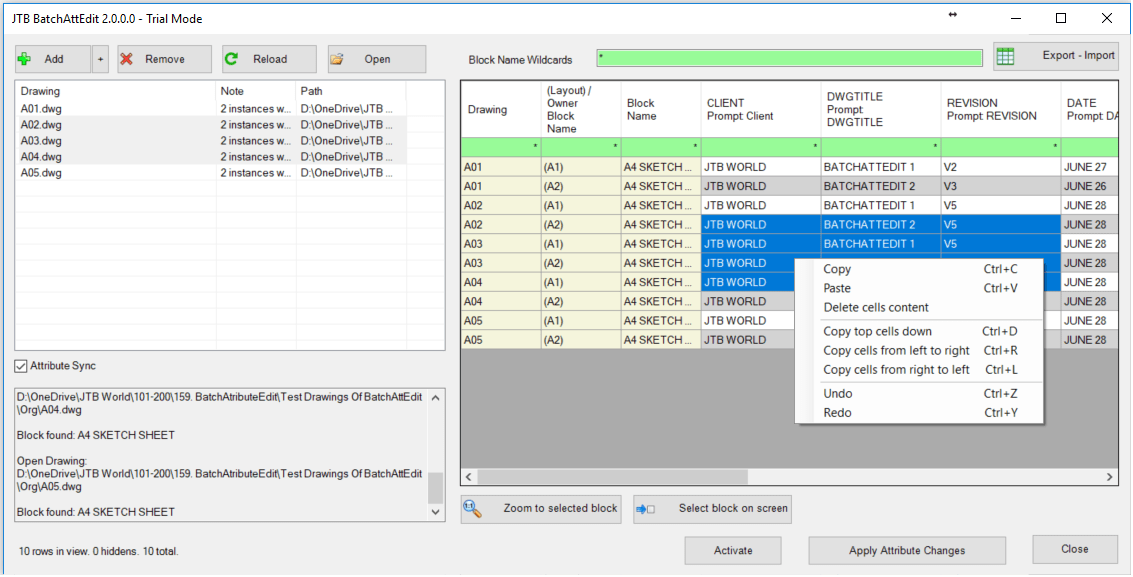
JTB BatchAttEdit 2.1 has been released. We have added support for AutoCAD 2019, editing multiline attribute and editing of field codes in attributes. Field codes are being used by Sheet Set Manager as well as if you have manually added fields to attributes.

This batch attribute editor app for AutoCAD collects attributes in all blocks of specified name patterns in multiple drawings and display in a wide spreadsheet. Then you can edit attribute texts as easy as working with Excel. Once done, click "Apply Attribute Changes" to update values to drawings.

This makes it a great app to for example edit title block attributes across many drawings instead of having to do it one drawing at a time.

JTB BatchAttEdit

Wednesday, April 18, 2018

JTB Sheet Set Publish 2.0 with AutoCAD 2019 support

JTB Sheet Set Publish 2.0 comes with support for AutoCAD 2019 as well as some bug fixes and minor UI changes.

JTB Sheet Set Publish is an app for AutoCAD that publishes sheets in Sheet Sets to files like PDF and DWF. The files created are named as you want based on a naming formula that you specify. Use date fields and/or sheet properties of your choice to build up the output filename.

Example after publishing subsets to separate folders:

Tuesday, April 17, 2018

JTB XClipClean 2.3 released to support AutoCAD 2019

JTB XClipClean 2.3 has been released. It comes with AutoCAD 2019 support as well as some bug fixes.

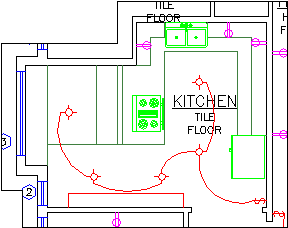
JTB World’s XClipClean is an Xclip-cutter app for AutoCAD to clean up xrefs or blocks that been clipped so that the information that is outside the clip is removed. This is useful when you need to remove hidden geometry and minimize DWG file size.

AutoCAD allows blocks and xrefs to be clipped using the XCLIP command. Sometimes for different reasons you have to clean up the blocks or xrefs that have been clipped. JTB XClipClean can help you with that by deleting and trimming geometry that is outside the xclip boundary.

Kitchen with the xclip boundary visible

Revit does not handle xclipped blocks and xrefs so XClipClean can be useful to run on drawings before taking them into Revit.

Friday, April 13, 2018

EduFinder 1.1 released

Our app EduFinder for AutoCAD is updated again after a few years when AutoCAD had the API needed removed. With AutoCAD 2019 it is back again. To quickly find drawings with the watermark use our app EduFinder.

Here’s what Autodesk tells about the reintroduction of an education watermark for AutoCAD 2019 and AutoCAD 2019 vertical products licensed by student and educators through the Autodesk Education Community.

1. What is changing for AutoCAD 2019 and AutoCAD 2019 vertical products obtained through the Autodesk Education Community?
Autodesk® AutoCAD® 2019 and Autodesk® AutoCAD® 2019-vertical products licensed by students, educators and mentors or competitors in an Autodesk sponsored design competition through the Autodesk® Education Community will produce an education watermark. This change does not apply to multi-user or network software deployed by educational institutions.

2. What AutoCAD 2019 products contain the watermark?
Autodesk® AutoCAD®
Autodesk® AutoCAD® Architecture
Autodesk® AutoCAD® Civil 3D
Autodesk® AutoCAD® Electrical
Autodesk® AutoCAD® for Mac
Autodesk® AutoCAD LT®
Autodesk® AutoCAD® LT for Mac
Autodesk® AutoCAD® Map 3D
Autodesk® AutoCAD® Mechanical
Autodesk® AutoCAD® MEP
Autodesk® AutoCAD® Plant 3D

3. Why has a watermark been reintroduced to AutoCAD 2019 and AutoCAD 2019 vertical products?
The education watermark will support the legitimate use of Autodesk® free education licenses and help ensure students and educators continue to access the same full-product functionality as industry professionals worldwide.

4. Is this a global change?
Yes, this applies to all education licences issued to students and educators for AutoCAD 2019 and AutoCAD 2019 vertical products in all languages.

5. When will the watermark be displayed?
When plotting, or doing a plot preview of a drawing that was created using AutoCAD 2019 and/or AutoCAD 2019 vertical products licensed by students and educators through the Autodesk Education Community, a subtle education watermark will be displayed. A watermark is not displayed on drawings created using multi-user or network educational institution licenses.

6. What does the watermark look like?
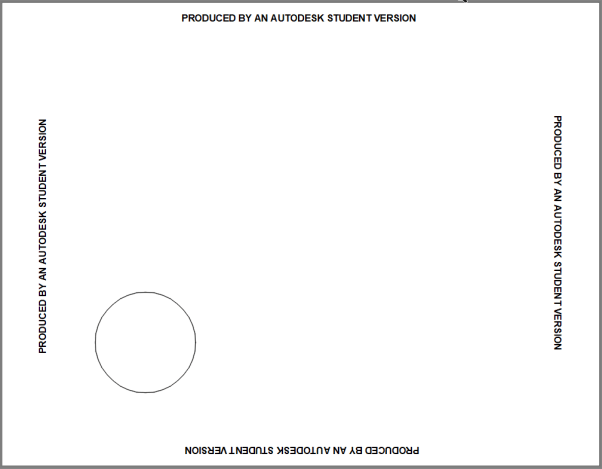
When plotting or doing a plot preview of a drawing created using AutoCAD 2019 or an AutoCAD 2019 vertical product licensed by students or educators through the Autodesk Education Community, users will see this watermark:
7. What in-product notification informs users of the watermark?
When using a version of AutoCAD 2019 that displays an education watermark to open a drawing that was created using a commercial license of AutoCAD, the following task dialog is displayed:
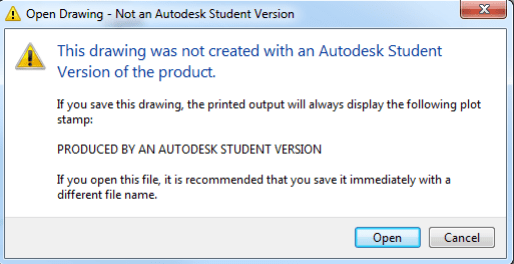
When using a commercial license of AutoCAD to open a drawing that was created using a version AutoCAD 2019 that displays the education watermark, the following task dialog is displayed:
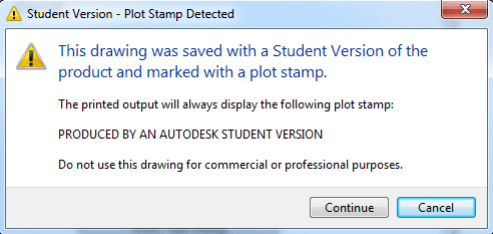
8. Does the education watermark display when another Autodesk software product is used to open a drawing?
The AutoCAD 2019 products listed will produce the watermark, and it will persist in other products that consume AutoCAD drawings containing the watermark.

9. Will I see a warning dialog box when opening a drawing created using a version of AutoCAD 2019 and/or AutoCAD 2019 vertical product that displays the watermark in another Autodesk software product?
No. The warning dialog box only appears in AutoCAD based products.

10. If a commercial license is used to copy, paste, insert, or reference operations from drawings created using a version of AutoCAD 2019 and/or AutoCAD 2019 vertical products that display the watermark, does the education watermark follow the parent drawing and display on other drawings in the commercial organization?
No. This “spread” behaviour does not occur with AutoCAD 2019 and/or AutoCAD 2019 vertical products.

11. My college lab has AutoCAD 2019 and/or AutoCAD 2019 vertical products installed. I don’t see a watermark when plotting, or doing a plot preview of a drawing I created using the software in the lab. Why not?
AutoCAD 2019 and AutoCAD 2019 vertical products licensed through the Autodesk Education Community by educational institutions and installed on the educational institution’s computers or devices do not contain an education watermark. Only educational licenses for students, educators and Autodesk sponsored design competition competitors and mentors produce the watermark.

12. May I remove the education watermark in AutoCAD 2019 and/or AutoCAD 2019 vertical products?
It is intended that this watermark promotes legitimate use of AutoCAD software licensed by students and educators through the Autodesk Education Community and any action to bypass the watermark is a violation of your license terms.

13. If I download an older version of AutoCAD and/or AutoCAD vertical products from the Autodesk Education Community, does it now produce a watermark?
No. AutoCAD and AutoCAD vertical product releases 2016, 2017, and 2018 available through the Autodesk Education Community do not produce a watermark.

14. Will Autodesk add a watermark to other Autodesk products licensed through the Autodesk Education Community in the future?
To support the legitimate use of Autodesk software licensed through the Education Community and ensure student access to the same software used by industry professionals worldwide, Autodesk is considering this action.

AutoCAD 2019.0.1 Update

AutoCAD 2019.0.1 Update is available.

AutoCAD 2019.0.1 Update

According to the readme:

AutoCAD Updates can be applied to AutoCAD installed as a standalone application and AutoCAD-based toolsets and vertical products. You can install this update in addition to any other applicable updates for the following:

  • AutoCAD 2019
  • AutoCAD Architecture 2019
  • AutoCAD Civil 3D 2019
  • AutoCAD Electrical 2019
  • AutoCAD Map 3D 2019
  • AutoCAD Mechanical 2019
  • AutoCAD MEP 2019
  • AutoCAD Plant 3D 2019
  • Advance Steel 2019

After applying this update, the Product Version or Built On Version in the About box will be listed as P.61.0.0 AutoCAD 2019.0.1. [In Windows Installed Updates the version showing is 23.0.61.0. _VERNUM = "P.61.0.0 (UNICODE)"]

As a result of the detailed information that we received from customers who used the Customer Error Reporting Utility, we were able to identify and fix several defects with the following results:

General

  • Startup crashes after loading a partial CUIX file after resetting settings to default no longer occur.

Several additional defects have been fixed with the following results:

Display

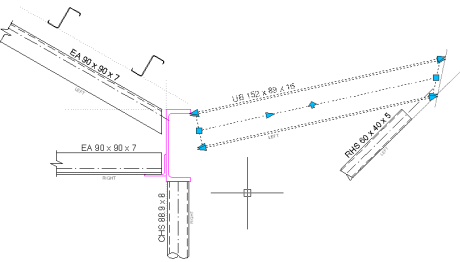
  • The draw order in a block definition is maintained when inserting the block. [This fixed issues with our JTB Steel app.]

Editing

  • When grip editing is in progress and dynamic input is turned on, pressing the Tab key cycles between the full distance, the angle, and the extension distance.

General

  • The Open from Web & Mobile and Save to Web & Mobile buttons on the Quick Access toolbar in 64-bit versions can now be hidden or removed.
  • The division symbol in stacked fractions can now be changed between horizontal and diagonal.
  • The tool palette path can now be changed from the default value without being reset when exiting the Options dialog box.

More can be found about AutoCAD 2019 here.

Thursday, April 12, 2018

AutoCAD Architecture 2019 and AutoCAD toolsets released

More of the AutoCAD 2019 toolsets are now released like the Architecture toolset. Right after installing AutoCAD Architecture 2019 I noticed that AutoCAD Architecture 2019.0.1 Update was available. See readme.

What’s new in AutoCAD Architecture 2019? I don’t think there is anything other than what comes as part of vanilla AutoCAD.

See also the blog post about AutoCAD 2019

Wednesday, April 11, 2018

JTB Raster2OLE 1.2 - bind attached images in AutoCAD

JTB Raster2OLE has been updated to version 1.2.

  • Added support for rotated, mirrored raster images
  • Fix undo action

AutoCAD has no Bind option available to bind raster images to a drawing. JTB Raster2OLE app for AutoCAD will help you to bind the attached images.

It even works for some images that IEMBED command in Raster Design fails to embed.

image

Tuesday, April 10, 2018

JTB Steel 1.6

JTB Steel has been updated to version 1.6.

  • UI fixes
  • Added support for AutoCAD 2019
  • Network licensing added
  • Fixed issue where the frame tag/frame view layers get switched
  • Add Australian member schedule files. Enhance the section list to show member schedule.
  • Resolve button error in Windows 10 update.

JTB Steel is an app running inside AutoCAD, adding powerful command features to help you draw simple and complex steelwork frames and details efficiently.

    Monday, April 9, 2018

    JTB Batch Change 1.7

      JTB Batch Change has been updated to version 1.7.

      • Fix bug in changing text: unexpectedly trim off spaces at text's beginning and end.
      • Fix Log report on Text and *Cancel*
      • Network license implemented.
      • Add support for Drawing Standard file(*.dws)
      • Added Autodesk® AutoCAD® 2019 support.
      • Fix minor issues.

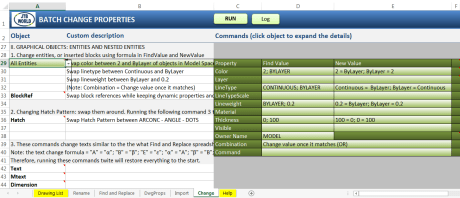
      Batch process many drawings in AutoCAD with the help of Excel. Rename, Find and Replace, import, change and much more.

        Sheet Set Manager and Sheet List Table # issues

        I was seeing this problem in the Autodesk Forum: Sheet Set Manager "Sheet List Table" has strange contents and thought it made a good blog post.

        Note how in the example below only Sheet Number 1 and 5 shows correct Sheet Number and Sheet Title. For the test I use AutoCAD 2019.

        Sheet 2 has Sheet title “TEST” and Layout name “1 TEST”.

        Sheet 2 has Sheet title “TEST #2” and Layout name “2 TEST #2”.

        Sheet 3 has Sheet title “TEST” and Layout name “3 TEST #3”.

        Sheet 4 has Sheet title “TEST #4” and Layout name “4 TEST”.

        Sheet 5 has Sheet title “TEST #5” and Layout name “5 TEST #5” and File name “5 TEST #5.dwg”.

        Sheet 6 has Sheet title “TEST” and Layout name “6 TEST 6” and File name “6 TEST #6.dwg”.

        If either of the Sheet title, Layout name or File name includes # (number sign, hash, or pound sign) then you will be in trouble.

        • The Sheet Number may be incorrect
        • The Sheet Title may be incorrect
        • If you click through on the hyperlink you can get the “Hyperlink destination cannot be found.” error.

        Sheet List Table # issues

        Why does Sheet 5 work then?

        It uses a workaround by using the character # (very similar to #). It is known as the “fullwidth number sign”. It is a Unicode character that is mainly used in Chinese, Japanese and Korean.
        Either copy it from here # or press and hold down the Alt key, type on the numeric keypad 065283 and then release the Alt key.

        BricsCAD 18 does not have these problems even though it still lack the hyperlink functionality and update of Sheet List functionality.

        BricsCAD Sheet List

        If you’re reading this you probably are interested in the Sheet Set Manager. If you have not yet looked at our SSMPropEditor app I suggest you do as it will make your life easier working with Sheet Sets and their various properties. Or look at JTB Sheet Set Creator, JTB DST Tool and JTB Sheet Set Publish.

        Friday, March 23, 2018

        AutoCAD 2019

        The newest release of AutoCAD is AutoCAD 2019, codenamed "Pi" with official release March 22, 2018. This is the 33nd version of AutoCAD.

        For all or at least most about this release visit our page about AutoCAD 2019.

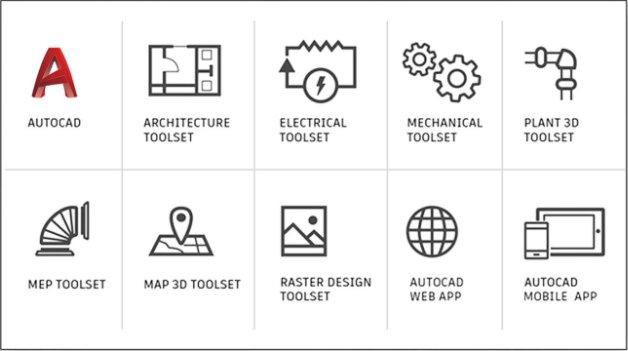
        As of March 22nd, 2018 subscribers will no longer have to access AutoCAD vertical functionality through separate offerings – by subscribing to AutoCAD, customers will now have access to the capabilities of multiple AutoCAD vertical toolsets in one AutoCAD.

        Remember AutoCAD Architecture, AutoCAD Map 3D, etc?

        Missing in above is Civil 3D. Question is how many customers will find this worth the increase in cost. If you had Mechanical before, do you have a need for Architecture?

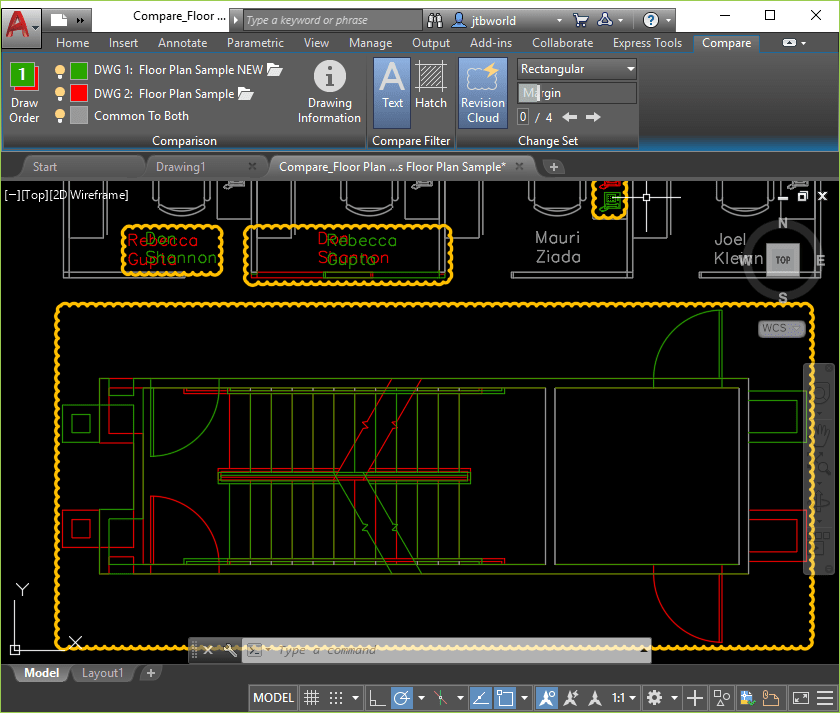
        The only big new feature is DWG Compare.

        The green and red graphics highlight the differences between the first version of the drawing (green) and the second version (red). All unchanged elements are shown in grey.

        Shared Views replaces the Design Feed as Autodesk A360 has been deprecated.

        Most of our JTB World apps have been updated to work with AutoCAD 2019 and more will follow. Contact us if you have an app that you want to be prioritized to be ready for AutoCAD 2019.

        Thursday, March 22, 2018

        Autodesk Network license Manager 11.14.1.3 for Autodesk 2019 products

        Autodesk Network License Manager 11.14.1.3 is now available and required when using Autodesk 2019 products like AutoCAD 2019.

        Download from Autodesk Knowledge Network.

        Starting with version v11.13.1.2, the default installation folder has changed to C:\Autodesk\Network License Manager. If you had any licensing service configured earlier with previous versions of the Network License Manager, you will have to re-configure them after installing the latest version of the NLM (starting with v11.14.1.3) due to a change in the default install location of the NLM binaries.

        In LMTOOLS on the System Settings tab the IPv4 and IPv6 addresses can be seen separately now.

        LMTOOLS System Settings

        On the Config Services tab there is a new checkbox “FlexNet Licensing Service Required”. It is required for optional features such as virtualization and trusted storage.

        LMTOOLS Config Services

        If you want to see current license status take a look at our freeware JTB FlexReport LT and if you want to monitor historic usage see our JTB FlexReport.

        Some of the latest blog posts

        Subscribe to RSS headline updates from:
        Powered by FeedBurner

        Contact Us | About JTB World | Website General Terms of Use | Privacy Policy
        ^ Top of page

        © 2004- JTB World. All rights reserved.