Showing posts with label Microsoft. Show all posts

Tuesday, April 4, 2023

Solution for modified Excel .xlam not saved after saving

I tried to digitally sign a .xlam (Excel Macro-Enabled Add-In) but no matter what modifications I did to the file the changes were not saved. Even if I put a copy of it in a different folder it did not help. I tried to disable all Add-ins, restarted Excel and tried to modify and save to no avail.

Have you seen this behavior? If so, I was able to solve it by starting Excel in safe mode (holding Ctrl down while starting Excel) and then open the .xlam file, modify and sign it.

Thursday, November 17, 2022

Solution for Access error: There isn't enough free memory to update the display

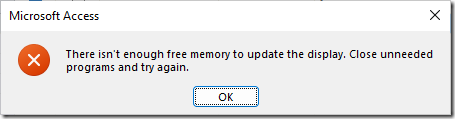
I've got this error in Microsoft Access. There isn't enough free memory to update the display. Close unneeded programs and try again.

image

It happens to me when Access is opened with a custom form and accessing the computer with Microsoft Remote Desktop Android app.

I found that deleting this VBA key in the registry solved it. After a Windows or Office update I had to delete it again.

HKEY_CURRENT_USER\Software\Microsoft\VBA

Wednesday, December 26, 2018

Red ‘X’ symbol error after updating to Windows 10 October 2018 Update version 1809

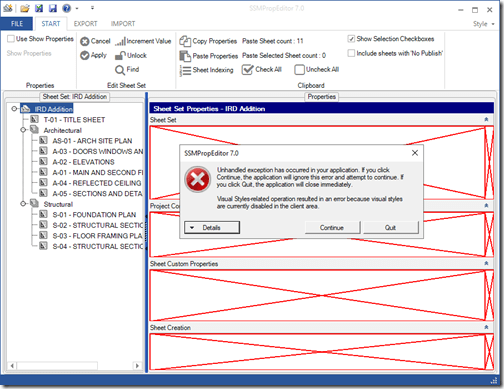
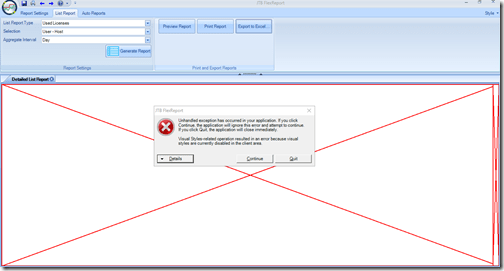
After installing Windows 10 October 2018 Update version 1809 you might get a problem with a white box with red borders and a red ‘X’ like below screenshots show.

UPDATE January 22, 2019: KB4481031 Preview of Cumulative Update for .NET Framework 3.5 and 4.7.2 for Windows 10, version 1809 and Windows Server 2019 seems to solve this issue.

In SSMPropEditor it can happen using some of the commands that will open a file dialog box like open, export, import.

Visual Styles-related operation resulted in an error because visual styles are currently disabled in the client area.

It can also happen in JTB FlexReport and other apps both by us and others.

Visual Styles-related operation resulted in an error because visual styles are currently disabled in the client area.

Clicking on Details in the error dialog box may show something like this.

“System.InvalidOperationException: Visual Styles-related operation resulted in an error because visual styles are currently disabled in the client area.
   at System.Windows.Forms.VisualStyles.VisualStyleRenderer.IsCombinationDefined(String className, Int32 part)”

Technical problem description

“WinForms applications may have problems rendering the application UI and instead may render a white screen with a red ‘X’ symbol. The issue is caused by a change in Windows 10 October 2018 Update that exposed a bug in .NET Framework 4.7.2. The issue is caused by a change in Windows 10 October 2018 Update that exposed a bug in .NET Framework 4.7.2. The Windows 10 October 2018 Update adds a new flag to VisualStyle state when the application UI launches a child dialog (i.e., a FileSaveDialog or PrintpreviewDialog) that causes .NET Framework to fail its VisualStyleState check and thus throw an exception while rendering the application UI.” ref

Solution

Microsoft’s .NET Framework 4.8 Early Access Build 3707 fixes the problem.

“Fixed VisualStyle property in Winforms, is checking for supported values (by Winforms) and any value that goes outside of this range, Winforms throws an exception. Winforms also checks if the VisualStyle property set is supported by Winforms when it is using this property and does no-op if it is not supported. Underlying native method we use to set visual styles does not care what the value for visualstyle is being passed to it. Making this change will align Winforms code with windows and does not throw exception but still validate supported visual styles when using this property. Removing the validation condition while setting this property. [578093, System.Windows.Forms.dll, Bug, Build:3621]”

Download links for .NET Framework 4.8 Early Access Build 3707 can be found here.

A .NET 4.7.2 servicing fix for this will be released by Microsoft in near future and will also be included in the next version (4.8) of .NET Framework.

Friday, October 5, 2018

Hold updating to Windows 10 version 1809

You might want to think twice about updating Windows 10 to the latest version 1809 released October, 2018.

I run into problems with Excel’s TEXT function not being able to convert year and month correctly.

I also got problems with some VBA code I use for Outlook, causing out of memory errors. The code got stuck on this row:
Set wdDoc = objOpenInspector.WordEditor

After going back to previous Windows 10 version 1803 things are working again. Office version (Office 2016 or Office 365) 16.0.10827.20138 and 16.0.10730.20127 both work fine on Windows 10 1803.

Have you upgraded and run into any issues?

UPDATE:

Microsoft has pulled Windows 10 version 1809 from the Software download page, Windows update and update assistant as of October 6.

Known issues updating to Windows 10, version 1809

“We have paused the rollout of the Windows 10 October 2018 Update (version 1809) for all users as we investigate isolated reports of users missing some files after updating.”

Friday, April 20, 2018

AutoCAD and Controlled folder access

“One or more objects in this drawing cannot be saved to the specified format. The operation was not completed and no file was created.” is an AutoCAD Message that might not be so helpful. In my case I tried to save the drawing to a specific folder.

AutoCAD Message

If you get this message check if you in Windows 10 have activated Controlled folder access. Either turn it off or allow AutoCAD (acad.exe) through Controlled folder access.

Controlled folder access

There can be a lot of other reasons for seeing this message. Here’s what can be found on the Autodesk Knowledge Network:

Causes:
This error can have multiple causes:
  • Corrupt drawing.
  • Corrupt user profile.
  • Low free disk space.
  • File server issues.
  • Missing drive (such as a USB drive that is no longer connected).
  • Proxy objects (objects created by third-party applications or other Autodesk applications) that are not recognized by AutoCAD.
  • The DACH Extension is installed (AutoCAD Civil 3D) and "empty" surfaces and the "DTM Dreiecksbeschriftung" function is present.
  • Network adapter settings
Solution:
Enable full saves instead of incremental saves in AutoCAD
On the command line in AutoCAD, type ISAVEPERCENT and set the value to 0 (zero).
Corrupt drawing / low free disk space
  • Use the AUDIT command to repair your drawing. This should allow it to be saved.
  • Use SAVEAS or WBLOCK to create a new file.
  • If the drawing immediately shows the error when you save without making changes in the drawing, insert the drawing into a new drawing created from the acad.dwt template.
Corrupt AutoCAD User Profile
Reset AutoCAD (see How to reset AutoCAD to defaults).
Corrupt Windows User Profile
Login as another user and try again. If this works an administrator has to reset the Windows User profile
File Server issues
If this error occurs when you are saving drawing files inside file management software, set AutoCAD and the file management software to both run as administrator and disable User Account Control in Windows.
Proxy objects
Enable recognition for proxy objects by setting the following variables to 1: ​Use the command -EXPORTTOAUTOCAD to create a new file that only contains AutoCAD-native objects. Then use that new file going forward.
Remove the German DACH Extension
See Error: "DGM-Beschriftung Wird neu erstellt" Civil 3D 2016.
Windows Search service
Check the folders that contain your drawings to see if they can be indexed by the Windows Search service (right-click > Properties > Advanced). Make sure Windows is not indexing the folders. On occasion, the indexing repeatedly causes this error with AutoCAD drawings.
Network adapter settings
Disable the TCP Offload setting in your network adapter. For instructions on this, consult the manufacturer of your Ethernet adapter. 

Monday, October 16, 2017

Data Extraction in AutoCAD shows DeleteMe in Excel

If you run into this there is an explanation in this Autodesk Community post. Here’s the result after running DATAEXTRACTION and making the output to Excel.

DeleteMe

I noticed the problem in AutoCAD 2018 and it seems like it is the same with older versions of AutoCAD too.

The solution is not a good one as you may put your computer in danger by uninstalling the Windows security updates.

We have become aware that Microsoft recently released some security updates for Windows operating systems. There are currently three updates that I am aware of that break functionality in Core AutoCAD and its connection with Microsoft Excel.  For instance, customers can expect that when running a Data Extraction and saving the results in an Excel spreadsheet, the first cell (A1) will display ‘DeleteMe’ and no other data will appear.

The three update numbers are:

The remedy at this point in time is to simply uninstall the security updates until a more permanent solution is determined. Removal should restore full functionality of the features.

Inventor 2015-2011 also appears to be affected. Removal of the security updates will restore functionality of placing such features as holes and threads. Another solution, to be taken at the customer’s own risk is to change the following registry key setting:

HKEY_CURRENT_USER\Software\Autodesk\Inventor\RegistryVersion XX.0\System\Preference\Part\UseExcelToReadthreadFile to 1

UPDATE 2017-11-15: Windows November updates like kb4048952 or kb4048955 or possibly Windows 10 OS Build 15063.674 fixes this issue.

Tuesday, October 3, 2017

JTB FlexReport Services automatically stops – solution

Here’s a problem and solution I wanted to share that caused our network license monitoring solution JTB FlexReport (specifically the report Client/Service) not working.

Question: When using Test Service Engines I get the error: Please start the Services before testing. The remote name could not be resolved: 'localHost'. But I had started the services right before pressing the test buttons in the JTB FlexReport Service Configurator. The client configurator also shows error when testing service engines.

Another error showing in a dialog box and also in Windows Event Logs: Could not load type 'System.Runtime.Diagnostics.ITraceSourceStringProvider' from assembly 'System.ServiceModel.Internals. Version=4.0.0.0. Culture=neutral. PublicKeyToken=31bf3856ad364e35'.

When manually checking if the JTB FlexReport Auto Chart Service and JTB FlexReport Chart Service are running I find that they are not running and after starting them they stops directly.

.NET Framework 4.5 is installed.

Answer: This issue can be resolved by installing .NET Framework 4.5.2 or newer (http://www.microsoft.com/en-us/download/details.aspx?id=42642)
After that you will need to restart the server and the issue should be fixed.

Tuesday, June 20, 2017

Autodesk AutoCAD 2015-2018 Geolocation Online Map Hotfix

Autodesk AutoCAD 2015-2018 Geolocation Online Map Hotfix is now available.

Microsoft is ending support for version 7 of Bing Maps on June 30th, 2017. This Hotfix will upgrade your version of Bing Maps to version 8 so that you can continue to use the Geolocation Online Map Data feature.

This Hotfix applies to all 32-bit and 64-bit publicly released versions of the following products (including Service Packs and Updates):

  • Autodesk AutoCAD 2015, Autodesk AutoCAD LT 2015, and Autodesk AutoCAD 2015-based vertical products
  • Autodesk AutoCAD 2016, Autodesk AutoCAD LT 2016, and Autodesk AutoCAD 2016-based vertical products
  • Autodesk AutoCAD 2017, Autodesk AutoCAD LT 2017, and Autodesk AutoCAD 2017-based vertical products
  • Autodesk AutoCAD 2018, Autodesk AutoCAD LT 2018, and Autodesk AutoCAD 2018-based vertical products

Using AutoCAD or AutoCAD LT 2014? See More About End of Feature Support for Bing Maps Version 7

Please check the Readme for detailed instructions and download the hotfix.

Extract Autodesk_AutoCAD_2015_to_2018_Geolocation_Online_Maps_Hotfix_32bit_64bit.zip and run Autodesk_AutoCAD_2015_to_2018_Geolocation_Online_Maps_Hotfix.sfx.exe

The hotfix can’t be uninstalled and even a repair or reinstall of AutoCAD will not restore this specific file. In this case it’s not too bad as it will not work anyway soon but for other hotfixes it can be a problem. The hotfix installer does not even create a backup copy of the old version. Also the hotfix will probably not show up in Autodesk Desktop App which is too bad. Delivering hotfixes like this is not a good practice.

The Autodesk product version showing in the About dialog box and the _VERNUM are not updated by this hotfix so only way to tell if it’s installed is by checking the version of the AcGeoLocationUI.arx located in the AutoCAD main installation folder.

File version for AcGeoLocationUI.arx:

AutoCAD 2015: 20.0.210.31

AutoCAD 2016: 20.1.107.33

AutoCAD 2017: 21.0.402.3

AutoCAD 2018: 22.0.102.0

If you’re curious what the hotfix installer does and learn some VBScript take a look at the vbs files in C:\Autodesk\Autodesk_AutoCAD_2015_to_2018_Geolocation_Online_Maps_Hotfix
This can be used to modify so you can install it in an environment with many AutoCAD installations.

Update. After June 30th, 2017 when you run for example GEOGRAPHICLOCATION command you can see a dialog like this:
Geolocation - Online Map Data
You do not have permission to access Online Map Data.
Go to Account Settings and check your entitlement to use online maps.
You can continue using Geolocation without access to maps.

Geolocation

Followed by:
Geolocation - Online Map Data Update
You must update your software before 2017-06-30 to continue using Online Map Data.
Get update information – You will be redirected to the Autodesk update website for more information.
Update later – If you choose not to update, then you can continue to use Geolocation without maps after 2017-06-30.

Geolocation

Thursday, May 4, 2017

Windows 10 Game Mode for CAD software

I’ve not done any comparable test but it might be worth to give it a try to see if the new Game Mode that comes with Windows 10 Version 1703 (Windows 10 Creators Update) can help you hardware intensive software like CAD. It could be AutoCAD, Revit, Inventor, Navisworks, BricsCAD, CATIA, Siemens NX, Solid Edge, PTC Creo, SolidWorks, etc.

This Windows tool is not limited to games and works for most any software. Running a software in Game Mode tells Windows that you’d like to focus on the software in terms of system resources. Unwanted and non-priority background processes will be stopped automatically or run with lower priority.

First you need to turn Game Mode on in the Windows Settings area, then enable it for each software as well. To do this, open the Windows Game Bar (Windows key + G) with the software running, and check the "Use Game Mode for this game" box. In the Game Mode Bar click on Settings to disable it for the software by unchecking “Remember this as a Game”.

You can also take screenshots and record videos with this tool.

See also Windows 10 Game Mode missing and solution

Windows 10 Game Mode missing and solution

If you can’t find Gaming in Settings and activate (press Windows key + G) the new Game Mode even though upgrading to Windows 10 Version 1703 (Windows 10 Creators Update) it might be that you need to install Media Feature Pack for N edition of Windows 10 Version 1703 from the Microsoft Download Center.

Friday, July 8, 2016

Tips how to show folder metadata in Explorer

Do you want to see metadata in folders in Windows Explorer/File Explorer as well as be able to edit them?

Copy the text in italics below into Notepad and save it as desktop.ini in the folder(s) of your choice. Change TitleHERE, SubjectHERE, AuthorHERE and TagsHERE to be the metadata you want to see in Explorer.

[{F29F85E0-4FF9-1068-AB91-08002B27B3D9}]
Prop2=31,TitleHERE
Prop3=31,SubjectHERE
Prop4=31,AuthorHERE
Prop5=31,TagsHERE

Then show the Authors, Subject, Tags and Title columns in the parent folder.

To change them just edit the ini file in Notepad.

You can make this ini file hidden too.

Now you can quickly see what’s in the folders and even sort by any of the columns or folder properties.

If you want to make use of other columns there are ways to see them as well.

If you find this useful and want an easier way to work with it contact us and we can create a custom solution based on your needs.

See also our DWG Columns for Explorer.

Wednesday, March 2, 2016

DWG Columns and Office update conflict

It has come to our knowledge that some Microsoft Office (Office 2013, Office 2016, Office 365) updates are causing troubles with our DWG Columns product that can show DWG properties in Windows Explorer / File Explorer.

If you have activated the columns in Explorer you will notice that they are missing after Office is updated and can’t be added back again.

Click to see a larger version with more columns

Microsoft Office development team are now aware of this problem and hopefully will fix this so it’s not happening in future Office updates.

In the meantime the workaround is to for example add the following to your Windows login scripts or run it manually on the command line and after that the columns can be added again.

rundll32.exe "C:\Program Files\JTB World\DWG Columns\DWGPropertyHandler.dll",InstallPropertySchema

This issue will affect any software that has similar functionality to show custom properties or metadata in Explorer using the Windows Windows Property System API.

Friday, August 7, 2015

Solution for when KB3074683 fails to install problem

If you have Windows 10 installed and also have an NVIDIA graphic card you might run into a problem installing KB3074683 where the computer restarts several times and fails to install the "Security Update for Windows 10 for x64-based Systems (KB3074683)".

Have you been trapped in a reboot loop? The update reaches a certain percentage of installation before failing and rolling back.

This might be a solution to the endless reboot cycle. It worked for me.

Run regedit in Windows. Hold down the Windows button on the keyboard and press R and enter regedit and click on OK. (As always with regedit, be careful and if needed make a backup of the registry first)

Then locate this key:

HKEY_LOCAL_MACHINE\SOFTWARE\Microsoft\Windows NT\CurrentVersion\ProfileList

Now right click on ProfileList and select Find and enter UpdatusUser and click Find Next.

On the key where you find UpdatusUser in the ProfileImagePath, right click and click on Delete.

Now let Windows 10 make the update and hopefully it works for you too.

I found the solution that worked for me here. And if you want to know What is NVIDIA ’UpdatusUser’?

Sunday, October 13, 2013

How to Exit Explorer in Windows 8

Here’s how to safely Exit Explorer in Windows 8 or Windows 8.1. Now why would you need to do that? Well there are times when it is useful like for programmers that work with Explorer Shell Extensions like our DWG Columns product to show DWG properties in Explorer.

Hold down Shift and Ctrl, right click on an empty area on the Windows taskbar and click on “Exit Explorer”.

A new feature in the Task Manager is the Restart option for Windows Explorer.

If you don’t see Windows Explorer click on More details at bottom left. If Windows Explorer is selected you will also notice that the End Task button at bottom right changes to Restart.

To start Explorer again, press Ctrl+Shift+Esc to start the Task Manager if it is not already running, and use File > Run new task. Type Explorer in the "Create new task" dialog and press Enter.

Now there is the option to use End task on Windows Explorer but if it is as good and clean as the Exit Explorer or not I don’t know. In earlier Windows versions it was not.

Exit Explorer in Windows Vista and Windows 7

Wednesday, July 31, 2013

TransTips 1.2 for AutoCAD released

TransTips 1.2 has been released on Autodesk Exchange Apps.

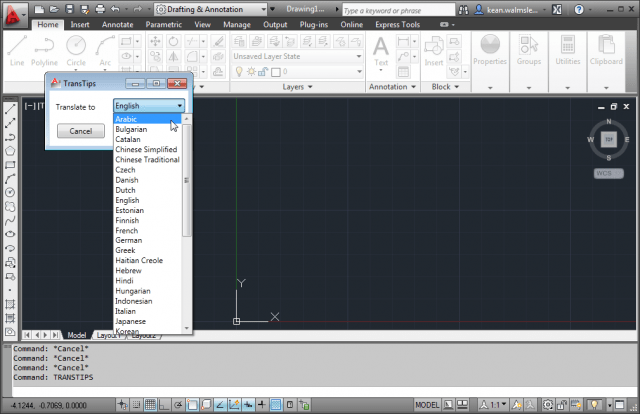
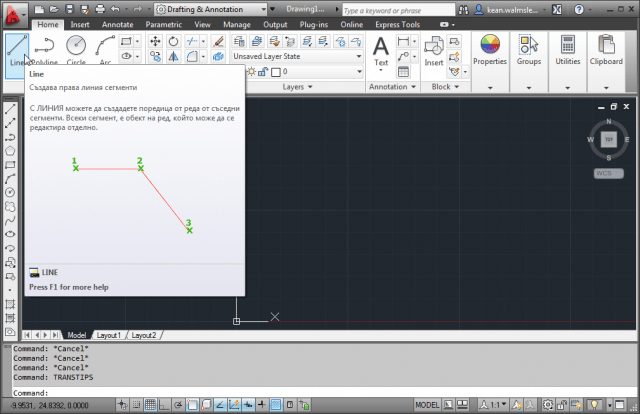
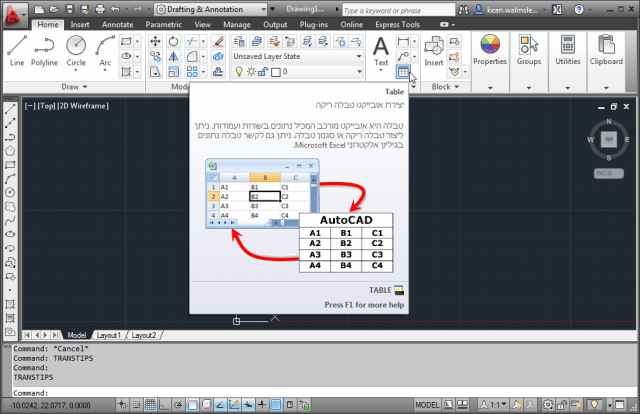
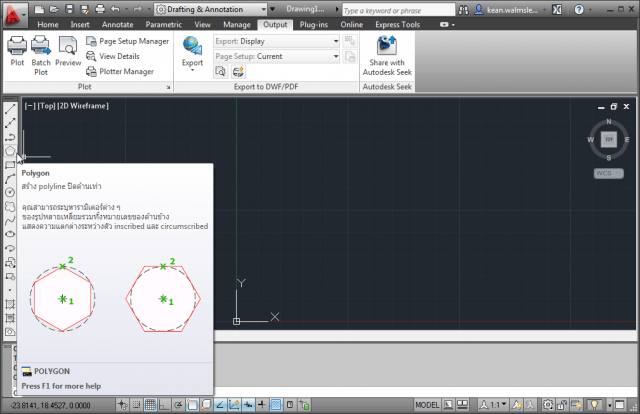
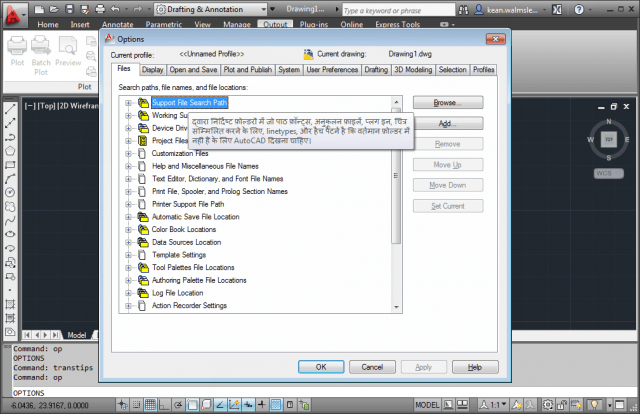
TransTips plug-in can be used to translate the contents of tooltips in various Autodesk products automatically into one of 43+ languages via Microsoft's Bing online translation service. The translated text is stored in a local cache of XML files, which can also be edited and used by the plugin if you like “better” translations than the automatic ones.

Language supported are the languages Bing Translator supports and as of July 2013 they are: Arabic (العربية), Bulgarian (Български), Catalan (Català), Chinese Simplified (简体中文), Chinese Traditional (繁體中文), Czech (Čeština), Danish (dansk), Dutch (Nederlands), English, Estonian (Eesti), Finnish (suomi), French (Français), German (Deutsch), Greek (Ελληνικά), Haitian Creole (Kreyòl Ayisyen), Hebrew (עברית), Hindi (हिंदी), Hmong Daw (Hmoob Daw), Hungarian (magyar), Indonesian (Indonesia), Italian (Italiano), Japanese (日本語), Klingon (tlhIngan), Klingon (Kronos), Korean (한국어), Latvian (Latviešu), Lithuanian (Lietuvių), Malay (Melayu), Norwegian (Norsk), Persian (Farsi) (فارسی), Polish (Polski), Portuguese (Português), Romanian (Română), Russian (русский), Slovak (slovenčina), Slovenian (slovenščina), Spanish (Español), Swedish (Svenska), Thai (ไทย), Turkish (Türkçe), Ukrainian (українська), Urdu (اردو) and Vietnamese (Việt Nam).

The TRANSTIPS command dialog

The Line command's tooltip translated into Bulgarian

Right-to-left languages such as Arabic and Hebrew are also supported

It also works with toolbars

And inside certain dialogs, such as the one for the all-important OPTIONS command

Version 1.2 news: More tooltips are translated. Language settings are remembered between AutoCAD sessions.

TransTips trial can be used to see if this app fits your needs and when ready to purchase visit TransTips and you can get a license for 2 USD.

If you are interested in other useful AutoCAD helper functions take a look at OffsetInXref, HTools Menu for AutoCAD, UnitCAD for AutoCAD or HVACPAC.

Friday, March 22, 2013

How to pin any document to the Start screen in Windows 8

Windows 8 comes with a completely new Start screen that replaces the start menu. After having tried some freeware that try to mimic the old start menu (that I were not that satisfied with) I have instead started to use the Start Screen and even though I don’t have a touch screen I find it quick and easy to use.

In Windows 8 you can by default pin only some things like programs (.exe) to the Start screen using Windows Explorer. But what if you want to pin a document? It can be done with a simple registry hack. Here is how I right-click on an Excel document and have the Pin to Start option.

Pin to Start

When ready you will find the document or file as a tile on the Start screen.

Copy the text in the box below into Notepad and save it as pintostart.reg. Then double click on pintostart.reg and accept the dialog boxes.

Windows Registry Editor Version 5.00

[HKEY_CLASSES_ROOT\*\shell\pintostartscreen]
"MUIVerb"="@shell32.dll,-51201"
"NeverDefault"=""
"Description"="@shell32.dll,-51202"
"MultiSelectModel"="Single"

[HKEY_CLASSES_ROOT\*\shell\pintostartscreen\command]
"DelegateExecute"="{470C0EBD-5D73-4d58-9CED-E91E22E23282}"

[HKEY_CLASSES_ROOT\AllFilesystemObjects\shell\pintostartscreen]
"MUIVerb"="@shell32.dll,-51201"
"NeverDefault"=""
"Description"="@shell32.dll,-51202"
"MultiSelectModel"="Single"

[HKEY_CLASSES_ROOT\AllFilesystemObjects\shell\pintostartscreen\command]
"DelegateExecute"="{470C0EBD-5D73-4d58-9CED-E91E22E23282}"

Another alternative is Pin to 8 that is a nice freeware with more features:

With our Pin to 8 you will able:

  • to pin ANY file regardless of its type;
  • to pin ANY folder;
  • to pin drive;
  • to pin Control Panel items, all them including some hidden like God Mode/All Tasks, Network Connections;
  • to pin Libraries;
  • to pin Shell Objects like Run command, "Show Desktop", Window Switcher;
  • to pin any folders or files with drag and drop. Drop them on application window.

There is also a manual way by adding a shortcut in this folder:

%appdata%\Microsoft\Windows\Start Menu\Programs

When expanded it may look like this except jtb would be your login name: C:\Users\jtb\AppData\Roaming\Microsoft\Windows\Start Menu\Programs

Only thing is that you need to also pin it. Say you create a shortcut named “Windows 8 manual test” and put it in the folder above. Now press the Windows button and start writing the name of the shortcut and it should show up in the search result.

Right-click on the shortcut and select Pin to Start at the bottom of the screen and the tile should show up on the Start Screen.

Thursday, November 8, 2012

Autodesk’s Official support for Windows 8

Have you started using Windows 8 or plan to do it? If so you may wonder what Autodesk says about support for their products.

Is compatible with ?

Windows 8 Support for Autodesk products

According to KB id TS19048377

Issue

You want to know which Autodesk products are supported on Microsoft Windows® 8.

Note: Unless indicated otherwise, this information applies to the 2013-2010 versions of all Autodesk products. Autodesk product versions of 2009 and earlier are no longer supported and are not included in considerations of Windows 8 compatibility.

Solution

Autodesk intends to support many of our key products on Windows 8 and will add additional products to the list of products supported on Windows 8 as updates and future versions are released. Product Support will provide its best effort to assist customers who have issues with products that are not currently supported.

The Autodesk products listed below have been tested and are confirmed as working correctly on Microsoft Windows 8 operating system:

  • Autodesk 3ds Max 2013
  • Autodesk 3ds Max Design 2013
  • Autodesk Maya 2013
  • Autodesk MotionBuilder 2013
  • Autodesk Mudbox 2013
  • Autodesk Softimage 2013
  • Autodesk SketchBook Designer 2013

Note: This technical solution will be updated as new Windows 8 compatibility information becomes available.

See also Windows 8 and Autodesk product compatibility

Wednesday, September 19, 2012

How to solve problem when setup says AutoCAD is installed

Have you run into a problem when the installer says on Configure Installation that AutoCAD is already installed and trying to clear out remaining folders, files and registry keys does not help? AutoCAD is not installed but still the setup says it is. It might be that you had tried to manually uninstall AutoCAD (or Revit or whatever it is) and failed to do it 100%. What to do?

This trick might help to solve the problem. Note that the GUID (the code at the end in italics) is different for different applications and versions so you might need to search in the parent folder or go through them all to find what you look for.

Locate this folder and delete it with its content. Make a backup if you want to be on the safe side.
C:\Windows\Installer\{5783F2D7-B001-0000-0102-0060B0CE6BBA}

Use regedit, locate this registry key and delete it with its content. Make a backup if you want to be on the safe side.
HKEY_CLASSES_ROOT\Installer\Products\7D2F3875100B0000102000060BECB6AB

After that hopefully you will find that you can run the setup and install AutoCAD or whatever product you had in mind to install. Now you know how to install AutoCAD even if AutoCAD is already installed even though it was just the installer thinking so.

See also Completely clean out traces of AutoCAD installations

Monday, September 10, 2012

Microsoft Expression Web Server error: Web "<Stammweb>" ist ausgelastet.

I recently got a problem to publish from Microsoft Expression Web 4 to my website. Strangely enough the error message shows in German even though the application is English as well as Windows and locale settings.

Microsoft Expression Web: Server error: Web "<Stammweb>" ist ausgelastet. Versuchen Sie es später wieder.

In the connection settings I use FrontPage Server Extensions and I have not changed anything after the point it worked and when it stopped working.

My website host company could not find anything wrong either but after they restarted the server it worked again for me.

Wednesday, April 25, 2012

Google Drive with 5 GB Free Cloud Storage

Google Drive is now available with up to 5 GB free space for cloud storage.

Autodesk’s AutoCAD WS app is available in Chrome Web Store so you can access DWGs and DXFs and they can be opened from within Google Drive.

Only problem is that most everything in the editor is disabled. This will hopefully be fixed soon and also be able to open and save drawings to Google Drive from within AutoCAD WS.

Autodesk’s Pixlr Editor is also available as app to edit images with.

The search in Google Drive is cool. If you have images available to search among Google Goggles technology is used to recognize objects, logos, landmarks, text and much more.

On the topic of online storage. If you used Microsoft’s SkyDrive the storage is dropped to 7 GB but if you want you can reclaim your previous 25 GB if you log in now. Another cloud storage option is Dropbox (with a minimum of 2 GB free storage) that is quite popular but will probably get it tougher with the competition. One thing Dropbox has is version control of the files. Microsoft has a chart comparing the services.

Some of the latest blog posts

Subscribe to RSS headline updates from:
Powered by FeedBurner

Contact Us | About JTB World | Website General Terms of Use | Privacy Policy
^ Top of page

© 2004- JTB World. All rights reserved.