Showing posts with label LISP. Show all posts

Monday, April 7, 2025

How to change Camera and Target on the current view

Using the VIEW command in AutoCAD opens up the View Manager and there are properties like Camera X, Camera Y, Camera Z, Target X, Target Y, Target Z that are greyed out so you can't edit them.

view manager

In BricsCAD these can easily be edited though.

BricsCAD Drawing Explorer Current View

Here is a tips on how to change these coordinates using the DVIEW command I AutoCAD.

Command:
DVIEW
Select objects or <use DVIEWBLOCK>:     <- press Enter here
Enter option
[CAmera/TArget/Distance/POints/PAn/Zoom/TWist/CLip/Hide/Off/Undo]: PO
Specify target point <30000.76, -16728.59, 2587.63>: 0,0,0
Specify camera point <30000.76, -16728.59, 2588.63>: 0,0,1
Enter option
[CAmera/TArget/Distance/POints/PAn/Zoom/TWist/CLip/Hide/Off/Undo]:     <- press Enter here
Regenerating model.

Or using AutoLISP (command "._DVIEW" "" "_PO" "0,0,0" "0,0,1" "")

In some older AutoCAD versions the above does not work due to an AutoCAD bug, as seen here:

Command: _DVIEW
Select objects or <use DVIEWBLOCK>:
Enter option
[CAmera/TArget/Distance/POints/PAn/Zoom/TWist/CLip/Hide/Off/Undo]: _PO
Specify target point <114577.93, 19107.27, 4087.49>: 0,0,0
Specify camera point <114576.93, 19106.27, 4088.49>: 0,0,1
Camera and Target may not be coincident

I found that this variant did work as it should.

(command "._DVIEW" "" "_PO" (list 0 0 0) (list 0 0 1) "")

Wednesday, November 20, 2024

Solution to error: no function definition: ACET-LOAD-EXPRESSTOOLS

If you are using an AutoLISP function like (acet-tjust (ssget "_L") "TC") it needs Express Tools to be installed but in AutoCAD 2025 it still doesn't work.

Command: (acet-tjust (ssget "_L") "TC")
; error: no function definition: ACET-TJUST

The reason is that the Express Tools Utility functions are no initialized automatically.

For this reason you need to use the new function (acet-load-expresstools). If the Express Tools Utility functions are already loaded, acet-load-expresstools does nothing. Use it just like (vl-load-com).

But if you share code between AutoCAD 2025 and older versions the older versions can show errors like

; error: no function definition: ACET-LOAD-EXPRESSTOOLS

or in the case of BricsCAD

----- Error around expression -----
; (ACET-LOAD-EXPRESSTOOLS)
;
; error : no function definition <ACET-LOAD-EXPRESSTOOLS> ; expected FUNCTION at [eval]

What I use is this solution.

(if (findfile "acetutil.arx") (load "acetutil"))
(if (boundp 'acet-load-expresstools) (acet-load-expresstools))

If you try to find acet-tjust in AutoCAD's dev doc you will be out of luck as it is undocumented, but BricsCAD has you covered as seen here.

These "ExpressTools" API functions are currently provided by BricsCAD and are identical to AutoCAD's:

Blocks (acet-block-xxx)

Calculations (acet-calc)

Diskfile-Init functions

Dictionary (acet-dict-xxx)

Entity (acet-ent-xxx)

Entity-Groups (acet-group-xxx)

Error (acet-error-xxx)

Files (acet-file-xxx)

Filenames (acet-filename-xxx)

Geometry (acet-geom-xxx)

GeneralProperties (acet-general)

Layer (acet-layer-xxx)

Lists (acet-list-xxx)

Polyline (acet-pline-xxx)

Registry (acet-reg-xxx)

SelectionSets (acet-ss-xxx)

Strings (acet-str-xxx)

System (acet-sys-xxx)

SystemVariables (acet-sysvar-xxx)

Ucs (acet-ucs-xxx)

UserInterface (acet-ui-xxx)

Viewport (aced-viewport-xxx)

XData (aced-xdata-xxx)

Common Utilities (acet-xxx)

Insert+Atrributes Functions

SymbolTable Functions

Additionally, a number of general and special purpose (acet::xxx) utility functions are provided.

Tuesday, December 13, 2022

JTB ACA Tools for AutoCAD Architecture based toolsets

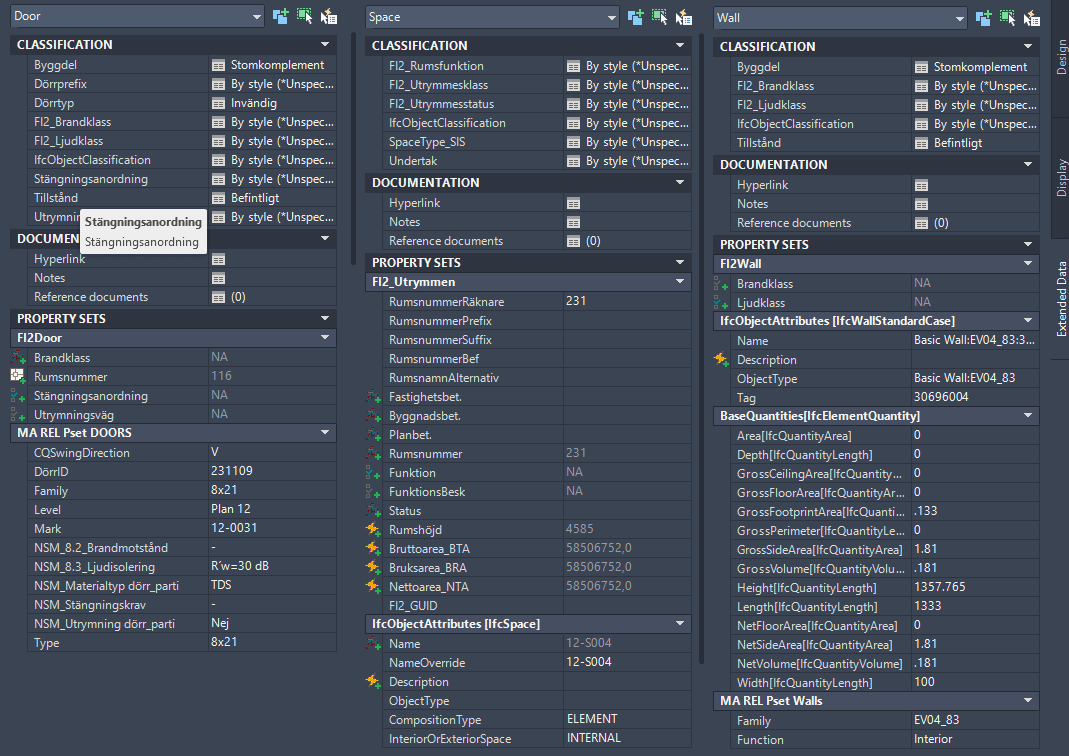
JTB ACA Tools comes with editing Tools for Property Sets, Classifications and List Definitions for AutoCAD Architecture (ACA) based products including MEP, Map 3D and Civil 3D.

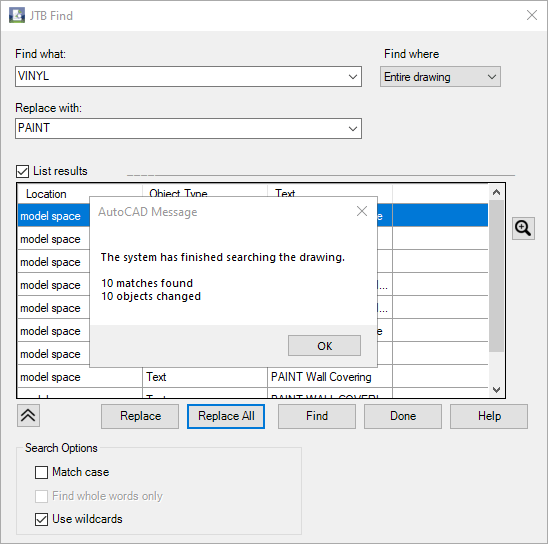
With JTB Find, you are able to find and replace text in Extended Data tab in Properties, specifically for Property Sets and their Property Definition values.

With JTB PropsClassMapping, you are able to change Property Set values, Classification values of SPACE, WALL and DOOR according to the values of their other Property Set.

With ClassificationDefinition tools, you can import export AutoCAD Architecture Classification Definitions, avoid the need to type everything manually.

With ADTListDefinition tools, you can import, create and export ListDefinitions quick and easy.

JTB ACA Tools provides some useful lisp functions for AutoLISP programmers to modify property set and/or classification properties.

Free trial of JTB ACA Tools is available.

Wednesday, October 6, 2021

Change attribute order of block in many CAD drawings

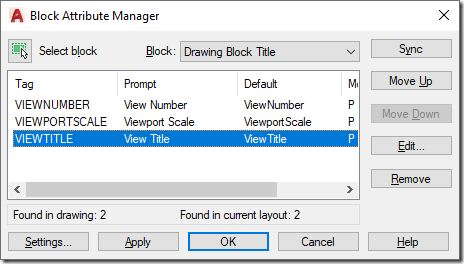
To change attribute tag order in one drawing use BATTORDER (AutoCAD) or BATTMAN (AutoCAD and BricsCAD). With it you can update the block definition of the block.

battman


Then wblock out the block to a separate DWG file. In the example below it us C:\temp\TITLEBLOCK.dwg

In below example the block is named TITLEBLOCK so you will need to modify the name and path (separate folders with double backslashes). Save the AutoLISP code to an LSP file.

; redefine block with or without attributes from an external DWG block

(setq blockname " TITLEBLOCK")

(setq fullpath "C:\\temp\\TITLEBLOCK.dwg")

(if (tblsearch "block" blockname)

  (progn

    (command "_.-insert" (strcat blockname "=" fullpath) "_Y")

    (command)

    (command "_.attsync" "_N" blockname)

  )

)

Then you can use JTB SmartBatch to update all drawings with this LSP. Specify the use of the LSP in JTB SmartBatch Settings > Script/lisp file. Now add all drawings to be updated and you’ll have all title blocks or other blocks of your choice updated.

Sunday, May 9, 2021

Batch scripting for DraftSight with JTB SmartBatch

JTB SmartBatch 5.5.0 is released made it compatible with DraftSight and before that with AutoCAD 2022.

Download here. Purchase a new license or upgrade here.

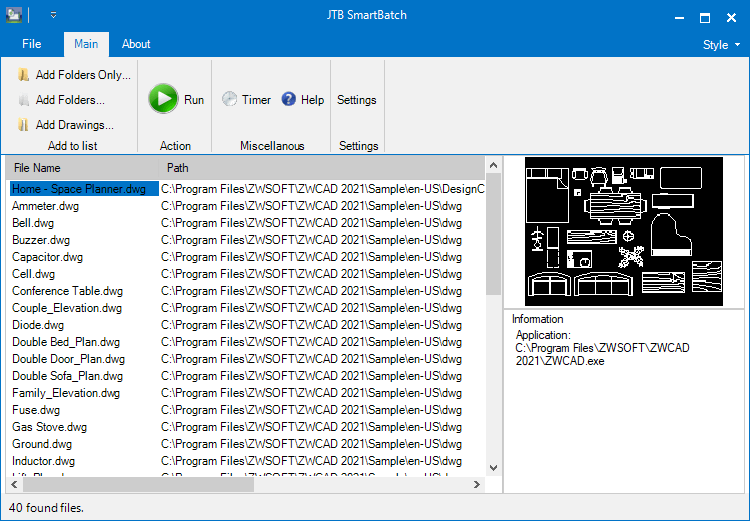
JTB SmartBatch is a batch and script utility for processing multiple DWG drawings with full control with AutoCAD, BricsCAD, ZWCAD, DraftSight or GstarCAD.

JTB SmartBatch closes dialog boxes that might otherwise stop batch processing like for example dialog box showing missing fonts. Execute LSP or SCR files on multiple drawings. JTB SmartBatch handles crashes so the CAD batch processing continues to the end and leaves bad drawings to be corrected manually. Many purge and cleanup settings available. Useful before backups and distribution of drawings. The file's modified time stamp can be restored.

ZWCAD batch scripting

The free trial without license file is fully functional except that you can only batch process 10 drawings per session to give you the chance to confirm that the program works as expected. When you purchase you can use JTB SmartBatch with no limitations.

Solution for ; error: bad argument type: VLA-OBJECT nil

I run into a problem in AutoCAD trying to get a VLA-OBJECT property like this with AutoLISP/ActiveX:

(vla-get-linetypes (vla-get-activedocument (vlax-get-acad-object)))

The error:

; error: bad argument type: VLA-OBJECT nil

Accessing other properties also failed.

Reinstall of AutoCAD was needed to solve the problem. Repair did not help.

Thursday, January 28, 2021

Batch scripting for ZWCAD with JTB SmartBatch

JTB SmartBatch 5.3 is released.

Download the update either as a customer or if you want a trial. Purchase a new license or upgrade here if previous purchase was before 2019.

JTB SmartBatch is a batch and script utility for processing multiple DWG drawings with full control with AutoCAD, BricsCAD, ZWCAD or GstarCAD.

JTB SmartBatch closes dialog boxes that might otherwise stop batch processing like for example dialog box showing missing fonts. Execute LSP or SCR files on multiple drawings. JTB SmartBatch handles crashes so the CAD batch processing continues to the end and leaves bad drawings to be corrected manually. Many purge and cleanup settings available. Useful before backups and distribution of drawings. The file's modified time stamp can be restored.

ZWCAD batch scripting

The free trial without license file is fully functional except that you can only batch process 10 drawings per session to give you the chance to confirm that the program works as expected. When you purchase you can use JTB SmartBatch with no limitations.

Tuesday, December 8, 2020

JTB LayoutsToDwgs 2.0 AutoCAD freeware

JTB LayoutsToDwgs 2.0 adds the a new command that purges and bind xrefs before splitting out each layout to a separate drawing.

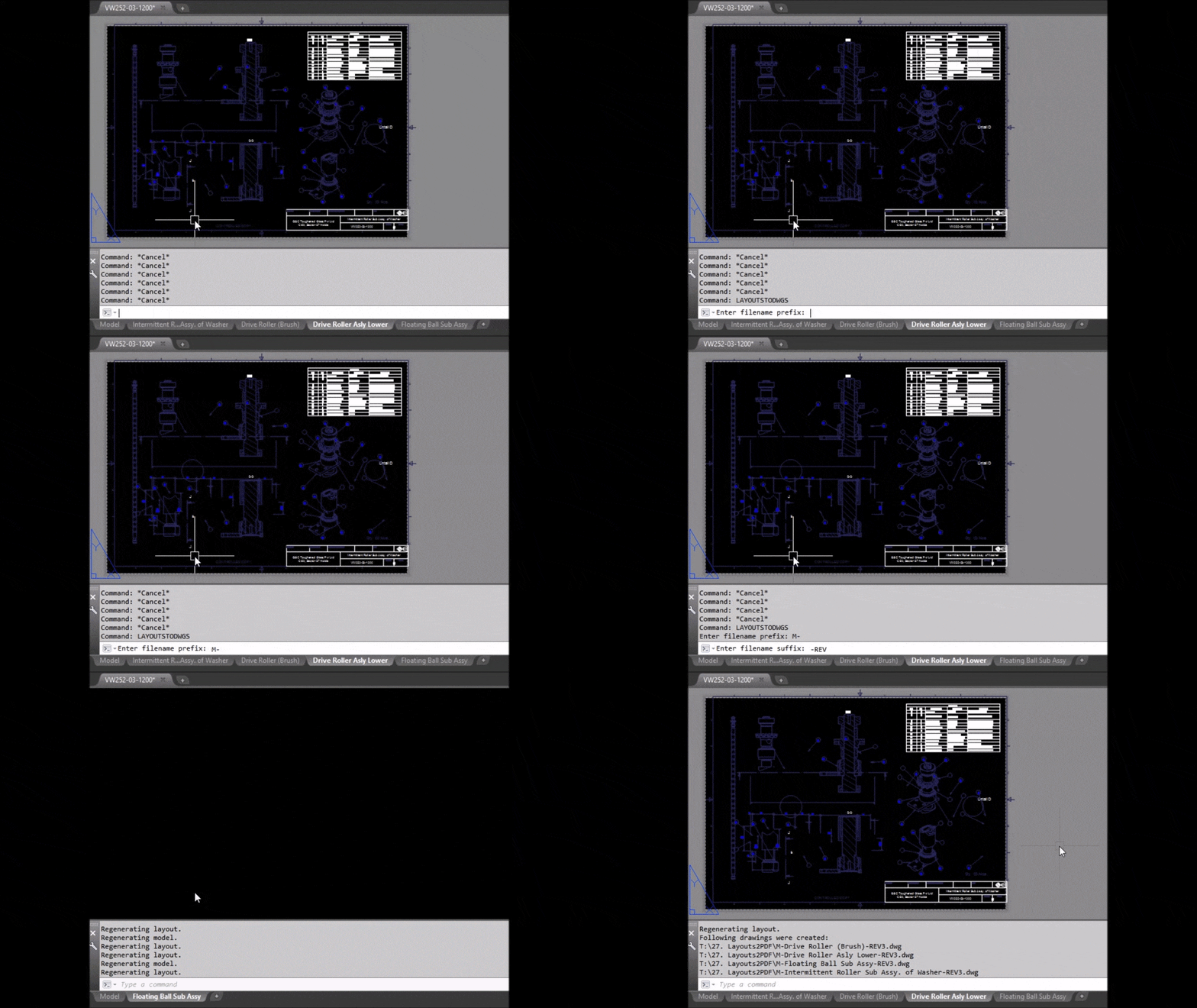
The app will save each of your layouts to a single-layout drawing. Model space is copied as is.

New drawings are named after the layouts, with a prefix and a suffix specified by you. Drawings are saved in source drawing folder.

You will be asked to use WBLOCK or SAVEAS command to proceed. Use SAVEAS command to keep current drawing properties, page setups and other settings in the new drawing(s). Use WBLOCK command for better performance.

Then, you enter a prefix and a suffix text to name target drawings. Hit enter and drawings will be created from all layouts, saved in the current folder.

Batch process multiple drawings with JTB SmartBatch.

JTB LayoutsToDwgs

Do you need it for BricsCAD, ZWCAD or any other CAD app let us know.

Monday, December 9, 2019

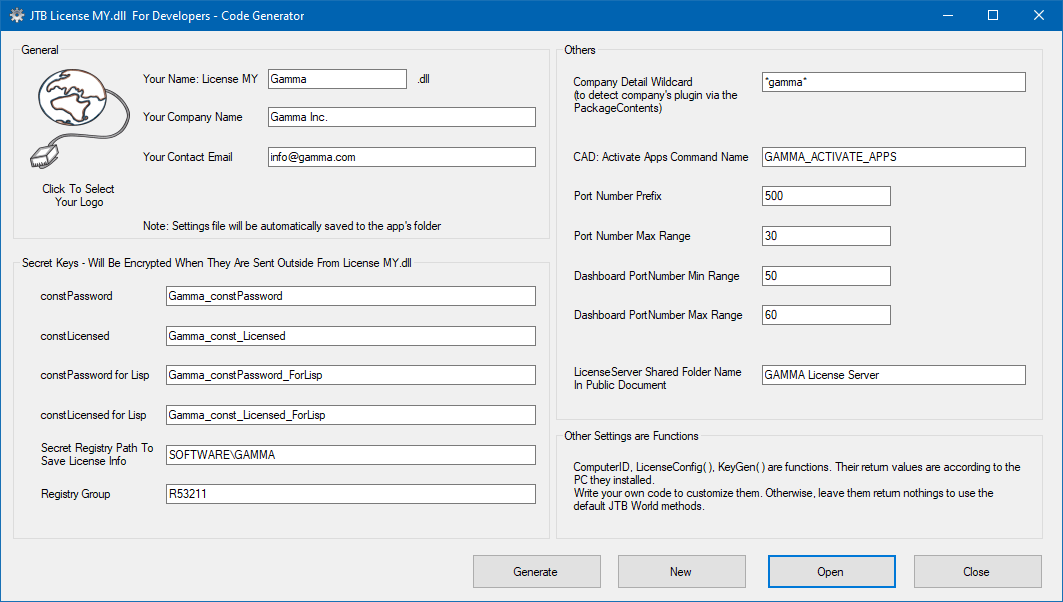
JTB License Manager for software developers

JTB License Manager is a License Manager affordable for small and medium sized software development companies.

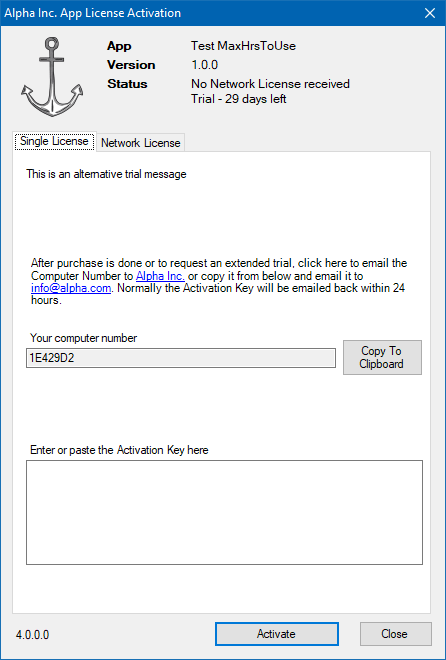
Do you want to offer your customers time limited or functionality limited trials, single licenses or network licenses?

Do you develop apps for Windows using VBA, .NET, C#, VB.NET or AutoLISP?

Do you develop apps that runs as Add-ins on AutoCAD or BricsCAD?

JTB License Manager is a proven product used by JTB World for our apps for many years and upon request we now offer you access to it.

We allow you to brand it with your logo and company name.

Contact us if you are interested.

Monday, November 12, 2018

AreaText.lsp updated to add text with area on multiple objects

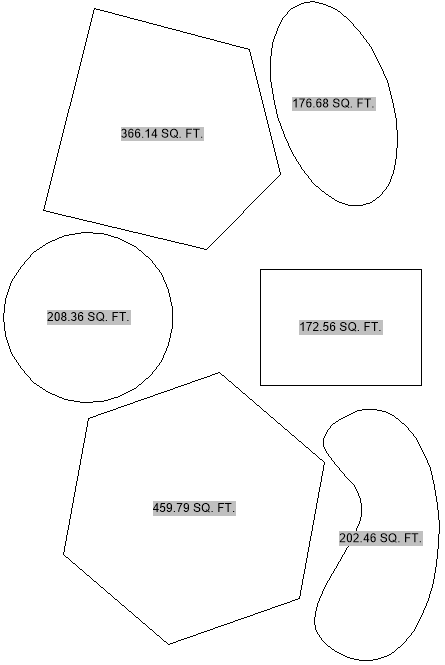
The freeware AreaText.lsp by JTB World now has two more commands added, ATC and ATM. You can easily modify the LSP to show the area with different units, settings, suffix, etc. The area is using a field so it is updated when the geometry is update.

Works with CAD applications supporting AutoLISP like AutoCAD and BricsCAD.

AT command: Select a polyline and where to place the text

ATC command: Select a polyline and add the text at the geo center of the selected object

ATM command: Select multiple objects and add the text at the boundary box center

AreaText.lsp

Wednesday, February 21, 2018

BricsCAD V18.2 comes with LISP IDE

BricsCAD V18.2 introduces BLADE, the BricsCAD LISP Advanced Development Environment. The BLADE command opens the advanced environment for editing and debugging LISP applications.

BricsCAD LISP Advanced Development Environment (BLADE)

AutoCAD’s VLIDE (Visual LISP IDE) has not been updated for a long time and has bugs like these that’s been around since at least AutoCAD 2008 and will probably never be fixed.

With this update I will do more development of AutoLISP within BricsCAD even when the code also will be used in AutoCAD.

I’m pretty sure that BLADE will be improved upon in coming years as well. I want a keyboard shortcut for the command “Load Selection in BricsCAD”. I’m sure it will be there very soon.

UPDATE: “My to-do list still has a number of major key features to be implemented. We want to add a hotkey editor, because every developer loves his own keystrokes and learning others is a nightmare!“ read this interview by Steve Johnson @ CAD NAUSEAM with the creator of BLADE, Torsten Moses. The whole interview is also on the Bricsys blog.

Wednesday, June 14, 2017

How to Automatically Update the Sheet List Table

The Sheet List Table that comes with the Sheet Set Manager in AutoCAD needs to be updated manually by default causing troubles like new or changed sheets not showing up correctly or certain properties not being up-to-date.

Sheet List Table

The command DATALINKUPDATE can also be used. Run the command and select the option “Update data link” followed by “all data linKs”. It’s possible to select the table or specify the name of the Sheet Set as well.

Now to how this can be done automatically. Here’s one way using AutoLISP:

(command "._datalinkupdate" "_u" "_k")

If you want to run this automatically when a drawing is opened you can make use of acaddoc.lsp. If you want this to happen during publish make sure background plotting (BACKGROUNDPLOT system variable) is turned off as acaddoc.lsp is not loaded then. This limitation can be worked around but will require customization in .NET and something we can help with. If you want the update to happen automatically before running the plot command on the current drawing then there are ways to do this by using a reactor, something we also can help with.

Hopefully this can help you avoid discrepancies in the Sheet List Table in the future.

A wish for future updates to AutoCAD is that DXEVAL settings would be used to automatically update also the Sheet List Table.

Monday, January 30, 2017

AutoCAD Lisp signing command line tool

You maybe knew about AcSignApply.exe but did you know that command line tool is available too? It’s not so obvious because AcSignApply.exe is found in the installation folder of AutoCAD but AcSignTool.exe is not. AcSignTool.exe can be downloaded here and described here. It’s for AutoCAD 2016 but should work for AutoCAD 2017 too.

AcSignTool.exe

In AutoCAD 2016 it was added the ability to digitally sign lisp files (.lsp, .fas and .vlx). There is the GUI version, AcSignApply.exe (which gets installed in the AutoCAD install folder) to sign the lisp files.

AcSignTool.exe is the commandline version of AcSignApply.exe. It is meant for signing lisp files in a batch process. AutoCAD doesn't need to be installed.

You can find the usage instructions by entering AcSigntool.exe /?

Usage: AcSignTool -sign /file:[inputfile] /cert:[certificate] /time:[timestamp] /comment:[description]
Usage: AcSignTool -verify /file:[inputfile]

Usage: AcSignTool -remove -force /file:[inputfile]

AcSignTool -sign /file:"c:\files\foo.lsp" /cert:12345678901234567890 /time:1
AcSignTool -verify /file:"c:\files\foo.lsp"
AcSignTool -remove -force /file:"c:\files\foo.lsp"
AcSignTool -issigned /file:"c:\files\foo.lsp"

/file:[inputfile] Full path of the file that needs to signed.

/file:[certs] Certificate to be used for signing, please enter the serial number.
The following certificates are available for signing on this machine.
----------------------------------------------------------------
/Serial Number                  Subject                 Issuer
----------------------------------------------------------------
123456789                       JTB World Inc.        DigiCert SHA2 Assured ID Code Signing CA

/time:[timestamp] Timestamp that should be used for signing please enter the index.
The following time sources are available.
----------------------------------------------------------------
Index                   Time Source
----------------------------------------------------------------
0               (No time stamp)
1               Time from this computer
2               National Institute of Standards and Technology (time-a.nist.gov)
3               Symmetricom (nist1.symmetricom.com)
4               CTS (tick.ucla.edu)


/comment:[description] Description to be included in the signature.


-force Clears the Read-only file attribute.

IMPORTANT: Please ensure that AcSignCore16.dll is available with the tool, copy timesrvr.txt to AcSignTool exe folder.

If you need help with any Lisp customization feel free to contact us.

Thursday, October 27, 2016

How to get the center of a viewport with AutoLISP

The free viewportcenter.lsp has been updated with more functionalities.

This app shows the coordinates for the center of the current viewport on command line.

If command is run within a viewport in model space it can be run transparently for example like this using 'vpc
   Command: LINE
   Specify first point: 'vpc

If command is in paper space it will ask to select viewport and the point will be available as last used point and can be used with @ like this:
   Command: LINE
   Specify first point: @

Friday, September 16, 2016

How to get back the AutoCAD Security - Unsigned Executable File dialog box

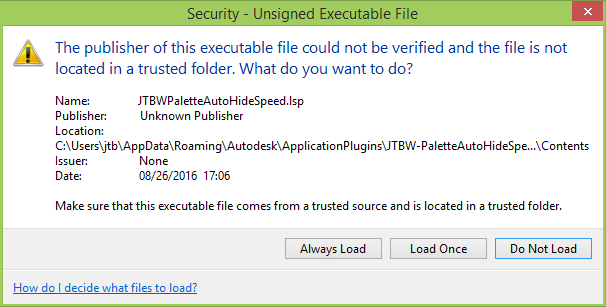
If SECURELOAD system variable (introduced first in AutoCAD 2014) is activated (set to 1) you may see a dialog box like below. If you are not sure the executable file can be trusted do not load it.

Security - Unsigned Executable File

Dialog box text as below:

[Window Title]
Security - Unsigned Executable File

[Main Instruction]
The publisher of this executable file could not be verified and the file is not located in a trusted folder. What do you want to do?

[Content]
Name:                JTBWPaletteAutoHideSpeed.lsp
Publisher:           Unknown Publisher
Location:            C:\Users\jtb\AppData\Roaming\Autodesk\ApplicationPlugins\JTBW-PaletteAutoHideSpeed.bundle\Contents
Issuer:                 None
Date:                   08/26/2016  17:06

Make sure that this executable file comes from a trusted source and is located in a trusted folder.

[Always Load] [Load Once] [Do Not Load]

[Footer]
How do I decide what files to load?

But what if you have selected Always Load and later change your mind what can you do?

There is no way in OPTIONS to do this like you can with other dialog boxes using “Hidden Message Settings”. “Security Options” does not help either.

The trusted files are saved in Windows Registry so there’s a way to solve this. As always when editing the Registry be careful and backup if needed.

USERTAPS below HKEY_CURRENT_USER\Software\Autodesk\AutoCAD\R21.0\ACAD-0001:409\AutodeskApps holds apps that have been manually approved. R21.0\ACAD-0001:409 (this is for AutoCAD 2017) is depending on AutoCAD version and if it’s a vertical like AutoCAD Architecture or so.

If USERTAPS is deleted AutoCAD will show the dialog box “Security - Unsigned Executable File” again for all unsigned files.

Using Visual LISP you can delete USERTAPS like this:

(vl-registry-delete
  (strcat "HKEY_CURRENT_USER\\"
          (vlax-product-key)
          "\\AutodeskApps"
  )
  "USERTAPS"
)

Tuesday, August 30, 2016

SmartPurger 3.8 AutoCAD batch processing and cleanup

SmartPurger 3.8 is now released.

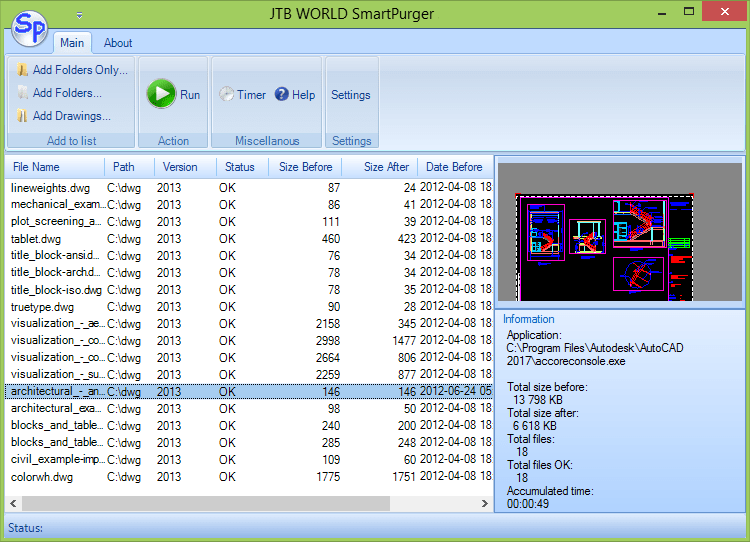
SmartPurger is a batch and script utility for processing multiple AutoCAD drawings with full control. Execute LSP or SCR files on multiple drawings. SmartPurger handles crashes so the AutoCAD batch processing continues to the end and leaves bad drawings to be corrected manually. Many purge and cleanup settings available.

SmartPurger can make use of AutoCAD Core Console that was introduced in AutoCAD 2013 making the scripting process faster then ever as the Core Console takes less than a second to open per drawing.

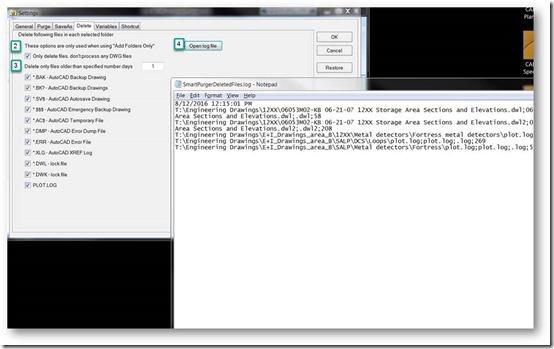
-With this version it’s possible to only delete certain “garbage” files without having to also run AutoCAD to purge and process custom scripts. See the “Only delete files, don’t process any DWG files” checkbox on Delete tab in Settings.
-Quick access to deleted files log file through new button on Delete tab.
-Minor bug fixes related to usage with AutoCAD 2017

I received below screenshots and statement from Clinton Hill at Innophos. This functionality was added based on his wishes.

“You provided an excellent product in “SmartPurger”. This application suits us perfectly.”

These are the steps to take to only delete specified files with extensions like .BAK, .BK?, .SV$, .$$$, .AC$, .DMP, .ERR, .XLG, .DWL, .DWK or PLOT.LOG.

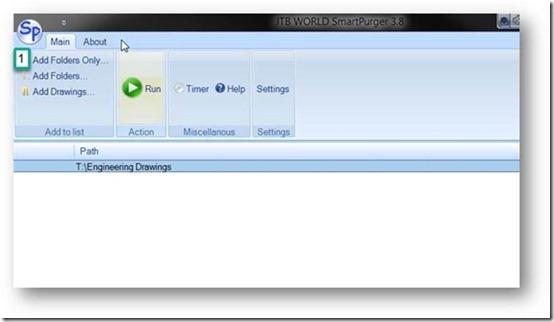
First click on Add Folders Only and select one or many folders. Sub folders will also be processed.

clip_image001_thumb2

Next click on Settings and on the Delete tab check the “Only delete files, don’t process any DWG files” checkbox as well as what type of files you want to delete.

Now go back and click on the Run button.

When ready go back to Settings and click on Open log file to see what files were deleted.

clip_image002_thumb1

Download the updated version or a free trial here. The upgrade is free if you already have purchased a license.

Monday, August 15, 2016

AutoLISP error: no function definition: VLAX-ENAME->VLA-OBJECT

Have you got this error in AutoCAD running some command or app that is AutoLISP based?

First thing to ensure is that Visual LISP is loaded so run (vl-load-com).

Below shows a result that is expected and all is working. Note that the drawing needs to have at least one object in it.
Command: (vl-load-com)
Command: (vlax-ename->vla-object(entlast))
#<VLA-OBJECT IAcadLine 0000005ce02af728>

If you get below result then something is broken in AutoCAD.
Command: (vlax-ename->vla-object(entlast))
; error: no function definition: VLAX-ENAME->VLA-OBJECT

I have not got this problem myself but a repair or reinstallation of AutoCAD has helped a couple of customers, one with AutoCAD 2016 and another with AutoCAD 2017. Suspected cause of this could be having run some registry cleaner or anti-virus that deleted vital registry settings that AutoCAD needs. One had run Malwarebytes the day earlier.

There might be an easier remedy but until this is found you know what to do to solve this problem. If you haven’t install any recent service pack or hotfix (that comes with an installer) this might also be a solution.

Update, solution found in this article.

Thursday, June 16, 2016

SmartPurger 3.7 for AutoCAD

JTB World’s SmartPurger has been updated to support AutoCAD 2017. Another news is, if SmartPurger runs in the background it does not take unnecessary focus from whatever other app you're working with.

SmartPurger is a batch and script utility for processing multiple AutoCAD drawings with full control. Execute LSP or SCR files on multiple drawings. SmartPurger handles crashes so the AutoCAD batch processing continues to the end and leaves bad drawings to be corrected manually. Many purge and cleanup settings are available. Useful before backups and distribution of drawings. The file's modified time stamp can be restored. What do you want to automate in AutoCAD?

A free trial is available for here as well as on Autodesk App Store.

Wednesday, December 2, 2015

How to save layouts to separate drawings

If you want to save all your layouts to separate drawings our free LayoutsToDwgs.lsp can do the trick. It has just been updated to both solve an issue related to a dialog box showing “Include AutoCAD Map information in the export?” as well as to work fine with the most recent versions of AutoCAD. Direct download of this AutoLISP app is here.

Monday, September 15, 2014

Length of object label with free app for AutoCAD

LengthText.lsp is a free AutoLisp app for AutoCAD by JTB World to add length of objects as a text field label. Select the object and then where you want the text for the length to be. When the object is modified the text will also be updated automatically based on FIELDEVAL or the settings found in the OPTIONS dialog box. The current unit settings are being used to show the length.

LengthText.lsp

Download LengthText.lsp or the AreaText.lsp that this was based upon. If you have a need for any AutoCAD customization work feel free to contact us.

Some of the latest blog posts

Subscribe to RSS headline updates from:
Powered by FeedBurner

Contact Us | About JTB World | Website General Terms of Use | Privacy Policy
^ Top of page

© 2004- JTB World. All rights reserved.