Showing posts with label AutoCAD 2016. Show all posts

Monday, May 20, 2019

Some older Autodesk software will stop working on/after June 15, 2019, update available

Are you using Autodesk software that was released between the years 2013-2015 like for example AutoCAD 2016? If so your software might stop working soon unless doing this update.

Transport Layer Security (TLS): Updates Required to Maintain Software Access details:

Issue:
Transport Layer Security (TLS) 1.0/1.1 is vulnerable to man-in-the-middle (MITM) attack that can compromise data exchanges. This applies to single-user subscribers using the software versions listed below; customers using software or versions not listed and customers using perpetual or multi-user (network) licenses will not be affected.
Environment:
This issue affects a selection of Autodesk software used on Windows, Mac, and Linux versions 2014, 2015, 2016 and/or 2017 (Mac only).
If you are using 2018, 2019, or 2020 versions, your software and account are not affected.
Solution:
To align with industry best practices for security and data integrity, Autodesk Identity Services will move to Transport Layer Security (TLS) 1.2 and stop supporting TLS 1.0 and TLS 1.1 on June 15, 2019.
The best solution to avoid connectivity issues is to download and install a newer version of your software through Autodesk Account or our Autodesk Virtual Agent (AVA).
We have been developing patches to prevent (or resolve) this issue as part of Autodesk’s ongoing efforts to provide the best security possible to our customers. Subscribers using the software versions listed below will need to download the appropriate License & Identity patch by June 15, 2019. These patches will support TLS 1.2 and above.
Failing to apply these patches may result in interrupted software access and connectivity.

Tuesday, June 20, 2017

Autodesk AutoCAD 2015-2018 Geolocation Online Map Hotfix

Autodesk AutoCAD 2015-2018 Geolocation Online Map Hotfix is now available.

Microsoft is ending support for version 7 of Bing Maps on June 30th, 2017. This Hotfix will upgrade your version of Bing Maps to version 8 so that you can continue to use the Geolocation Online Map Data feature.

This Hotfix applies to all 32-bit and 64-bit publicly released versions of the following products (including Service Packs and Updates):

  • Autodesk AutoCAD 2015, Autodesk AutoCAD LT 2015, and Autodesk AutoCAD 2015-based vertical products
  • Autodesk AutoCAD 2016, Autodesk AutoCAD LT 2016, and Autodesk AutoCAD 2016-based vertical products
  • Autodesk AutoCAD 2017, Autodesk AutoCAD LT 2017, and Autodesk AutoCAD 2017-based vertical products
  • Autodesk AutoCAD 2018, Autodesk AutoCAD LT 2018, and Autodesk AutoCAD 2018-based vertical products

Using AutoCAD or AutoCAD LT 2014? See More About End of Feature Support for Bing Maps Version 7

Please check the Readme for detailed instructions and download the hotfix.

Extract Autodesk_AutoCAD_2015_to_2018_Geolocation_Online_Maps_Hotfix_32bit_64bit.zip and run Autodesk_AutoCAD_2015_to_2018_Geolocation_Online_Maps_Hotfix.sfx.exe

The hotfix can’t be uninstalled and even a repair or reinstall of AutoCAD will not restore this specific file. In this case it’s not too bad as it will not work anyway soon but for other hotfixes it can be a problem. The hotfix installer does not even create a backup copy of the old version. Also the hotfix will probably not show up in Autodesk Desktop App which is too bad. Delivering hotfixes like this is not a good practice.

The Autodesk product version showing in the About dialog box and the _VERNUM are not updated by this hotfix so only way to tell if it’s installed is by checking the version of the AcGeoLocationUI.arx located in the AutoCAD main installation folder.

File version for AcGeoLocationUI.arx:

AutoCAD 2015: 20.0.210.31

AutoCAD 2016: 20.1.107.33

AutoCAD 2017: 21.0.402.3

AutoCAD 2018: 22.0.102.0

If you’re curious what the hotfix installer does and learn some VBScript take a look at the vbs files in C:\Autodesk\Autodesk_AutoCAD_2015_to_2018_Geolocation_Online_Maps_Hotfix
This can be used to modify so you can install it in an environment with many AutoCAD installations.

Update. After June 30th, 2017 when you run for example GEOGRAPHICLOCATION command you can see a dialog like this:
Geolocation - Online Map Data
You do not have permission to access Online Map Data.
Go to Account Settings and check your entitlement to use online maps.
You can continue using Geolocation without access to maps.

Geolocation

Followed by:
Geolocation - Online Map Data Update
You must update your software before 2017-06-30 to continue using Online Map Data.
Get update information – You will be redirected to the Autodesk update website for more information.
Update later – If you choose not to update, then you can continue to use Geolocation without maps after 2017-06-30.

Geolocation

Monday, May 29, 2017

AutoCAD 2016.0.10 Update

AutoCAD 2016.0.10 Update was released 04/28/2017 and is only available to download from the Autodesk Account or via Autodesk desktop app.

According to the readme this update contains all of the hotfixes released previously and applies to the following releases with the AutoCAD 2016 Service Pack 1 installed.

The following resolutions are addressed by the earlier hotfixes and this update:

2016 Hotfix 3

  • Occasional crashes when panning transparently in multiple viewports.
  • Performance problem opening files containing specific objects in AutoCAD 2016 may appear as if files cannot be opened.
  • Use of the LISP (command) function within the (mapcar) function results in VVC Internal Error.
  • Grip stretch doesn't work properly when DYNMODE equals value other than 2 or 3.
  • acedCallBackOnCancel is not detected for Lispcallable Functions.
  • Certain VBA Macros throw an execution error.
  • DWG file fails to insert into another DWG file.
  • Occasional crashes when when Copy/Paste a block by Ctrl+C, Ctrl+V.
  • Occasional crashes when opening AutoCAD in Windows 10.
  • AcSettingSync.exe launched when running OPTIONS command.
  • Annotations in Architectural Units format are changing to Decimal format.

2016 Hotfix 4

  • There is a security vulnerability with ATIL image files within a drawing.
  • The primary display adapter is not shown as the default in a Citrix environment.
  • Opening an Excel hyperlink resizes the AutoCAD application window to match the Excel sheet size.
  • Locked objects can be edited by Matchprop command.
  • Publish borders are cut off with certain sheet sizes.
  • Background masks are not ignoring the Xrefoverride setting.

2016.0.10 Update

  • Enterprise Single Sign On accounts are signed out when multiple users have the same credentials.
  • Cloud Rendering URLs are updated to the current https location.
  • Can initiate the 3dpoly command after undo without crashing.
  • STEPIMPORT imports the full STEP model in specific cases.
  • Sheet set publishing to PDF is faster.
  • F8 Key during an active command no longer freezes AutoCAD in Windows 10
  • Language switching between Korean and English works after using the move command.
  • Publish no longer cuts off the borders of A size paper.
  • Elliptical arcs do not display extra lines when plotting while shaded.
  • Keynote fields no longer lose the association to a value for editing Xref in place.
  • Edit block in place no longer crashes when Factory Utilities are loaded.
  • ECW images no longer display distorted after applying the ATIL update.

For AutoCAD 2016.0.10 _VERNUM (product version) is “M.107.0.26 (UNICODE)”

Monday, January 30, 2017

AutoCAD Lisp signing command line tool

You maybe knew about AcSignApply.exe but did you know that command line tool is available too? It’s not so obvious because AcSignApply.exe is found in the installation folder of AutoCAD but AcSignTool.exe is not. AcSignTool.exe can be downloaded here and described here. It’s for AutoCAD 2016 but should work for AutoCAD 2017 too.

AcSignTool.exe

In AutoCAD 2016 it was added the ability to digitally sign lisp files (.lsp, .fas and .vlx). There is the GUI version, AcSignApply.exe (which gets installed in the AutoCAD install folder) to sign the lisp files.

AcSignTool.exe is the commandline version of AcSignApply.exe. It is meant for signing lisp files in a batch process. AutoCAD doesn't need to be installed.

You can find the usage instructions by entering AcSigntool.exe /?

Usage: AcSignTool -sign /file:[inputfile] /cert:[certificate] /time:[timestamp] /comment:[description]
Usage: AcSignTool -verify /file:[inputfile]

Usage: AcSignTool -remove -force /file:[inputfile]

AcSignTool -sign /file:"c:\files\foo.lsp" /cert:12345678901234567890 /time:1
AcSignTool -verify /file:"c:\files\foo.lsp"
AcSignTool -remove -force /file:"c:\files\foo.lsp"
AcSignTool -issigned /file:"c:\files\foo.lsp"

/file:[inputfile] Full path of the file that needs to signed.

/file:[certs] Certificate to be used for signing, please enter the serial number.
The following certificates are available for signing on this machine.
----------------------------------------------------------------
/Serial Number                  Subject                 Issuer
----------------------------------------------------------------
123456789                       JTB World Inc.        DigiCert SHA2 Assured ID Code Signing CA

/time:[timestamp] Timestamp that should be used for signing please enter the index.
The following time sources are available.
----------------------------------------------------------------
Index                   Time Source
----------------------------------------------------------------
0               (No time stamp)
1               Time from this computer
2               National Institute of Standards and Technology (time-a.nist.gov)
3               Symmetricom (nist1.symmetricom.com)
4               CTS (tick.ucla.edu)


/comment:[description] Description to be included in the signature.


-force Clears the Read-only file attribute.

IMPORTANT: Please ensure that AcSignCore16.dll is available with the tool, copy timesrvr.txt to AcSignTool exe folder.

If you need help with any Lisp customization feel free to contact us.

Thursday, March 24, 2016

No support for BMP with transparent color in AutoCAD 2017

Why Don't My Custom Images Display with A Transparent Color?

Starting with AutoCAD 2017-based products, the color 192,192,192 in BMP files is no longer supported as a transparent color for custom images displayed in the user interface like Ribbon and toolbars. All custom images stored in BMP files which previously used the color 192,192,192 for transparency need to be updated to PNG files (something that has been supported since AutoCAD 2015). Once updated to a PNG file, the color 192,192,192 needs to be changed to the transparent color.

The icon to the left is an old BMP icon and the color 192,192,192 now shows as the gray color it is. The icon to the right is a PNG icon with transparency showing up as expected in the Dark Color scheme.

And this with Light Color scheme.

The following outlines the general steps that need to be performed to update an existing custom image with transparency:

  1. In an image editor external to the AutoCAD-based product, open the BMP file that used the color 192,192,192 for transparency.
  2. In the image editor, set a drawing tool current and specify the current color as transparent.
  3. In the image editor window, change the pixels currently assigned the color 192,192,192 to the transparent color.
  4. Save the image as a PNG file.
  5. In the AutoCAD-based product, at the Command prompt, enter cui.
  6. In the CUI Editor, assign the PNG file to the command which was previously assigned the original BMP file that contained transparency.
  7. Save the changes made in the CUI Editor.

    The image should now display correctly in the AutoCAD user interface.

Tip 1: To simplify the conversion process of custom images, you could use a third-party image editing application that supports the ability to batch convert the images. As part of the batch process, you might be able to convert multiple BMP files to PNG files and perform a color substitution on each file as it is converted. A color substitution can be used to automatically update the color of all pixels in an image from 192,192,192 to transparent. Here are a few possible third-party image editing applications you could use:

  • ImageMagick® (http://www.imagemagick.org/) - Software suite to create, edit, compose, or convert bitmap images.
  • IrfanView (http://www.irfanview.com/) - Image viewer used to create and edit images and video files.
    Example of usage: "C:\Program Files (x86)\IrfanView\i_view32.exe" MyIcon.BMP /transpcolor=(192,192,192) /convert MyIcon.PNG
  • Cuix tools is a dedicated tool to handle this conversion.

Tip 2: After you have your PNG files you can rename them to BMP and thus you don’t need to change the names in the .cuix file.

The ADN team has posted a code snippet that can be used to convert such images too.

Thursday, January 21, 2016

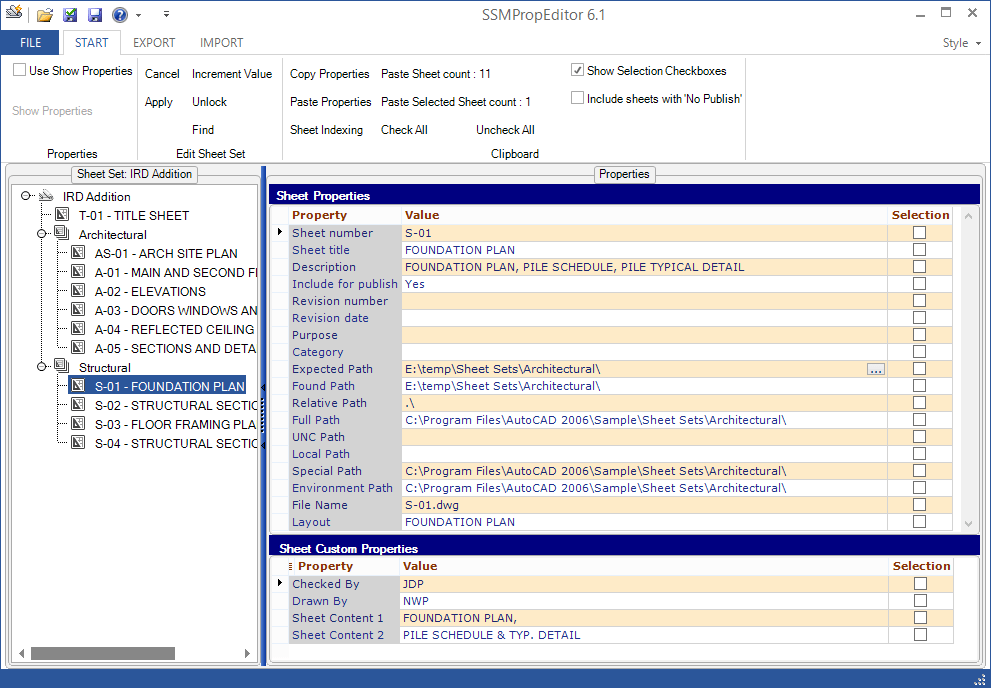
SSMPropEditor 6.1 available - Sheet Set Manager Editor

SSMPropEditor 6.1 is now available. This Sheet Set Manager Editor can save hours of work if your company uses AutoCAD’s Sheet Set Manager. Use Find and Replace of text among all properties and all sheets or change properties on multiple sheets at the same time. If you want to make changes in Excel, that can be done too. Copy custom properties that are defined in one Sheet Set into another Sheet Set. All you need to speed up your work with the Sheet Set Manager.

SSMPropEditor

For details on this release see the revision history.

Downloads are available here and works in trial mode for 30 days. Existing customers can upgrade for free and use their existing license file.

More from JTB World: Create new Sheet Sets including drawings based on an Excel template with out JTB Sheet Set Creator.

Wednesday, December 2, 2015

How to save layouts to separate drawings

If you want to save all your layouts to separate drawings our free LayoutsToDwgs.lsp can do the trick. It has just been updated to both solve an issue related to a dialog box showing “Include AutoCAD Map information in the export?” as well as to work fine with the most recent versions of AutoCAD. Direct download of this AutoLISP app is here.

Tuesday, December 1, 2015

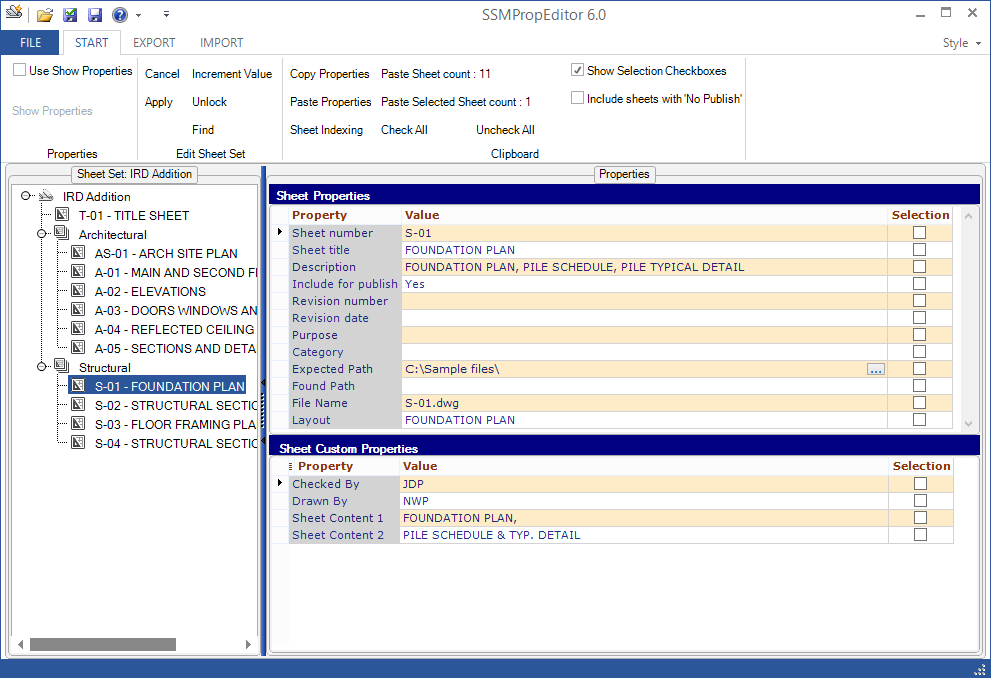
SSMPropEditor 6.0 available - Sheet Set Manager Editor

SSMPropEditor 6.0 is now available. This Sheet Set Manager Editor can save hours of work if your company uses AutoCAD’s Sheet Set Manager. Use Find and Replace of text among all properties and all sheets or change properties on multiple sheets at the same time. If you want to make changes in Excel, that can be done too. Copy custom properties that are defined in one Sheet Set into another Sheet Set. All you need to speed up your work with the Sheet Set Manager.

For details on this release see the revision history.

The installer for SSMPropEditor as an app within AutoCAD will be available later this month.

Download is available here and works in trial mode for 30 days. Existing customers can upgrade for free.

More from JTB World: Create new Sheet Sets including drawings based on an Excel template with out JTB Sheet Set Creator.

Monday, November 16, 2015

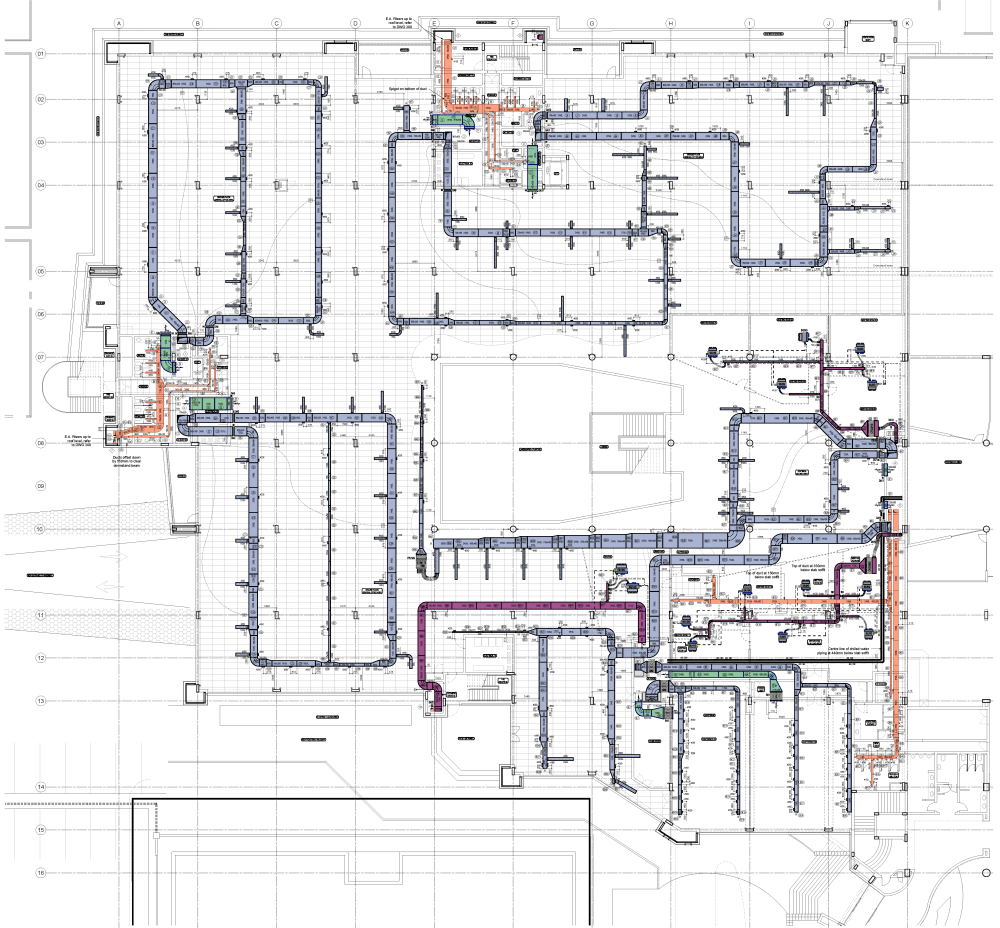
ACA_db 4.1 released - for AutoCAD Architecture and MEP

With ACA_db you can use AutoCAD Architecture or AutoCAD MEP even more as part of your BIM process. Property Set values can automatically be updated back and forth to one or many external databases. If you make changes to the Extended Data values within a Property Set they can be synchronized back to the external database. Any Property in a Property Set Definition can be exported and all editable Properties can be imported.

This release adds support for AutoCAD Architecture 2016 or AutoCAD MEP 2016 as well as some bug fixes.

Synchronization between database and CAD

Contact us to get a time limited license file for free.

Monday, October 5, 2015

HVACPAC for AutoCAD 2016

HVACPAC for AutoCAD is now available with support for AutoCAD 2016. Are you still doing HVAC and Piping work more or less manually in AutoCAD HVACPAC is the plug-in for you that will automate your work and save valuable time. Visit HVACPAC for AutoCAD for a 30-day trial.

Wednesday, September 30, 2015

AutoCAD 2016 Service Pack 1

AutoCAD 2016 has got its first service pack and there are quite a lot of fixes so I suggest you install it.

AutoCAD service packs are now separate and independent of the specific service packs for AutoCAD-based vertical products.

  • In the past, AutoCAD-specific fixes were included in the verticals service packs and you only needed to install the appropriate verticals service pack.
  • From now on, you will need to install the AutoCAD service pack in addition to any applicable service pack for your vertical products.

Read more on the Autodesk's Knowledge Network page or get SP1 from Autodesk Application Manager:

Direct links to the installers:

According to the readme:

The following operating systems are officially supported for 32-bit and 64-bit AutoCAD 2016 with Service Pack 1.

  • Windows 10 Enterprise edition
  • Windows 10 Professional edition

Problems Reported with the Customer Error Reporting Utility

As a result of the detailed information that we received from customers who used the Customer Error Reporting Utility, we were able to identify and fix a number of problems. Updates were made to the following commands and features:

Dimensions

  • Occasional crashes when adding dimension, mtext, or mleader objects in layout viewports.

Images

  • Occasional crashes when working in a drawing containing a large image file.
  • Occasional crashes when working in a geolocation drawing with an attached image.
  • Occasional crashes when using the mouse wheel to zoom out in certain drawings with attached images.

Point Cloud

  • Occasional crashes when docking or closing the Point Cloud Manager palette in Windows 10.

Publish

  • Occasional crashes when publishing multiple layouts to single-sheet PDFs.

Selection

  • Occasional crashes after object selection in a drawing with many xref layers.

General

  • Crashes on startup when using certain AMD display cards with a recent driver.
  • Occasional crashes when working with customized object snaps.
  • Occasional crashes when there are a large number of polylines with assigned lineweights.
  • Occasional crashes when opening certain drawings.
  • Occasional crashes when attaching a PDF file.
  • Occasional crashes when closing the program when there are a large number of layers in the drawing.
  • Occasional crashes when moving objects using object snaps in 3D to a block or a reference in a layout.
  • Occasional crashes when opening drawings from network folder shortcuts in Windows 10.
  • Occasional crashes when selecting and deleting a subobject in a 3D solid.
  • Occasional crashes when repeatedly opening and closing AutoCAD, and using the Refedit command along with Undo and Redo operations.

General Service Pack Updates

The following defects have been fixed:

3D Modeling

  • Applying a Curve Surface Intersection between a plane and a line gives an incorrect result in some cases.

Block

  • A nested block moves in some cases after it is fully exploded.

Cursor Badge

  • The Zoom cursor badge does not turn off for the Zoom Window command even when the CURSORBADGE system variable is set to 1.

Dimensions

  • Associative dimension values change when you change their dimension style in some cases.

Display

  • Part of the complex DGN linetype in a curve is missing when High Quality Geometry is turned on.
  • The wrong linetype displays when opening a drawing with complex DGN linetypes that are assigned to pline arcs.
  • Concentric arcs with a small opening angle may not be displayed as concentric at some zoom levels.
  • Ellipses and elliptical arcs on a layer with VP Freeze turned on display outside the layout viewport.
  • Some object colors change when using ZOOM together with 3D Visual Styles with faces displayed.

Hatches

  • The associativity of gradient fills turns off when you create them by clicking inside boundaries.
  • Cannot set the hatch origin when using the ribbon when the COMMANDPREVIEW system variable is turned on.
  • The hatch pattern definition is limited to 80 characters.
  • The intersection osnap doesn't work for hatch patterns.
  • The hatch pattern doesn't change in some cases when choosing a different hatch pattern from the ribbon during hatch creation.

Layers

  • There is double space between each layer when the Layer Properties Manager is first opened.

Object Snap

  • The intersection osnap does not work inside hatch patterns.

Plot and Publish

  • Wipeout and masked text prints black when using the DWG to PDF PC3 file under Printer/Plotter.
  • A hatch set to the color white is printed as black in a PDF in some cases.
  • Hyperlinks attached to certain blocks causes the plotted PDF files to inflate in size.
  • The text formatted for reading right-to-left is printed upside down.
  • A high resolution image in a drawing might have an unexpected result when exported as a DWF file in some cases.
  • A mismatched plot page size results in an error report and halts the print job in some cases.
  • The default PDF file name discards all characters that follow a period.
  • In some Truetype fonts, characters with diacritical marks that are underlined in a text object do not plot.
  • When plotting PDF files, SHX text in PDF comments can be turned off by setting EPDFSHX=0 (the default is 1). In addition, some PDF viewers display text that uses SHX fonts as comments and this system variable addresses this issue as well. In a future release, we plan to rename this system variable to begin with the letters PDF.

Performance

  • Performance slows down for the OPEN and REGEN commands in drawings that contain many dynamic block with fields.
  • Performance slows down with the PUBLISH command in some cases.
  • Performance is affected when opening drawings containing references to unresolved data extraction (DXE) files.

Quick Properties Palette

  • The Quick Properties palette is not displayed anymore after closing the Block Editor when the Ribbon is closed.
  • The Quick Properties palette displays unexpectedly when editing a Hatch object.

Security

  • Includes a security patch to address a vulnerability where a specially crafted raster image in a drawing can trigger unauthorized code execution.

User Interface

  • With right-click set to operate as an Enter at the Command prompt, a menu appears instead.

General

  • The 3DCLIP and DVIEW options, CLip and Camera, doesn't clip circles, arcs, ellipses and elliptical arcs when High Quality Geometry is turned on.
  • Lines are not clipped by the edges of layout viewports if the drawing contains a clipped PDF, DWF, or DWFx underlay.
  • The ALIGN command doesn't work correctly for an object that is slightly rotated.
  • Signed VLX files containing DCL dialogs boxes fail to display.
  • Using eTransmit includes xrefs despite the Bind External References option being checked.
  • The Start tab, Design Feed palette, and Help window do not display correctly with higher DPI settings.
  • Customized Table Data in Table Style Settings fail to display.
  • The tooltip from the Start tab remains displayed when Design Feed palette is open.

Thursday, July 23, 2015

AutoCAD 2016 Hotfixes

Since AutoCAD 2016 was released there have been some hotfixes with the latest just a few days ago.

Autodesk® AutoCAD® 2016 VLX Hotfix

This Hotfix addresses a compatibility problem with signed VLX files containing DCL dialogs.

Autodesk® AutoCAD® 2016 Hotfix 1

The following issues are addressed by this Hotfix:
- A display issue with the design feed palette, Geographic Location dialog, Help window browser, and Start page for Windows 8.1 operating systems at high DPI settings;
- A performance issue with the Publish command;
- A plotting issue where text formatted right-to-left plots upside down.

Autodesk® AutoCAD® 2016 Hotfix 2

The following issues are addressed by this Hotfix:
- Miscellaneous crash issues in DWG™ files containing attached images;
- Miscellaneous issues with DGN Export functionality.

There are also these hotfixes:

Localization Hotfix: AutoCAD 2016 Learn Tab (Brazilian Portuguese Only)

Localization Hotfix: AutoCAD 2016 OSNAP Options (Polish Only)

Localization Hotfix: AutoCAD 2016 Attach Navisworks Files (French Only)

If you’re looking for other downloads here are AutoCAD 2016 Language Packs, AutoCAD Civil 3D 2016 Object enabler and Open Light 2016 Object Enabler (32-bit and 64-bit) as well as if you want to Download & Install AutoCAD 2016 Product Help.

For up to date access to downloads visit this Autodesk page.

If you want any small or large app created for AutoCAD or other Autodesk products please feel free to contact us at JTB World with your inquiries.

Wednesday, May 6, 2015

FlexNet feature codes for Autodesk 2016 products

The list with FlexNet feature codes has been updated with Autodesk 2016 products.

In JTB FlexReport Config>Features and our freeware JTB FlexReport LT you can use the “Get Feature Descriptions” button to get the descriptions for codes like 86445ACD_2016_0F and more so the feature description is used in reports instead of the feature code.

Monday, April 27, 2015

Autodesk 2016 Product Keys

When you’re going to install different Autodesk 2016 products like AutoCAD 2016 you need to use the correct product key or you will get into problems to activate the products.

You can now find a complete list of Autodesk 2016 Product Keys here among product keys dating back to Autodesk 2010 products.

Tuesday, April 21, 2015

Spiro 1.2 - Freeware app for AutoCAD released

Spiro is a add-in can be used with AutoCAD to create Spirograph (TM)- like patterns. Turn AutoCAD into an educational toy that will provide hours of fun for the whole family! Spiro creates a hypotrochoid pattern based on the specified outer circle, inner circle and pen distance. A variety of polylines created with the Spiro plugin in AutoCAD and its verticals.

This new version has some bugs fixed and adds support for AutoCAD 2016.

Available for free on Autodesk Exchange Apps here.

Friday, April 17, 2015

SmartPurger with AutoCAD 2016 support

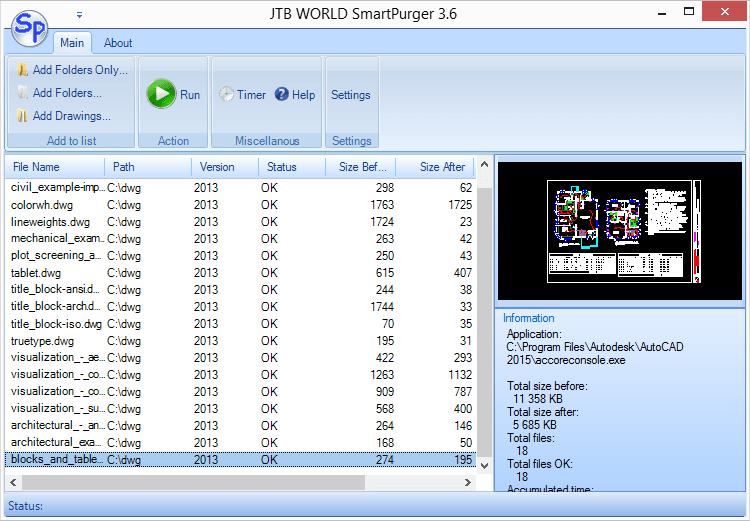
JTB World’s SmartPurger has been updated to support AutoCAD 2016. SmartPurger is a batch and script utility for processing multiple AutoCAD drawings with full control. Execute LSP or SCR files on multiple drawings. SmartPurger handles crashes so the AutoCAD batch processing continues to the end and leaves bad drawings to be corrected manually. Many purge and cleanup settings are available. Useful before backups and distribution of drawings. The file's modified time stamp can be restored. What do you want to automate?

A free trial is available for here as well as on Autodesk Exchange Apps.

Thursday, April 16, 2015

JTB CAD Automation Tools 4.2 released

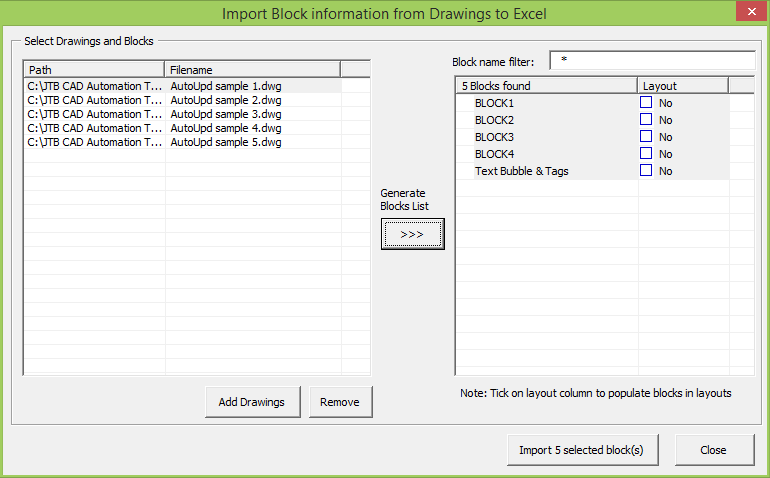
JTB CAD Automation Tools 4.2 has been released. New in version 4.2 is AutoCAD 2016 support and that AutoUpd can import block and attribute data from drawings.

With the Import from drawings button you can get block and attribute information from one or many drawings.

What is JTB CAD Automation Tools?

Multiple drawings can be automatically created from a typical drawing or updated based on a control file that can be created with an Excel template. Make the changes in Excel and let the program do all the work for you. This is a real time saver if you need to make adjustments on hundreds or thousands of drawings.

Optionally an AutoLISP file (*.lsp;*.vlx;*.fas) can be loaded for each drawing. Each drawing can use a separate AutoLISP file if needed. This gives you almost unlimited flexibility when it comes to what task you want to automate.

Example of usages: Add a stamp block; insert a title block; update text or attributes in the title block; insert text, block or xref; change text or attribute values and more. Change all external references (xrefs) from absolute paths to relative paths for archive purpose. Find and replace attribute or text values.

Bulk updating AutoCAD or BricsCAD drawings in most any way that you would like.

Visit JTB CAD Automation Tools and read more and why not give the free trial a go.

Tuesday, April 14, 2015

JTB Text Bubble Plus 2.1 released

JTB Text Bubble Plus 2.1 has been released.

  • Compatible with Autodesk® AutoCAD® 2016
  • Upgrade error handle functions
  • Fix bug when working in layout's viewport
  • Upgrade to 3D working space.
  • Add leader landing length setting
  • Add additional attribute tags used as mark
  • Fix slide image error cause true type font not plot

With Text Bubble Plus you can insert text bubbles to lines, curves, or draw leaders with it, or quickly make a schedule from text bubbles and/or other blocks. Incrementing of numbers or letters is done automatically. To learn about all features visit JTB Text Bubble Plus.

JTB Text Bubble Plus Trial can be downloaded here.

Monday, April 13, 2015

JTB Align Plus 3.5 released

JTB Align Plus 3.5 has been released. If you want to align objects quickly in AutoCAD this app is for you. Here are the news:

  • Added support for AutoCAD® 2016
  • Fix slide image side-effect bug
  • Fix bug when working in paper space's viewport
  • Upgrade error handler functions
  • Added digital signing of MSI file

The JTB_Align_Any and JTB_Align_Objects commands will copy and align your text, block or selection of objects at picked point of selected line or curve. Curve can be Arc, Circle, Polyline, Leader or 3D Polyline, in current space as well as nested inside Blocks or Xrefs. For more features visit JTB Align Plus.

A free trial is also available on Autodesk Exchange Apps.

Monday, March 23, 2015

DimensionPatrol 1.3 for AutoCAD released

JTB World’s DimensionPatrol for AutoCAD has been updated with bug fixes and support for AutoCAD 2016. DimensionPatrol is also available to try or purchase at Autodesk Exchange Apps.

This plug-in highlights dimensions in a drawing for which the user has customized or edited the dimension text and helps to ensure the quality of the drawings.

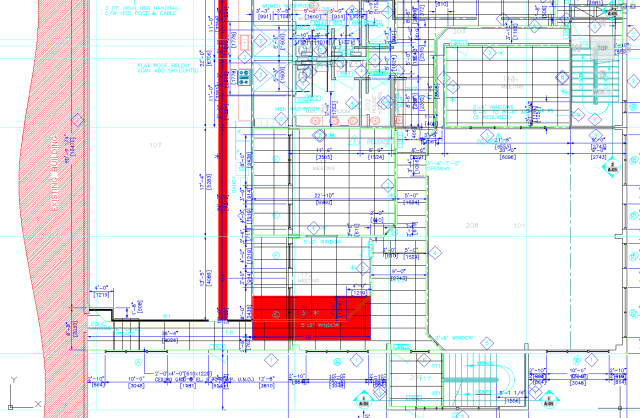
Manually overridden dimension are highlighted in red by the DimensionPatrol plugin.

Some of the latest blog posts

Subscribe to RSS headline updates from:
Powered by FeedBurner

Contact Us | About JTB World | Website General Terms of Use | Privacy Policy
^ Top of page

© 2004- JTB World. All rights reserved.