Showing posts with label Bug. Show all posts

Monday, April 7, 2025

How to change Camera and Target on the current view

Using the VIEW command in AutoCAD opens up the View Manager and there are properties like Camera X, Camera Y, Camera Z, Target X, Target Y, Target Z that are greyed out so you can't edit them.

view manager

In BricsCAD these can easily be edited though.

BricsCAD Drawing Explorer Current View

Here is a tips on how to change these coordinates using the DVIEW command I AutoCAD.

Command:
DVIEW
Select objects or <use DVIEWBLOCK>:     <- press Enter here
Enter option
[CAmera/TArget/Distance/POints/PAn/Zoom/TWist/CLip/Hide/Off/Undo]: PO
Specify target point <30000.76, -16728.59, 2587.63>: 0,0,0
Specify camera point <30000.76, -16728.59, 2588.63>: 0,0,1
Enter option
[CAmera/TArget/Distance/POints/PAn/Zoom/TWist/CLip/Hide/Off/Undo]:     <- press Enter here
Regenerating model.

Or using AutoLISP (command "._DVIEW" "" "_PO" "0,0,0" "0,0,1" "")

In some older AutoCAD versions the above does not work due to an AutoCAD bug, as seen here:

Command: _DVIEW
Select objects or <use DVIEWBLOCK>:
Enter option
[CAmera/TArget/Distance/POints/PAn/Zoom/TWist/CLip/Hide/Off/Undo]: _PO
Specify target point <114577.93, 19107.27, 4087.49>: 0,0,0
Specify camera point <114576.93, 19106.27, 4088.49>: 0,0,1
Camera and Target may not be coincident

I found that this variant did work as it should.

(command "._DVIEW" "" "_PO" (list 0 0 0) (list 0 0 1) "")

Tuesday, August 13, 2019

AutoCAD 2017-2019 Combo Security Hotfix and Autodesk Licensing 2020 update

Here are a couple of recent updates from Autodesk:

AutoCAD 2017-2019 Combo Security Hotfix

As part of Autodesk’s ongoing efforts to provide the best security possible to our customers, we are releasing these updates to remediate multiple vulnerabilities discovered through testing and research by software security experts. These critical updates should be applied by all customers.

Autodesk Licensing Service Update for 2020 product versions

This update for Autodesk Licensing Service is available for all the platforms - Windows, Mac and Linux. The update includes defect fixes related to install, launch, security and resiliency of Autodesk Licensing Service and its installer. For more details, please refer to the Improvements and Defects section below. This is a cumulative update and contains all the changes from the updates previously released. Autodesk strongly recommends installing the latest available version of the Autodesk Licensing Service for better reliability and performance

Thursday, August 1, 2019

AutoCAD 2020.1 Update

AutoCAD 2020.1 Update is now available.

AutoCAD 2020.1

Worth updating? Take a look at below from the release notes.

The AutoCAD 2020.1 Update contains the previously released block performance hotfix for AutoCAD 2020.

After applying this patch, the Product Version in the About box will be listed as Q.70.0.0 AutoCAD 2020.1. For specialized toolsets, Autodesk Civil 3D or Autodesk Advance Steel, the Built On version will be listed as Q.70.0.0 AutoCAD 2020.1.

Here’s a summary of the new features and enhancements provided in this Update.

Blocks Palette

  • Drag and drop actions now apply the settings for Scale and Rotation
  • The display of thumbnail images is improved
  • Tooltips can now be suppressed with the TOOLTIP system variable

Text on Layer

  • Sets a default layer for text and multiline text objects with the TEXTLAYER system variable.

Standards for Multileaders

  • Extends the Standards feature to support multileader styles.

Security

  • The SECUREREMOTEACCESS system variable has been expanded to control whether ObjectARX programs are restricted from uploading to internet locations or remote servers.

3D Translators

  • The translators used for importing several external 3D formats have been updated. These include Creo and Granite, SolidEdge, NX, Parasolid, JT, and Rhino.

Problems Reported Through the Customer Error Reporting Utility

As a result of the detailed information that we received from customers who used the Customer Error Reporting Utility, we were able to identify and fix several defects including the following:

Blocks

  • Occasional crashes when using the BLOCKNAVIGATE system variable to specify paths and file names for blocks and drawings.
  • Occasional crashes when inserting DXF files from the Blocks palette.
  • Occasional crashes when using WBLOCK and selecting a field in some drawings.
  • Occasional crashes when launching AutoCAD if the Blocks palette displays a corrupted drawing in the Other Drawing tab.

Plot and print PDF

  • Occasional crashes when plotting to a PDF file when an included font name is more than 31 characters long.

General

  • Occasional crashes when changing the visual style in the Model Documentation mode.
  • Occasional crashes when grip editing multiple objects.
  • Occasional crashes when opening drawings that contain corrupted linetypes.
  • Occasional crashes when opening certain drawings and then switching from model to a paper space layout.
  • Occasional crashes when opening DXF files that do not include any layouts.
  • Occasional crashes when with the SHAREVIEW command for drawings containing zero-length objects.
  • Occasional crashes when switching to different layouts in drawings that contain geographic location information.
General Update Content

The following defects have been fixed:

Dimension

  • A preview might not display in the Dimension Style dialog box for the Annotative dimension style.

Display

  • The objects might not display after editing a block and switching from paper space to model space.

Performance

  • Opening some drawings takes longer than in previous versions.
  • Plotting some drawings to PDF is slower than expected.

Quick Measure

  • Quick Measure does not support rotated UCS orientations even when the XY plane of the UCS is parallel to the XY plane of the WCS.
  • Quick Measure doesn't work on some AutoCAD Mechanical custom objects.
  • Quick Measure results are partly hidden if the current layer is turned off.

Share View

  • With the SHAREVIEW command, drawings can be clipped incorrectly on the right side.

Underlays

  • External references cannot be detached when inserted multiple times.
  • PDF and DWF files might not display in the block editor.

General

  • The results might be incorrect when using PASTESPEC to insert a table.
  • Changes to the Default Scale List in the Options dialog box, User Preferences tab, aren't retained.

Thursday, February 14, 2019

DWG TrueView problems with Fields fueled with DIESEL

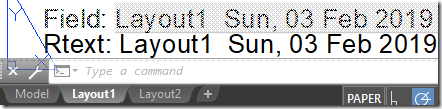
This is a bit old but still a problem that a customer run into that I want to share. If you in AutoCAD makes use of Fields containing DIESEL code and open the drawing in DWG TrueView you may end up with missing or wrong text. RTEXT usage also is not working with DWG TrueView.

Issue:
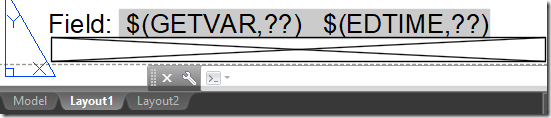
Fields containing DIESEL expressions in an AutoCAD drawing file display the interpreted value in AutoCAD, but only display a portion of the DIESEL expression itself in DWG TrueView (or other DWG viewers).

Example (in a title block):

  • A field contains the following DIESEL expression: $(getvar, “ctab”)
  • It should display the current layout tab name: Layout1 or Model or First Floor Plan

AutoCAD

  • But instead the expression is displayed as follows in DWG TrueView: $(GETVAR,??)

DWG TrueView

Causes:

DWG TrueView has pared-down capabilities compared to AutoCAD, and one of the capabilities that is not included in DWG TrueView is the DIESEL expression interpreter.

Therefore, any Field that uses a DIESEL expression will not return the same result as AutoCAD.

Solution:
For certain functions, the AutoCAD field options might include a comparable System Variable that you can substitute for the DIESEL expression.
Example:
  • DIESEL Expression = $(getvar, “ctab”)
  • System Variable equivalent = ctab

If there is no System Variable equivalent for the particular DIESEL expression you need, for viewing purposes, a DWF plotted from AutoCAD will preserve the field values and display correctly in DWG TrueView.

ref

Autodesk’s web viewer Autodesk Viewer works at least with DIESEL.

Autodesk Viewer

Wednesday, December 26, 2018

Red ‘X’ symbol error after updating to Windows 10 October 2018 Update version 1809

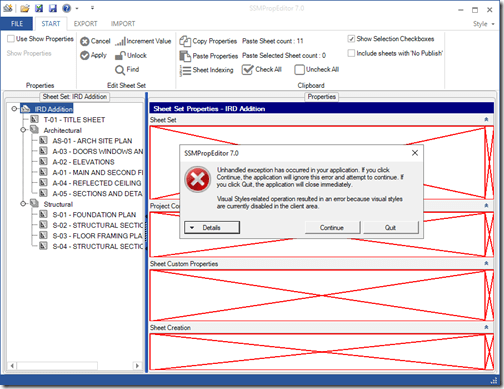
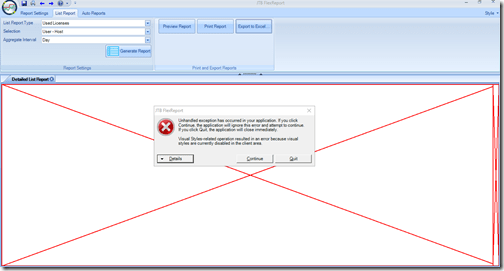
After installing Windows 10 October 2018 Update version 1809 you might get a problem with a white box with red borders and a red ‘X’ like below screenshots show.

UPDATE January 22, 2019: KB4481031 Preview of Cumulative Update for .NET Framework 3.5 and 4.7.2 for Windows 10, version 1809 and Windows Server 2019 seems to solve this issue.

In SSMPropEditor it can happen using some of the commands that will open a file dialog box like open, export, import.

Visual Styles-related operation resulted in an error because visual styles are currently disabled in the client area.

It can also happen in JTB FlexReport and other apps both by us and others.

Visual Styles-related operation resulted in an error because visual styles are currently disabled in the client area.

Clicking on Details in the error dialog box may show something like this.

“System.InvalidOperationException: Visual Styles-related operation resulted in an error because visual styles are currently disabled in the client area.
   at System.Windows.Forms.VisualStyles.VisualStyleRenderer.IsCombinationDefined(String className, Int32 part)”

Technical problem description

“WinForms applications may have problems rendering the application UI and instead may render a white screen with a red ‘X’ symbol. The issue is caused by a change in Windows 10 October 2018 Update that exposed a bug in .NET Framework 4.7.2. The issue is caused by a change in Windows 10 October 2018 Update that exposed a bug in .NET Framework 4.7.2. The Windows 10 October 2018 Update adds a new flag to VisualStyle state when the application UI launches a child dialog (i.e., a FileSaveDialog or PrintpreviewDialog) that causes .NET Framework to fail its VisualStyleState check and thus throw an exception while rendering the application UI.” ref

Solution

Microsoft’s .NET Framework 4.8 Early Access Build 3707 fixes the problem.

“Fixed VisualStyle property in Winforms, is checking for supported values (by Winforms) and any value that goes outside of this range, Winforms throws an exception. Winforms also checks if the VisualStyle property set is supported by Winforms when it is using this property and does no-op if it is not supported. Underlying native method we use to set visual styles does not care what the value for visualstyle is being passed to it. Making this change will align Winforms code with windows and does not throw exception but still validate supported visual styles when using this property. Removing the validation condition while setting this property. [578093, System.Windows.Forms.dll, Bug, Build:3621]”

Download links for .NET Framework 4.8 Early Access Build 3707 can be found here.

A .NET 4.7.2 servicing fix for this will be released by Microsoft in near future and will also be included in the next version (4.8) of .NET Framework.

Friday, October 5, 2018

Hold updating to Windows 10 version 1809

You might want to think twice about updating Windows 10 to the latest version 1809 released October, 2018.

I run into problems with Excel’s TEXT function not being able to convert year and month correctly.

I also got problems with some VBA code I use for Outlook, causing out of memory errors. The code got stuck on this row:
Set wdDoc = objOpenInspector.WordEditor

After going back to previous Windows 10 version 1803 things are working again. Office version (Office 2016 or Office 365) 16.0.10827.20138 and 16.0.10730.20127 both work fine on Windows 10 1803.

Have you upgraded and run into any issues?

UPDATE:

Microsoft has pulled Windows 10 version 1809 from the Software download page, Windows update and update assistant as of October 6.

Known issues updating to Windows 10, version 1809

“We have paused the rollout of the Windows 10 October 2018 Update (version 1809) for all users as we investigate isolated reports of users missing some files after updating.”

Tuesday, October 2, 2018

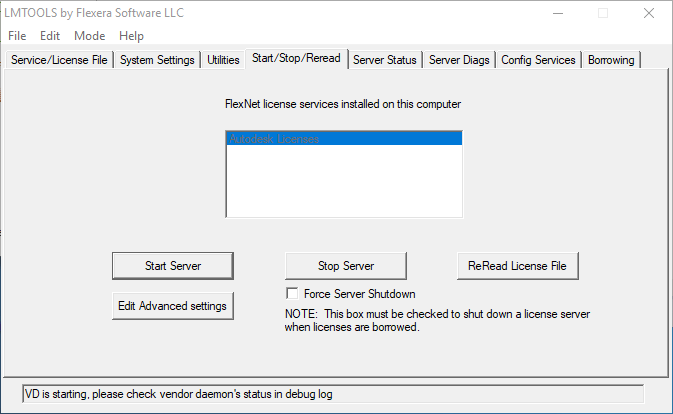
LMTOOLS VD is starting, please check vendor daemon's status in debug log

If you get this message in LMTOOLS there is probably an easy solution. This is something I run into with the Autodesk Network License Manager version 11.14.1.3.

“VD is starting, please check vendor daemon's status in debug log”

VD is starting, please check vendor daemon's status in debug log

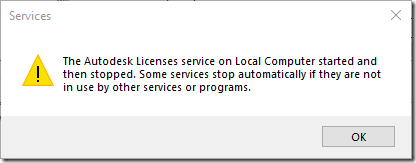
Trying to start the license service (the service name is shown in LMTOOLS > Config Services > Service Name) manually in Windows Services (run services.msc) can give this error:
”The Autodesk Licenses service on Local Computer started and then stopped. Some services stop automatically if they are not in use by other services or programs.”

image

The last row in the FlexNet debug log may be:

(lmgrd) SLOG: Summary LOG statistics is enabled.

Perform status enquiry could show something like this:

lmgrd is not running: Cannot connect to license server system.
  The license server manager (lmgrd) has not been started yet,
  the wrong port@host or license file is being used, or the
  port or hostname in the license file has been changed.
Server name:   SERVERNAMEHERE
License path:  @SERVERNAMEHERE;
FlexNet Licensing error:-15,570

Solution

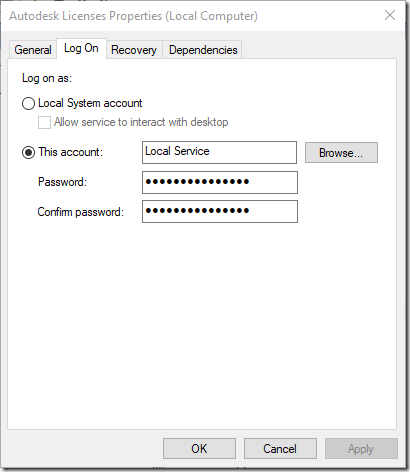
Right click on the service and select Properties followed by the tab Log On and note that Local Service account may be used. Change that to the Local System account and then start the service.

Not sure why the wrong account is used when creating the service with LMTOOLS but it sounds like a bug.

image

If still not working there are some other solutions to try:

  • Check the Server Status. If you see FlexNet Licensing error:-1,359.  System Error: 2 "No such file or directory":
    • Make sure the license file path in the Config services tab is correct.
    • Make sure to click the option "LMTOOLS ignore license file path environment variables", and then try to restart the service.
    • Make sure your antivirus software is not modifying the Windows services, e.g. "Sophos Endpoint Security" has been reported to cause the -1,359 error.

If you now got it working and also would like to create license usage reports head over to JTB FlexReport.

Tuesday, June 12, 2018

Sheet Set Manager shows up blank in AutoCAD

Have you run into a problem in AutoCAD where the Sheet List is empty in Sheet Set Manager? This may only happen when trying to open certain Sheet Set DST files.

Empty Sheet Set Manager

Autodesk Support has posted about this problem in this article here.

The solution is to fix a problem in the Windows registry at the HKEY_LOCAL_MACHINE\SOFTWARE\Autodesk\ObjectDBX location. In the article there is a download for it. Another solution is reinstall of AutoCAD. Not sure if repair option will fix it or not though.

Monday, May 14, 2018

AutoCAD 2019.0.1 Update Draw Order Hotfix

AutoCAD 2019 has got a hotfix that addresses an issue with Draw Order not functioning correctly after switching layouts.

Download it from Autodesk Knowledge Network here. There is no installation, just replacement of the file acdb23.dll with file version 23.0.61.1. The version I replaced it with was 23.61.0.

Monday, April 9, 2018

Sheet Set Manager and Sheet List Table # issues

I was seeing this problem in the Autodesk Forum: Sheet Set Manager "Sheet List Table" has strange contents and thought it made a good blog post.

Note how in the example below only Sheet Number 1 and 5 shows correct Sheet Number and Sheet Title. For the test I use AutoCAD 2019.

Sheet 2 has Sheet title “TEST” and Layout name “1 TEST”.

Sheet 2 has Sheet title “TEST #2” and Layout name “2 TEST #2”.

Sheet 3 has Sheet title “TEST” and Layout name “3 TEST #3”.

Sheet 4 has Sheet title “TEST #4” and Layout name “4 TEST”.

Sheet 5 has Sheet title “TEST #5” and Layout name “5 TEST #5” and File name “5 TEST #5.dwg”.

Sheet 6 has Sheet title “TEST” and Layout name “6 TEST 6” and File name “6 TEST #6.dwg”.

If either of the Sheet title, Layout name or File name includes # (number sign, hash, or pound sign) then you will be in trouble.

  • The Sheet Number may be incorrect
  • The Sheet Title may be incorrect
  • If you click through on the hyperlink you can get the “Hyperlink destination cannot be found.” error.

Sheet List Table # issues

Why does Sheet 5 work then?

It uses a workaround by using the character # (very similar to #). It is known as the “fullwidth number sign”. It is a Unicode character that is mainly used in Chinese, Japanese and Korean.
Either copy it from here # or press and hold down the Alt key, type on the numeric keypad 065283 and then release the Alt key.

BricsCAD 18 does not have these problems even though it still lack the hyperlink functionality and update of Sheet List functionality.

BricsCAD Sheet List

If you’re reading this you probably are interested in the Sheet Set Manager. If you have not yet looked at our SSMPropEditor app I suggest you do as it will make your life easier working with Sheet Sets and their various properties. Or look at JTB Sheet Set Creator, JTB DST Tool and JTB Sheet Set Publish.

Monday, October 16, 2017

Data Extraction in AutoCAD shows DeleteMe in Excel

If you run into this there is an explanation in this Autodesk Community post. Here’s the result after running DATAEXTRACTION and making the output to Excel.

DeleteMe

I noticed the problem in AutoCAD 2018 and it seems like it is the same with older versions of AutoCAD too.

The solution is not a good one as you may put your computer in danger by uninstalling the Windows security updates.

We have become aware that Microsoft recently released some security updates for Windows operating systems. There are currently three updates that I am aware of that break functionality in Core AutoCAD and its connection with Microsoft Excel.  For instance, customers can expect that when running a Data Extraction and saving the results in an Excel spreadsheet, the first cell (A1) will display ‘DeleteMe’ and no other data will appear.

The three update numbers are:

The remedy at this point in time is to simply uninstall the security updates until a more permanent solution is determined. Removal should restore full functionality of the features.

Inventor 2015-2011 also appears to be affected. Removal of the security updates will restore functionality of placing such features as holes and threads. Another solution, to be taken at the customer’s own risk is to change the following registry key setting:

HKEY_CURRENT_USER\Software\Autodesk\Inventor\RegistryVersion XX.0\System\Preference\Part\UseExcelToReadthreadFile to 1

UPDATE 2017-11-15: Windows November updates like kb4048952 or kb4048955 or possibly Windows 10 OS Build 15063.674 fixes this issue.

Tuesday, October 3, 2017

JTB FlexReport Services automatically stops – solution

Here’s a problem and solution I wanted to share that caused our network license monitoring solution JTB FlexReport (specifically the report Client/Service) not working.

Question: When using Test Service Engines I get the error: Please start the Services before testing. The remote name could not be resolved: 'localHost'. But I had started the services right before pressing the test buttons in the JTB FlexReport Service Configurator. The client configurator also shows error when testing service engines.

Another error showing in a dialog box and also in Windows Event Logs: Could not load type 'System.Runtime.Diagnostics.ITraceSourceStringProvider' from assembly 'System.ServiceModel.Internals. Version=4.0.0.0. Culture=neutral. PublicKeyToken=31bf3856ad364e35'.

When manually checking if the JTB FlexReport Auto Chart Service and JTB FlexReport Chart Service are running I find that they are not running and after starting them they stops directly.

.NET Framework 4.5 is installed.

Answer: This issue can be resolved by installing .NET Framework 4.5.2 or newer (http://www.microsoft.com/en-us/download/details.aspx?id=42642)
After that you will need to restart the server and the issue should be fixed.

Tuesday, August 15, 2017

How to fix problem with multiple ribbon tabs for apps in AutoCAD

Have you run into the problem with apps (plug-ins or add-ins) showing up in separate ribbon tabs? AutoCAD, AutoCAD Architecture, AutoCAD Civil 3D, AutoCAD Electrical, AutoCAD MEP, AutoCAD Map 3D, AutoCAD Mechanical, AutoCAD P&ID, AutoCAD Plant 3D and possibly other AutoCAD verticals have this problem.

I noticed this problem in also AutoCAD Architecture 2018. Note even the updates have fixed this.

Steps to solve this were found here.

(Note that Steps 2-4 are not necessary for 2015 and newer, though you may just want to check that the alias is there.)

1. Open the Customize User Interface (CUI) dialogue box by typing the CUI command (or choose Customize from the Workspace drop down list)

2. Under Customizations in All Files, and All Customization Files, expand Ribbon > Tabs and select Add-Ins

3. Under Properties > Advanced, click on the [...] that appears next to Aliases

4. Type ID_ADDINSTAB in the Aliases dialogue box, then click OK

5. Under Customizations in All Files, expand Workspaces and select [Your Workspace]

6. Under Workspace Contents, click on Customize Workspace (the Workspace Contents values should turn blue)

7. Under Customizations in All Files, scroll down and check the box next to "Add-Ins" (under Ribbon > Tabs)

8. Under Workspace Contents, click Done

9. Under Customizations in All Files, expand Partial Customization Files

10. Right-click each plug-in .CUIX that you have and choose "Unload..." (examples of plug-ins are: SKETCHUPIMPORTSKP, CHRONICLE, APPMANAGER

11. Click OK at the bottom of the CUI dialogue box

12. Make sure to select Add-ins from the left pane and change Show to Yes

13. Restart AutoCAD

Much better:

Wednesday, May 24, 2017

Autodesk License Service 5.1.5 Hotfix 1

Product crash when communicating with Licensing Server – Hotfix is available.

Product users of version 2018 Autodesk single-user subscriptions may experience an intermittent crash. The crash occurs when it has been more than 24 hours since the last successful authorization check and there is intermittent or no internet connection, or the licensing authorization server is unavailable. The licensing authorization check occurs in the background and is completely unrelated to activities the user is performing at the time of the crash.
A fatal error  message may be shown by the product. For example:
 
FATAL ERROR: Unhandled e06d7363h Exception at ee563c58h

The error will likely be followed by a dialog requesting to submit the error report.

This affects all users of 2018 product versions on subscription with single-user access, on both Windows and Mac.

If you use AutoCAD 2018 make also sure to install AutoCAD 2018.0.2 Update if you have 2018.0.1 installed or it will cause the product subscription to expire on June 1st, 2017.

AutoCAD 2017.1.2 Update

AutoCAD 2017 has got an update. Readme for AutoCAD 2017.1.2 Update here.

This AutoCAD 2017.1.2 Update contains all of the updates previously released for AutoCAD 2017. After applying this patch, AutoCAD 2017.1.2 Update, the Product Version number in the About box will be listed as N.402.0.0 AutoCAD 2017.1.2. If you use one of the vertical products, the Built On version will be listed as N.402.0.0 AutoCAD 2017.1.2.

What has been fixed?

  • Occasional crashes when zooming in while HQGEOM is disabled on specific drawings.
  • Occasional crashes running common commands after loading specific ARX files.
  • Compiling PFB fonts can produce a non-usable .SHX file.
  • After executing certain commands, the local language cannot be switched.
  • Copying and pasting might lead to AutoCAD freezing.
  • When changing the view of a drawing, the objects in that view might disappear.

Wednesday, April 26, 2017

Workaround for the Ribbon bug in AutoCAD Architecture 2018

After I reported about the bug in the post AutoCAD Architecture 2018 and AutoCAD MEP 2018 New Feature Summary I got a workaround from Autodesk that I wanted to share:

Please see below workaround for the issue, suggested by our engineering team.  You can enable the “Add-ins” Tab in the CUI and all the apps will be installed under this tab.

  1. Uninstall all apps (including Autodesk Apps)
  2. Launch AutoCAD Architecture>>CUI>>Right click on the default workspace>>Customize Workspace
  3. Ribbon>>Tabs>>Enable “Add-ins”>>click “Done” on the Right pane>>OK
  4. Right Click on any tab>>Enable “Add-ins” Tab to be shown in the Ribbon.
  5. Install the apps now and should be seen under Add-ins tab.

Tuesday, April 18, 2017

AutoCAD 2018.0.2 Update

The AutoCAD 2018.0.2 Update is now available for AutoCAD 2018 and AutoCAD LT 2018 through the Autodesk Desktop App,

or via the Autodesk Account.

But it’s not available on the Autodesk Knowledge Network site.

Here are the readme details:

The 2018.0.1 Update fixes described in this previous post are included. (This update was withdrawn some time after it was released)

New fixes in 2018.0.2 are:

  • Occasional crashes when editing an undefined hatch pattern no longer occur.
  • Occasional crashes when opening certain DXF files no longer occur.
  • Right clicking in the Block Edit mode no longer displays an error message in the Command window.
  • Certain text styles are no longer upside down when printed to PDF.
  • Self-Intersecting wipeouts in a block will perform as expected when plotted.
  • Fixed a defect that would otherwise have caused the product subscription to expire on June 1st, 2017 with a pre-release product error message.
  • Ability to input values for the Material Editor Palette is restored.
  • Digitally signed AutoLISP files can be loaded as expected.

More about AutoCAD 2018 here.

Monday, August 15, 2016

AutoLISP error: no function definition: VLAX-ENAME->VLA-OBJECT

Have you got this error in AutoCAD running some command or app that is AutoLISP based?

First thing to ensure is that Visual LISP is loaded so run (vl-load-com).

Below shows a result that is expected and all is working. Note that the drawing needs to have at least one object in it.
Command: (vl-load-com)
Command: (vlax-ename->vla-object(entlast))
#<VLA-OBJECT IAcadLine 0000005ce02af728>

If you get below result then something is broken in AutoCAD.
Command: (vlax-ename->vla-object(entlast))
; error: no function definition: VLAX-ENAME->VLA-OBJECT

I have not got this problem myself but a repair or reinstallation of AutoCAD has helped a couple of customers, one with AutoCAD 2016 and another with AutoCAD 2017. Suspected cause of this could be having run some registry cleaner or anti-virus that deleted vital registry settings that AutoCAD needs. One had run Malwarebytes the day earlier.

There might be an easier remedy but until this is found you know what to do to solve this problem. If you haven’t install any recent service pack or hotfix (that comes with an installer) this might also be a solution.

Update, solution found in this article.

Wednesday, July 27, 2016

AutoCAD 2017 App Autoloader Hotfix

AutoCAD 2017 SP1 introduced an issue that caused many AutoCAD apps to not work, among them many of JTB World’s apps both on Autodesk App Store and on our website. As it will take a while for Autodesk to publish this hotfix I was allowed to make it available.

Download: AutoCAD 2017 Exchange App Autoloader Hotfix.zip from JTB World.

UPDATE: Autodesk has made the download available at their Autodesk Knowledge Network. Autodesk® AutoCAD® 2017 Exchange App Autoloader Hotfix

You can verify that this is a valid file from Autodesk by right-clicking on it and select properties and look at the Digital Signatures tab.

From the Autodesk® AutoCAD® 2017 Exchange App Autoloader Hotfix readme:

This Hotfix addresses a problem with Exchange Apps that target the AutoCAD 2017-based products.

Description of Problem

Exchange Apps may not display on the Add In tab after installing the AutoCAD 2017 Service Pack 1 if settings are reset. Commands for Exchange Apps may no longer work. Newly installed Exchange Apps might not load.

Affected Products

The following products are affected after installing the Service Pack 1 for AutoCAD-based products:

  • AutoCAD 2017
  • AutoCAD Map 3D 2017
  • AutoCAD Civil 3D 2017
  • AutoCAD Mechanical 2017
  • AutoCAD Electrical 2017
  • AutoCAD Architecture 2017
  • AutoCAD MEP 2017
  • AutoCAD P&ID 2017
  • AutoCAD Plant 3D 2017
  • AutoCAD Utility Design 2017

Installation Instructions

To install this Hotfix

You must have administrative privileges on your Microsoft® Windows® operating system to complete the installation process. For your security, it is strongly recommended that after you install this Hotfix, you restore your previous security setting rather than running under Administrative privileges.

This installation process requires you to modify an installed product, which may cause Windows security warnings to appear. For all Windows security warnings that appear during installation, click Continue.

We recommend that you update your Autodesk applications with the latest service packs or updates.

  1. Close all software applications.
  2. Navigate to the folder where your Autodesk product is installed.

C:\Program Files\Autodesk\AutoCAD 2017

  1. Right-click AcAutoLoader.crx and go to properties. On the Details tab check the file version. If the version is 21.0.52.0 this hotfix should be applied. If the version is 21.0.104.1 this hotfix has been applied.
  2. Right-click AcAutoLoader.crx and rename it as AcAutoLoader.bak. (Please note there is also an AcAutoLoader.arx file that you should not edit.)
  3. Download the Hotfix to a location on your local computer.
  4. Copy the downloaded file (AcAutoLoader.crx) from step 5 (from the 32-bit or 64-bit sub-folder depending on whether you have 32-bit or 64-bit software) to your product installation folder i.e. to the folder specified in step 2.
  5. Repeat step 3 to ensure the hotfix has been applied.

To remove this Hotfix

  1. Close all software applications.
  2. Navigate to the folder where your Autodesk product is installed,

C:\Program Files\Autodesk\AutoCAD 2017

  1. Delete AcAutoLoader.crx (the file you downloaded and installed).
  2. Rename AcAutoLoader.bak to AcAutoLoader.crx

Monday, July 25, 2016

AutoCAD 2017 Service Pack 1 and a word of warning

Warning! This service pack breaks the loading of certain AutoCAD apps that are using the plug-in auto loader mechanism (among others used by apps in the Autodesk App Store). If you notice that some commands are not available, typically from the Add-ins Ribbon tab you can uninstall SP1 if already installed to restore functionality and then wait for a fix from Autodesk.

UPDATE 1: The problem with apps not loaded is only happening in vanilla AutoCAD and not in verticals like AutoCAD Architecture. A workaround is to remove the SeriesMax entry from the PackageContents.xml. For example: xmlSeriesMax="R21.0". Or to change it to xmlSeriesMax="R21.1".

UPDATE 2: See AutoCAD 2017 App Autoloader Hotfix

This Service Pack 1 can be applied to Autodesk AutoCAD 2017 installed as a standalone application, AutoCAD-based Vertical products, and the Autodesk Design Suites listed in the readme.

Download it at this point available via Autodesk Desktop App and soon on the download page. Update: Direct link to SP1.

According to the readme:

AutoCAD service packs are now separate and independent of the service packs for AutoCAD-based vertical products. From now on, you will need to install the AutoCAD service pack in addition to any applicable service pack for your vertical products.
This change enables Autodesk to release service packs in a more timely fashion.

Problems Reported with the Customer Error Reporting Utility

As a result of the detailed information that we received from customers who used the Customer Error Reporting Utility, we were able to identify and fix the problems listed below:

Blocks

  • There were occasional crashes when inserting some blocks a second time.

Graphics

  • There were occasional crashes when zooming out of a drawing following the 3D orbit command.

Purge

  • There were occasional crashes when purging DXF drawing files.

Web and Cloud

  • There were occasional crashes when modifying the Online Options settings and signing in to Autodesk A360 from InfoCenter.

General

  • There were occasional crashes when launching AutoCAD in Windows 10.
  • There were occasional crashes when inputting the system time in long string format, and then using the DIM command.
  • There were occasional crashes when switching layouts.
  • There were occasional crashes when performing a 3D rotate in drawings containing a point cloud.
  • There were occasional crashes when plotting to PDF using AccoreConsole.exe.
  • There were occasional crashes when performing an Undo after detaching a reference using the External References palette.
  • There were occasional crashes when PNG images were specified in a CUI resource file.

General Service Pack Updates

The following defects have been fixed:

Display

  • Xrefs on a frozen viewport layer would still be plotted.
  • AutoCAD in Citrix might not default to the primary display adapter.

Open and Save

  • Opening a drawing file using an Excel hyperlink was repositioning the AutoCAD application window.

PDF Import

  • Importing a PDF Underlay that was attached with relative path could fail.

Xref

  • The Xref status incorrectly displays the "Needs reloading" message when the dataset is opened from a UNC path to a shared folder.

General

  • When opening drawings created with AutoCAD Architecture, AutoCAD might crash if the drawing was saved again.
  • Plotting with certain visual styles might produce incorrect results.
  • Migrating custom settings might fail.

One of the important issues addressed in AutoCAD 2017 SP1 is debugging the .NET in using Visual studio 2015. Till now, developers were asked to use workaround as explained in blog http://adndevblog.typepad.com/autocad/2016/05/debugging-autocad-2017-using-visual-studio-2015.html . But with AutoCAD 2017 SP1, there is no need to use the workarounds to debug the .NET project. Also, now you can edit and continue debugging your .NET project.

Some of the latest blog posts

Subscribe to RSS headline updates from:
Powered by FeedBurner

Contact Us | About JTB World | Website General Terms of Use | Privacy Policy
^ Top of page

© 2004- JTB World. All rights reserved.