Check out the cool EplotView DWF & PDF viewer Palette for AutoCAD by Mark Douglas.
Monday, July 31, 2006


Free Windows Forms 2.0 ToolStrip course
This 6 hour course by Microsoft in for of a 92 page PDF is intended for developers who support and develop Windows Forms applications for Visual Studio 2005 and the Microsoft .NET Framework 2.0.
http://www.windowsforms.net/Articles/WindowsFormsToolStripCourse.pdf

External References Palette in AutoCAD 2007
External References Palette was introduced in AutoCAD 2007 with some changes as can be seen below.
To open the External References Palette use the commands XR, XREF,
EXTERNALREFERENCES or Tools>Palettes>External References or use the button

To close use the command EXTERNALREFERENCESCLOSE.
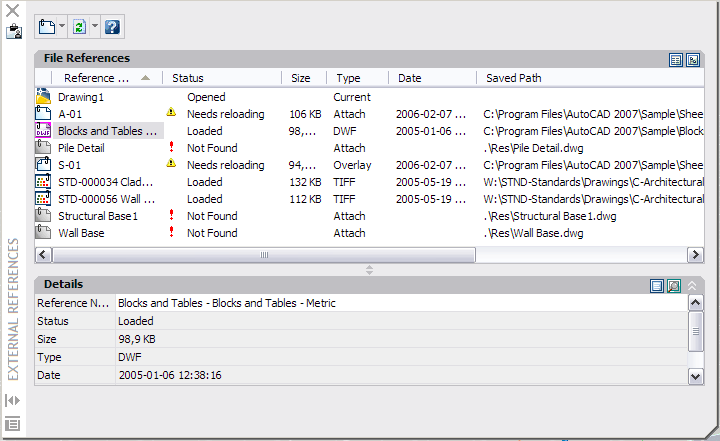
To change the path of a DWG reference do like this:
Insert>External References to open the Xref ESW.
In the External References palette, select a DWG reference name.
Under Found At, do one of the following:
Edit the xref path directly.
Click Browse. Select the xref in its new path.
Use CUI to change the behavior of the Xref ESW in relation to your workspace.

CLASSICXREF is a command that displays the Xref Manager with the old GUI.
CLASSICIMAGE is a command that displays the Image Manager with the old GUI.
Related System Variables are:
ERSTATE is used to get the External References palette State.
0 - Not active
1 - Active
XREFCTL controls whether external reference log (XLG) files are
created.
0 - (default value) Does not write log files
1 - Writes log files (Recommendation is to only activate if you really need this
functionality)
The log file is an ordinary ASCII text file with the same name as the current drawing and the file extension .xlg. If you load a drawing with the file name sample.dwg, for example, the program searches for a log file named sample.xlg in the current folder. If the file does not exist, a new file is created with that name.
Once a log file has been created for a drawing, the program continues to append information to it. The program writes a title block to the log file each time the file is opened. If the log file becomes too large, you can delete it.
XREFNOTIFY that controls the notification for updated or missing xrefs.
The value is saved per user and profile.
HKEY_CURRENT_USER\Software\Autodesk\AutoCAD\R17.0\ACAD-5001:409\Profiles\<<Unnamed
Profile>>\General\XrefNotify
0 - Disables xref notification
1 - Enables xref notification. Notifies you that xrefs are attached to the
current drawing by displaying the xref icon in the lower-right corner of the
application window (the notification area of the status bar tray). When you open
a drawing, alerts you to missing xrefs by displaying the xref icon with a yellow
alert symbol (!).
2 - (default value) Enables xref notification and balloon messages. Displays the
xref icon as in 1 above. Also displays balloon messages in the same area when
xrefs are modified. The number of minutes between checking for modified xrefs is
controlled by the system registry variable XNOTIFYTIME.
XREFTYPE controls the default reference type when attaching or
overlaying an external reference. It is saved when changing the reference type
using the XATTACH command.
The value is saved per user and profile.
HKEY_CURRENT_USER\Software\Autodesk\AutoCAD\R17.0\ACAD-5001:409\Profiles\<<Unnamed
Profile>>\General\XrefType
0 - Attachment is the default
1 - Overlay is the default
Several other undocumented settings are saved in the registry below
HKEY_CURRENT_USER\Software\Autodesk\AutoCAD\R17.0\ACAD-5001:409\Profiles\<<Unnamed
Profile>>\Vault\ESW
LowerGroupMinimized
LowerGroupRatio
LVColumnWidths
Other settings for the palette like both from CUI and from the GUI like List
View or Tree View or Details or Preview are saved in XML format in C:\Documents
and Settings\<user>\Application Data\Autodesk\AutoCAD 2007\R17.0\enu\Support\Profiles\FixedProfile.aws\FixedProfile.aws
[Related links worth reading:
AutoCAD 2007
Xref Manager Palette Vs Dialog |
Xref'ing
from Vault]
Sunday, July 30, 2006
Ted Boardman's Visualization Blog
I've just been reading RobiNZ CAD Blog about Ted Boardman's Visualization Blog. Because of all the good I've heard about Ted I sent a user this spring to a 3Ds MAX seminarium where he spoke and it was very much appreciated. After adding it to the blog roll on the right I found interesting reading like the post about Alpha Channel.
Default Printer when opening drawing with unrecognized printer
AutoCAD Wish List: June 2006 Results is published and one of the wishes was Default Printer when opening drawing with unrecognized printer. I cannot add it to the core of AutoCAD but with the help of this AutoLISP code sample you can easily get this.
If the Plot Device (printer, plotter or PC3 file) saved in the drawing and that will be used when printing does not exist or is set to None automatically set it instead to the default plotter/printer.
If the Plot Style Table saved in the drawing and that will be used when printing does not exist or is set to None automatically set it instead to the default plot style table.
The file can also be changed so that you can set to any printer or plot style table that you want to be used as your standard.
If you want instructions how to automatically load this in AutoCAD take a
look here.
[Via BLAUGI and Mistress of the Dorkness and Between the Lines]
Saturday, July 29, 2006
Surround With in VB.NET 2005
The Visual Studio 2005 Code Editor provides a Code Snippet Picker that allows
you, in a few mouse clicks, to insert ready-made blocks of code into the active
document.
The procedure to display the Code Snippet Picker varies according to the
language you are using.
- Visual Basic - Right-click at the desired location in the Code Editor to display the Shortcut menu, and select Insert Snippet.
- Visual C# and Visual J# - Right-click at the desired location in the Code Editor to display the Shortcut menu, and click Insert Snippet or Surround With.
- Visual C++ - The Code Snippet Picker is not available.
- XML - Right-click at the desired location in the Code Editor to display the Shortcut menu, and click Insert Snippet or Surround With.
Right-click or press Ctrl+K, Ctrl+X and you will see this context menu.


Another way is to use shortcuts like TryC followed by the TAB key. The result is like this.

Notice that VB.NET does not have the Surround With functionality. There is a solution for this. DPack that just released version 2.5.6. One thing that first puzzled me was that Surround With that I've used a lot in VS.NET 2003 was not there. After reading the readme I found out this note: "Much more powerful surround with functionality is available in VS 2005 'out of the box'. DPack's surround with feature is left in the VS 2005 installation mainly for backward compatibility reasons." This is true if you use C# but not if you use VB. To enable this great feature I had to do it at Tools>Options>DPack.


Links:
What's New in Visual C# 2005 - Code Snippets
FAQ on
Visual Basic IDE Team Blog
Coding Horror
with an animated GIF
Google Toolbar custom buttons ready
Now I have created two custom toolbars for Google Toolbar. The Toolbar comes with a bunch of new features so take a look.

Use the links below to add the buttons. The buttons will change image when new feeds are available.
 |
Add
 Add 
|
The first button
The second button

Here is the API to create your own button.
[Via Google Blog]Google Toolbar released but I have a problem
I tried some of the functionality of the
new
Google Toolbar that has some cool new features but it seems like there are some problems. I created a button
and the feeds show up in the drop-down as they should but when I click on any of the
feeds it doesn't work. A dialog box comes up asking to connecto to
www.blogger.com and if I press cancel the url is something like
https://www.blogger.com/atom/9019115/115409179283556611
I tried to use both the blogger atom feed as well as the feedburner feed.
If any of you have an idea what is going on please let me know. Click here to add the button I made.
Update. Thanks to a comment by Ionut Alex. Chitu it was solved. I converted the FeedBurner feed to RSS 2.0.
Friday, July 28, 2006
NavisWorks JS 5.1 released with support for export to Google Earth (KML)


- AutoCAD 2007 (including AutoCAD 2007-based products; ADT, ABS et al) file
reader
and exporter - Viz 2007 exporter
- Revit Building 9 / Revit Structures 3 / Revit Systems exporter
- DWF Reader
- DWF Output
- SketchUp SKP Reader
- KML (Google Earth) Output
- Triforma materials support
- IFC improvements, including hierarchy support, improved faceting and
increased
reliability and fidelity - Presenter now handles the creation of even larger photorealistic images
from even
larger models - Localization for German, Japanese, Chinese (simplified), French (GUI only)
- Greatly improved search performance (affects use of search sets, find tool,
and
selection tree
Note: Object Enablers now need to be installed even when AutoCAD-based
packages are
installed on the same computer as JetStream. Information regarding Object
Enablers can be
found on our File Formats web page (www.navisworks.com/support/file_formats).
Note: A “modification” of the JetStream installation is required in
order to install the new 2007
exporters. Following the JetStream upgrade, go to “Add or Remove Programs” in
the Control
Panel, highlight NavisWorks JetStream v5, click the 'Change/Remove' button,
choose 'Modify'
and press 'Next'. Check 'AutoCAD 2007 Plugin', 'Autodesk Viz 2007 Plugin' and
'Autodesk
Revit 9.0/Structure 3.0/Systems Plugin' as appropriate and press 'Next'.
More details here.
Thursday, July 27, 2006
Change F1 from starting Help to work
How many times have you hit F1 unintentionally just to have to wait for the Help to load and start. What a waste of time. Here is a tip on how you in AutoCAD 2006 and later versions or verticals can use CUI to change this behaviour.
Open the Customize User Interface using the CUI command or from the Workspaces toolbar select Customize in the drop down list.
In the Command List pane click on New.
In the Properties pane edit the Name and change it from Command1 to Escape1.
Change also the macro from ^C^C to ^C^C^C^P(ai_deselect) ^P. The reason is there are some commands that needs escape pressed tree times and this will also deselect all objects selected.
Expand Keyboard Shortcuts in the top left pane.

In the Command List pane notice that the Escape command is selected. Drag and drop it on Shortcut Keys in the top left pane.
Click on Escape in the top left pane.
In the Properties pane enter F1 as Key(s) value. Either click on the button with three dots or enter F1 and press enter.
Click OK to exit the dialog box.
Start any command and press F1.
Tip 1: Make a second command name it Escape2 and assign the Esc button to it. That way you don't have to press Esc more than one time.
PS. Right-click on Shortcut Keys in CUI has New as an option but it is not for the Shortcut Keys, it is for Temporary Override Keys.
For those with older version than 2006 add ["F1"]^C^C under ***ACCELERATORS in your acad.mns.
Paint.NET's new address: www.getpaint.net
Paint.NET has found a new home at www.getpaint.net according to Rick Brewster's blog. This is one of my must have installed software's.
AUGI Connectivity Toolbar installed...
...after reading that Richard Binning updated the AUGI Connectivity Toolbar and added "a new community menu dedicated to the Architectural Desktop and Building Systems community.". I had some problems with the previous version so I had to uninstall it but now it's time to try it again.
ABS .NET API Webcast
See you in an hour at the Autodesk Building Systems .NET API Webcast. Thanks for the reminder Kean.
Start time: 4pm BST (British Summer Time); 5pm CEST (Central Europe Summer Time); 8am PDT (Pacific Daylight Time)Autodesk DWF Viewer 7.0 deployment tips & trix
Using VBScript (file with VBS extension) Autodesk DWF Viewer 7.0 can be installed and configured unattended or silently. One new thing with version 7.0 is that an MSI file that can be downloaded from www.autodesk.com/dwfviewer. Below are some tips & tricks that you can get ideas from.
By default, DWF Viewer checks for its latest version on the Autodesk Web site (Help > Check for Updates...). You can configure DWF Viewer to check for an update from another location, such as your company's Web site server, allowing you to control which version is available to your users. See the help file on Programming and Administration>Check for Updates from a Non-Autodesk Server.
To install:
on error resume next
Set WshShell = CreateObject("WScript.Shell")
' Progress bar without cancel button
WshShell.Run """\\server\DWF\7.0\DwfViewerSetup.msi"" /qb!",1,true


This could be done as a post installation:
on error resume next
Set WshShell = CreateObject("WScript.Shell")
Set fso = CreateObject("Scripting.FileSystemObject")

' Delete the link from the start menu
key="HKEY_LOCAL_MACHINE\SOFTWARE\Microsoft\Windows\" & _
  "CurrentVersion\Explorer\Shell Folders\"
path=WshShell.RegRead(key & "Common Programs") & "\Autodesk"
fso.DeleteFile path & "\Autodesk DWF Viewer.lnk",True

' Delete the folder from the start menu if it's empty
if FolderEmpty(path) then fso.DeleteFolder path, True

' Do not show dialog box asking for update if a newer version is available
key = "HKEY_LOCAL_MACHINE\SOFTWARE\Autodesk\" & _
  "DWF Viewer\Settings\AutoUpdate\DoNotShowAgain"
WshShell.RegWrite key, 1, "REG_DWORD"

' Do not check for a new version when starting DWF Viewer
key = "HKEY_LOCAL_MACHINE\SOFTWARE\Autodesk\" & _
  "DWF Viewer\Settings\AutoUpdate\InitialCheck"
WshShell.RegWrite key, 1, "REG_DWORD"

' Do not check that often (number in days)
key = "HKEY_LOCAL_MACHINE\SOFTWARE\Autodesk\" & _
  "DWF Viewer\Settings\AutoUpdate\CheckInterval"
WshShell.RegWrite key, 1000, "REG_DWORD"

' Make sure that if the user cannot update from the Help menu by pointing to an invalid location
key = "HKEY_LOCAL_MACHINE\SOFTWARE\Autodesk\" & _
  "DWF Viewer\Settings\AutoUpdate\URL"
WshShell.RegWrite key, "C:\", "REG_SZ"

' Use single click to follow hyperlinks
key = "HKEY_CURRENT_USER\Software\Autodesk\DWF Common\" & _
  "Preferences\User Interface\Single Click Hyperlink"
WshShell.RegWrite key, 1, "REG_DWORD"

' Suppress Getting started Page
key = "HKEY_CURRENT_USER\Software\Autodesk\DWF Common\" & _
  "Preferences\User Interface\Suppress Startup Page"
WshShell.RegWrite key, 1, "REG_DWORD"

Function FolderEmpty (path1)
  Set oFolder = fso.GetFolder(path1)
  Set oFiles = oFolder.Files
  flag = true
  For Each i in oFiles
    flag = false
  Next
  FolderEmpty = flag
End function


To uninstall:
on error resume next
Set WshShell = CreateObject("WScript.Shell")
Set fso = CreateObject("Scripting.FileSystemObject")
key="HKEY_LOCAL_MACHINE\SOFTWARE\Microsoft\Windows\CurrentVersion\" & _
  "Uninstall\Autodesk DWF Viewer\UninstallString"
UninstallString=WshShell.RegRead(key)
if UninstallString<>"" then WshShell.Run "msiexec /x {9A346205-EA92-4406-B1AB-50379DA3F057} /qb!",1,true
It is also possible to sidable some menu items in the Viewer by editing this
file:
C:\Program Files\Autodesk\Autodesk DWF Viewer\EComposite\menubar_exe.htm
Here are some examples:
helpRegisterMenu.disabled = false; can be changed to helpRegisterMenu.disabled = true;
helpUpdateMenu.disabled = false; can be changed to helpUpdateMenu.disabled = true;
Subscribe to:
Posts (Atom)