Thursday, September 13, 2007

Spell checking in other languages in Windows Live Writer 2008

There is a hack to get spell checking to work in Windows Live Writer 2008 (aka WLW) for your language.

image

Locate C:\Program Files\Windows Live\Writer\Dictionaries (<program files>\Windows Live\Writer\) that is the location for the release Beta 3 or later.

From what I have found you need the english version of WLW and you can find that one at http://g.live.com/1rebeta/en-us/WLInstaller.exe. It seems to not work if you have another language installed (if you find the trick add a comment below).

Rename ssceam.tlx to ssceam.old and ssceam2.clx to ssceam2.old.

Find your language file and download it. Rename the TLX file to ssceam.tlx and the CLX file to ssceam2.clx.

Here you can see how the spell checking works in Swedish. (Nu fungerar också rättstavning på svenska!)

image

To have this work you need to get the correct dictionary file

Language TLX file CLX file Download
English (American, USA) ssceam.tlx ssceam2.clx here here TP
English (Australia) ssceau.tlx ssceau2.clx here
English (British,United Kingdom) sscebr.tlx sscebr2.clx here here TP
English (Canadian, Canada) ssceca.tlx ssceca2.clx TP
Norwegian? sscecb.tlx sscecb2.clx TP
Danish (Dansk,Danmark,Denmark) ssceda.tlx ssceda2.clx TP
Dutch (Nederlands,Holland,Netherlands) sscedu.tlx sscedu2.clx here here TP
Spanish? sscees.tlx sscees2.clx here
French? sscefc.tlx sscefc2.clx here
Finnish (Suomeski, Suomi, Finland) sscefi.tlx sscefi2.clx here here TP
French (Français,La France) sscefr.tlx sscefr2.clx here here TP
German (Deutsch,Deutschland,Germany) sscege.tlx sscege2.clx here here
German (new spelling?) sscegn.tlx sscegn2.clx TP
German (old spelling?) sscego.tlx sscego2.clx TP
Italian (Italiano, Italiana, Italy) ssceit.tlx ssceit2.clx here here TP
American Legal Terms sscela.tlx sscela2.clx TP
British Legal Terms sscelb.tlx sscelb2.clx TP
American Medical Terms sscema.tlx sscema2.clx TP
British Medical Terms sscemb.tlx sscemb2.clx TP
Norwegian (Bokmål,Norge,Norway) sscenb.tlx sscenb2.clx see sscecb
Portuguese (Brazilian,Brasil,Brazil) sscepb.tlx sscepb2.clx here TP
Portuguese (Iberian,Portuguesa,Portugal) sscepo.tlx sscepo2.clx here TP
Spanish (Español,España,Spain) sscesp.tlx sscesp2.clx here TP
Swedish (Svenska,Sverige,Sweden) sscesw.tlx sscesw2.clx here here TP

Most spelling dictionaries are also available at TP as a 4MB download. You need to run the installer and all files will end up at C:\Program Files\TextPad 4\Spelling

You might find that you need to use the little freeware I made in case your Windows is not set to english.

To download Windows Live Writer beta in other languages (28 languages so far supported):

Svenska http://get.live.com/sv-se/betas/writer_betas

French http://get.live.com/fr-fr/betas/writer_betas

French (Canada) http://get.live.com/fr-ca/betas/writer_betas

German http://get.live.com/de-de/betas/writer_betas

etc.

Find your locale ID and try if it works. Notice that check spelling might not work then.

Wednesday, September 12, 2007

AutoCAD hyperlink command advanced

If the basics is not enough here comes most everything else worth knowing about hyperlinks in AutoCAD.

Here is a sample code that can be used in CUI (Customize User Interface) as a Double Click Action macro instead of the default one ^C^C_properties. If the object has a hyperlink it will be opened and if not the Properties palette will be opened.

^C^C(if (setq path (cdr (cadadr (assoc -3 (entget (ssname (ssget "P") 0) '("PE_URL")))))) (command "BROWSER" path) (command "PROPERTIES"))

If you want to create a hyperlink to a named location in a non-AutoCAD file add a pound sign (#) after the name of the file that the hyperlink is linked to. Here is a sample for Excel:
C:\Documents\MyBook1.xls#Sheet1!C10
It will open MyBook1.xls, sheet1 and locate the cell C10.
or to Word:
C:\Documents\MyDocument.doc#MyBookmark
C:\Documents\MyDocument.doc#3
    (opens page 3)
or a PDF file in Adobe Reader or Adobe Acrobat
C:\Documents\myFile.pdf#page=3

To find all objects that are hyperlinked use QSELECT and since there is no operator to select all objects with a hyperlink you can select Not Equal and enter a Value you know does not exist.

 image

With the -HYPERLINK command you can insert hyperlinks on objects and this can be automated like this with AutoLISP:
(command "-HYPERLINK" "I" "O" ent "" "" "Detail 1" "Detail 1")

Using the -HYPERLINK Insert option:

Command: -hyperlink
Enter an option [Remove/Insert] <Insert>: i
Enter hyperlink insert option [Area/Object]: O
Select objects: 1 found
Select objects:
Enter hyperlink <current drawing>:
Enter named location <none>: Detail 1
Enter description <none>: Detail 1

Notice that you have an Area option. That will ask you for First corner and Other corner and create a 3D Polyline on the layer URLLAYER. The URLLAYER is automatically created. When is this useful. For example if you plot to DWF you will find that you can click anywhere in that area and the 3D Polyline will not be visible.

image

Using the -HYPERLINK Remove option:

Command: -hyperlink
Enter an option [Remove/Insert] <Insert>: R
Select objects: Specify opposite corner: 7 found
Select objects:
1.  TANK 3 (TANK 3)
2.  TANK 2 (TANK 2)
3.  http://www.jtbworld.com (jtbworld.com)
4.  http://www.jtbworld.com (jtbworld.com)
5.  http://www.jtbworld.com (jtbworld.com)
6.  TANK 1 (TANK 1)
7.  http://www.jtbworld.com (jtbworld.com)

Enter number, hyperlink, or * for all: http://www.jtbworld.com
4 hyperlinks deleted.

With the DETACHURL command you can delete hyperlinks from objects and this can be automated like this:
(command "DETACHURL" ent "")

If a drawing has had hyperlinks the Registered application PE_URL can be purged.

Command: -purge
Enter type of unused objects to purge
[Blocks/Dimstyles/LAyers/LTypes/MAterials/Plotstyles/SHapes/textSTyles/Mlinestyles/Tablestyles/Visualstyles/Regapps/All]: r
Enter name(s) to purge <*>:
Verify each name to be purged? [Yes/No] <Y>: Y
Purge registered application "PE_URL"? <N> Y

HYPERLINKBASE - Specifies the path used for all relative hyperlinks in the drawing. If no value is specified, the drawing path is used for all relative hyperlinks.

Or use DWGPROPS and on the Summary tab, enter a relative path in Hyperlink Base.

HYPERLINKOPEN - Asks for a hyperlink and opens it or navigates to that location that could be a named view or layout tab.

Command: HYPERLINKOPTIONS
Display hyperlink cursor, tooltip, and shortcut menu? [Yes/No] <Yes>:

PASTEASHYPERLINK - Inserts data from the Clipboard as a hyperlink. Example. Copy a file in Explorer and run the command or select Edit>Paste as Hyperlink and then select one or several objects. Now a hyperlink to the document will be inserted on the object(s).

AutoLISP

And now into more details how to use entget to find the information. The hyperlink information is attached as xdata.

If you want to know how many hyperlinked objects there are use:
(sslength (ssget "x" '((-3 ("PE_URL")))))

Command: (assoc -3 (entget (car (entsel)) (list "PE_URL")))
Select object:
(-3 ("PE_URL" (1000 . "http:// www.autodesk.com") (1002 . "{") (1000 . "Autodesk") (1002 . "{") (1071 . 0) (1002 . "}") (1002 . "}")))

And this is an example how the hyperlink is to the view named Detail 1 in the current drawing.

Command: (assoc -3 (entget (car (entsel)) (list "PE_URL")))
Select object:
(-3 ("PE_URL" (1000 . "") (1002 . "{") (1000 . "Detail text display") (1000 . "Detail 1") (1002 . "{") (1071 . 1) (1002 . "}") (1002 . "}")))

To make sure the option Convert Hyperlink to DWF is always set the code below is needed.

(defun markHlinkDWF ()
  (setq mysel (ssget "_X" '((-3 ("PE_URL")))))
  (setq iMaxSel (sslength mysel))
  (setq iCnt 0)
  (while (< iCnt iMaxSel)
    (setq my_entname (ssname mysel iCnt))
    (setq my_ent (entget my_entname '("PE_URL")))
    ;; get the entity including Xdata for hlinks
    (setq my_xdata1 (assoc -3 my_ent))
    ;; open up the XData
    (setq my_xdata_URL (nth 1 my_xdata1))
    (setq my_new_xdata_URL (subst '(1071 . 1) '(1071 . 0) my_xdata_URL))
    ;; enable flag for convert DWG to DWF
    (setq my_new_xdata1 (subst my_new_xdata_URL my_xdata_URL my_xdata1))
    ;; update XData
    (setq my_ent (subst my_new_xdata1 my_xdata1 my_ent))
    (entmod my_ent)
    ;; set the entity
    (setq iCnt (+ iCnt 1))
  )
  nil
)
(defun validate	()
  (setq mysel (ssget "_X" '((-3 ("PE_URL")))))
  (setq iMaxSel (sslength mysel))
  (setq iCnt 0)
  (setq iFailCnt 0)
  (while (< iCnt iMaxSel)
    (setq my_entname (ssname mysel iCnt))
    (setq my_ent (entget my_entname '("PE_URL")))
    ;; get the entity including Xdata for hlinks
    (setq my_xdata1 (assoc -3 my_ent))
    ;; open up the XData
    (setq my_xdata_URL (nth 1 my_xdata1))
    (if	(/= (member '(1071 . 0) my_xdata_url) nil)
      (setq iFailCnt (+ iFailCnt 1))
    )
    (setq iCnt (+ iCnt 1))
  )
  (if (> iFailCnt 0)
    (progn
      (setq
	my_str (strcat (itoa iFailCnt) " hyperlink(s) not updated.")
      )
      (princ my_str)
      nil
    )
  )
)

(setq Hyplink (markHlinkdwf))
(setq Hyplinkval (validate))

Here is how a hyperlink can be attached to an object.

(if (null (tblsearch "appid" "PE_URL"))
  (regapp "PE_URL")
)

(entmod
  (append (entget (car (entsel)))
    (list (list -3 (cons "PE_URL" (list
      ; URL
      (cons 1000 "http:// www.autodesk.com")
      ; Tooltip
      (cons 1002 "{")
      (cons 1002 "}")
    ))))
  )
)

There are other methods as well using Visual LISP extensions to AutoLISP (vl-load-com).

You can look at using:
vla-get-HyperlinkBase
vla-get-HyperlinkDisplayCursor
vla-get-HyperlinkDisplayTooltip
vla-get-Hyperlinks
vla-put-HyperlinkBase
vla-put-HyperlinkDisplayCursor
vla-put-HyperlinkDisplayTooltip

VBA

VBA Hyperlinks Example from the AutoCAD Developer Documentation

Sub Example_HyperLinks()
    ' This example creates a Circle object in model space and
    ' adds a new Hyperlink to its Hyperlink collection
    
    Dim Hyperlinks As AcadHyperlinks
    Dim Hyperlink As AcadHyperlink
    Dim circleObj As AcadCircle
    Dim centerPoint(0 To 2) As Double
    Dim radius As Double
    Dim HLList As String
    
    ' Define the Circle object
    centerPoint(0) = 0: centerPoint(1) = 0: centerPoint(2) = 0
    radius = 5#
    
    ' Create the Circle object in model space
    Set circleObj = ThisDrawing.ModelSpace.AddCircle(centerPoint, radius)

    ThisDrawing.Application.ZoomAll
    
    ' Get reference to the Circle's Hyperlinks collection
    Set Hyperlinks = circleObj.Hyperlinks
    
    ' Add a new Hyperlink complete with all properties
    Set Hyperlink = Hyperlinks.Add("AutoDesk")
    Hyperlink.URL = "www.autodesk.com"
    Hyperlink.URLDescription = "Autodesk Main Site"
    Hyperlink.URLNamedLocation = "MY_LOCATION"
    
    ' Read and display a list of existing Hyperlinks and
    ' their properties for this object
    For Each Hyperlink In Hyperlinks
        HLList = HLList & "____________________________________" & vbCrLf   ' Separator
        HLList = HLList & "URL: " & Hyperlink.URL & vbCrLf
        HLList = HLList & "URL Description: " & Hyperlink.URLDescription & vbCrLf
        HLList = HLList & "URL Named Location: " & Hyperlink.URLNamedLocation & vbCrLf
    Next
    
    MsgBox "The circle has " & Hyperlinks.count & " Hyperlink: " & vbCrLf & HLList
End Sub

VBA HyperlinkBaseExample from the AutoCAD Developer Documentation

Sub Example_HyperlinkBase()
	' This example shows how to access drawing properties
            
	' Add and display standard properties
	ThisDrawing.SummaryInfo.Author = "John Doe"
	ThisDrawing.SummaryInfo.Comments = "Includes all ten levels of Building Five"
	ThisDrawing.SummaryInfo.HyperlinkBase = "http://www.autodesk.com"
	ThisDrawing.SummaryInfo.Keywords = "Building Complex"
	ThisDrawing.SummaryInfo.LastSavedBy = "JD"
	ThisDrawing.SummaryInfo.RevisionNumber = "4"
	ThisDrawing.SummaryInfo.Subject = "Plan for Building Five"
	ThisDrawing.SummaryInfo.Title = "Building Five"

	Author = ThisDrawing.SummaryInfo.Author
	Comments = ThisDrawing.SummaryInfo.Comments
	HLB = ThisDrawing.SummaryInfo.HyperlinkBase
	KW = ThisDrawing.SummaryInfo.Keywords
	LSB = ThisDrawing.SummaryInfo.LastSavedBy
	RN = ThisDrawing.SummaryInfo.RevisionNumber
	Subject = ThisDrawing.SummaryInfo.Subject
	Title = ThisDrawing.SummaryInfo.Title
	MsgBox "The standard drawing properties are " & vbCrLf & _
		    "Author = " & Author & vbCrLf & _
		    "Comments = " & Comments & vbCrLf & _
		    "HyperlinkBase = " & HLB & vbCrLf & _
		    "Keywords = " & KW & vbCrLf & _
		    "LastSavedBy = " & LSB & vbCrLf & _
		    "RevisionNumber = " & RN & vbCrLf & _
		    "Subject = " & Subject & vbCrLf & _
		    "Title = " & Title & vbCrLf

	' Add and display custom properties
	Dim Key0 As String
	Dim Value0 As String
	Dim Key1 As String
	Dim Value1 As String
	Dim CustomPropertyBranch As String
	Dim PropertyBranchValue As String
	Dim CustomPropertyZone As String
	Dim PropertyZoneValue As String

	CustomPropertyBranch = "Branch"
	PropertyBranchValue = "Main"
	CustomPropertyZone = "Zone"
	PropertyZoneValue = "Industrial"

	' Add custom properties
	If (ThisDrawing.SummaryInfo.NumCustomInfo >= 1) Then
		ThisDrawing.SummaryInfo.SetCustomByIndex 0, CustomPropertyBranch, PropertyBranchValue
	Else
		ThisDrawing.SummaryInfo.AddCustomInfo CustomPropertyBranch, PropertyBranchValue
	End If

	If (ThisDrawing.SummaryInfo.NumCustomInfo >= 2) Then
		 ThisDrawing.SummaryInfo.SetCustomByKey CustomPropertyBranch, "Satellite"
	Else
		 ThisDrawing.SummaryInfo.AddCustomInfo CustomPropertyZone, PropertyZoneValue
	End If

	'Get custom properties
	ThisDrawing.SummaryInfo.GetCustomByIndex 0, Key0, Value0
	Key1 = CustomPropertyZone
	ThisDrawing.SummaryInfo.GetCustomByKey Key1, Value1

	MsgBox "The custom drawing properties are " & vbCrLf & _
		    "First property name = " & Key0 & vbCrLf & _
		    "First property value = " & Value0 & vbCrLf & _
		    "Second property name = " & Key1 & vbCrLf & _
		    "Second property value = " & Value1 & vbCrLf
End Sub

AutoCAD hyperlink command basics

This little tutorial will cover most basics around hyperlinks followed by the more advanced topics.

With the HYPERLINK command you can attach hyperlinks to most any object in AutoCAD. Useful applications of this is to hyperlink a section or detail marker to the actual location of the section or detail that can even be in another drawing. Another use is to add a description or tooltip to a column line of a grid system so you can see that you now have column A even though the column bubble is not visible.

The link can be to a file or website, a named view or layout tab, even an e-mail address.

The command is available with the common shortcut CTRL+K as in most other software's.
Using menus with Insert>Hyperlink. image 
Or from the Properties Palette. image

image

There are two checkboxes worth looking at:

  • Use relative path for hyperlink
  • Convert DWG hyperlinks to DWF

If you select to link to a drawing you can click on Target and specify a named view or layout tab in that drawing.

If you select an object with an existing hyperlink a button comes up showing "Remove Link"

 image  defined in View Manager image

When an object has a hyperlink you can open it using CTRL+click to follow link.

image

Or you can right click on it and you will find Hyperlink at the bottom like this and open, copy, add to Favorites or edit the hyperlink. (This does not work for field hyperlinks in text or mtext then you need to edit the text, right click and edit the field)

image

You can even have a block or xref with multiple objects with different hyperlinks and it works. If the blocks contain any relative hyperlinks, the relative hyperlinks adopt the relative base path of the current drawing when you insert them.

Or in the Properties Palette. image But this one does not show nested hyperlinks within blocks.

A neat tip is that you can use the hyperlink to just show information about the object.

image  and it shows up as image

In the above case use the hyperlink just as a tooltip consider removing the option "Convert DWG hyperlinks to DWF" unless you really want to see these tooltips in the DWF file as well. Just know that if you try to follow the link you will get an error like this in Windows Internet Explorer "Cannot find 'file:///C:/Documents/TANK1A205'. Make sure the path or Internet address is correct."

Another great usage is that if you import the dwg file in NavisWorks you can select to have the hyperlink showing as a tooltip as well. Great for showing information like tags, position numbers, room numbers, etc.

With the the quite new Field functionality you can embed hyperlinks in text or mtext objects.

Right-click in the text editor. Click Insert Field. Or run the FIELD command. In the Field dialog box, in Field Category, select Linked. In Field Names, select Hyperlink, and click Hyperlink.

What about if you don't see the hyperlinks?

In Options>User Preferences you must select to Display hyperlink cursor, tooltip, and shortcut menu.

image 

The PICKFIRST system variable must be set to 1 to open files associated with hyperlinks.

Tuesday, September 11, 2007

Maintenance Update Available for AutoCAD® 2008

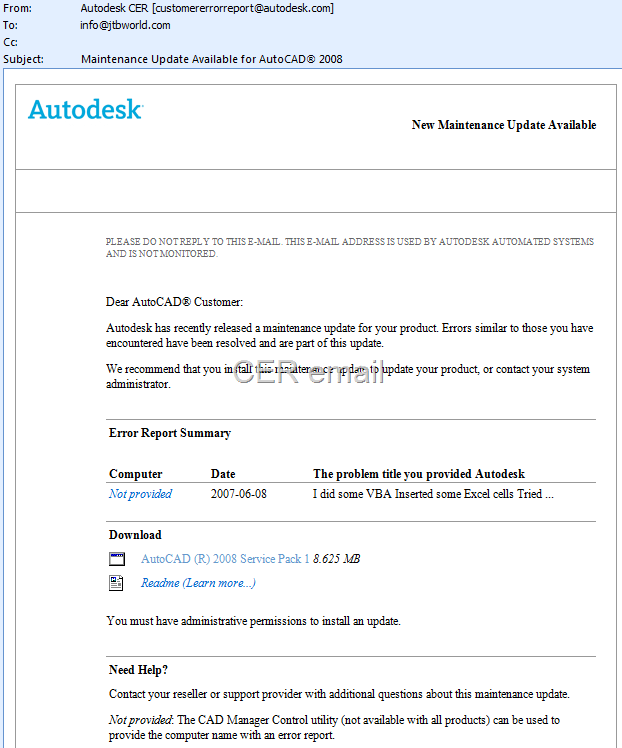
I got an email like this some days ago from Autodesk CER (Customer Error Reporting). This shows that it does help to send in the error reports when your Autodesk product crashes.

image

Dear AutoCAD® Customer:

Autodesk has recently released a maintenance update for your product. Errors similar to those you have encountered have been resolved and are part of this update.

We recommend that you install this maintenance update to update your product, or contact your system administrator.

The only wish I have is that the full problem title and description would be included.

image

I can hardly recall what this was about from the partial title.

Knowledge Base document: Submitting Customer Error Reports

Monday, September 10, 2007

getfiled bug hangs AutoCAD

If I run the getfiled AutoLISP function like this
(getfiled "Directory Listing" "" "" 2)
and enter a full path for example
C:\Program Files\AutoCAD 2008
followed by an Enter
AutoCAD hangs and the only way I know is to kill the acad.exe process.

I tried this in AutoCAD 2004 as well and the same problem there. I'm so used copying a path from for example Explorer and paste it to dialogs like this.

Have you this problem or not?

TimberTool 1.4 released

TimberTool news as result of user wishes:

  • Alignment axis is automatically determined when possible. The longest side of a rectangle is selected as alignment axis.
  • Negative extrusion depth is allowed and makes the mass element extruded the other direction.
  • The layer checkbox remembers its setting between sessions.

Sunday, September 9, 2007

PaletteHoldopenDelay - does it work?

I got a comment in my post AutoCAD Palette Auto-hide Speed freeware where I got the question to support PaletteHoldopenDelay that somehow should set a delay for the Palette Holdopen what that now is. This functionality was mentioned at Between the Lines.

I tried to see the effect of “holdopen” in AutoCAD 2008 but I cannot see what effect it has. When/how do you see this effect? Please let me know if it works for you and how.

Friday, September 7, 2007

Slow AutoCAD startup or performance

Here are some tips that might help.

Generally with antivirus software's try to disable them if you find that AutoCAD performance is slow typically during start as well as opening and saving of files. If it seems like it is the antivirus software that is the cause try to make exceptions for for example the install folders of AutoCAD, specific file types like DWG,AC$, SV$. Set to scan for write operations only for acad.exe should be safe.

If changing annotation scale in a viewport takes long time try resetting the scale list in  the drawing and its xrefs. Make sure to reset the scale from the bottom of the xref tree, one drawing at a time and last in the host drawing.

Knowledge Base documents worth looking at:

Outside The Box also has a tip to disable the AutoCAD InfoCenter. It's related to seeing these dialog boxes and started after applying SP1.

image

Microsoft Visual C++ Runtime Library
---------------------------
Runtime Error!
Program: C:...
R6025
- pure virtual function call

Followed by this message.

image
Microsoft Windows
---------------------------
Autodesk Communication Center has stopped working
A problem caused the program to stop working correctly. Windows will close the program and notify you if a solution is available.

Windows Live Writer Beta 3 - WLW B3

I'm posting this from the new Windows Live Writer.

I had a comment to my earlier post about a fix for the spelling (spell checker) to work. The comment said that the fix didn't work now. I have made an update to it now and heard back from him that it worked just fine. In my own tests I have not needed my fix for the spell checking to work.

Among other things the problem with adding drop shadows to images has been solved.

WLW B3

But as often is there is also an introduced bug. Notice how the category AutoCAD Architecture 2008 is clipped in the image below.

WLW bug

Via Windows Live Writer Beta 3 Now Available

Thursday, September 6, 2007

TimberTool 1.3 released

TimberTool by JTB World that is an add-on to ADT 2007 or ACA 2008 now supports imperial units as well as millimeter and the mass element can inherit the layer of the polyline.

  • TimberTool makes it easy to convert closed polylines into mass elements and makes the bounding box width and depth correct for scheduling purposes.
  • The product was initially created for usage with timber but works with structural steel or concrete shapes.
  • See this short video on how it can be used.

Wednesday, September 5, 2007

Annotation scaling and annotation scale list in AutoCAD 2008

Annotation scaling is one of the greatest news in AutoCAD 2008, AutoCAD 2008 LT and all verticals. Text, Mtext, Dimensions, Leaders, Multileaders (new), Tolerances, Blocks, Attributes, and Hatches can now be presented in different ways depending on the annotation scale.

Things that been quite difficult and error prone before AutoCAD 2008 are now really easy. Typical usages are details in different scales. Room numbers on plans in different scales but with different text size as well as location when needed.

Notice below how the room text is visualized in different sizes and angles and if you make a change to the room description it changes on both views.

image

Heidi Hewett's Blog has a whole series and a white paper on the subject

Lynn Allen also has an article on Cadalyst. Circles and Lines: Awesome Annotation Scaling.

Here are some hints for the AutoLISP programmer or scripter.

The standard scale list in AutoCAD 2008 is unfortunately hard coded so you cannot change that one. You can set up your templates having only the scales you want though.

The scales can be added and deleted using different methods.

One is using the command line (especially useful if limited to AutoCAD 2008 LT) but that has it's problems depending on if they already exist or not exist:
(command "-scalelistedit"
"add" "1:2" "1:2"
"add" "1:5" "1:5"
"exit")

(command "-scalelistedit"
"delete" "1:2"
"delete" "1:5"
"exit")

This can be useful to reset the scale list to default entries:
(command "-scalelistedit" "reset" "yes" "exit")

The scale list is saved in an object dictionary so you can access it using:
(dictsearch (namedobjdict) "ACAD_SCALELIST")

If you want to delete all manually added scales:
(dictremove (namedobjdict) "ACAD_SCALELIST")

Some samples how this is implemented can be found in the newsgroups.
ScaleListDel.lsp here, Here and here.

Other related posts:

Monday, September 3, 2007

Saving passwords in a database? No!

So how can it be handled in a better way technically speaking? Referencing to the previous post.

Saving passwords in a database as plain text is really a bad idea. Should the passwords be stored in the database encrypted? No, that is not safe either.

Hashing is the way to go. In .NET System.Security.Cryptography you can convert the password into hashes using SHA1 or MD5. Hashing algorithms are one-way, so there is no
way to "unhash" something into a password again if you need to retrieve it. The only thing that can be done is to validate that the password is correct by hashing it and comparing it to the saved hash value. That is why some sites offer you to reset the password but they cannot show you your password.

System.Web.Security namespace has the FormsAuthentication.HashPasswordForStoringInConfigFile Method.

Dim hashedPassword As String
hashedPassword = FormsAuthentication.HashPasswordForStoringInConfigFile(password.Text, hashMethod)

hashMethod can be either "MD5" or "SHA1"

Example: hashing the password 'test' gives the hash: 'ogF4I9nCJZCyYFP0azRLIS5wbvFdmlaHt5krTFW9RirYCdC3SgLbhngWGxYHOKXQ'

But this is still not enough. What if two or more users has the same password. That means that if you manage to get the password from one user you automatically have the password for other users with the same password. This can be exploited in a so called dictionary attack. Why is that? Most users actually uses simple passwords that exists in a dictionary. What the hacker does is to create hashes of a lot of words or passwords and can then compare these hashes to the hashes saved in the database.

Salting hashes is the next step to take. That means that a random string is generated and combined with the password and then hashed. So each user credential row has both a hash as well as a random salt string saved in the database. This will make all hashes unique.

Example: hashing the password 'test' combined with the salt 'Djf983jDJ#64)-d2' gives the hash: '57cjEal0b2+hNRT4sLc2eHL6m/0omTpKk8bkSF8osu9mNF0HG+H6HMFHYzzcR6RR'

This makes it a lot harder for the hacker since he would have to hash all his maybe 1,000,000 dictionary entries with the salt of every user row. That will take so much more time.

So the tip for those that want makes websites that needs to register users or needs to validate passwords one way or the other, do not ever save a clear text password in your database, hash it and use a bit of salt.

There are also other ways to handle web authentication. Take a look at Windows CardSpace and OpenID. OpenID is something you will see more of on Internet, that is for sure.

Update. You can read these posts including comments for more detailed information. Enough With The Rainbow Tables: What You Need To Know About Secure Password Schemes and 2 posts by Coding Horror, Rainbow Hash Cracking and You're Probably Storing Passwords Incorrectly

Passwords on internet

Many websites require that you register and provide a password. How safe is that?

I just signed up on a site and after registering I got a message like this: "We have sent a message to this address and providing you with a copy of your password."

And the email said: "You chose to register with the following email address: .... You chose the following as your password: ***********". But with the password in clear text of course.

When you can be emailed the same password as you have selected you know their solution to save passwords is not the safest one. Why is that?

If some hacker breaks in to their database they can also get all passwords without much problem.

Tip is to always use completely different passwords wherever you register. A strong password should appear to be a random string of characters to an attacker. It should be 14 characters or longer, (eight characters or longer at a minimum). It should include a combination of uppercase and lowercase letters, numbers, and symbols.

Here is a good article on Strong passwords: How to create and use them and an online Password checker.

For more technically details see this post.

Update: Javascript Password Strength Meter

Sunday, September 2, 2007

3D spam

Not really CAD related but when I read about 3D spam I had these thoughts, who knows if DWF gets as popular as PDF that we might see spam in form of 3D DWF files just like we get PDF spam now and obviously 3D spam.

See the DWF here

Some of the latest blog posts

Subscribe to RSS headline updates from:
Powered by FeedBurner

Contact Us | About JTB World | Website General Terms of Use | Privacy Policy
^ Top of page

© 2004- JTB World. All rights reserved.