Monday, April 16, 2012

JTB FlexReport 7.0 Introduces Automatic Chart Creation

JTB FlexReport 7.0 comes with the functionality to schedule creation of license usage charts. One usage of this functionality is to create an intranet web page that always shows the usage from the last 7 days for the main features (products) on your license server. Support for Vertex Systems licensed products is also added.

Downloads here. See also the Upgrade tips. Customers with maintenance have access to this release at no extra cost.

See the revision history for more details on this release.

Here is from the documentation of the chart client.

Auto Reports tab
With this functionality you can have reports automatically created as PNG image files at specified recurrence pattern.
This requires that the JTB FlexReport Auto Chart Service is running.
To set up a report first manually create the report you like to use.
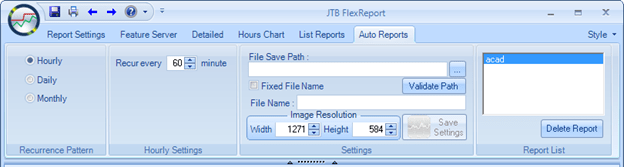

Specify the recurrence pattern if the report should be created on an hourly, daily or monthly basis.
Hourly settings allow a report to be created multiple times per hour.

 
Daily settings allow a report to be created at specified days and time.


Monthly settings allow a report to be created on a monthly basis.


The Settings panel explained.
File Save Path is a path located where the Auto Chart Service is running. You can run this client on any computer but the report file will be created locally on the server. Use Validate Path to ensure it is correct.
If the report should overwrite itself each time use a fixed file name checkbox.
Enter a file name that is the basis for the report file. If fixed file name is not used the file name will have a suffix with the date and time. For example AutoCADperDay (2012-02-13 08.52.12).png where AutoCADperDay is the file name.
Specify also the size for the image.
When ready press Save Settings.


The report will show up on the Report List panel and can also be deleted from there.

JTB FlexReport is a report tool for applications using the FlexNet / FLEXlm (flexlm license manager), IBM LUM (IBM License Use Management), SPLM (Intergraph SmartPlant License Manager), SLM/Sentinel LM/Sentinel RMS, LM-X, Solidworks SNL License Manager, Licman, Primavera from Oracle, Vertex or 12D software licensing as well as any Windows application like Acrobat, Visio, single licensed AutoCAD or AutoCAD LT.

Contact us to get a time limited license file for free. You can try it in your environment with your real data for a few weeks with full functionality.
Full support is provided during trial period.

See also: Autodesk Network License Manager for 2013 products and Software Vendor Audits are Increasing

Friday, April 13, 2012

acad.exe The application was unable to start correctly (0xc0000043)

I’ve seen this error with AutoCAD Architecture 2013. So far the only solution has been to try starting ACA 2013 a second time when it usually works fine.

acad.exe - Application Error: The application was unable to start correctly (0xc0000043). Click OK to close the application.

I tried to run the three executable below this folder \3rdParty\x86\VCRedist\ on the installation media and since then I’ve not seen this error. But unfortunately this did not help as I later on got the error again.

Thursday, April 12, 2012

Blogger New Comment Moderation Email Bug

For blogs on Google Blogger (blogspot) the optional moderation emails with new comments used to allow to “Publish”, “Delete” or “Mark as spam” as well as “Moderate comments for this blog”.

But since around a day ago only “Moderate comments for this blog” link is in these emails making it very hard to use as this link does not end up on the comment in question but just shows the Awaiting moderation list.

This must be a bug or bad decision by Google that needs to be restored. Not that I have that many comments but I can imagine the pain for bloggers with 10 or 100 comments per day. Do you have this problem?

UPDATE: 2012-04-15, problem solved. 2012-04-17, problem is back again. It took until 20012-05-29 and the problem is solved again.

Monday, April 9, 2012

VBA Download for AutoCAD 2013

VBA (Microsoft Visual Basic for Applications) is still available in AutoCAD 2013 but it is not included with the installation media. Find the VBA for AutoCAD downloads here at http://www.autodesk.com/vba-download. There downloads are found also for AutoCAD 2010, AutoCAD 2011, AutoCAD 2012 in both 32-bit and 64-bit.

If you have existing VBA this can be good news but don’t get started to develop anything new in VBA for AutoCAD as we don’t know if this will be the last release with VBA or not. Consider to convert the code to .NET (C# or VB.NET) and if you like help with it please feel free to contact us.

Thursday, April 5, 2012

Autodesk Network License Manager for 2013 products

No matter if you plan to add Autodesk 2013 products or not it is a good idea to download the latest version (11.10.0.3) of Autodesk Network License Manager or install it from any of the 2013 installation media you have. If you want to use 2013 products like AutoCAD 2013 you should use version 11.10.0.3 (even though some older versions might work anyway) and if you don’t plan for 2013 products yet, upgrade anyway because 11.10.0.3 is including a hotfix for a Potential Security Vulnerability in FlexNet license manager.

The following is a list of links to the latest version of the Autodesk Network License Manager (the installer itself is having version number 1.0.0, not so helpful)

Note: IPv6 implementations support mixed IPv4/IPv6 and IPv6-only environments. It does not support network license checkouts in an IPv4-only environment.

Instructions on how to Update FlexNet from a Previous Version.

Version numbers on the individual FlexNet/FLEXlm files: adskflex.exe and lmgrd.exe version is 11.10.0.3, lmtools.exe and lmutil.exe version is 11.10.0.0.

How to change AutoCAD from network license to standalone

FlexNet feature codes for Autodesk applications

License reporting with JTB FlexReport or our free JTB FlexReport LT.

Wednesday, April 4, 2012

How to start a VBS file using AutoLISP

If you in AutoCAD want to start a VBScript file with AutoLISP here are three ways where the variable app holds the full path to the VBS file:

(startapp "WSCRIPT.EXE" (strcat "\"" app "\""))

(command "START" app)

(if (setq WScript (vlax-get-or-create-object "WScript.Shell"))
  (vl-catch-all-apply 'vlax-invoke-method (list WScript "Run" app 1 :vlax-true))
)

If the START command is used you will quickly see the AutoCAD Shell so I prefer to use the startapp function.

If the path contains spaces like (C:\\Folder A\\test.vbs) the startapp function must have the path with double quotes like the snippet above, otherwise the Windows Script Host will show this error: There is no file extension in "C:\Folder".

Some of this works with starting or running other files (EXE, BAT, CMD,…) or open files in their associated application. See also how to Start a Windows application within AutoCAD.

Tuesday, April 3, 2012

SSMPropEditor 4.5 released

Here are the main news in SSMPropEditor 4.5 that now is available.

  • Added compatibility for AutoCAD 2013
  • Start Sheet Set associated with the current drawing when started from AutoCAD.
  • Start Sheet Set by specifying DST file as argument when running the SSMPropEditor.exe.
  • Bug fixes.

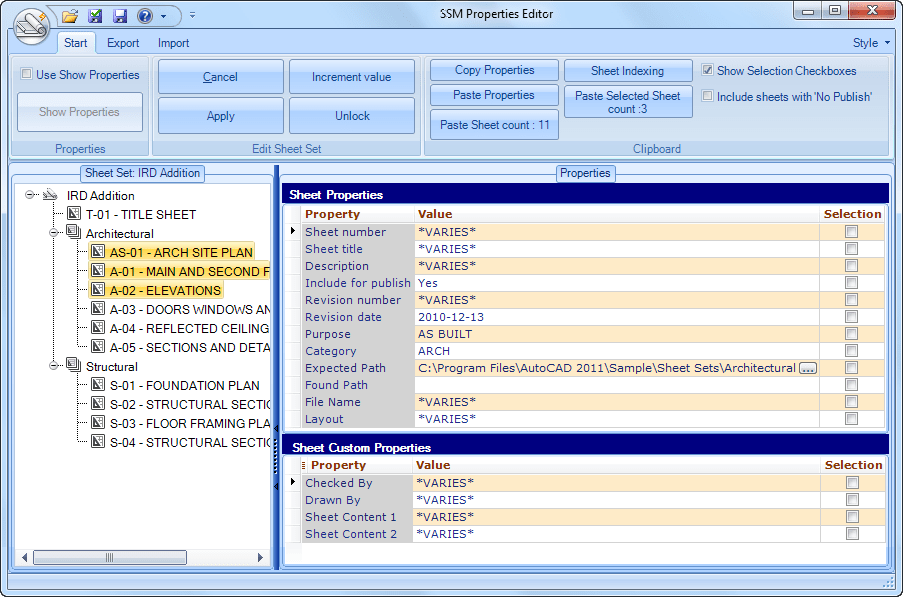
SSMPropEditor is a Sheet Set Manager (SSM) Properties Editor. With SSMPropEditor you can edit  Sheet Properties and Sheet Custom Properties on multiple sheets belonging to AutoCAD's Sheet Set Manager (SSM) or AutoCAD Architecture's Project Navigator (PN) Sheet Set View. AutoCAD is not even needed needed to use SSMPropEditor.

The upgrade is free for customers that purchased any earlier version. Get the downloads here.

Contact us to get a time limited license file for free.

The video shows an older version but the GUI and functionality showed is still the same.

Click to enlarge

Wednesday, March 21, 2012

System Requirements for AutoCAD 2013

AutoCAD 2013 is soon to be released and now the System Requirements have been made public.

Note that Windows Vista is not supported by Autodesk for AutoCAD 2013. Autodesk to cease support of Windows Vista even though Microsoft changed their mind Autodesk didn’t follow.

There is nothing that restricts you from running AutoCAD 2013 on Windows Vista but you're on your own. Other than that if you already run AutoCAD 2011 or AutoCAD 2012 your system will probably work the same.

As always with system requirements these are minimal requirements for AutoCAD to run. For professional usage you surely want to have much better hardware.

32-bit version

Operating System:

  • Service Pack 3 (SP3) or later of the following:
    • Microsoft Windows XP Professional
    • Microsoft Windows XP Home
  • The following operating systems:
    • Microsoft Windows 7 Enterprise
    • Microsoft Windows 7 Ultimate
    • Microsoft Windows 7 Professional
    • Microsoft Windows 7 Home Premium

Hardware:

  • CPU
  • Memory: 2 GB (4 GB recommended)
  • Disk: Installation requires 6 GB space
  • Display: 1,024 x 768 with true color (1,600 x 1,050 with true color recommended)

Misc.

  • Browser: Internet Explorer 7.0 or later web browser
  • File Formats: (New file format in AutoCAD 2013):
    • Save-as Support
      AutoCAD R14, AutoCAD 2000, AutoCAD 2004, AutoCAD 2007, AutoCAD 2010, AutoCAD 2013.
    • DXF Support
      AutoCAD R12, AutoCAD 2000, AutoCAD 2004, AutoCAD 2007, AutoCAD 2010, AutoCAD 2013
  • API
    • LISP are compatible
    • Scripts are compatible
    • ObjectARX application will need to be recompiled

64-bit version

Operating System:

  • Service Pack 2 (SP2) or later of the following:
    • Microsoft Windows XP Professional
  • The following operating systems:
    • Microsoft Windows 7 Enterprise
    • Microsoft Windows 7 Ultimate
    • Microsoft Windows 7 Professional
    • Microsoft Windows 7 Home Premium

Hardware:

  • CPU
    • AMD Athlon 64 with SSE2 technology
    • AMD Opteron with SSE2 technology
    • Intel Xeon with Intel EM64T support and SSE2
    • Intel Pentium 4 with Intel EM64T support and SSE2 technology
  • Memory: 2 GB (4 GB recommended)
  • Disk: Installation requires 6 GB space
  • Display: 1,024 x 768 with true color (1,600 x 1,050 with true color recommended)

For both 32 & 64-bit Misc.

  • Browser: Internet Explorer 7.0 or later web browser
  • File Formats: (New file format in AutoCAD 2013):
    • Save-as Support AutoCAD R14, AutoCAD 2000, AutoCAD 2004, AutoCAD 2007, AutoCAD 2010, AutoCAD 2013.
    • DXF Support AutoCAD R12, AutoCAD 2000, AutoCAD 2004, AutoCAD 2007, AutoCAD 2010, AutoCAD 2013
  • API
    • LISP are compatible
    • Scripts are compatible
    • ObjectARX application will need to be recompiled

For both 32 & 64-bit using 3D modeling workflows:

  • Memory 4 GB RAM or more
  • 6 GB free hard disk available not including installation requirements
  • 1,280 x 1,024 True color video display adapter 128 MB or greater, Pixel Shader 3.0 or greater support by your graphics card, Direct3D capable workstation class graphics card.

Via Between the Lines

Server rejected for animated GIF files

Today I got this error in Windows Live Writer when I tried to publish a post that included an animated GIF file.

"Can't publish files" "The remote server returned an error: (500) Internal Server Error."

When I tried to upload the GIF directly to Picasa Web Albums using Chrome the progress just hanged like this.

Or the Server rejected error as seen in Internet Explorer.

Anyone else seen this issue? Hopefully I'm not alone and that Google fixes this bug ASAP.

UPDATE: The problem has been fixed.

Monday, March 19, 2012

Jumping Cursor and performance issues in AutoCAD

Cursor performance issues in Windows 7 when hardware acceleration is off is described in this new knowledge base document from Autodesk.

Issue
You are running AutoCAD 2010 up to AutoCAD 2013, AutoCAD LT or an AutoCAD-based vertical product in Windows 7 and are experiencing cursor performance issues or the cursor is jumping as if SNAP was enabled.

This issue only happens in Windows 7 and affects AutoCAD LT and all AutoCAD-based products where hardware acceleration has been turned off.

Solution
Enable Hardware Acceleration if possible. Use 3DCONFIG. Another method is to disable Aero effects on Windows 7. It is also recommended to in AutoCAD, turn off all Dynamic Input features, including dynamic prompts, by setting the DYNMODE system variable to 0. Full details are found here: TS14898223

Wednesday, March 14, 2012

AutoCAD 2012 Hotfix for Sheet Set Manager performance issue

This hotfix will help with the network utilization traffic caused when using Sheet Set Manager (SSM) files with AutoCAD 2012-based products over a SMB (Server Message Block) V2 Network configuration.  Consult the readme file for installation instructions. Be sure to install the correct update (32-bit or 64-bit) for your software. Note: You must install AutoCAD 2012 Service Pack 1 before you apply this hotfix. Downloads found in this Knowledge Base document: DL18751298.

If you use SSM consider our SSMPropEditor that even users without AutoCAD can use to update Sheet Set and Sheet Properties.

Autodesk Sync issues when installing a 2013 release product

The first Autodesk Knowledge Base document about the coming AutoCAD 2013 and Inventor 2013.

Autodesk Sync issues when installing a 2013 release product after installing a 2013 beta product

The TS18744845 document describes the solution to this problem:

The Autodesk Sync component does not upgrade properly under the following conditions:

  • You installed AutoCAD Beta 2013 (or Showcase Beta 2013) and subsequently install Inventor 2013.
  • You installed Inventor Beta 2013 and subsequently install AutoCAD 2013 (or Showcase 2013 )

Sunday, March 11, 2012

Extract zip files in VB.NET

Here is one way to extract zip files. The example is done in VB.NET using the Shell COM.

Declarations needed:

Imports System.IO
' Add COM reference "Microsoft Shell Controls And Automation"
Imports Shell32

Code snippet:

Dim ZipFile As String = "D:\temp\files.zip"
Dim ZipDir As String = "D:\temp\files\"
Dim Shell As Shell32.IShellDispatch2
Dim ShellFolder As Shell32.Folder

If File.Exists(ZipFile) Then
    Shell = CType(CreateObject("Shell.Application"), IShellDispatch2)

    If Not Directory.Exists(ZipDir) Then Directory.CreateDirectory(ZipDir)
    ShellFolder = Shell.NameSpace(ZipDir)
    If ShellFolder IsNot Nothing Then
        ShellFolder.CopyHere(Shell.NameSpace(ZipFile).Items)
    End If
End If

One downside with this approach is that a dialog box can show up while extracting the zip file.

Other ways to Zip and Unzip in C#, VB, any .NET language is using DotNetZip (recommended) or SharpZipLib as well as SevenZipSharp for 7z (7-zip). There is also the GZipStream Class that comes with .NET Framework but only works with .gz files. System.IO.Packaging.ZipPackage is available in .NET Framework 3 and newer but is not straightforward to use and not recommended.

Monday, March 5, 2012

.NET Framework requirements and versions

Normally it is a good idea to keep older .NET Framework versions. For example if you only have .NET Framework 4 installed and a software requires .NET Framework 3.5 a dialog box as below can be seen during installation. The solution is to install the version the dialog box indicates.

For users

A dialog box showing something like this can be seen: This setup requires the .NET Framework version 3.5. Please install the .NET Framework and run this setup again. The .NET Framework can be obtained from the web. Would you like to do this now?

In the setup log found in %TEMP% this can be seen for example:
Install state for .NET Framework 1.0: not installed.
Install state for .NET Framework 1.1: not installed.
Install state for .NET Framework 2.0: installed with service pack 2.
Install state for .NET Framework 3.0: not installed.
Install state for .NET Framework 3.5: not installed.
Install state for .NET Framework 4 Client: installed with no service packs.
Install state for .NET Framework 4 Full: installed with no service packs.

To find out what Framework is installed and also if it’s working as expected use .NET Framework Setup Verification Tool.

For programmers

Using Visual Studio setup project the launch condition is set to .NET Framework 3.5 as requirement on the target machine. Checking the MSI using Orca, VSDFrameworkVersion is v3.5 and VSDAllowLaterFrameworkVersions is set to True. So even though later versions are allowed you still need the required version, in this case v3.5. Lesson learned is that you cannot specify system requirement like .NET Framework v3.5 or later.

Some of the latest blog posts

Subscribe to RSS headline updates from:
Powered by FeedBurner

Contact Us | About JTB World | Website General Terms of Use | Privacy Policy
^ Top of page

© 2004- JTB World. All rights reserved.