Wednesday, March 21, 2007

PDF Preview Handler for Vista and Outlook 2007

Here are a couple of great Preview Handlers for PDF files.

Foxit PDF Preview Handler as well as Adobe PDF Preview Handler.

Another one is in this MSDN article. The code download for this article includes a framework that makes it a snap to implement your own preview handlers, and it provides several sample previewers (including previewers for PDF, XML, ZIP, MSI, BIN, CSV, XPS, and XAML files).

If I had more time I would write one for DWG and DWF files. With the above code samples it's a quite easy task.

What are File Previewers for Outlook?

Tuesday, March 20, 2007

Download AutoCAD 2008

Now you can download AutoCAD 2008 and try it for 30 days (only if you are in the United States and Canada though): http://www.autodesk.com/autocad-trial

Here is more about AutoCAD 2008 on my homepage and on this blog.

Saturday, March 17, 2007

DuctiSOFT inc. comments about ObjectDCL

For those interested in ObjectDCL for AutoCAD and its future read the comment by the Vice-President of DuctiSoft Inc. to the post ObjectDCL for AutoCAD is open source.

More written about ObjectDCL and OpenDCL is found here.

Windows Vista support for AutoCAD 2007 and AutoCAD LT 2007

If you want to be able to run AutoCAD 2007 on Windows Vista today look at this link below. But even if you don't use Vista there are other fixes in the SP2 that you might be happy about. 

Link to Between the Lines: AutoCAD 2007 and AutoCAD LT 2007 Service Pack 2 Beta

Friday, March 16, 2007

Copy as Path and Open Command Window Here in Vista

Here is a useful Windows Vista tip. Select a file or folder, hold down Shift and right click. Some additional options shows up. Pin to Start Menu, Add to Quick Launch and Copy as Path. If it is a folder it also shows Open Command Window Here. The last one starts cmd.exe and navigates to that folder.

I like the idea of Copy as Path. It copies the complete path to the clipboard but I dislike that it adds quotation marks around the path.

"C:\Program Files\AutoCAD 2008\Sample\3D House.dwg"

I will post a solution for this later on that works in older versions of Windows as well.

Thursday, March 15, 2007

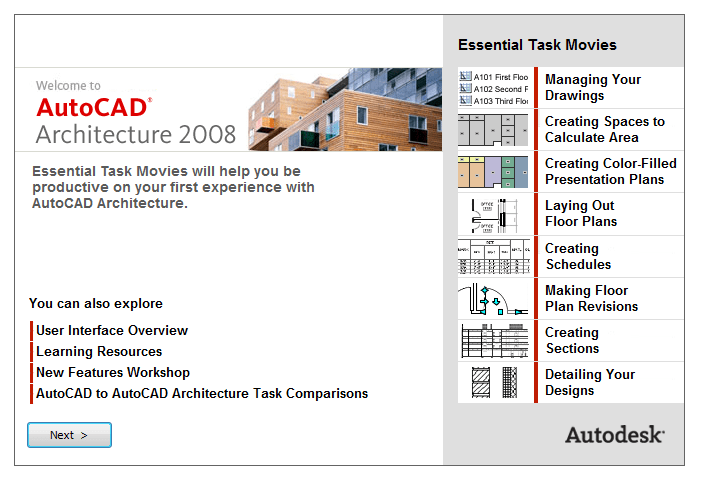
Starting AutoCAD Architecture 2008

Essential Task Movies

You need sound card on you PC to hear Amy Fietkau, Autodesk Architectural Desktop expert when running the following movies.

  • Managing Your Drawings - Duration 5:00 minutes
  • Create Spaces to Calculate Area- Duration 0:40 minutes
  • Creating Color-Filled Presentation Plans - Duration 0:30 minutes
  • Laying Out Floor Plans - Duration 3:10 minutes
  • Creating Schedules - Duration 1:20 minutes
  • Making Floor Plan Revisions - Duration 1:20 minutes
  • Creating Sections - Duration 0:50 minutes
  • Detailing Your Designs - Duration 1:40 minutes

The Essential Task Movies are later also available if you open Help and on the right below General Information you will find a link to them.

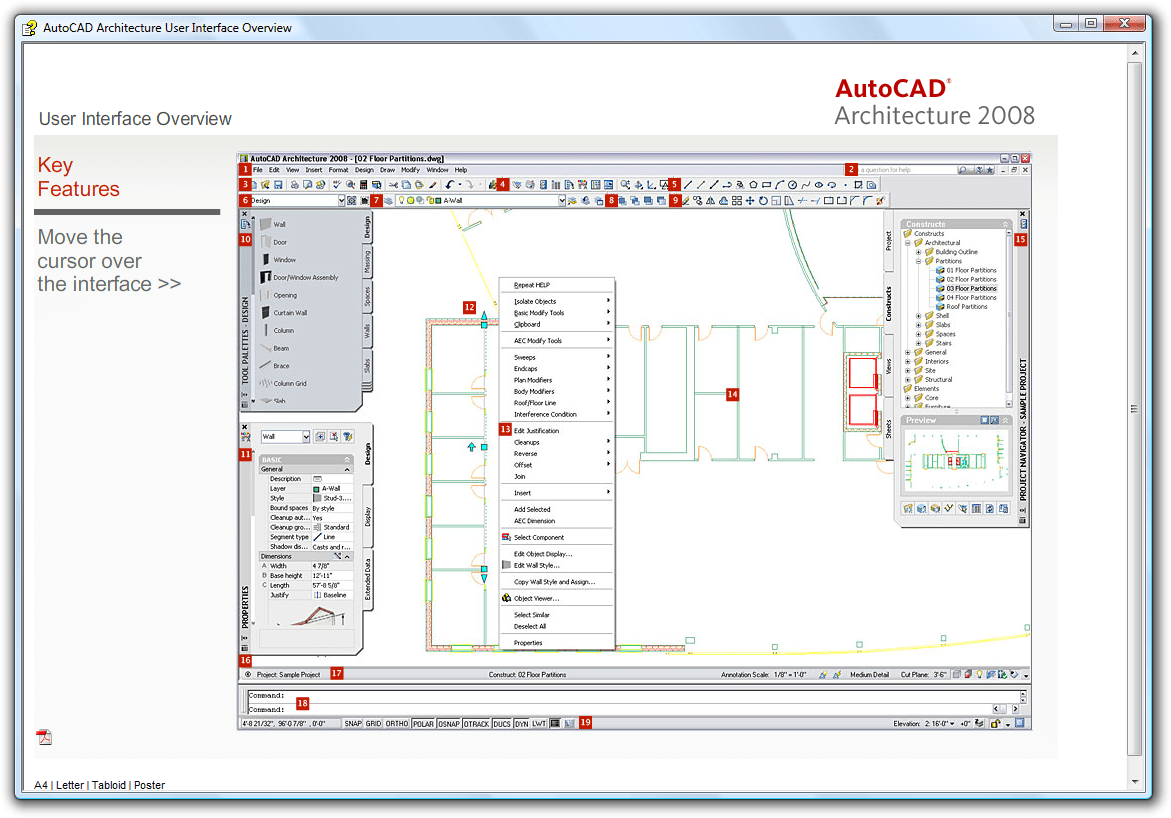
User Interface Overview

Shows a clickable image that describes the UI for ACA 2008.

At the bottom there are links to create a PDF of the overview.

The User Interface Overview is later also available if you open Help and on the right below General Information you will find a link to it.

Learning Resources

Learning Resources is available from the Help menu later on as well.

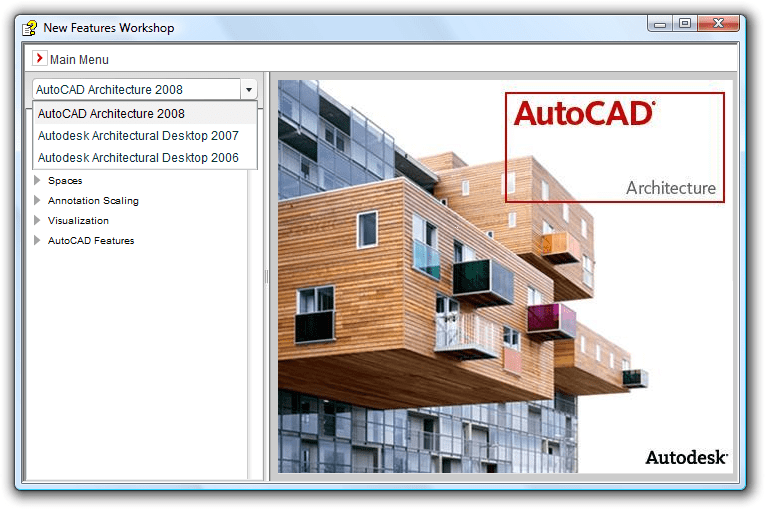
New Features Workshop

This is one of the best ways to learn what is new in ACA 2008 compared to the older versions Autodesk Architectural Desktop 2007 (ADT 2007) and Autodesk Architectural Desktop 2006 (ADT 2006).

New Features Workshop is available from the Help menu later on as well.

AutoCAD to AutoCAD Architecture Task Comparisions

This will open the Help file at the A Quick Start for Transitioning from AutoCAD to AutoCAD Architecture section and let you know for example that to create Space Plans in AutoCAD you use Polyline and Hatch but in ACA 2008 you use Spaces.

If you have previously accomplished your architectural tasks with AutoCAD and want to transition to using AutoCAD Architecture, you will find that using tools specifically designed for architects provides additional productivity and benefits over the AutoCAD drafting methods you used before.

This quick overview of tasks and how to accomplish them in AutoCAD Architecture can help you get an easy start. For additional information, watch short movies which you can find on the Welcome to AutoCAD Architecture 2008 page, the Learning Resources page, or the main Help page.

Next

To continue you need to press next. You will come to the Workspaces dialog box where you can select your initial workspace. If you don't want to see the welcome screen every time you start ACA you need to select "Don't show me this again". If you for some reason want to see it again you can run Options>System>Show all warning messages.

Welcome to the world of ACA. I can truly recommend upgrading even though there does not seem to be as many new things as one wished.

Wednesday, March 14, 2007

Multiline attributes in AutoCAD 2008

A great news in AutoCAD 2008 that we have been waiting a long time for is attributes that supports multiple lines.
There is a new mode for "Multiple lines" in the Attribute Definition dialog box that you start with the ATTDEF command. -ATTDEF also supports multiple lines.
After having created a block and you double click on it the EATTEDIT command opens the Enhanced Attribute Editor. As you can see the value cannot be edited directly. You need to click on the button with three dots to open the Multiline Editor. This is also the same for the old command ATTEDIT.


This is how the Multiline Editor look like.

Notice that a multiline attribute (MATT) as opposed to a singleline attribute (SATT) has some more options. A SATT has only the Insert Field option but a MATT is almost like a MTEXT object so you can also select Import Text, AutoCAPS, Combine Paragraphs, set Background Mask, Underline, Overline as well as set the width.
Here you see usage of Background Mask that is only available for MATT's.

There is also a new command for directly editing attributes. ATTIPEDIT displays the In-Place Text Editor without the Text Formatting toolbar and the ruler if you select a single-line attribute and with the Text Formatting toolbar and the ruler if you select a multiple-line attribute.
But wait. There is more. If you set the system variable ATTIPE to 1 you get more options when running ATTIPEDIT. ATTIPE is set to 0 as default for best compatibility with releases prior to AutoCAD 2008. But if you set ATTIPE to 1 ATTIPEDIT displays the full in-place editor with almost all formatting options as you have with MTEXT objects.

When a drawing is saved to AutoCAD 2007 or earlier, a multiple-line attribute is converted to several single-line attributes, one for every line of text in the original multiple-line attribute. The values can be edited. If the drawing file is opened in the current release, these single line attributes are automatically merged back into a multiple-line attribute.
PS. If you really don't want your users to create multiline attributes you can set the system variable ATTMULTI to 0. All kind of attributes can still be viewed and edited though.
CAD Geek KB. To preset attribute options before creating an attribute definition use AFLAGS and add 32 to the value to have it as a MATT.
(setvar "aflags" (logior 32 (getvar "aflags")))

Tuesday, March 13, 2007

How to show website favicons on the Vista desktop

If you right click on a website in Internet Explorer and select Create Shortcut you will be asked. "Do you want to put a shortcut to this website on your desktop?"
In Windows XP the shortcut made use of the website's favicon. But in Windows Vista as default it only shows the IE7 icon.
But there is a solution. Right-click the desktop, point to View, and then click Classic Icons. The Medium Icons or Large Icons does not work. Not good.

  • You can also use the scroll wheel on your mouse to resize desktop icons. On the desktop, press and hold CTRL while you scroll the wheel to make icons larger or smaller.
Another thing is that the shortcuts to websites are different depending on how they are created.
If you right click and select Properties>Web Document>Change Icon the path is as following.
  • If "Add to favorites" or drag and drop the icon from the address field is used:
    C:\Windows\system32\url.dll
  • If "Create Shortcut" is used:
    %SystemRoot%\system32\SHELL32.dll
If you try to change the icon that is created as a favorite the icon will not stay long since a functionality in IE7 reads the icon from the website and updates it when needed.
why doesn't the favicon for my site appear in IE7?why doesn't the favicon for my site appear in IE7?
Update: comment by Jeff, Microsoft.
Because the shell asks for 48x48 icons, but favicons are 16x16.  Stretching them would have looked bad.  This decision was made late in the IE7 cycle.  Many people have complained and we are considering a fix for a future release.
Update: This problem has partly been fixed with the introduction of IE8. Website favicons on Vista desktop works better with IE8

Monday, March 12, 2007

How to see object properties for ADT and ABS 2007 files in Jetstream

From the NavisWorks KB:

Problem:
How to bring through properties as well as geometry from ADT and ABS 2007 files into Jetstream
Solution:

Please ensure Jetstream v5.1 or above is installed.
Please ensure that the ADT and ABS 2007 Object enablers are installed: -
http://usa.autodesk.com/adsk/servlet/ps/dl/index?siteID=123112&id=2334440&linkID=2475161
**Please note, the ADT object enabler needs to be installed before the ABS object enabler.

Architectural Desktop Object Enabler 2007

Autodesk Building Systems 2007 Object Enabler

PS. NavisWorks have some days ago launched their updated public website. http://www.navisworks.com

Gelato the new and free renderer from Nvidia

If you have graphic cards like NVIDIA Quadro FX or NVIDIA® GeForce® 5200 or higher you can download and run Gelato 2.1 from Nvidia for free. Download from the Gelato Zone website. The product is even for CAD, architecture use. No word about Windows Vista support so far.

3ds Max Plug-In: Gelato ships with Amaretto, a plug-in to Autodesk 3ds Max that reads scenes and objects created in Max.

Autodesk Maya Plug-In: Gelato ships with Mango, a plug-in to Autodesk’s Maya modeling and animation software package that reads scenes and objects created in Maya.

NVIDIA® Gelato® rendering software allows anyone with an NVIDIA GPU to create stunning images fast. A hardware-accelerated, non-real-time renderer, Gelato was originally designed for the creation of 3D visual effects and animation in feature films. But Gelato is a powerful tool for any number of industries, including film & broadcast, CAD, architecture, and print.

It's Fast

Gelato is a software program that leverages the NVIDIA GPU as a floating point math processor. This allows Gelato to render images faster than comparable renderers, but without the quality limitations traditionally associated with real-time graphics processing on the GPU.

It's Free

Yes, Gelato is available free of charge. Now students, freelancers, startups, and small studios can take advantage of a high-end renderer with the capabilities of renderers costing thousands of dollars.

Gelato Pro is available for purchase for US$1500 per node, including the first year of maintenance and support.

Now with the improved rendering functionality in AutoCAD 2008 I leave it to the rendering pros like Ted Boardman and others to decide how useful Gelato is if you already have AutoCAD, 3ds Max or Autodesk Maya.

Link to NVIDIA Blog | Gelato

IME and AutoCAD 2008

If you in AutoCAD 2008 right click in the new InfoCenter search box at the top right you will notice these options.
  • Right to left Reading order
  • Show Unicode control characters
  • Insert Unicode control character
  • Open IME
  • Reconversion
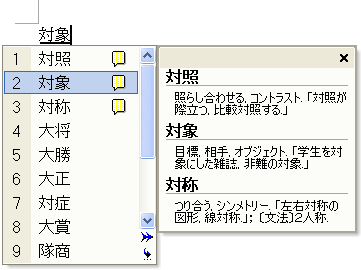
What is IME? IME stands for Input Method Editor.
An IME is a program that allows computer users to enter complex characters and symbols, such as Chinese, Japanese, and Korean characters, using a standard keyboard.
This image shows advanced IME for Japanese.

Friday, March 9, 2007

Windows Help program (WinHlp32.exe) for Windows Vista

If you try to view an old .hlp help file in Windows Vista you will get this information showed.

Why can't I get Help from this program?
The Help for this program was created in Windows Help format, which was used in previous versions of Windows and it is not supported in Windows Vista.
For more information, see Windows Help program (WinHlp32.exe) is no longer included with Windows on the Microsoft support website.

But this website above was not much help at least until it gets updated within a few days. But now there is a download available from Microsoft so these old .hlp files can be viewed. But a notice for developers. The Windows Help program cannot be distributed. Get rid of your old .hlp files and upgrade to .chm, .html or the like.

There are not many .hlp files around but if you find one you know there is a way to see them in Vista as well. I searched on my computer and found some .hlp files that where installed together with AutoCAD 2004 that I managed to install and run on Windows Vista.

AutoCAD 2008 cover image

If you wonder where the cover image on the AutoCAD 2008 box is taken it is from McCormick Tribune Campus Center in Chicago, IL. The architectural design is by the architect Rem Koolhaas of OMA (Office for Metropolitan Architecture). The design includes a concrete and stainless steel tube (seen on the cover image) that encloses a 530-foot stretch of the CTA elevated railroad tracks, passing directly over the one-story campus center building. The tube dampens the sound of trains overhead.
But was it done using AutoCAD?

Practical usage of Google Blog Search

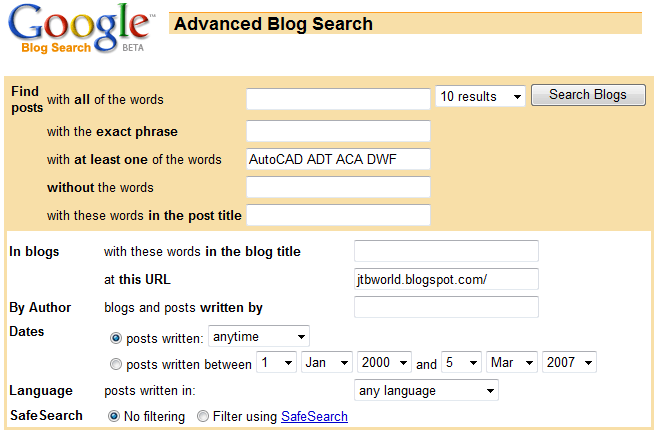
Google Blog Search can be useful if you want to stay informed on new blog posts on a specific subject. Let's say you want to find blog posts with at least one of the following words (AutoCAD, ADT, ACA and DWF) on this blog or some other blog. Use the advanced blog search.

And here is the RSS. An Atom feed is also available if you for some reason prefer that.

Here is the result of the Google Blog Search and the Blogger Blog Search with the same result but a different look.

Some of the latest blog posts

Subscribe to RSS headline updates from:
Powered by FeedBurner

Contact Us | About JTB World | Website General Terms of Use | Privacy Policy
^ Top of page

© 2004- JTB World. All rights reserved.