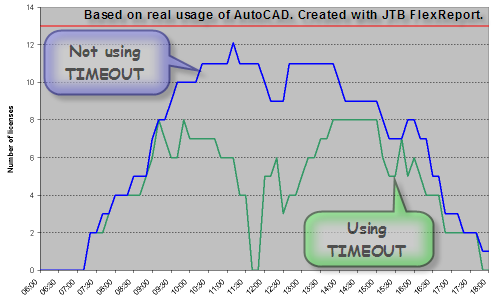
AutoCAD, ADT (now also ACA), Inventor and a lot of other products support the time-out feature for network licenses using FLEXnet/FLEXlm network license managers (from Microvision Acresso Flexera Software). Using this feature can save your company quite many licenses as you can see from this sample graph created with help of JTB FlexReport. If you don't use the time-out feature the usage might look like the blue curve but with the time-out feature on it can look like the green curve.
Tip for the CAD user
Don't leave a command running or a modal dialog box opened (a dialog box
which needs to close before continuing to other tasks) unless you need to work
in your application again within 15 minutes.
Make it a habit to check the above when you goes away from your desk, work
with other software's, talking on the phone, eating or taking a break for a
longer time than 15 minutes.
Tip for the IT/License/CAD Manager
Set the timeout to the minimum time, 900 seconds.
Use TIMEOUTALL so you don't forget to add new product features to the options
file at a later occasion.
Make sure that to inform your users about how license timeout works.
Make sure that you can supervise your network license usage with license
reports and statistics like what JTB FlexReport can provide.
Using timeout solves problems when licenses not return to the Network License
Manager pool for a long period of time after the connections with client
workstations are lost.
Idle Period
Any of the following activity in the active application prevents the client
workstation from being idle:
- Any keystroke.
- Any mouse click.
- Any command, Lisp expression, menu macro or script in progress.
- Any Modal dialog box opened (a dialog box which needs to close before continuing to other tasks).

Setting license inactivity timeout
You can configure the license manager to
automatically reclaim inactive licenses after a specified time. Inactivity is
defined as an idle product with no commands issued in the specified time. Users
will be given the option to save their current drawing if a license is revoked
by the license manager for inactivity. Note: Time is specified in seconds
and the lowest acceptable value for these options is 900 seconds (15 minutes).
TIMEOUT [productfeature] [seconds] TIMEOUTALL [seconds] The following examples set inactivity timeouts of
15 minutes for AutoCAD 2007 and all respective products:
TIMEOUT 51200ACD_2007_0F 900 TIMEOUTALL 900 Creating the options file
- Create a new text file named ADSKFLEX.OPT. It is strongly recommended that you only use a plain text editor, such as
Notepad, for editing options files. - Place this file in the same directory as your
Autodesk license file. - Perform a ReRead License File operation from the
Start/Stop/ReRead tab in LMTOOLS. - Examine the debug log file to confirm that your
options file changes have been implemented by the license manager.
network license server. Follow these steps:
- Start LMTOOLS.
- On the Service/License File tab, make sure that the Configuration Using
Services option is selected. - Click the Start/Stop/Reread tab.
- On the Start/Stop/Reread tab, click Stop Server.
- Click Start Server.
- To confirm that the TIMEOUT option has been set, open the debug.log file.
If the TIMEOUT option has been set you will see a statement similar to the
example below:
FEATURE 51200ACD_2007_0F INACTIVITY TIMEOUT set to 900 seconds
The lowest acceptable value for timeout of MathWorks is 14,400 seconds (4 hours) and for IBM 7200 seconds (2 hours).
If a user's license is lost because of the idle timeout, the product attempts to claim a new license once the user uses the product again. If no license is available, the user can save work before the product shuts down. If a license is available the user will not notice anything and can keep working. Note that this may vary depending on the product and how the vendor has implemented this functionality.
See also the subject Set Up License Timeout on the Autodesk Network License Manager page.


Restored comments
ReplyDeleteE.Altman said...
Does anyone else have a problem with the "license reports and statistics" link not working in this article? It's in the line that says, "Make sure that you can supervise your network license usage with license reports and statistics."
July 27, 2006
JTB World said...
Thanks for notifying. I've corrected the link now.
July 27, 2006