Thursday, June 14, 2012

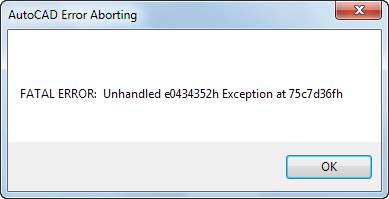
AutoCAD Architecture 2013 FATAL ERROR: Unhandled e0434352h Exception at 75c7d36fh

I got this error when trying to copy text from the command line in AutoCAD Architecture 2013. Same problem using paste to command line. I could reproduce it several times but not on another computer. A restart of the computer did help for some reason.

AutoCAD Error Aborting: FATAL ERROR:  Unhandled e0434352h Exception at 75c7d36fh

Unfortunately the problem with acad.exe The application was unable to start correctly (0xc0000043) is not solved and reinstalling have not helped.

Wednesday, June 13, 2012

Budweiser DWG 2013 Compatibility Drawing

AutoCAD 2013 introduced the new DWG 2013 file format and CAD Studio has released an updated version of their popular benchmark drawing for testing of DWG-compatibility - BUDWEISER.DWG. Now you can test if the AutoCAD clone that adds DWG 2013-support can handle the news. Not sure if any of the non-Autodesk DWG compatible applications have support for DWG 2013 yet though.

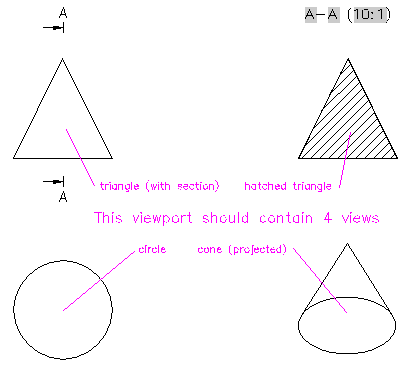
Here is the most recent test that has been added featuring the new DRAWINGVIEW objects:

Tuesday, June 12, 2012

AutoCAD 2013 Wipeout Bug

In AutoCAD 2013 there is a new bug introduced. When running Wipeout in a non WCS UCS the first coordinate is not drawn where you click. Time for a hotfix or to be included in AutoCAD 2013 SP1. Workaround is to draw a rectangle or polygon and convert it to a wipeout.

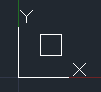
This is the expected result.

But here is the erroneous result with the first point picked ending up way off.

Monday, June 11, 2012

Compare AutoCAD Products

Autodesk has a site where you can compare AutoCAD products, applications and suites:
http://usa.autodesk.com/compare-autocad-products/. Select up to 5 products to compare and you can filter to narrow your choices to General Design, Building Design, Infrastructure Design, Product Design, Factory Design or Plant Design.

And here is what it look like when comparing AutoCAD vs AutoCAD LT. Compare prices and features to easier find what AutoCAD product fits you best. Finally there are buttons to try or buy any of the products.

Thursday, June 7, 2012

Compare CAD software

I got a tip about a site that among other topics compare CAD Software. You can compare and filter software by features, effects, price, platforms, and more.
You find it here: cad-software.findthebest.com

Tuesday, June 5, 2012

AutoCAD Architecture 2012 SP 2

AutoCAD Architecture 2012 Service Pack 2 is here.

NOTE: When AutoCAD 2013 and AutoCAD Architecture 2013 are installed side by side, uninstalling Service Pack 2 on AutoCAD Architecture 2012 will cause AutoCAD Architecture 2012 failing to launch. To work around, uninstall and reinstall both AutoCAD Architecture 2012 and Service Pack 2.

Get the AutoCAD Architecture 2012 Service Pack 2 download here: DL19684160.
AutoCAD 2012 SP 2 is included.

AutoCAD Mechanical 2012 Service Pack 2: DL19659831
AutoCAD MEP 2012 Service Pack 2: DL19684112

Problems Reported with the Customer Error Reporting Utility

As a result of detailed information from customers who used the Customer Error Reporting Utility, a number of problems were identified and fixed. Updates have been made in the following commands and features:

  • AEC Dimension
  • Layer Key
  • OMF
  • Stair

The following AutoCAD Architecture defects have been fixed:

AEC Dimension

  • Dimension lines created in previous versions of AutoCAD Architecture might not display in AutoCAD Architecture 2012.

Installation

  • Installing Service Pack 1 on Nordic version of AutoCAD Architecture 2012 displays an Installer Information error message.
  • Installing Service Pack 1 in silent mode on Nordic version of AutoCAD Architecture 2012 fails.

Wall

  • Some body modifiers might not display after installing Service Pack 1.

AutoCAD Architecture 2012 Service Pack 1

Autodesk Sync Error Hotfix

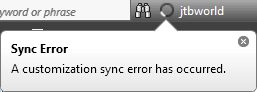
Have you got this Sync Error: A customization sync error has occurred?

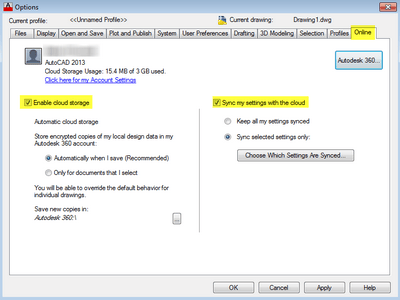
One way to avoid this is of course to sign out from the Autodesk account or disable the feature in Options > Online. See further details below on that.

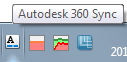
In the system tray you might get Autodesk 360: Sync Error: An error occurred while synchronizing your documents with Autodesk 360.

Now there is a solution available for this Autodesk 360 Sync problem. Unfortunately the hotfix does not help to solve the error I have.

Hotfix - Persistent Autodesk Sync error in the system tray

This hotfix is for users that have a persistent Autodesk Sync error in their System Tray. Persistent errors can occur when uploading settings or files through publish and save to Autodesk 360.  Errors can also happen if you choose to automatically copy to the cloud.

Please consult the readme document for installation instructions. Be sure to install the correct update (32-bit or 64-bit) for your software.

Download here: DL19683742. This hotfix is for AutoCAD 2013 based products and Inventor 2013.

Here are some processes that you might see in Task Manager that are related to Autodesk Sync. I’ve seen that some of these processes have used a lot of CPU and RAM. I’ve seen that AdSync.exe have been using up to 1 GB in virtual size.

C:\Program Files\Autodesk\Autodesk Sync\AdSync.exe

C:\Program Files\Common Files\Autodesk Shared\CloudFolderManager\AcCloudManager.exe

C:\Program Files\Autodesk\AutoCAD 2013\AcSettingSync.exe

Uninstalling Autodesk Sync

Issue

You cannot uninstall Autodesk Sync from the Control Panel, but you do not want your products Syncing your information to the Cloud.

Solution

To uninstall the Autodesk Sync component, you must first uninstall all the Autodesk products that rely on the component and then uninstall Autodesk Sync. (Re-installing products will also re-install the component.) So if you want to still have the newer Autodesk products installed, but don't want to have them using the Autodesk Sync functionality, you will need prevent the Autodesk Applications from using this component in an alternative way.  

Alternative to Uninstalling Products That Use Autodesk Sync

Autodesk Sync is a desktop software component of the Autodesk 360 cloud platform. Some Autodesk desktop applications rely on this technology to move data between the local desktop environment and Autodesk 360.

  • AutoCAD 2013 and AutoCAD 2013 Vertical Products use Autodesk Sync for Customization Sync, Online Documents, and the Share Document feature.

  • Inventor 2013 uses Autodesk Sync when you choose Save & Send to Cloud.

  • Showcase 2013 uses Autodesk Sync when you choose Publish > To Web.

Rather than uninstalling the Autodesk applications that rely on Autodesk Sync, below there are two suggestions for keeping Autodesk Sync installed, but preventing the Autodesk applications from using the component.

Sign out of your Autodesk Account

Autodesk Sync only synchronizes data when signed in to your Autodesk Account--and even then, only when you use features that rely on the component.

The simplest way to keep Autodesk Sync from running at all on your computer is to sign out of your Autodesk Account. You can tell if you are signed in because your Autodesk ID will appear in the InfoCenter (AutoCAD and Inventor) or in the status bar at the bottom of the main window, (Showcase). If you see the words, "Sign In" instead your Autodesk ID, the sync component will not run – it only runs when there is a signed in user.

Note: Your Autodesk Account Sign In is linked globally to every Autodesk application. If you sign out in any application, say AutoCAD, for example, you will be automatically signed out from every other Autodesk application on the same computer.

Don’t use the Autodesk 360 Features

AutoCAD and AutoCAD vertical products

Instructions to disable Autodesk 360 after signing in:

  • Go to the Options dialog

  • Choose the Online Tab

  • Uncheck  “Enable Cloud Storage”

  • Uncheck “Sync my settings with the Cloud”

  • Click OK to close the Options dialog

Inventor

Instructions to not use Autodesk 360 after signing in:

  • Do not use the feature “Save and Send to Cloud”  in the Online panel

Showcase

Instructions to not use Autodesk 360 after signing in:

  • Do not use the feature "Publish Web Presentation..." in the File Menu
  • Do not use the feature "Publish > To Web" in the task UI

Applies to:
AutoCAD 2013
AutoCAD Architecture 2013
AutoCAD Civil 3D 2013
AutoCAD Electrical 2013
AutoCAD LT 2013
AutoCAD Map 3D 2013
AutoCAD Mechanical 2013
AutoCAD MEP 2013
AutoCAD P&ID 2013
AutoCAD Plant 3D 2013
Autodesk 360
Autodesk Inventor 2013
Autodesk Showcase 2013
Autodesk Showcase Professional 2013

TS18966285

How to turn on logging for Autodesk Sync Features

Issue

You are experiencing Sync Errors when using an Autodesk product.  Autodesk will need to review the log files related to your product and will ask you to send them the sync log file so they can see what is happening.  Since the log files are disabled by default, you will need to enable logging first.

Solution

When you are asked to send an Autodesk employee the sync log file, you will first need to enable this function.

There is a registray key wrapped in a zip file that needs to be enabled for the log files to be collected on your computer.  Here are the steps to enable the logging:

  • Sign out of Sync inside AutoCAD or any other Autodesk product using Sync.
  • Close AutoCAD or any of the Autodesk products that are using Sync
  • Using Task Manger, make sure the flowing applications are no longer running--if they are, you need to terminate them:
      • acad.exe
      • accloudmanager.exe
      • acsettingsync.exe
  • Using Task Manger: terminate AdSync.exe process
  • Using REGEDIT.exe: create DWORD registry entry, EnableLog=1 in HKCU/Software/Autodesk/Autodesk Sync
  • To turn verbose logging on, create String registry entry LogLevel=Verbose in HKCU/Software/Autodesk/Autodesk Sync
  • Double click the reg file to enable the logging.
  • Restart your computer and launch AutoCAD or the product that needs logging enabled.  
  • Sign into Sync if you are not already signed in. 
  • Run for at least 30 minutes to let the log file gather information.  
  • Using Windows explorer, navigate to the location of the log file.  

    Then for Windows 7 and Vista navigate to the file location and send us the correct files:

    C:\Users\<user login id>\AppData\Local\Autodesk\AutodeskSync

    Select the following files and then right click and select “Send to” Compressed (zipped) folder

    We will want the following files.

  • AdSync.db
  • AdSync.log

    By default the name will be “AdSync.zip” We suggest renaming the file with your name and what product it was from so we know it is from you: AdSync_ACAD_2013_first_Last.zip

  • TS19838237

    If you still experience problems with Autodesk Sync you can leave feedback at Community-powered support for Autodesk 360.

    Autodesk Sync issues when installing a 2013 release product
    Monday, May 21, 2012

    AutoCAD 2012 SP 2

    AutoCAD 2012 Service Pack 2 is available now.

    You can apply this update to AutoCAD 2012 running on all supported operating systems and languages. Consult the readme file for installation instructions and be sure to install the correct update (32-bit or 64-bit) for your software and operating system.

    NOTE: You can also use Autodesk Exchange to install the Live Update Maintenance Patches, which will automatically show the correct Service Pack for your product.

    The AutoCAD 2012 and AutoCAD LT 2012 Service Pack 2 Readme has not yet been updated to include what updates and bug fixes SP2 includes. UPDATE: See details further down.

    AutoCAD 2012 Service Pack 2
    AutoCAD LT 2012 Service Pack 2

    This is one way to verify that AutoCAD 2012 SP 2 is installed.

    Command: _vernum
    _VERNUM = "F.205.0.0 (UNICODE)" (read only)

    AutoCAD 2012 (shipping):    F.51.0.0 (UNICODE)
    AutoCAD 2012 Service Pack 1:    F.107.0.0 (UNICODE)

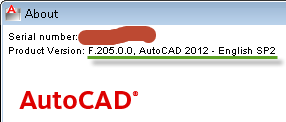
    Another way is to run the ABOUT command and it will say Product Version: F.205.0.0, AutoCAD 2012 – English SP2.

    As a result of detailed information from customers who used the Customer Error Reporting Utility, a number of problems were identified and fixed. Updates have been made in the following commands and features:

    • 2D Display
    • General Editing
    • Model Documentation
    • Open/Save
    • Startup

    The following defects have been fixed:

    3D Navigation Tools

    • AutoCAD may become unstable after switching between a 3D Viewport to a 2D Viewport.
    • "Keep Scene Upright" in 3DConnexion Settings dialog cannot be changed.
    • Unknown command "SPACEMOUSEACTION" and device is not working when using 3DConnexion device.

    3D Surface Modeling

    • AutoCAD may become unstable after using SAVEAS on some drawings that have been run through recover.

    Annotation Scaling

    • MTEXT column width can collapse to zero when XREF is bound to the parent drawing.
    • Annotative MTEXT column width can collapse to zero when drawing is saved and reopened.

    Array

    • AutoCAD may become unstable when using the ARRAYCLASSIC dialog with solid entities selected and clicking on the preview button.
    • On a 32bit Operating system using the ARRAYCLASSIC command preview with a large number of items selected, you may get a warning "Too many objects would be created."
    • On a 32bit Operating system using the ARRAYCLASSIC command you may encounter objects on locked layers being removed without a warning dialog.
    • Array blocks may not display when attached as an XREF.

    ASM

    • AutoCAD may become unstable when drawings contain loft surface on different layers and saved to older drawing versions such as 2004.

    Autoloader

    • The AutoCAD options paths may become shortened when the Inventor Fusion Plugin is installed.

    • Autoloader fails to load a modified CUIx file.

    • ACFusion.cuix keeps getting added back to AutoCAD even when unloaded.

    Blocks

    • AutoCAD may take a long time when inserting an external block that contains a large number of layer filters.
    • Dynamic Blocks may not be updated when the Property Palette is visible.
    • AutoCAD may become unstable after changing the view during ARRAYCLASSIC or Hatch preview.

    CUI (Customizable User Interface)

    • Context menus are different based on how you have loaded the Main and Enterprise menu.

    DGN Support

    • DGN linetypes may display inconsistently.
    • Imported text of a dimension in a DGN file is not submitted to the dimension style.

    Display Drivers

    • When using COPYCLIP and PASTECLIP on a 64bit Operating System, you may see the object color change from the original color.

    DRAW2D

    • AutoCAD may become unstable when autosave runs with an attached PDF file that is an extremely small scale.
    • AutoCAD may become unstable when using commands that modify one of the dimensions with the cyclic dependency.  

    Export to Layout

    • AutoCAD may become unstable when using the EXPORTLAYOUT command.

    External Reference (XREF)

    • DGN files ½become scaled by a factor of 1/12 after an xref bind.

    Fields

    • Field for viewport scale is displayed as "Custom" on opening legacy files such as AutoCAD 2009.

    Inquiry

    • AutoCAD may become unstable when grip editing a PLINE with the Properties Palette open. 

    Layouts

    • Error message appears in command line after renaming the layout tab when sheet set manager is opened.

    MLeader

    • The landing on mleaders can change unexpectedly when certain LISP routines are run.
    • AutoCAD may become unstable when using Check Standards on drawings with leaders.

    Model Documentation

    • Temporary IDW files with "dwg.tmp" extension are created when a file with model documentation drawing views from AutoCAD 2013 is opened in AutoCAD 2012.
    • AutoCAD may become unstable after clicking the Publish button for drawings with AutoCAD 2013-created drawing views.

    Mtext

    • AutoCAD LT may become unstable when setting the Mtext direction to vertical in the Property Palette.

    OLE (Object Linking & Embedding)

    • AutoCAD may become unstable when using OLE to copy and paste Excel content.

    OSNAP

    • The final value for the line is using the total length instead of stretch/extension.
    • When using Osnap, then selecting a line with a grip, then stretching by entering an exact distance may not yield the expected length.

    Other

    • AutoCAD may become unstable when opening drawings with possible corrupt array entities.

    Performance

    • With DUCS turned on, the cursor may have been freezing after closing the block editor.

    Plot

    • CTB, STB, PC3 and PMP files may not have been added to etransmit list when additional plot search paths were added.

    Publish

    • AutoCAD may become unstable when publishing to DWF.

    Ribbon

    • AutoCAD may become unstable when exiting on Microsoft Windows 8.

    Selection

    • AutoCAD may become unstable when copying large selection sets.
    • AutoCAD may become unstable when working with joined splines.

    Sheet Set Manager

    • You may notice high network utilization with SMB V2 (Server Message Block) while working with the sheet set manger.

    Startup

    • AutoCAD may not start if the Operating System path is not able to be found.

    Tables

    • When editing an Excel Data Links not all the information is displayed.

    Tool tips

    • Customized Tooltips fail to be aligned by rows.

    Visual Basic for Application (VBA)

    • On a 64bit Operating system with VBA loaded, you may not be able to restore AutoCAD after minimizing it.

    Visual Styles

    • Visual Styles may become lost when saving back to a previous drawing version such as AutoCAD 2007 file format.

    Wednesday, May 16, 2012

    Ports for network licenses based on FlexNet

    This post should cover all you need to know about FlexNet/FLEXlm ports being used by vendors like Autodesk.

    Port 2080 is used for by the vendor daemon, for example adskflex.exe
    Port 27000-27009 is used for the lmgrd.exe

    The first lines in an FlexNet license file look like this.

    SERVER LABSERVER 03D054C0149B
      USE_SERVER 
      VENDOR adskflex port=2080

    LABSERVER is the host name of the server where the Network License Manager resides.

    03D054C0149B is the Ethernet address/Host ID of the server where the Network License Manager resides.

    adskflex is the name of the server-side vendor daemon. In this case Autodesk’s.

    2080 is in this example the network port number reserved and assigned for use only by Autodesk products running the Autodesk vendor daemon. Normally there is no need to change this port.

    The port lmgrd.exe uses can optionally be changed.

    SERVER LABSERVER 03D054C0149B port=27000
    USE_SERVER
    VENDOR adskflex port=2080

    It’s good practice to specify the port for the vendor daemon in the license file. Specifying a port for each vendor if multiple vendors exists on the license server will help to avoid conflicts if the license server is restarted. To keep the port fixed helps if you want to report on it using lmutil.exe or the license report solution JTB FlexReport.

    If you have a firewall between the license server(s) and the client computers, you need to open some TCP/IP ports on the server for license-related communication. Open port 2080 for adskflex, and open ports 27000 through 27009 for lmgrd. If these port addresses are restricted by a router or firewall software, users on the remote side of the router will not have access to licenses controlled by the Network License Manager. The Autodesk Network License Manager needs unrestricted access to the two TCP ports used. Ping Firewall rule called "File and Printer Sharing (Echo Request - ICMPv4-In)" might need to be enabled.

    When you set up clients to find network licenses it is good practice to include the port otherwise all ports between 27000 and 27009 will be tested until the license server is found and if you have many license servers this can take some time.

    Bad example: ADSKFLEX_LICENSE_FILE=@server1; @server2

    Good example: ADSKFLEX_LICENSE_FILE=27000@server1;27000@server2

    FlexNet debug log can be used to find out what the License Manager and vendor daemon ports being used are.

    According to Autodesk’s TS67745: “Note: Specifying a port outside of the 27000-27009 range should be avoided unless the vendor specifies that a particular port outside of the range should be used instead.”

    But on the other hand “Do not use the default 27000 TCP port.” according to Potential Security Vulnerability in FlexNet license manager and according to FlexNet Version 11.10.1 download available “Note! For security purposes, best practice is not to use a default port for the license server. Instead, specify a port number outside of the range 27000 through 27009.”

    More about Autodesk Network License Manager can be found here and if you want a solution to report on the license usage JTB FlexReport will help.

    Tuesday, May 15, 2012

    OsnapzBG freeware now for AutoCAD 2013

    OsnapzBG is a background color changer app that now also supports AutoCAD 2013 and is now also available as AutoCAD app on Autodesk Exchange Apps site making installation easy and having it show up on the Ribbon Plug-ins tab. This also gives quick access to easily set OSNAPZ on or off.

    OSNAPZ set to 1 (on) makes anything you snap to only use the current elevation as z value. OSNAPZ controls whether object snaps are automatically projected onto a plane parallel to the XY plane of the current UCS at the current elevation.

    Download available here.

    Monday, May 14, 2012

    FlexNet License Server Manager lmgrd.exe Security Vulnerability

    FlexNet License Server Manager version 11.9.1 and others earlier have a bug in lmgrd that can cause a stack overflow.

    “The server is affected by a classical stack buffer-overflow in the
    function that copies the data received after the header in a buffer
    smaller than the needeed bytes. … lmadmin is not affected.” Ref. lmgrd advisory that was made public 13 May 2012 by Luigi Auriemma but found already back in 26 Oct 2010.

    Recommendation is to make sure to use the latest lmgrd.exe that comes with FlexNet Version 11.10.1 or at least a version newer than 11.9.1.

    Related post: Potential Security Vulnerability in FlexNet license manager

    To monitor and report on usage of FlexNet based applications use JTB FlexReport.

    LAYERSTATESAVE - saving or replacing layer state in AutoCAD

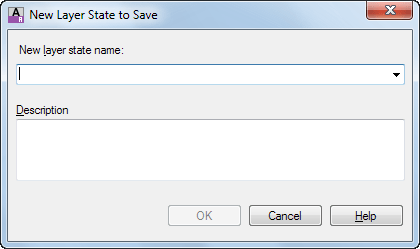
    The LAYERSTATESAVE command was added to AutoCAD 2010 but has since then been an undocumented AutoCAD command. Use it to quickly save a new layer state or replace an existing layer state. Here is what the online help says and also if you click on help in the dialog box, but no mention of the actual command name.

    New Layer State to Save Dialog Box

    Specifies a name and a description for the layer state defined in the Layer States Manager.

    The following options are displayed.

    New Layer State Name: Specifies a name for the new layer state to be saved.

    Description: (Optional) Provides a description of the layer state that is displayed in the Layer States Manager.

    LAYERSTATESAVE

    This New Layer State to Save dialog is also available in the Layer Walk feature. Just click the "Save Layer State…" option in the right-click context menu.

    Via Without A Net

    Friday, May 11, 2012

    Autodesk DWG TrueView 2013 Download and Install Tips

    Autodesk’s DWG Viewer freeware DWG TrueView 2013 is built on the same viewing engine as AutoCAD 2013 and enables you to open and view DWG and DXF files, just as you would in AutoCAD.

    DWG TrueView supports side by side with other Autodesk products. However, TrueView does not support side by side install with other versions of TrueView. As with the System Requirements for AutoCAD 2013 Windows Vista is not a supported operating system but you probably will have no problem running TrueView on it.

    • Open and view DWG and DXF files
    • Support for visual styles and views in both 2D and 3D
    • Support for layers
    • Obtain geometric information from drawings such as distance, mass, and volume
    • Plot DWG files to a plotter
    • Create DWF, DWFx, PDF, JPG, and PNG files from DWG files
    • Publish sets of drawings or sheets to a plotter, or DWF, DWFx, and PDF files
    • Convert DWG files forward and backward with versions as early as AutoCAD Release 14

    When you want to download visit DWG TrueView click on Download DWG TrueView and on Download Now.

    Or you might see this message.

    If you don’t want to install the Akamai NetSession Interface download manager there seems to be no alternative. Reason to not install Akamai is that their program (C:\Users\<your user name>\AppData\Local\Akamai\netsession_win.exe) will keep running all the time on your machine and take up resources.

    But here you can find direct download links for DWG TrueView 2013.

    DWG TrueView 2013 32-bit (233 MB)http://download.autodesk.com/esd/dwgtrueview/2013/SetupDWGTrueView2013_32bit.exe 

    DWG TrueView 2013 64-bit (304 MB)http://download.autodesk.com/esd/dwgtrueview/2013/SetupDWGTrueView2013_64bit.exe

    Or in this window click on “click here” at the bottom.

    Click on OK

    Click on here to download using your browser.

    Similar tip to avoid Akamai works with download of the trial for the full version of AutoCAD 2013.

    To install DWG TrueView 2013 you must first install Microsoft .Net Framework 4.0 Update 1 on your system.  Microsoft .NET Framework 4 Update 1 (available from Microsoft:
    http://www.microsoft.com/net/Download.aspx) Make sure to select one of the downloads that are for server and development as it is not enough with only the Microsoft .Net Framework 4.0 Client Profile, you need the full version. When you check what programs you have installed you must be able to locate Microsoft .Net Framework 4.0 Extended. Strange thing though is that full AutoCAD 2013 does not require the Full .NET Framework.

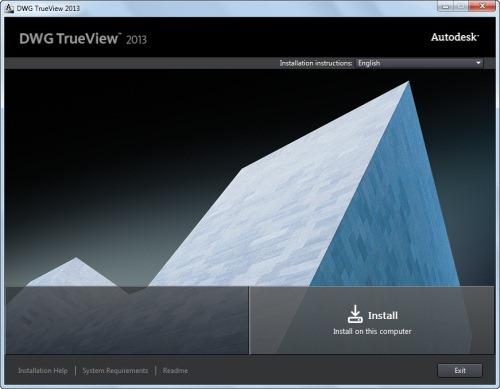
    Now you’re ready to install.

    DWG TrueView 2013 Install

    If you don’t have Microsoft .Net Framework 4.0 Extended installed you will after some minutes get this error message: “.NET 4.0 is not installed. DWG TrueView 2013 cannot be installed without this component. See your system administrator for more information.”

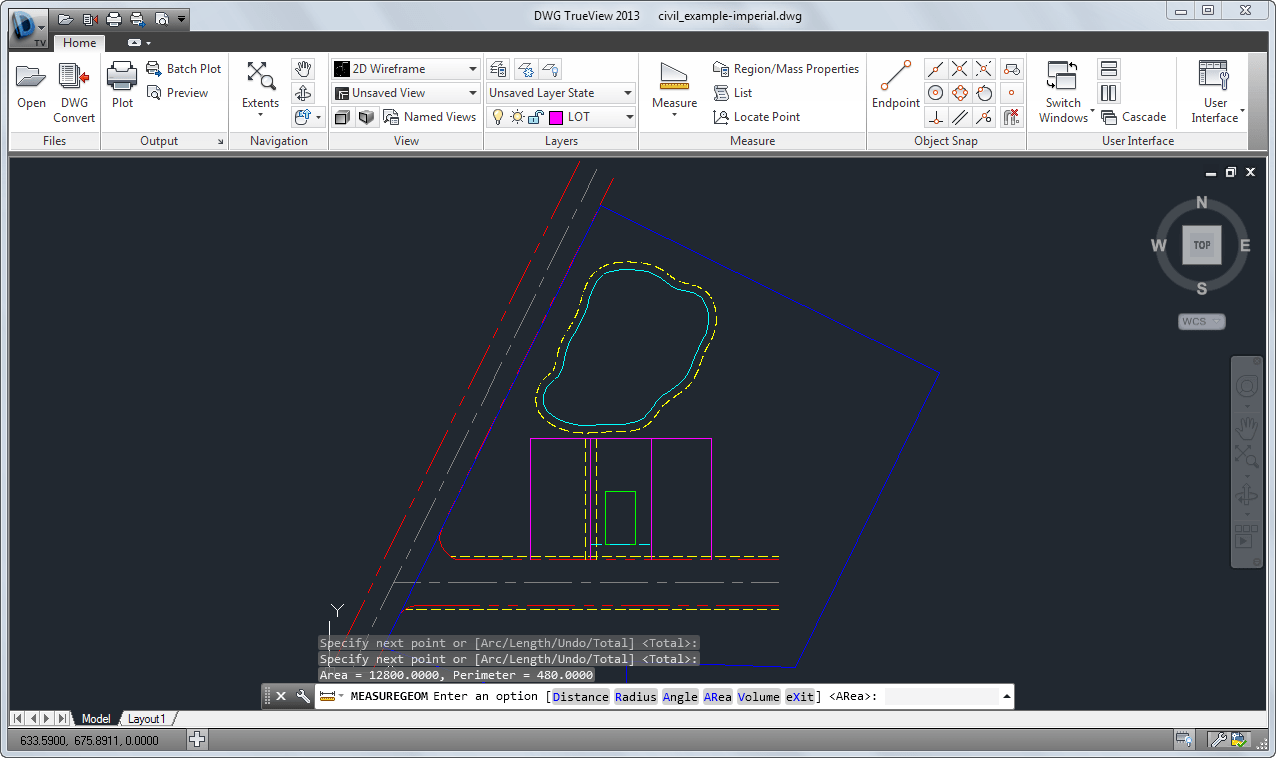
    Here is what DWG TrueView 2013 look like when installed and having a drawing opened.

    DWG TrueView 2013

    Ribbon with Files, Output, Navigation, View

    Layers and Measure

    Object Snap and User Interface

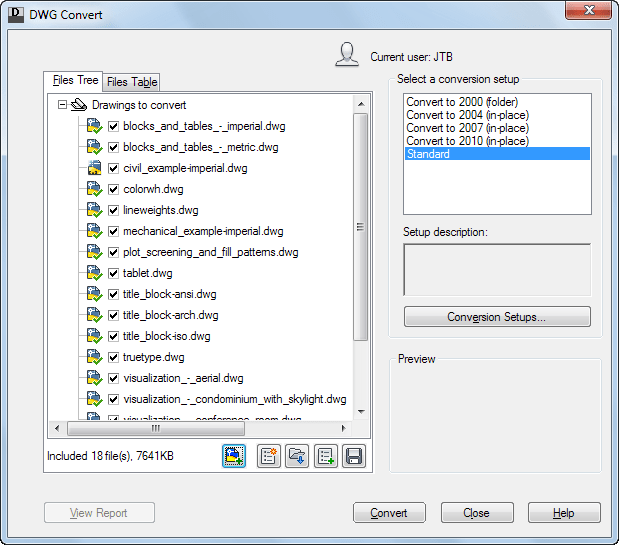
    DWG Convert

    DWG Convert

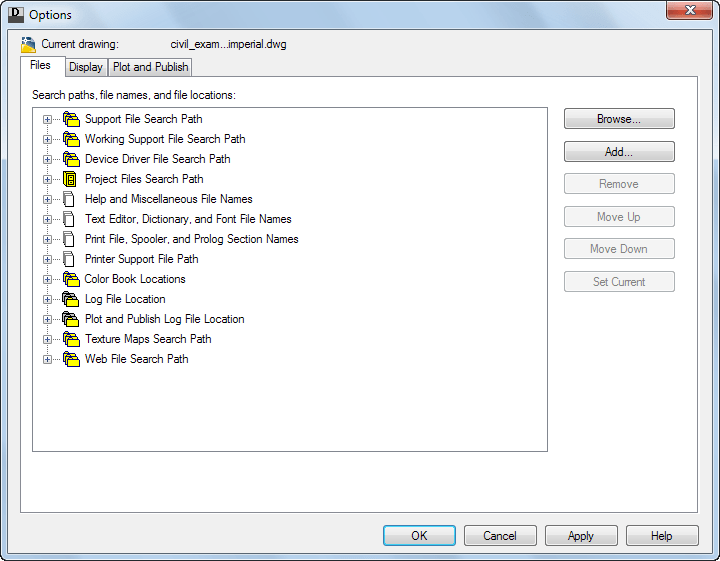
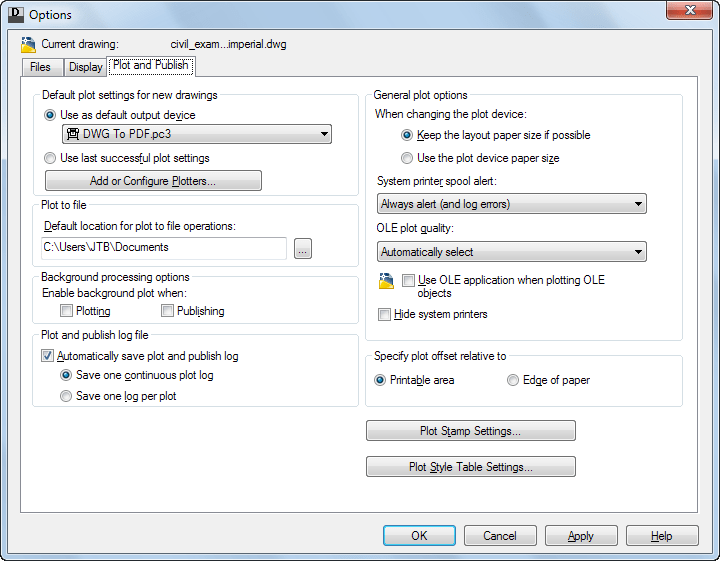
    Access to basic Options like Files

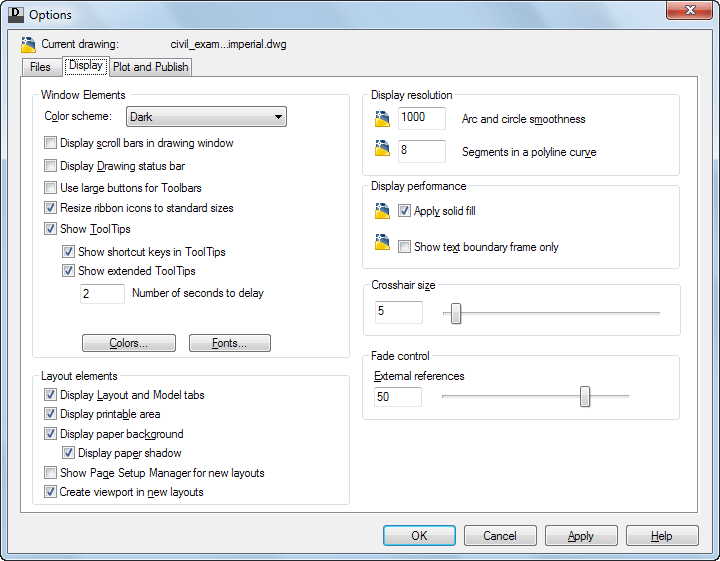
    Display

    and Plot and Publish

    Known Issues and Limitations

    The following are known issues with this release:

    Platform

    Installing the 32-bit version of DWG TrueView 2013 on a 64-bit platform is not supported.

    DWG Convert EXE's and ZIP's Fail

    When you use DWG Convert to create an EXE or ZIP file, the file is not created. This usually occurs if you are using multiple languages. The names of the files generated by AutoCAD-based products use Unicode standards and can be shared internationally. However, WinZip and EXE use a technology that is currently not Unicode-compliant.

    ZIP files with non-ASCII characters cannot be exchanged and unzipped between systems with different code pages. That should not prevent using accented or Asian characters that match or are included on the current code page (German characters on English or German operating systems should work. Japanese characters on Japanese operating systems - or where the code page is set to Japanese - should also work).

    Opening Damaged Drawings

    When opening a damaged drawing, a dialog box appears asking the user to fix the file with the Recover command. This command is not implemented in TrueView. Instead, use the Check and fix errors option as follows:

    1. Click the DWG Convert button.
    2. Select the damaged file.
    3. Click Conversion Setups.
    4. Select "Standard" and click New.
    5. Name the new setup (for example, Recover).
    6. In the Modify Conversion Setup dialog box, set the Conversion packaged type to Folder (set of files).
      Note Do not select In-place (overwrite files) as this may result in conversion errors.
    7. In the Action area, select Check and fix errors, and click OK.

    With this new conversion setup, you will be able to recover your drawings.

    Related post: .NET Framework requirements and versions

    Wednesday, May 9, 2012

    More Autodesk Blogs

    Autodesk Customer Care on Twitter started last year and now it’s time for AutodeskCare - The AutodeskCare Customer Service Blog.

    And there are more…

    ADN DevBlogs

    Other Autodesk Developer Blogs

    And here are all blogs on Autodesk.com ...

    Some of the latest blog posts

    Subscribe to RSS headline updates from:
    Powered by FeedBurner

    Contact Us | About JTB World | Website General Terms of Use | Privacy Policy
    ^ Top of page

    © 2004- JTB World. All rights reserved.